# Add custom CSS and HTML
> Fine-tune the bundle widget with your own CSS and HTML, for every bundle or just one. A Pro feature.
Source: https://help.attravo.com/bundle-builder/articles/add-custom-css-and-html
Updated: 2026-10-06
Custom code gives you full control over the widget's look when the settings aren't enough.
> [!NOTE]
> Custom code is part of the Pro plan. On Free, the fields are locked. See [Upgrade or downgrade your plan](https://help.attravo.com/bundle-builder/articles/upgrade-or-downgrade-your-plan.md).
## Add code for every bundle
1. Go to **Settings** and open the **Advanced** tab.
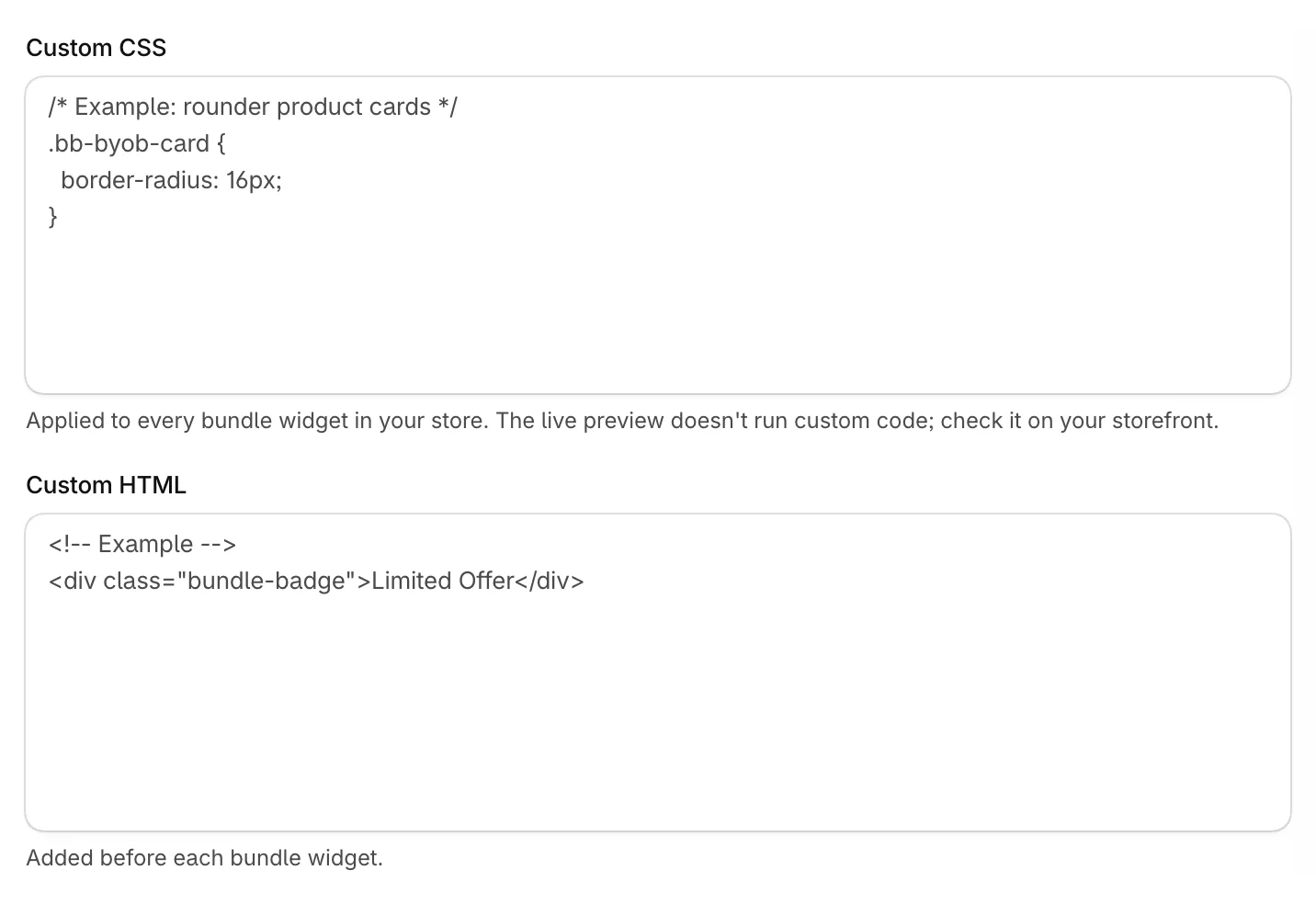
2. Under **Custom code**, enter **Custom CSS**, which applies to every bundle widget in your store, and **Custom HTML**, which is added before each bundle widget.
3. Click **Save**.
## Add code for one bundle
1. Open the bundle and scroll to **Custom code**.
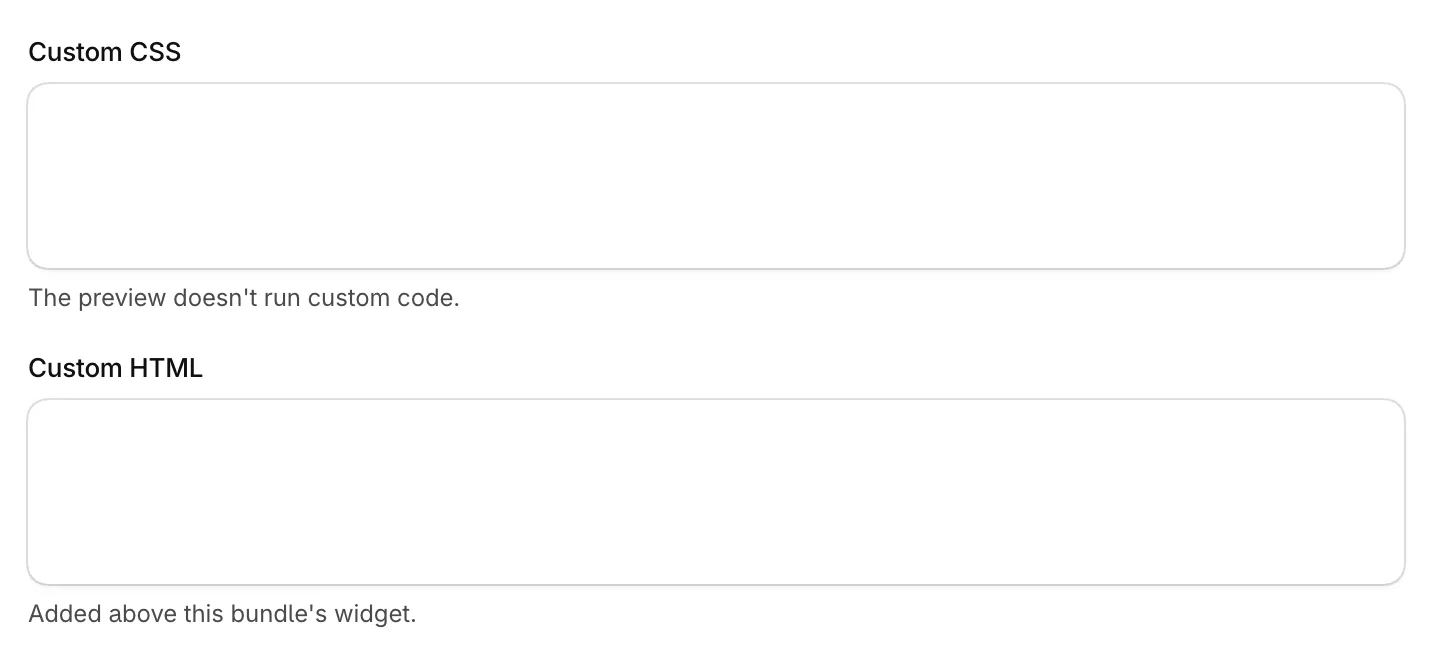
2. Enter **Custom CSS** and **Custom HTML**. This HTML is added above this bundle's widget.
3. Click **Save**.
## Good to know
- The live preview doesn't run custom code. Check your changes on your storefront.
- For safety, HTML keeps only common tags such as div, span, p, a, img, headings and lists, with no scripts, inline styles or event handlers.
- CSS can't use @import or load files from other addresses with url().
- If you move back to Free, your code is kept but stops showing on your storefront.