# Add custom CSS and HTML
> Fine-tune a quiz's look with your own CSS, and add your own HTML above or below it.
Source: https://help.attravo.com/product-quiz/articles/add-custom-css-and-html
Updated: 2026-10-06
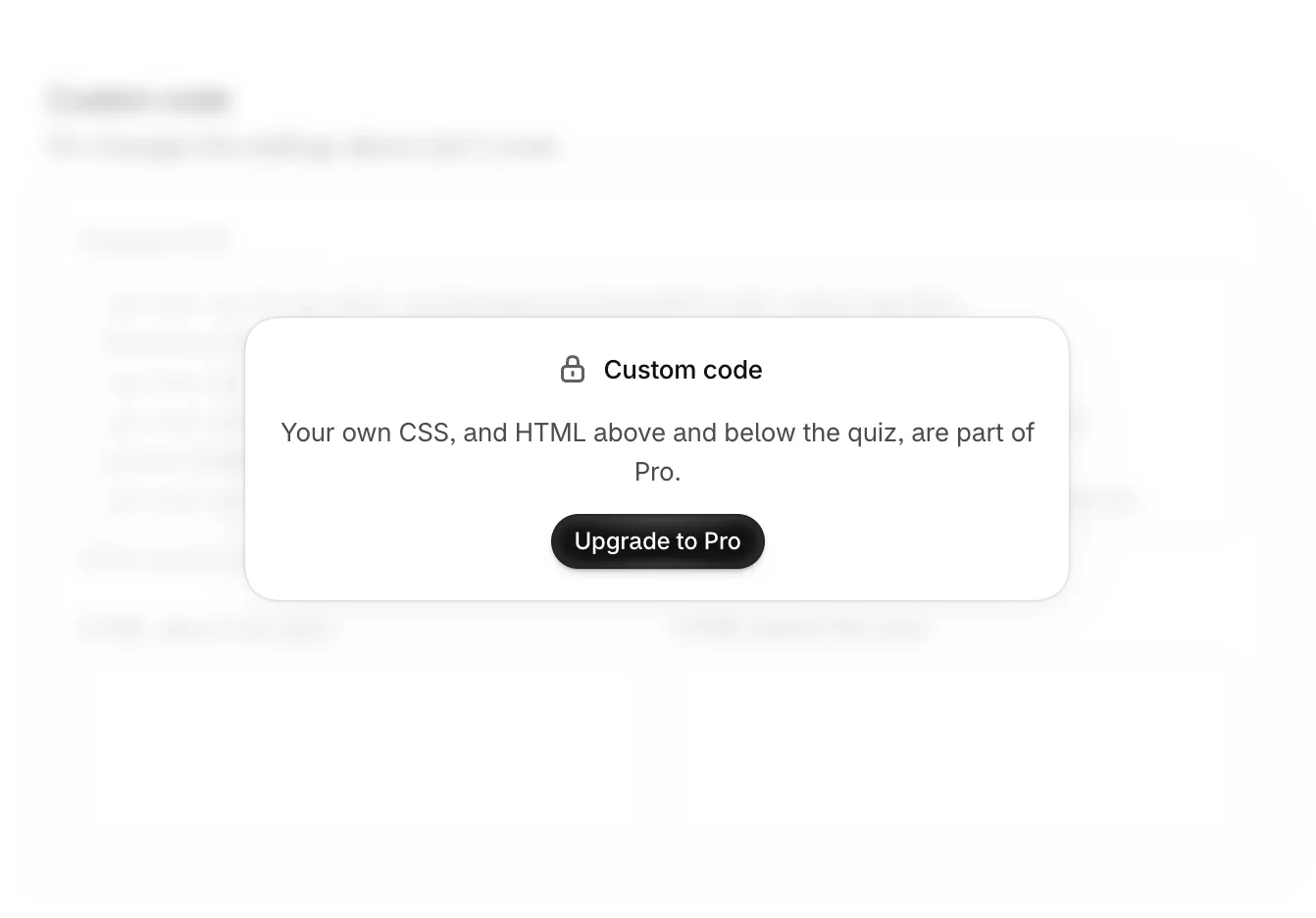
When the style settings don't cover something, custom code does: your own CSS for the quiz, and your own HTML above and below it, such as a trust badge or a note. It's part of Pro.
## Add custom code
1. Open the quiz and select **Style**.
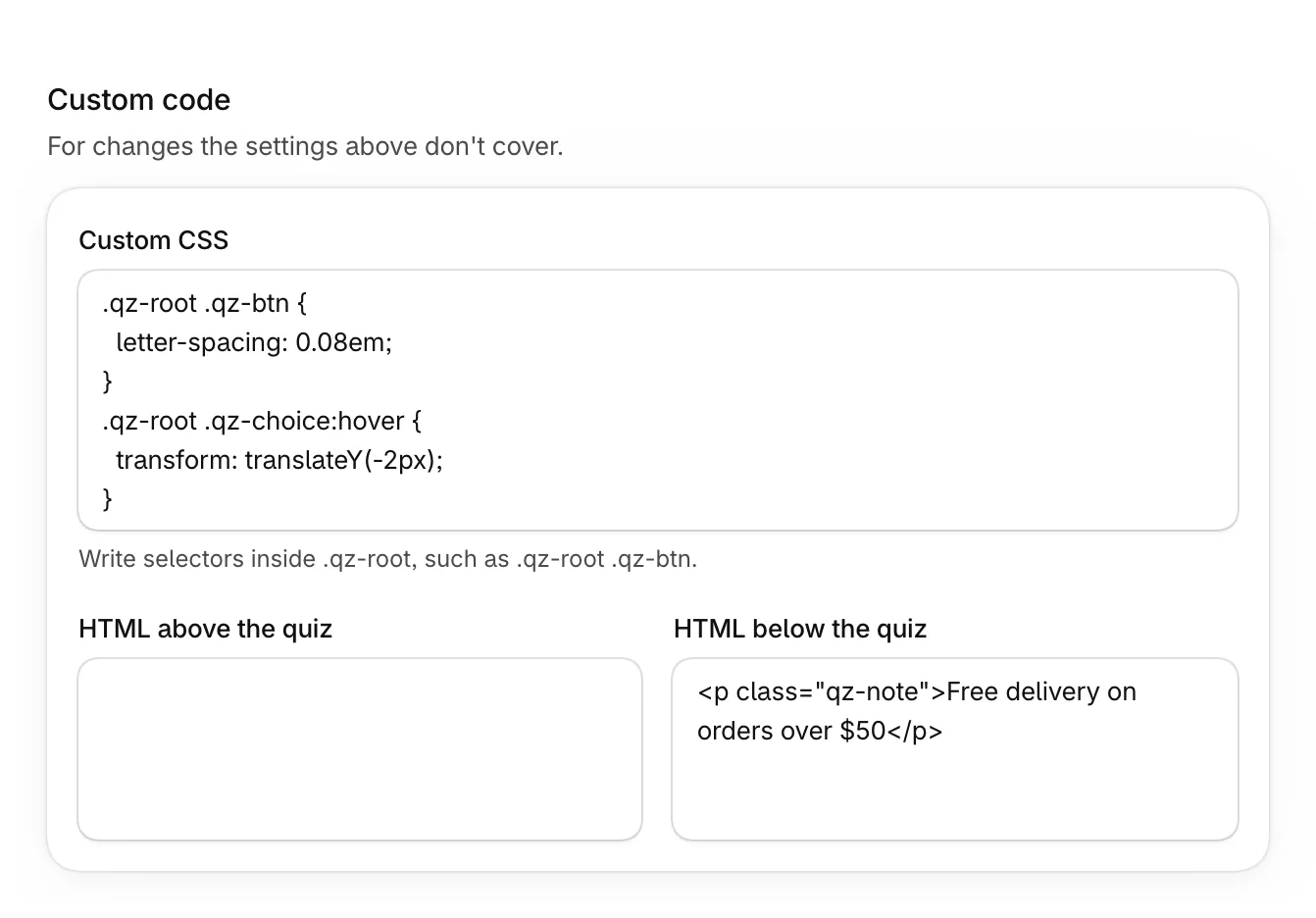
2. Under **Custom code**, fill in what you need.
3. Select **Save**.
| Setting | What it does |
| --- | --- |
| **Custom CSS** | Styles for this quiz only. Write selectors inside `.qz-root`, such as `.qz-root .qz-btn` for its buttons. |
| **HTML above the quiz** | Your HTML, shown above the quiz. |
| **HTML below the quiz** | Your HTML, shown below the quiz. |
Check the result in the live preview before you save.
> [!TIP]
> Start every selector with `.qz-root`, so your CSS styles this quiz and nothing else on the page.
## On the Free plan
The **Custom code** section is locked, with **Upgrade to Pro**.