Build a flow on the canvas
Start from a trigger, add emails, waits, conditions and actions, and set the rules for the whole flow.
 Attravo TeamUpdated 3 min read
On this page
Every flow starts with a trigger and runs down a canvas of steps. You can start from a library flow and change it, or build your own from a blank canvas. There's no limit on branches or depth.
Start a flow
- Open Flows and select Create flow.
- Under Build your own, select Start blank. Or pick a library flow and select Use this.
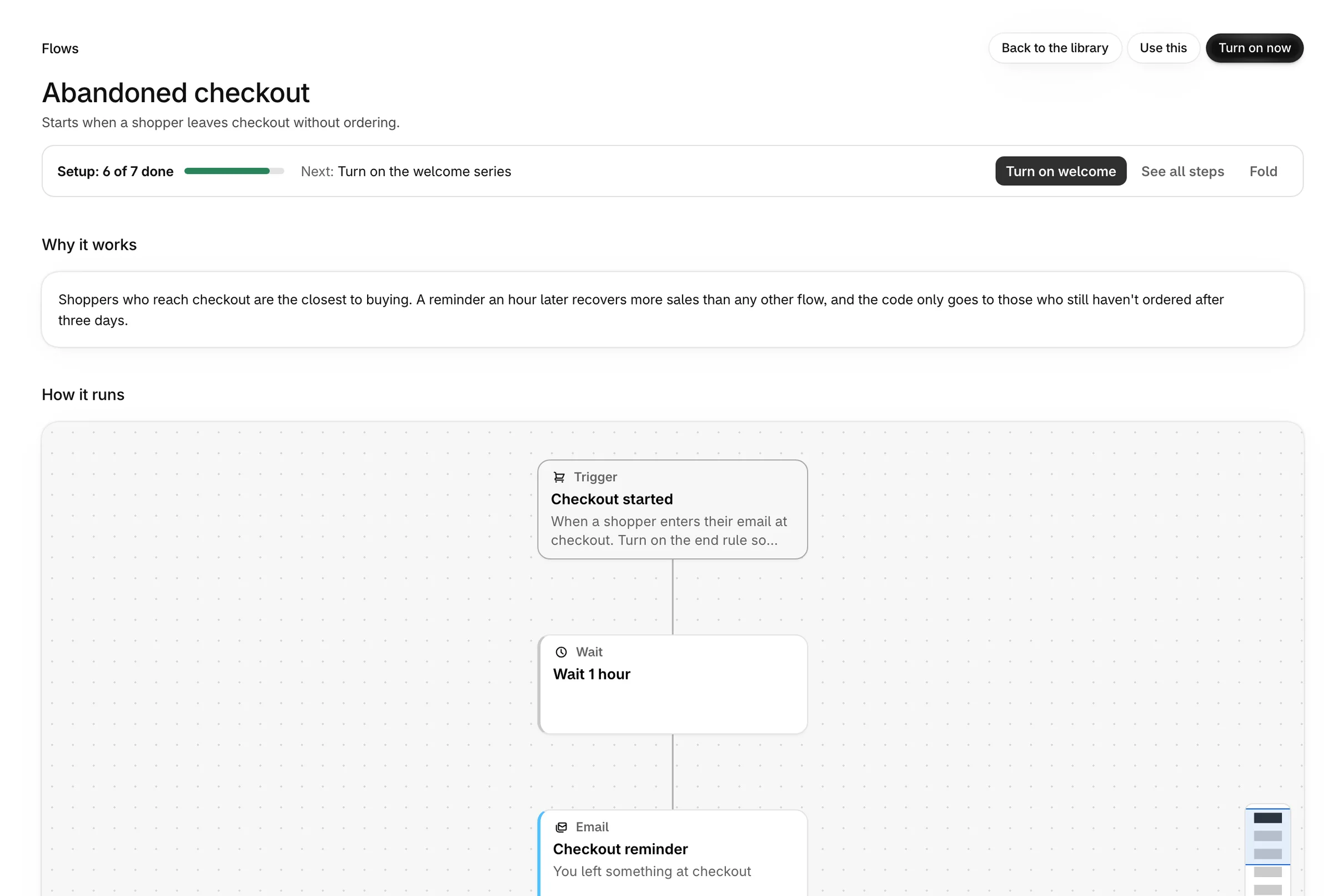
The first time you open the canvas, a short tour points out the trigger, the canvas, the plus buttons and the rules.
Move around the canvas
- Drag the background, or scroll, to move.
- Hold Ctrl or Command and scroll to zoom, or use Zoom in, Zoom out and Fit.
- The map in the corner shows the whole flow. Click it to jump there.
- Once the flow runs, every step shows its own numbers, such as sent, open and click rates, or how many went down each path.
Choose the trigger
Click the trigger at the top. Under Starts when, pick what starts the flow: Someone subscribes, Checkout started, Added to cart, Viewed a product, Placed an order, Order fulfilled, Order refunded, New customer account, Tag added, Tag removed, Joined a segment, Left a segment, A date or Price drop, among others.
Under Only for, narrow who comes in, for example orders Worth at least an amount, chosen products or a collection, countries, a segment, First order only, or how they paid. Leave these empty to include everyone.
Added to cart, Viewed a product and Price drop come from your store's pixel, so they only see shoppers who allowed tracking. See Store visits and checkouts after a click.
Add steps
Every connection and open end has a plus. Select it to add:
| Step | What it does |
|---|---|
| An email in your brand, blank or from a template. | |
| Wait | For a set time, until a time of day, or until they do something, such as place an order. |
| Condition | Yes and no paths by anything about the person or this flow. |
| A/B split | Random paths by percent. Each person always goes down the same one. |
| Make a code | A single-use code of their own for the emails after it. |
| Tag | Add or remove a tag on the customer, or on the order in order flows. |
| Set a field | Save a value on the person for segments and later conditions. |
| Series | Add them to a series, or take them out of one. |
| Webhook | Send the person and the trigger to another tool, signed with a secret. |
| End | Finish here, as the flow's goal or as an exit. |
Set the flow rules
With no step selected, the side panel shows Overview and Flow rules. The defaults are the safe choice for each kind of flow.
- Who can come back: Once ever, Again after a while, or Every time.
- Wait for the morning: emails due in your quiet hours wait until they end.
- Smart sending: skip an email when the person got one from you recently. The flow carries on.
- End when they order and End when they start checkout: people leave the flow as soon as they buy, or as soon as the checkout flow takes over.
- Order message: sends whatever the person's marketing consent, for messages like a cash on delivery confirmation. Order messages can't carry offers or product picks.
Activate it
Select Activate. The app checks the flow first and lists anything to fix, such as an email with no subject or a condition with nothing to check. Only what happens after you activate it counts. To change a live flow, see Edit a live flow safely.
Was this helpful?
More in Flows and series
- Activate a flow from the libraryPick one of 22 ready flows, preview its emails in your brand and activate it in a click.
- Edit a live flow safelyChange a running flow without losing anyone in it. Edits wait in a draft until you publish them.
- Run a series on a calendarSend a course or a countdown on set days at a set hour in each person's time zone, to whoever you enroll.