Create a sign-up form
Start from one of 15 library forms, change its words, look and targeting, and publish it to your store.
 Attravo TeamUpdated 3 min read
On this page
Sign-up forms turn visitors into subscribers. Each form is judged by the subscribers it brings and what they go on to spend. Forms are free on every plan.
Pick a form type
| Type | What it is |
|---|---|
| Popup | A box in the middle of the page that dims what's behind it. |
| Full-screen popup | Takes the whole screen with a big picture. Best for a strong offer. |
| Flyout | A card in a corner that never covers the page. |
| Bar | One line across the top or bottom of every page. |
| Embedded | Part of the page, wherever you place the sign-up form block in your theme. |
Start from the library
- Open Sign-up forms and select Create form.
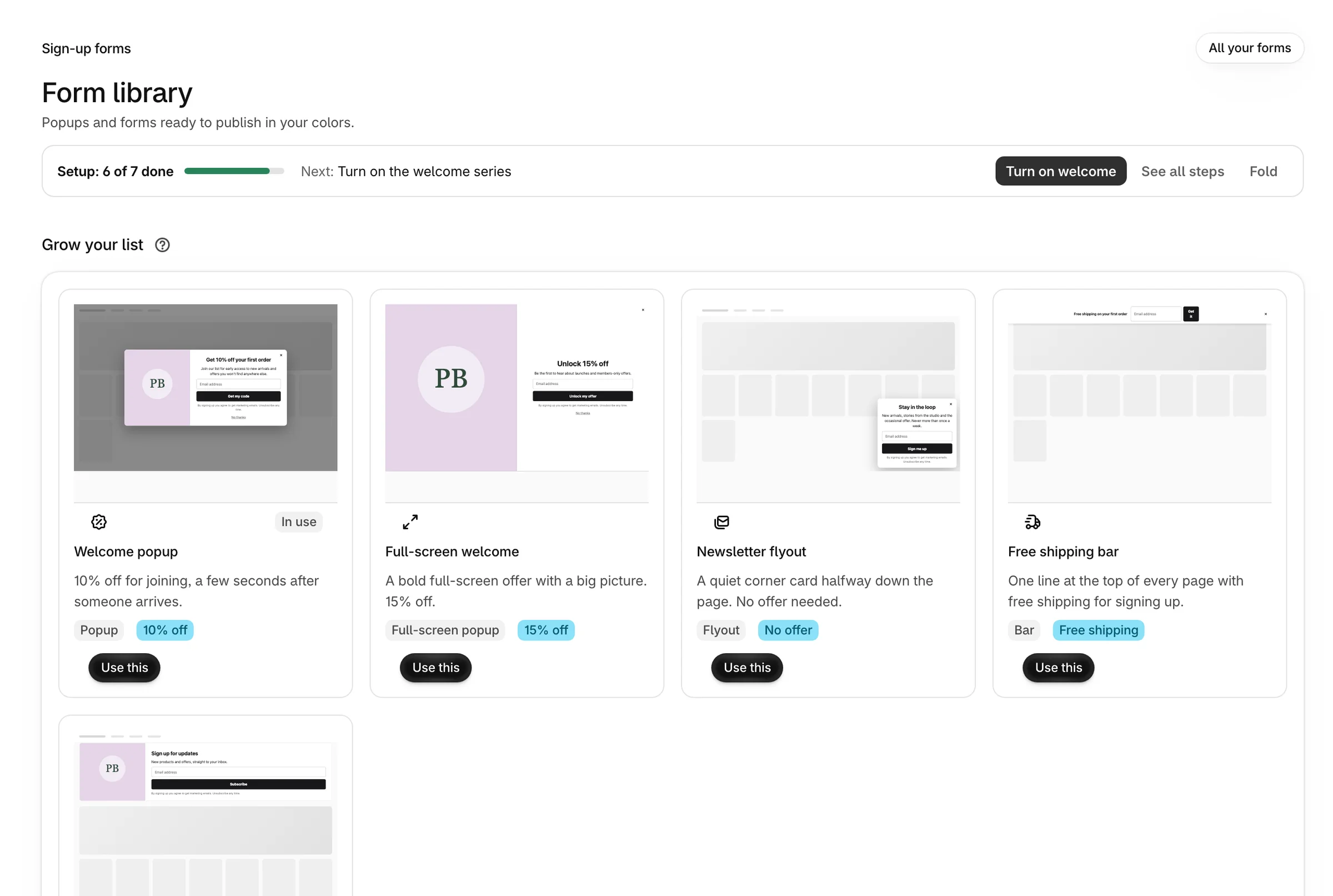
- The Form library has 15 forms in four groups: Grow your list, Offers, Get to know shoppers and The right moment. Each is shown in your colors. To build your own, use Start from scratch and pick a type.
- Select Use this. It makes a draft. Nothing shows on your store until you publish.
Edit the form
The preview runs the same code your store does. Switch Preview size between Desktop and Mobile, and use Step shown to click through the teaser, question, sign-up, details and success steps.
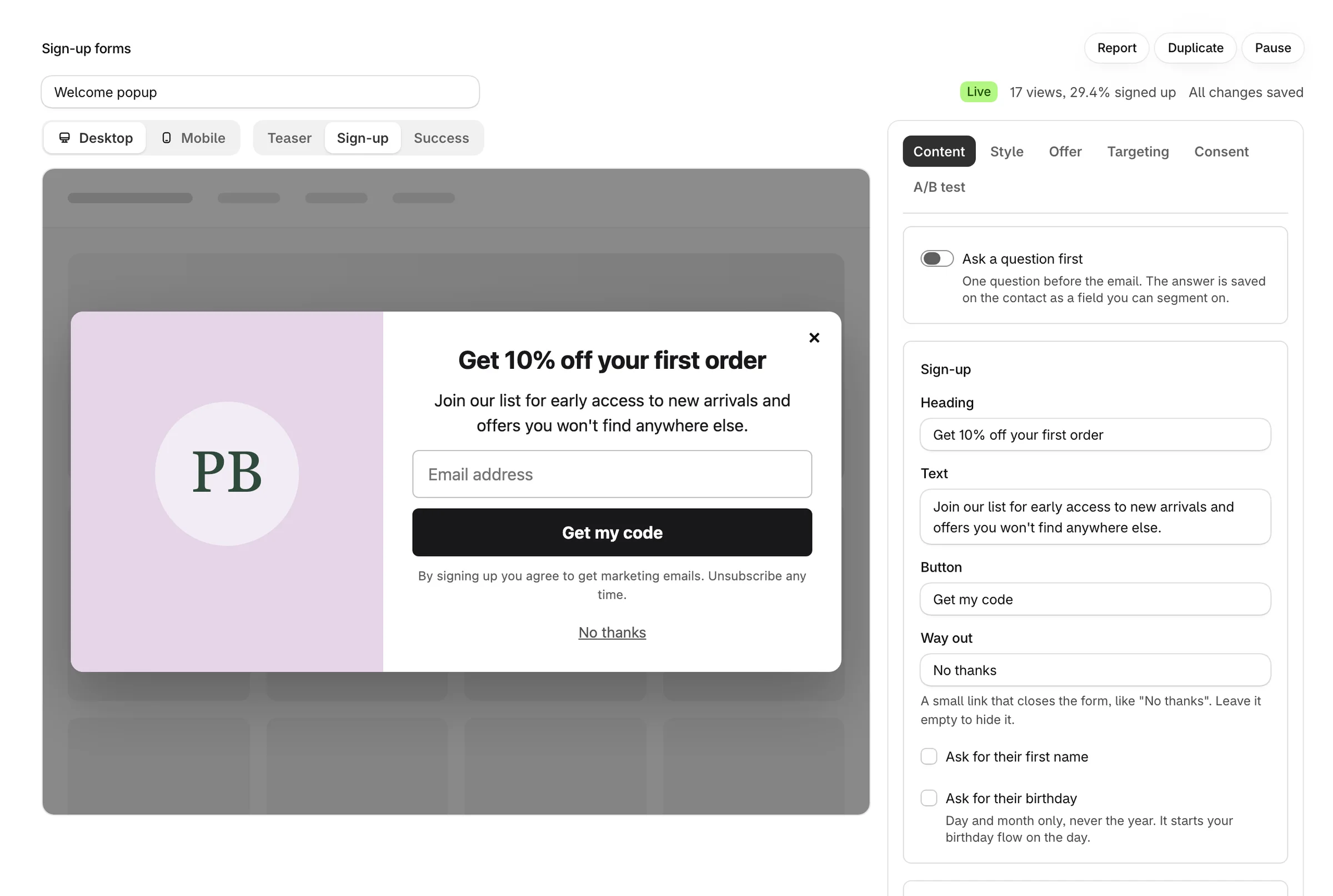
Everything else is in six tabs. Changes wait in the bar at the top until you select Save:
- Content: the heading, text, button and Way out link for each step. Enable Ask a question first for a one-question quiz saved on the contact, or Ask for more after sign-up for a first name or birthday. Show a teaser after it's closed adds a small button that opens the form again.
- Style: Form type, Layout and picture with Picture fit and Show the picture on phones, Colors from your brand kit, Font, Size, Corner roundness, Teaser position and, for popups, Page dimming. On phones every form stays above the keyboard, and flyouts, bottom bars and teasers sit above a sticky add to cart bar.
- Offer: a code of their own, your store's code, a wheel to spin or a mystery offer. See Offer unique codes or spin to win.
- Targeting: when, where and for whom it opens. See below.
- Consent: double opt-in and the consent text. See Use double opt-in and keep proof of consent.
- A/B test: two versions of the words and look. See below.
Choose who sees it and when
On Targeting:
- When it opens: After a few seconds, After they scroll, When they're about to leave or When they stop for a while. Phones have no mouse to leave with, so exit forms open On phones, after a set time.
- Who sees it: Devices, Visitors (everyone, first visit only or returning visitors), Hide from subscribers, Hide from signed-in customers, visitors from one utm_source such as instagram, and a minimum cart value.
- Where it shows: every page, only some pages or every page except some, by page type or address, and on chosen products or collections.
- After someone closes it, wait: days before that browser sees it again. Anyone who signs up never sees it again.
Publish it
Select Publish. If something is missing, Before you publish lists it, such as a heading or a discount code your store doesn't have. A live form keeps showing its published version while you edit. Select Publish changes to update it, or Discard changes. Pause takes it off your store. A store can run up to 20 live forms.
Forms only show once the app embed is enabled. See Enable the app embed in your theme.
Test two versions
On A/B test, enable Test two versions and set Visitors who see version B. Change one thing in version B, such as the heading or picture. The offer, targeting and consent stay the same. A winner is called with at least 200 views each and 95% confidence. Then select Keep version A or Keep version B.
Read its report
Select Report on the form for views, sign-ups, new subscribers and what they bought, by day, device and page.
Was this helpful?
More in Sign-up forms
- Enable the app embed in your themePopups and forms only show on your store once the Email forms app embed is enabled in your theme editor.
- Offer unique codes or spin to winGive each sign-up a single-use code, your store's own code, a wheel to spin or a mystery offer.
- Use double opt-in and keep proof of consentAsk new sign-ups to confirm by email where the law expects it, or everywhere, and keep a record of what each one agreed to.