Finish the setup guide
Work through the Setup guide on Home, the basics that get email earning for your store, in the order most stores do them.
 Attravo TeamUpdated 4 min read
On this page
The Setup guide on Home lists the basics that get email earning for your store, in the order most stores do them. Each takes a few minutes. The app checks each step for you, marks it done when it's done, and the guide goes away once every step is done.
Work through the steps
Open Home. The guide shows how many steps are done, such as 3 of 9 done. Select a step to open it: it says what the step does and has one button that takes you where the work happens, with Learn more beside it.
- Connect your store data. Select Open Audience to watch the sync. Done when the first sync of your customers finishes. Segments and flows run on this data.
- Enable the app embed. Select Open theme editor. Your theme editor opens in a new tab with the app embed ready to enable. If your store has draft themes, pick the theme first. Done once it's enabled in your live theme. It comes second because nothing you publish shows to shoppers until it's on. Back in stock alerts don't need it: they use their own block on the product page. See Enable the app embed in your theme.
- Tell us about your store. Select Answer a few questions to open the first questions of Set up email. Done once you've answered them. Your answers pick the flows and benchmarks that fit.
- Bring over your old tool's data. Shown only when you told us you're moving from Klaviyo, Mailchimp or Omnisend. Select Start the import. Done once an import finishes. See Move from another email tool.
- Add your sender details. Select Add sender details to open Settings. Done once your postal address is saved. Anti-spam laws require it in every email, so nothing sends without it.
- Activate the Welcome flow. Select Activate Welcome to open the Welcome flow in the flow library, then Activate now. Done once a live flow starts when someone subscribes.
- Recover abandoned checkouts. Select Activate recovery to open Abandoned checkout, then Activate now. Done once a live flow starts from a checkout.
- Publish a sign-up popup. Select Create a popup and publish a form. Done once a form is live.
- Send from your own domain. Select Connect a domain and add the DNS records. Done once your domain is verified. Your own domain comes with the Brand and Scale plans, so on Free the button is See plans. See Authentication and your own sending domain.
- Send your first campaign. Select Create a campaign. Done once a campaign starts sending. Campaign history brought over from another tool doesn't count. See Send your first campaign.
The steps can be done in any order. The welcome and abandoned checkout steps are done by any live flow with the same trigger, not only the library ones, so a flow you built yourself counts too.
If you've handled a step another way, open it and select Mark as done. Mark as not done puts it back.
Fold the guide
Select the guide's heading, or the arrow beside it, to collapse it to its progress line. Select it again to expand it. Collapsing is remembered on that device.
The guide on other pages
Two pages carry the steps that belong to them, with the same progress and buttons:
- Audience shows Bring your contacts in, with your store data and, if you're moving, the import.
- Sign-up forms shows Get your forms live, with the popup and the app embed.
Each goes away once its steps are done. Collapsing it on a page leaves Home's guide as it is.
Before your first sale
Until email has earned anything, Home's revenue card shows three steps toward your first sale from email: the welcome flow, a sign-up popup and a first campaign. Each says why it matters and has a button to start it.
What Home shows after setup
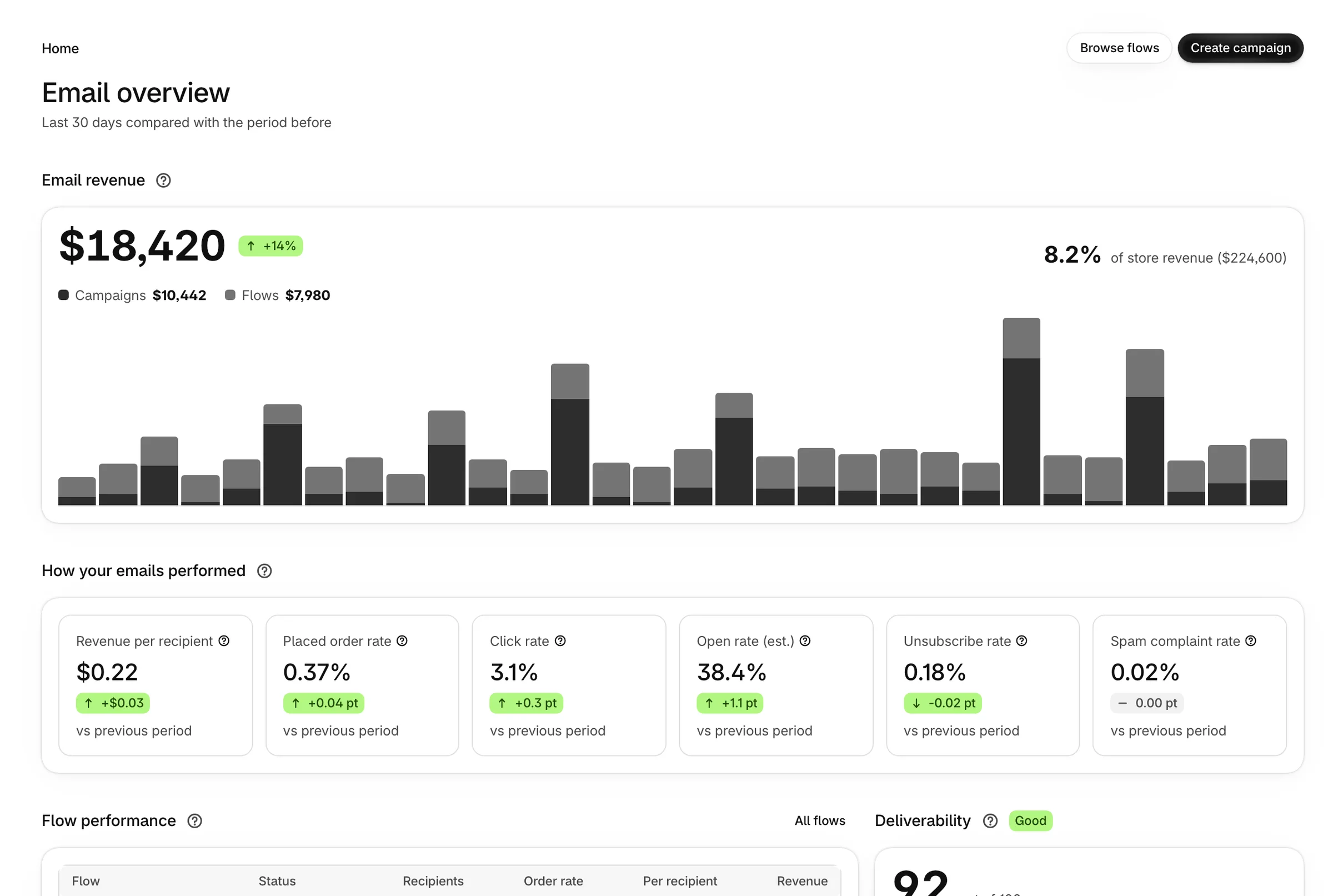
Once setup is done, Home is your email overview for the last 30 days, compared with the 30 days before:
- Email revenue: orders after an email click, split by campaigns and flows, with email's share of your store's revenue.
- How your emails performed: revenue per recipient, placed order rate, click rate, open rate, unsubscribe rate and spam complaint rate.
- Flow performance and Recent campaigns: what each one earned.
- Deliverability: your score from 0 to 100, where you send from, and your spam and bounce rates.
- List growth: new subscribers by where they signed up, against unsubscribes, bounces and spam reports.
- Coming up: campaigns scheduled to go out next.
Alerts lead the page when something needs you, such as spam reports over the limit, a domain waiting on DNS, your store sync stopping or the storefront pixel going quiet while orders come in (see Store visits and checkouts after a click). Each has a button to fix it.
Was this helpful?
More in Getting started
- Install Email Marketing App and set up emailInstall Email Marketing App and work through the nine setup steps, from a few questions about your store to your first sign-up form.
- Use the Assistant and connected AI toolsAsk the Assistant to draft campaigns, build segments and check your sending health, or connect Claude or ChatGPT with a token.
- Uninstall the appWhat stops when you uninstall, what stays in your store, and what comes back if you reinstall within 48 hours.