Add bundles to product pages
Show quantity break packs and bundles on product pages with the PDP Bundle Box block.
 Attravo TeamUpdated 2 min read
The PDP Bundle Box block puts your offers right where shoppers decide: quantity break packs beside the add to cart button, or a fixed, Mix & Match or BOGO bundle.
Add the block
- In Shopify admin, go to Online Store > Themes and click Customize.
- In the template menu at the top, open Products and choose Default product.
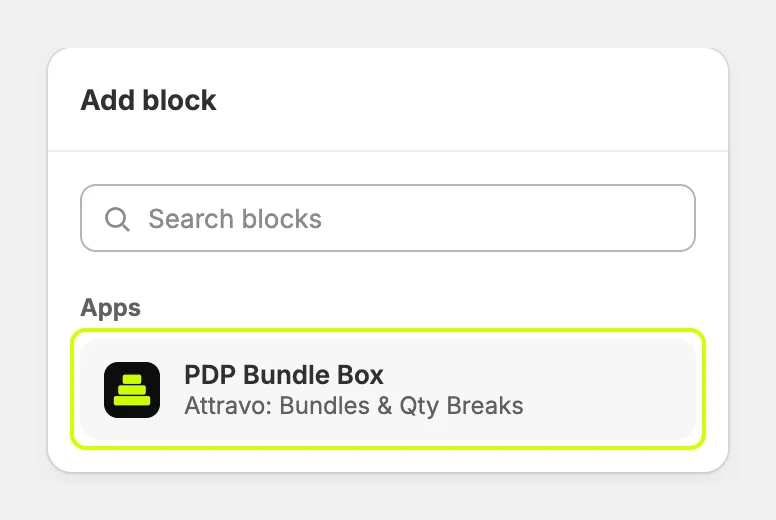
- In the sidebar, under your product information section, click Add block, open Apps and choose PDP Bundle Box.
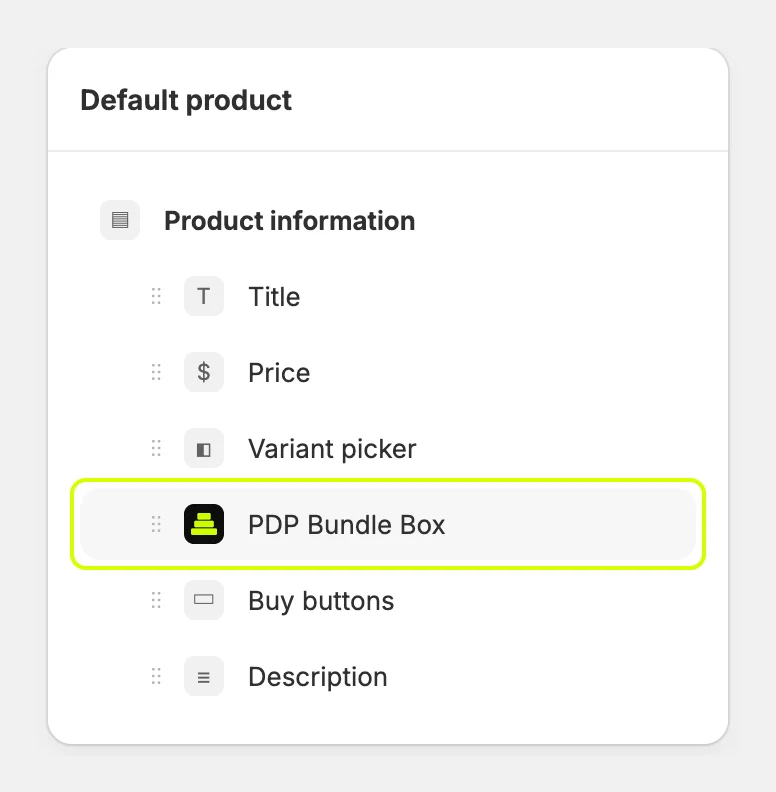
- Drag the block so it sits just above Buy buttons.
- Click Save.
What shoppers see
A quantity break offer with Also show packs on product pages turned on shows pack tiles. Picking a pack sets the quantity and the price on your theme's own add to cart button.
Any other bundle shows as a bundle widget with its products, the savings and its own add to cart button. See Set up quantity breaks and Set up a fixed bundle.
Choose which bundle a product page shows
The block shows one offer per product page. Fixed, Mix & Match and BOGO bundles aren't tied to products, so any of them can appear on any product page. When more than one could, the block shows a bundle that includes the product first, then your quantity break offer, then the rest. To choose the bundle yourself, pin it to the block:
- In the app, open the bundle and click Copy next to Bundle ID.

- In the theme editor, select the PDP Bundle Box block and paste the ID into Bundle ID.
- Click Save.
To change the block's colors, font and corner radius, see Style bundles on product pages.
Was this helpful?
More in Getting started
- Install the app and turn on the app embedInstall Attravo Bundles, then switch on the app embed that loads your bundles on the storefront.
- Create your first bundleBuild a Mix & Match bundle with steps and a growing discount, and set it live in a few minutes.
- Publish a bundle pageGive your bundles a page of their own with the Bundle Page block, then link it from your menu.