Set up a BOGO offer
Reward shoppers with a free or discounted item when they buy. BOGO offers are part of the Pro plan.
 Attravo TeamUpdated 1 min read
A buy one, get one offer gives shoppers a free or discounted reward when they buy, such as buy 2 tees and get 1 free. It moves stock and makes a strong headline offer.
Create the offer
- Go to Bundles and, under Create a new bundle, click BOGO.

- Enter a Title and set Status to Active.
Add the products
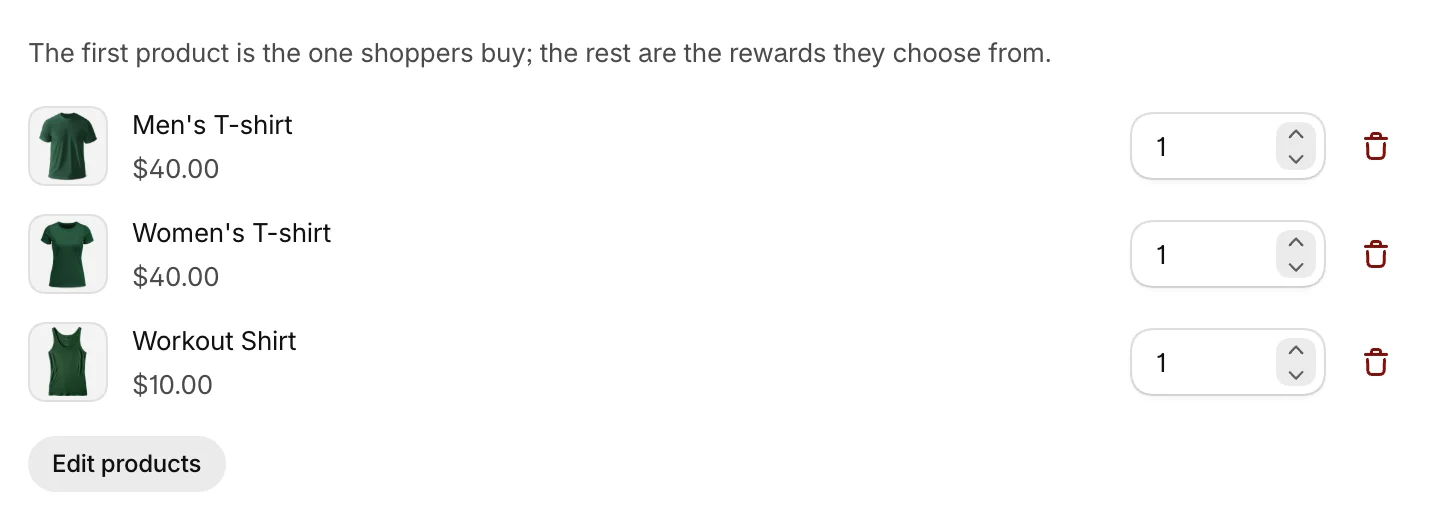
- Under Products, click Add products and pick them. The first product is the one shoppers buy; the rest are the rewards they choose from.
Set the reward
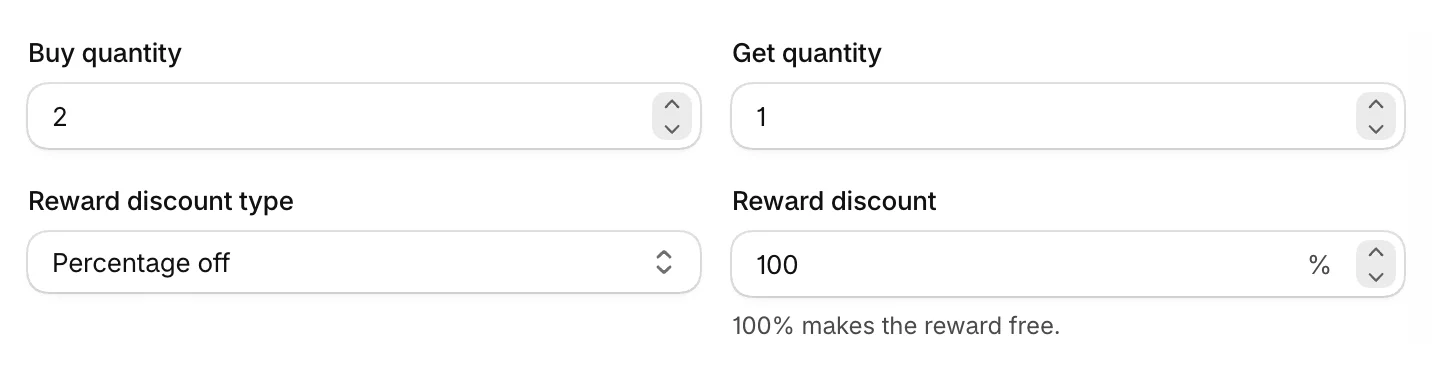
In BOGO settings:
- Buy quantity: how many of the first product shoppers buy.
- Get quantity: how many rewards they pick.
- Reward discount type: Percentage off or Fixed amount off.
- Reward discount: 100% makes the reward free.
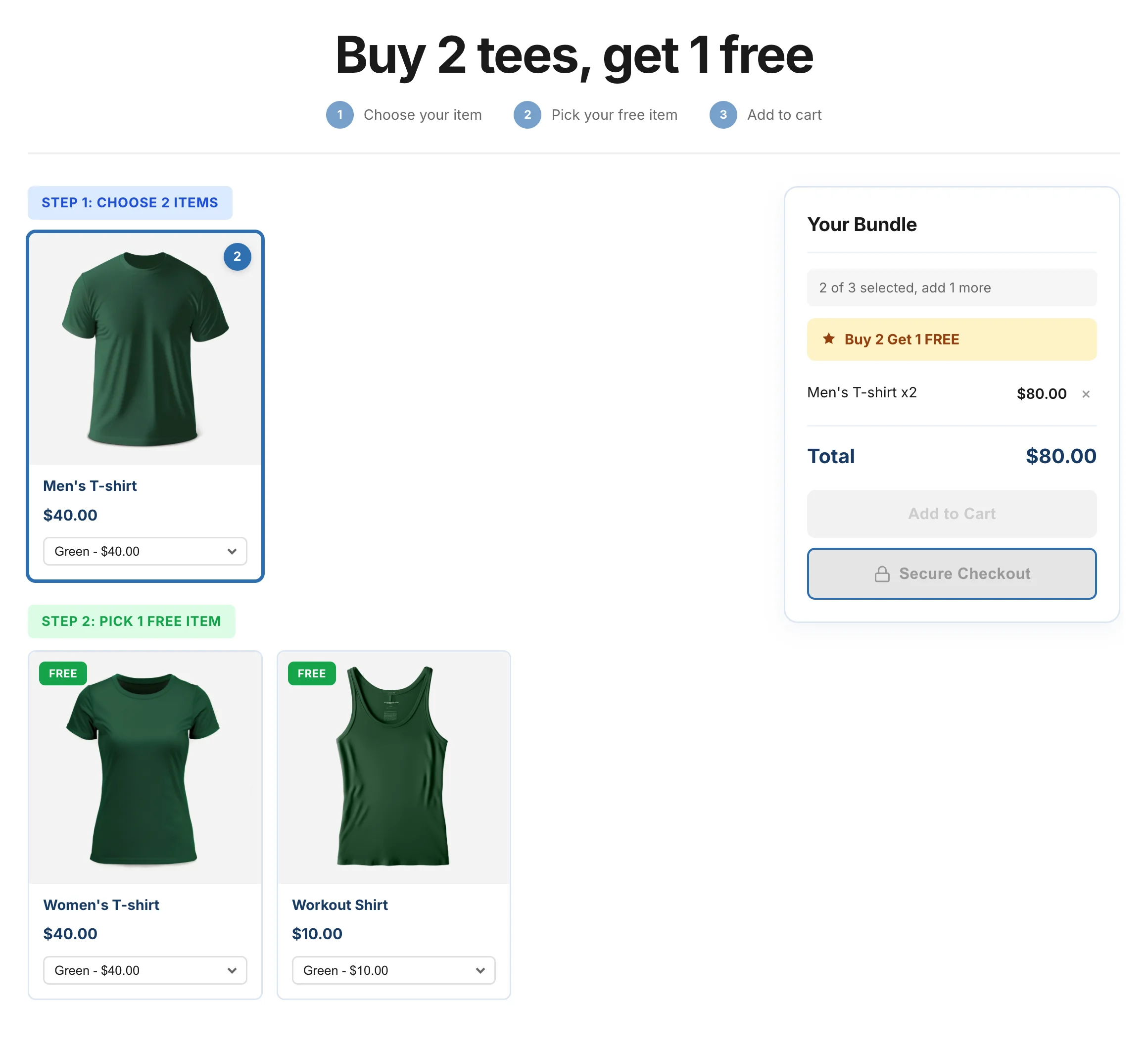
Shoppers can pick up to the Get quantity in rewards; picking another swaps out their first pick. At checkout, every full Buy quantity in the cart earns one Get quantity of discounted rewards. Any rewards beyond that are charged at full price.
Save and show it
Click Save. Shoppers see the offer on your bundle page and, with the PDP Bundle Box block, on product pages. They pick the item they buy, then their reward.
Was this helpful?
More in Bundles and offers
- Set up a Mix & Match bundleLet shoppers build their own bundle from your collections, step by step, and save more with every item.
- Set up quantity breaksOffer buy more, save more pricing on product cards and product pages, with pack tiles shoppers can pick.
- Set up a fixed bundleSell a set of products together at a discount or at a set price, on product pages and your bundle page.
- Manage your bundlesFind, edit, pause and delete your bundles, and check how each one performs.