Publish a bundle page
Give your bundles a page of their own with the Bundle Page block, then link it from your menu.
 Attravo TeamUpdated 1 min read
On this page
The Bundle Page block shows your active bundles on a page of your store. Mix & Match bundles with steps are built for it. Give the page its own template so the block appears only there.
Add the Bundle Page block to a page template
- On the Dashboard, open Publish a bundles page in the Setup guide and click Open theme editor.

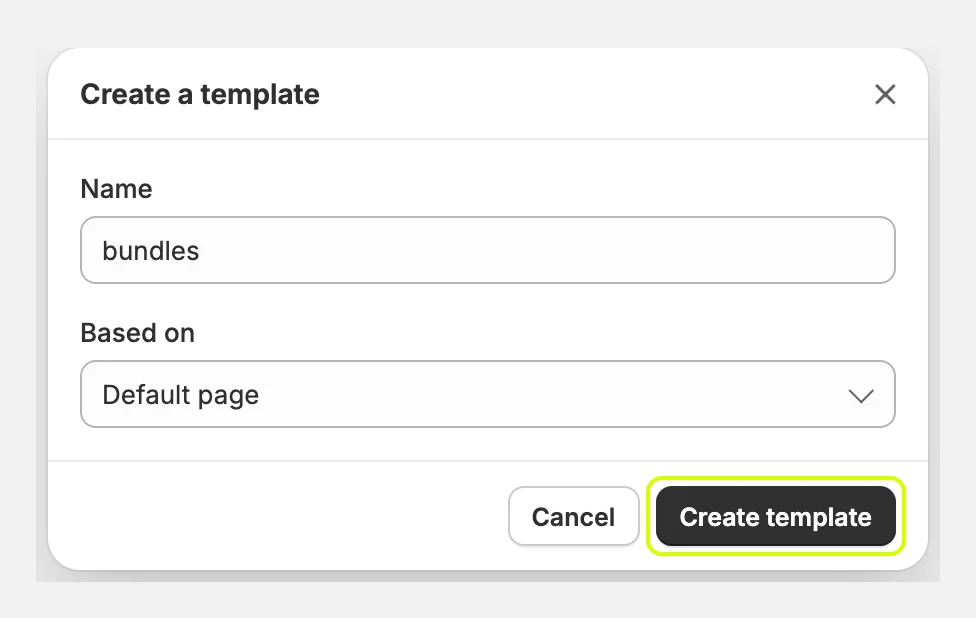
- The theme editor opens on your page template. In the template menu at the top, choose Create template, name it, for example bundles, and click Create template.
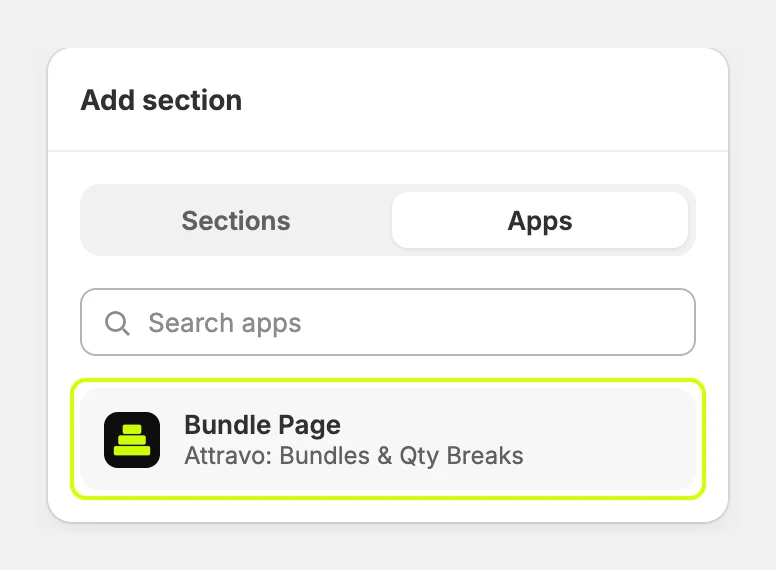
- In the sidebar, click Add section, open Apps and choose Bundle Page.
- Click Save.
Create the page
- In Shopify admin, go to Online Store > Pages and click Add page. The Create page button in the setup task opens the same screen.
- Enter a title, such as Build your own bundle.
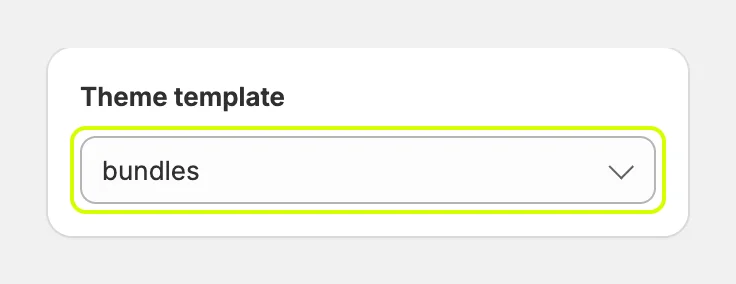
- Under Theme template, choose the template you created.
- Click Save.
Add the page to your menu
- Go to Online Store > Navigation and open your main menu.
- Click Add menu item, link it to your new page and click Save.
Shoppers now see your bundle page. Each pick fills a slot in the bundle and moves them toward the next discount.
The Setup guide ticks Publish a bundles page the first time a shopper views the page. To tick it now, click Mark as done in the task.
Next steps
- Customize the bundle page with a banner, heading and trust points.
- Match the widget to your brand.
Was this helpful?
More in Getting started
- Install the app and turn on the app embedInstall Attravo Bundles, then switch on the app embed that loads your bundles on the storefront.
- Create your first bundleBuild a Mix & Match bundle with steps and a growing discount, and set it live in a few minutes.
- Add bundles to product pagesShow quantity break packs and bundles on product pages with the PDP Bundle Box block.