Manage your bundles
Find, edit, pause and delete your bundles, and check how each one performs.
 Attravo TeamUpdated 1 min read
On this page
The Bundles page lists every bundle you've made, newest first, with its type, status and contents.
Find a bundle
Type in Search bundles to filter by title, or narrow the list with the status and type menus beside it.

Click a bundle to open it.
Pause, restart or archive a bundle
- Open the bundle.
- Change Status:
- Active: live on your store.
- Draft: hidden from shoppers until you make it active.
- Archived: hidden from shoppers and set aside.

- Click Save.
When a bundle leaves Active, its discount is removed. Setting it back to Active and saving restores it.
Check how a bundle performs
Each bundle's page opens with its Views, Add to carts, Purchases and Revenue.
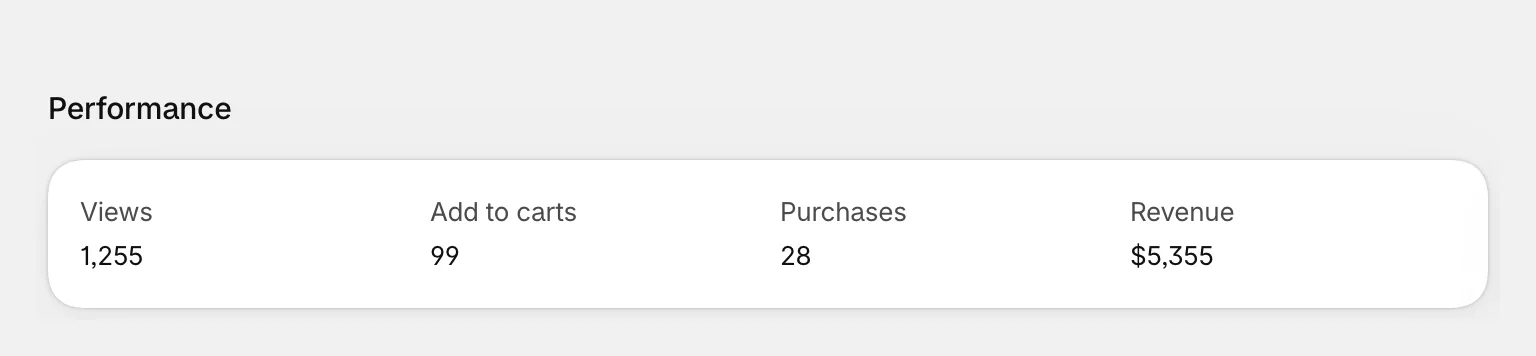
For trends and comparisons, see Read your analytics.
Stay within the Free plan's limit
On the Free plan, up to 3 bundles can be Active at once. Drafts don't count. The Bundles page shows how many you've used.

At the limit, new bundles can still be saved as drafts. Pro removes the limit.
Delete bundles
- On the Bundles page, tick the bundles to delete.
- Click Delete, then confirm.

Deleting removes the bundle, its discount and any bundle product the app created. Your own products aren't touched, and past orders stay in your results. This can't be undone.
Was this helpful?
More in Bundles and offers
- Set up a Mix & Match bundleLet shoppers build their own bundle from your collections, step by step, and save more with every item.
- Set up quantity breaksOffer buy more, save more pricing on product cards and product pages, with pack tiles shoppers can pick.
- Set up a fixed bundleSell a set of products together at a discount or at a set price, on product pages and your bundle page.
- Set up a BOGO offerReward shoppers with a free or discounted item when they buy. BOGO offers are part of the Pro plan.