Style bundles on product pages
Set the colors, card style, corner radius and font of the PDP Bundle Box block on product pages.
 Attravo TeamUpdated 1 min read
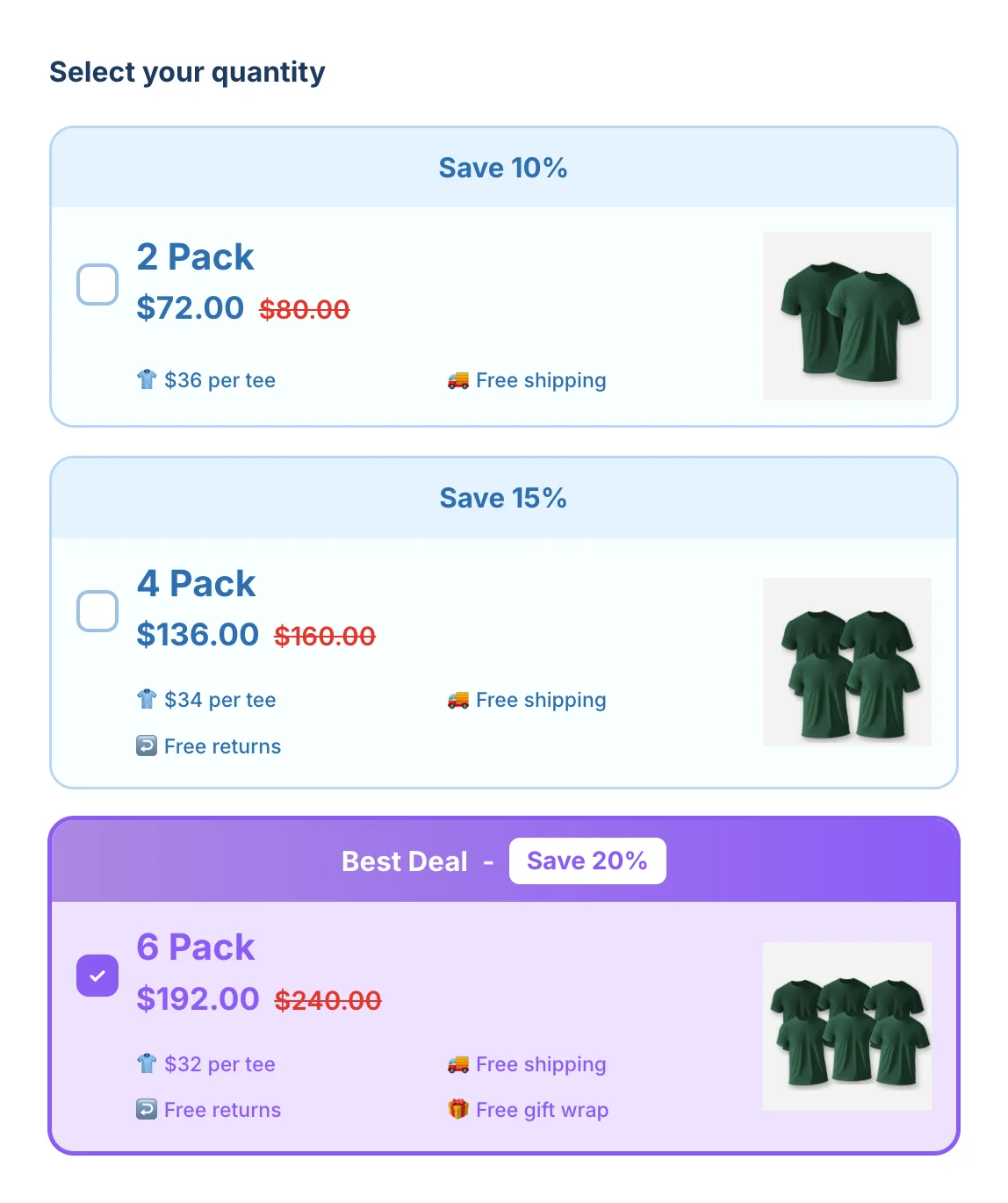
On product pages, the PDP Bundle Box block has its own style settings, so its packs and bundles can match your product page exactly.
To open them, go to Online Store > Themes, click Customize, open a product template and select the PDP Bundle Box block.
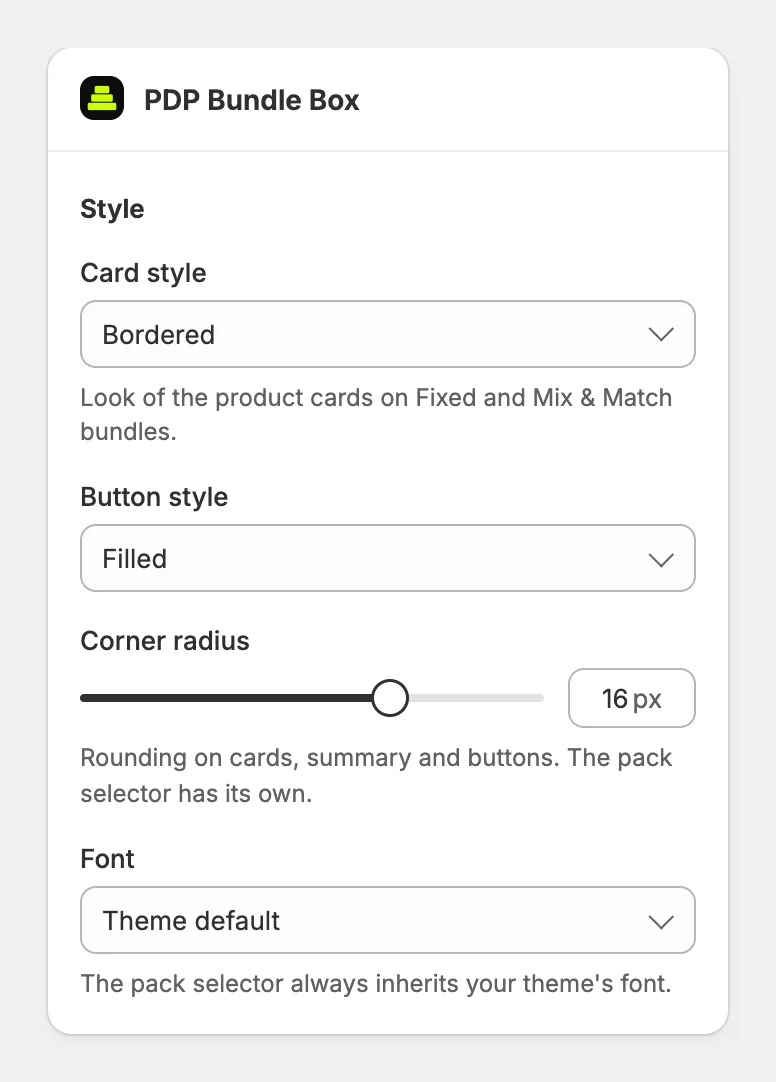
Style
- Card style: Bordered, Elevated (shadow) or Minimal (flat), for the product cards of fixed and Mix & Match bundles.
- Button style: Filled or Outlined.
- Corner radius: rounding on cards, the summary and buttons.
- Font: Theme default, System or Arial. Pack tiles always use your theme's font.
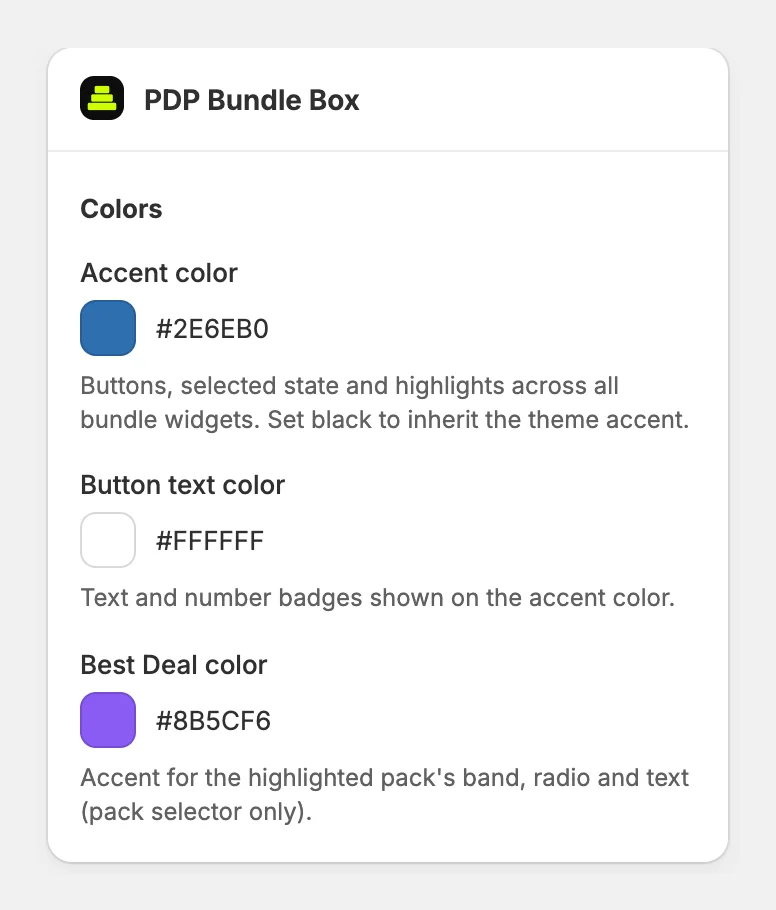
Colors
- Accent color: buttons, the selected state and highlights.
- Button text color: text and number badges on the accent color.
- Best Deal color: the band, radio button and text of the highlighted pack.
Click Save in the theme editor. These settings apply to the block on product pages; your bundle page follows the app's Settings.
Was this helpful?
More in Design
- Match the widget to your brandSet your brand colors, font and corner radius, and fine-tune the bundle builder's look.
- Change the add to cart button and wordingEdit the bundle builder's button, choose where it takes shoppers, and rewrite the words they see.
- Show badges and star ratings on product cardsTurn product tags into badges and show ratings from your review app on the bundle builder's product cards.
- Turn on the progress bar and discount popupShow shoppers how close they are to the next discount, and celebrate each one they unlock.