Set up quantity breaks
Offer buy more, save more pricing on product cards and product pages, with pack tiles shoppers can pick.
 Attravo TeamUpdated 2 min read
On this page
Quantity breaks give shoppers a bigger discount for buying more of the same product, such as 10% off 2 and 15% off 4. They lift the number of units in each order, and they're free on every plan.
Create the offer
- Go to Bundles and, under Create a new bundle, click Quantity breaks.

- Enter a Title and set Status to Active.
Set the tiers
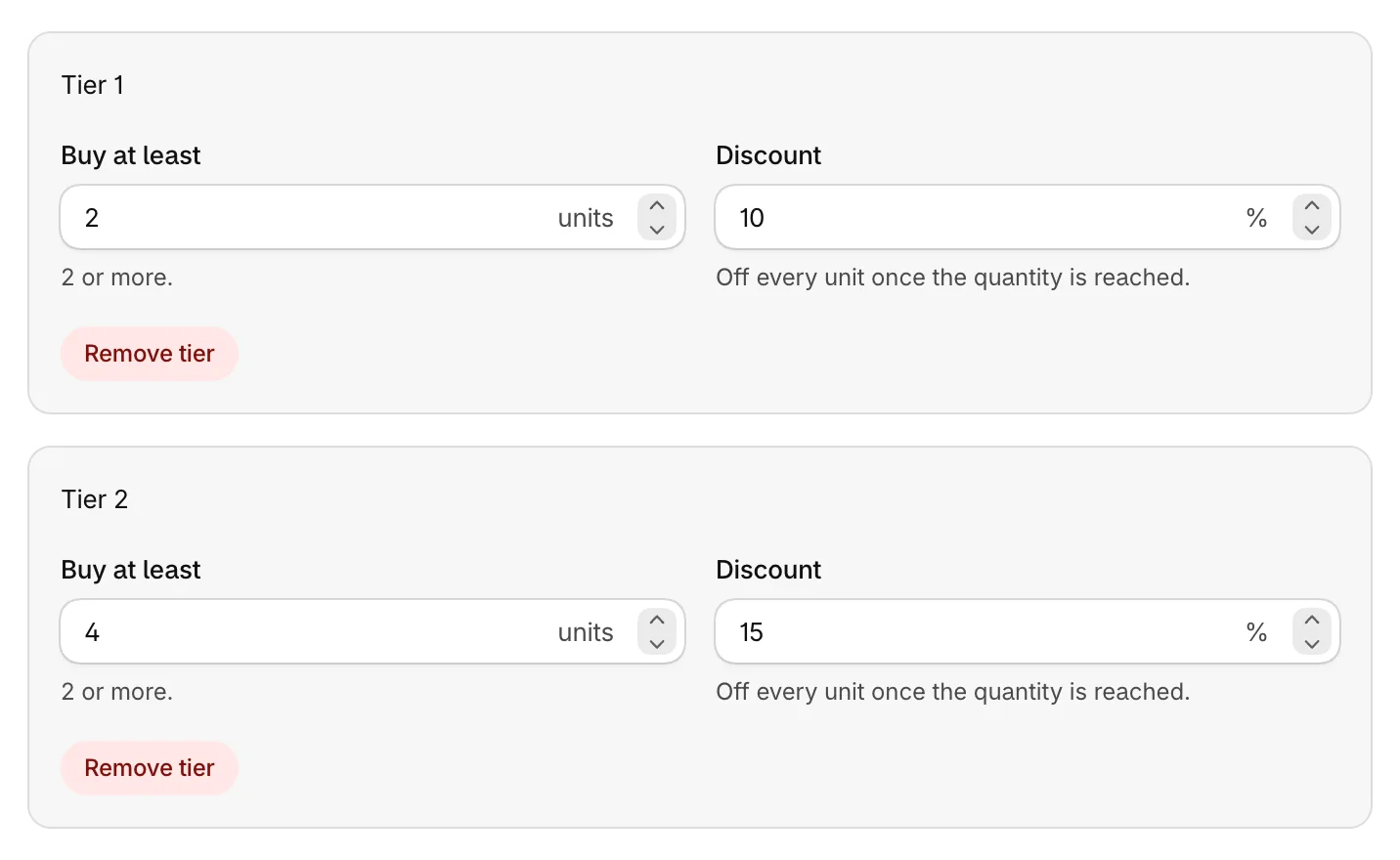
Each tier has two fields:
- Buy at least: the number of units, 2 or more.
- Discount: the percentage off every unit once the quantity is reached.
A new offer starts with three tiers: 2 units at 10%, 4 at 15% and 6 at 20%. Change them, click Add tier for another, or click Remove tier to drop one.
Show it on product cards
Quantity breaks show on their own on collection and search pages, as a dropdown above each eligible product's add to cart button. Shoppers pick a quantity and the card's price updates.
Show packs on product pages
- Turn on Also show packs on product pages.

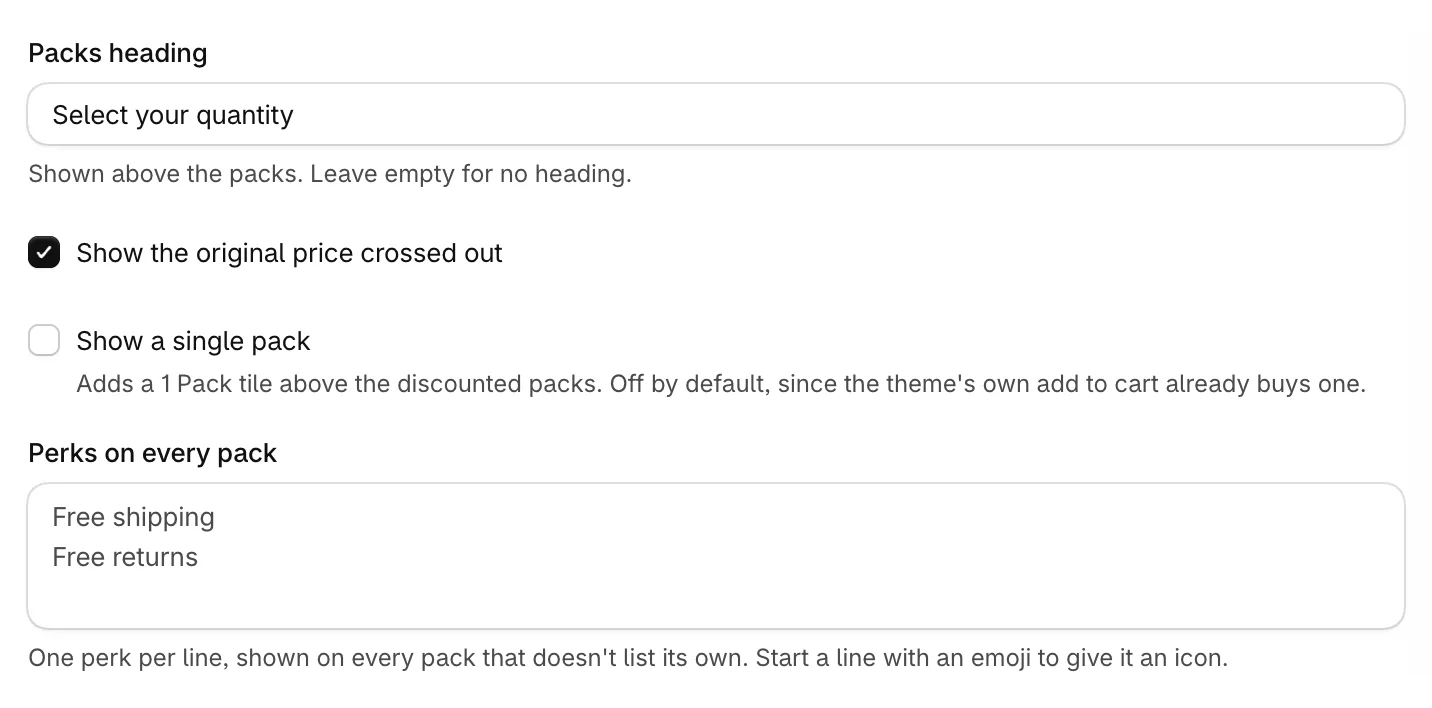
- Set how the packs look:
- Packs heading: a line above the packs, such as Select your quantity.
- Show the original price crossed out: shows the full price beside each pack's price.
- Show a single pack: adds a 1 Pack tile above the discounted packs.
- Perks on every pack: one perk per line, such as Free shipping. Start a line with an emoji to give it an icon.
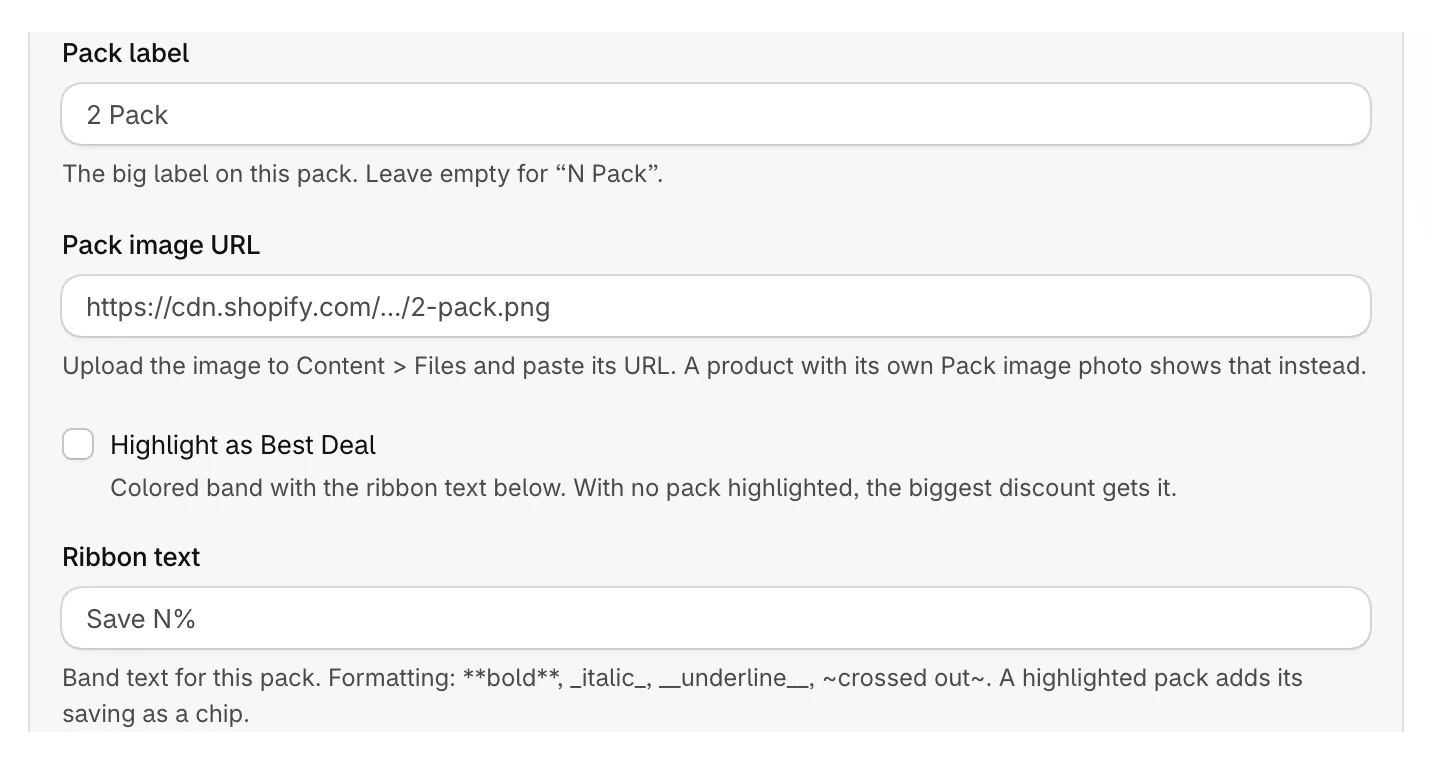
- Each tier now has its own pack fields: Pack label, Pack image URL, Highlight as Best Deal, Ribbon text and Pack perks.
- Add the PDP Bundle Box block to your product template, as shown in Add bundles to product pages.
Choose which products get the offer
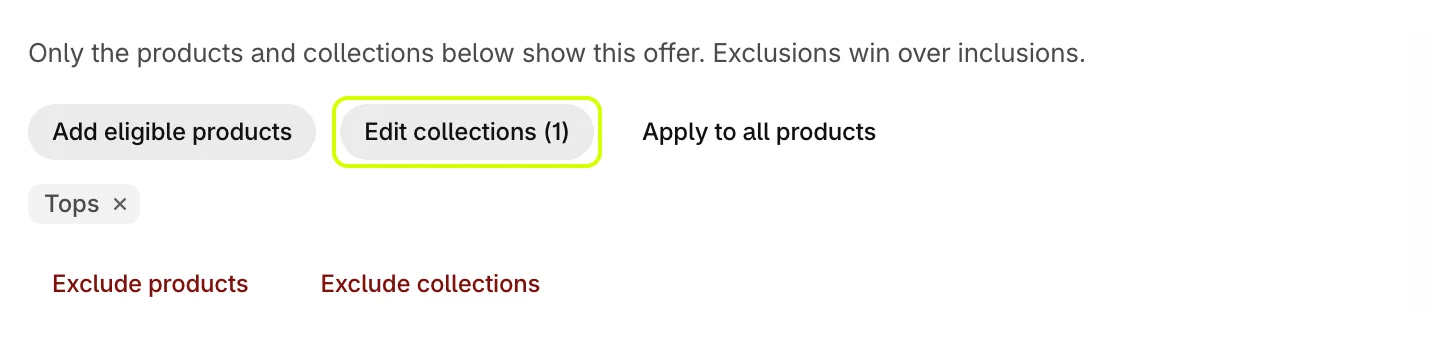
A new offer covers All products, including products you add later. To narrow it, use the buttons in Offer eligibility:
- Add eligible products and Add eligible collections limit the offer to what you pick.
- Exclude products and Exclude collections leave items out. Exclusions win over inclusions.
- Apply to all products goes back to your whole catalog.
Save
Click Save. Quantity breaks use one automatic discount in Shopify, called Quantity Break: Buy more, save more. It's set to combine with your other discounts, as long as those discounts allow combining too. See How bundle discounts work at checkout.
Was this helpful?
More in Bundles and offers
- Set up a Mix & Match bundleLet shoppers build their own bundle from your collections, step by step, and save more with every item.
- Set up a fixed bundleSell a set of products together at a discount or at a set price, on product pages and your bundle page.
- Set up a BOGO offerReward shoppers with a free or discounted item when they buy. BOGO offers are part of the Pro plan.
- Manage your bundlesFind, edit, pause and delete your bundles, and check how each one performs.