Set up a Mix & Match bundle
Let shoppers build their own bundle from your collections, step by step, and save more with every item.
 Attravo TeamUpdated 3 min read
On this page
A Mix & Match bundle lets shoppers pick their own items, and the discount grows as they add more. It turns browsing into a bigger order, and it's free on every plan.
Create the bundle
- Go to Bundles and, under Create a new bundle, click Mix & Match.

- Enter a Title, set Status to Active and follow the sections below.
Choose where the products come from
A Mix & Match bundle works in one of two ways:
- With steps. Each step draws its products from a collection, and shoppers pick from each step in turn. Add them under Bundle steps, as shown in Create your first bundle. Each step shows its collection and how many products are in it.
- Without steps. Shoppers pick from products you choose. Under Products, click Add products and pick them.
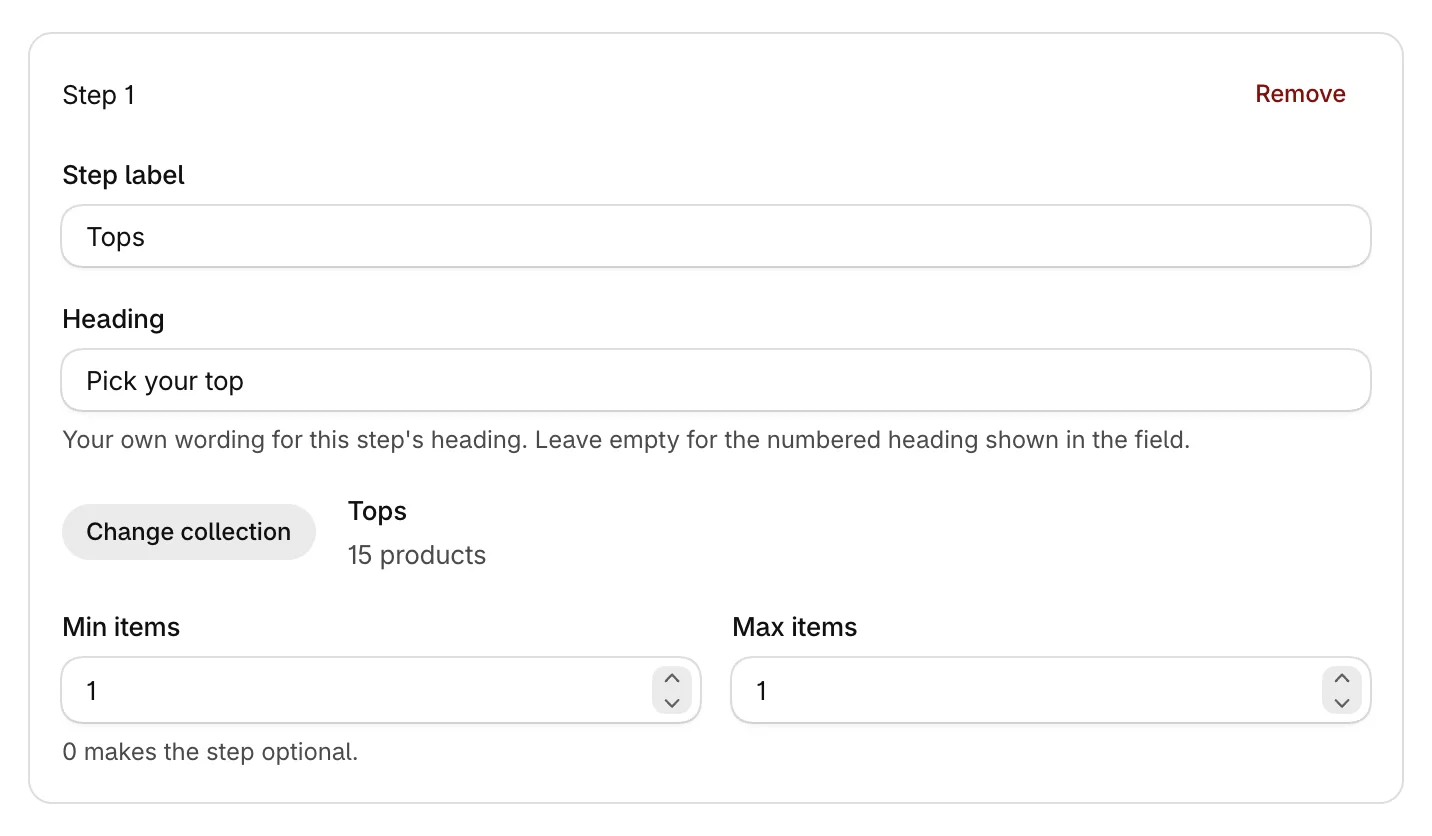
With steps, each step's Min items and Max items set the rules. Without steps, set Minimum items and Maximum items for the whole bundle.

Choose how the builder behaves
These options in Mix & Match settings shape the builder shoppers use:
- Open the next step once a step's minimum is picked moves shoppers on as soon as a step has what it needs. They can reopen any step to add more.
- Allow duplicate items lets shoppers take more than one of the same product. Turn it off and each product goes in once, in any step.
- Show search and sorting in each step adds a search box and sort menu once a step has more than four products.
- Show variant options on product cards lets shoppers choose a size or shade on the card itself.
- Show sold-out variants keeps sold-out sizes and colors on the cards, faded and marked sold out.
- Show products priced at zero lets free gifts and samples into the builder. They count toward the discount like any other item.

Here is the next step opening on its own once the first step is complete:
Prices on product cards sets whether cards show only the Current price, or the Current and original price when a product is on sale. The bundle discount always comes off the current price.

Set the discount
Under Bundle discount, click Add tier and enter Buy at least and Save. Each tier unlocks a bigger discount, for example buy 2 and save 10%, buy 3 and save 15%.
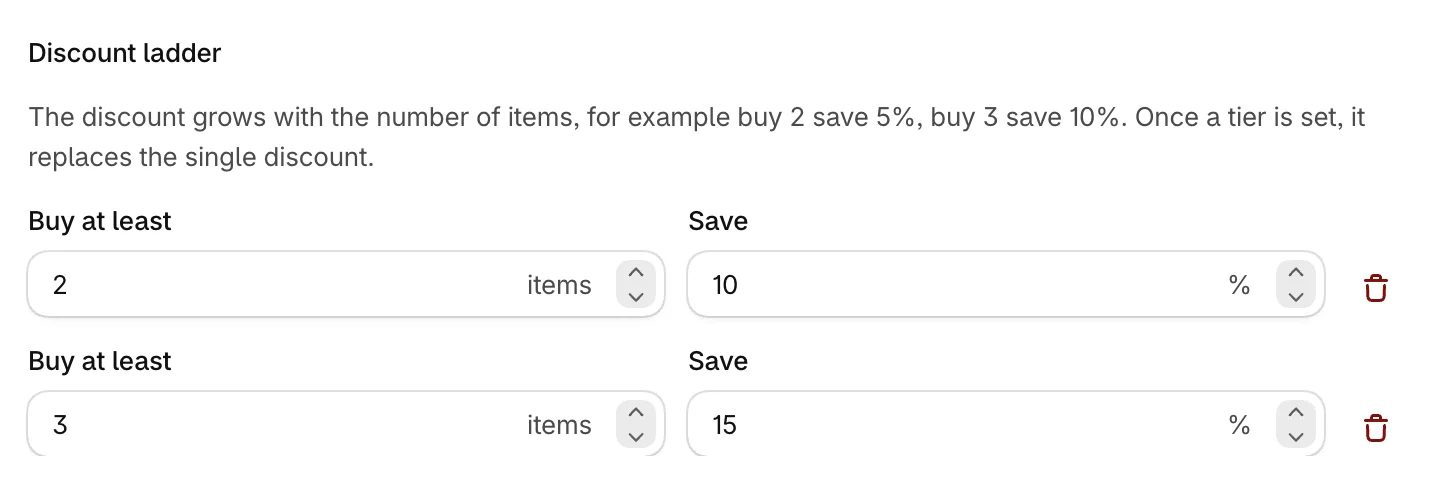
With no tiers, the bundle uses a single discount instead: choose a Discount type of Percentage off or Fixed amount off and enter the Discount. Once you add a tier, the ladder replaces the single discount.
To let this discount stack with your other discounts, see How bundle discounts work at checkout.
Display settings
A bundle with steps has one display option, Show progress bar, which shows the discount progress in the bundle summary. It stays hidden while Show progress bar is off in Settings.
A bundle without steps also has Layout, Columns, Show prices, Badge text and Badge color.
Save and share it
Click Save. Mix & Match bundles show on your bundle page. If you haven't made one yet, see Publish a bundle page.
Was this helpful?
More in Bundles and offers
- Set up quantity breaksOffer buy more, save more pricing on product cards and product pages, with pack tiles shoppers can pick.
- Set up a fixed bundleSell a set of products together at a discount or at a set price, on product pages and your bundle page.
- Set up a BOGO offerReward shoppers with a free or discounted item when they buy. BOGO offers are part of the Pro plan.
- Manage your bundlesFind, edit, pause and delete your bundles, and check how each one performs.