Change the add to cart button and wording
Edit the bundle builder's button, choose where it takes shoppers, and rewrite the words they see.
 Attravo TeamUpdated 1 min read
The words in your bundle builder can sell for you. Rename the button, add a note under it and match the wording to what you sell, whether that's bundles, kits, routines or boxes.
Set up the add to cart button
- Go to Settings > Appearance.
- Under Add to cart button, enter the Button text and choose a Button style of Filled or Outlined.

- Add a Note under the button if you like, such as Free shipping on every bundle. Leave it empty for none.
- Choose where shoppers go After adding a bundle to cart:
- Open the cart drawer: keeps them on the page. A theme with no drawer falls back to the cart page.
- Go to the cart page.
- Go straight to checkout: skips the cart. Use it when another app manages your cart and changes the bundle's price there.

- Click Save.
Rewrite the builder's wording
Under Builder text, each field shows its default wording. Type your own to replace it, or leave a field empty to keep the default.
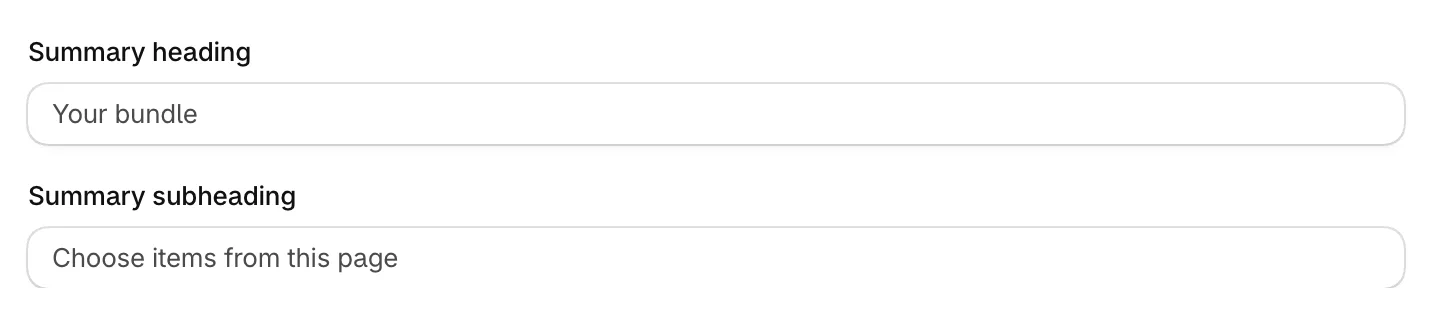
The discount lines use placeholders that fill in for each shopper:
- Discount headline:
{percent}is the biggest discount on offer. - Discount headline once unlocked:
{percent}is the discount unlocked so far. - Next discount message:
{count}is the number of items still needed and{percent}the next discount. Write item(s) and it reads as item or items to match.
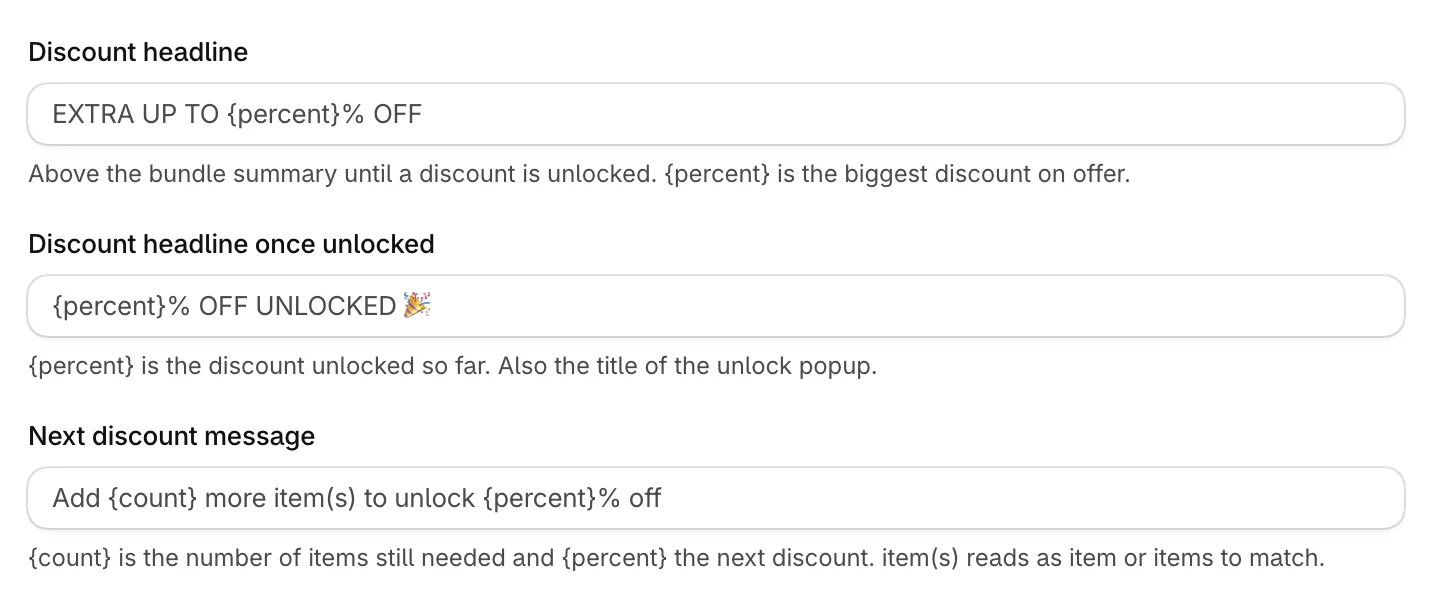
Click Save when you're done. Bundle titles, step headings and descriptions are set on each bundle, in its editor.
Was this helpful?
More in Design
- Match the widget to your brandSet your brand colors, font and corner radius, and fine-tune the bundle builder's look.
- Show badges and star ratings on product cardsTurn product tags into badges and show ratings from your review app on the bundle builder's product cards.
- Turn on the progress bar and discount popupShow shoppers how close they are to the next discount, and celebrate each one they unlock.
- Customize the bundle pageAdd a banner, heading and trust points to your bundle page, and set its layout.