Customize the bundle page
Add a banner, heading and trust points to your bundle page, and set its layout.
 Attravo TeamUpdated 2 min read
The Bundle Page block has its own settings in the theme editor for everything around the bundles: a banner, the page heading, trust points and the layout. Colors, fonts and the add to cart button are set in the app, under Settings.
To open the settings, go to Online Store > Themes, click Customize, open your bundle page's template and select the Bundle Page block.
Add a banner
- Under Banner, choose a Banner image (desktop) and, if you like, a separate Banner image (mobile).
- Desktop: best at 1920 px wide, up to 1200 px tall.
- Mobile: best at 1200 px wide, up to 1000 px tall. It shows on screens narrower than 750 px.
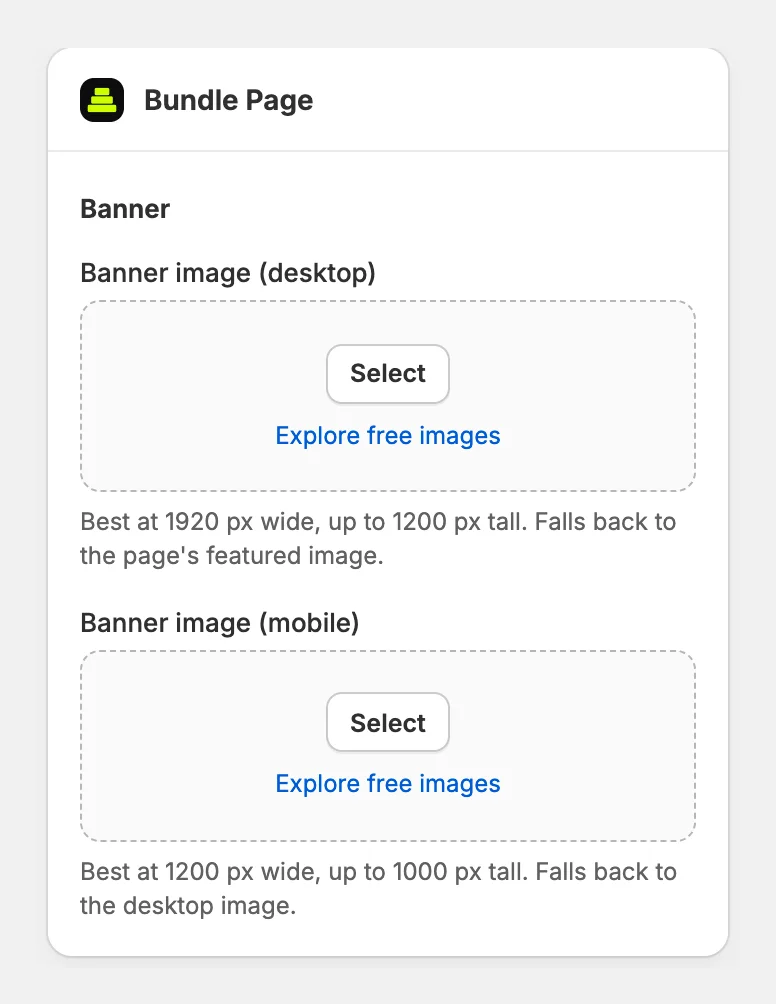
- To put text on the banner, fill in Banner heading, Banner small line, Banner highlight and Banner button text. Leave them all empty if your image already carries its text.
- Set the Banner text color, Banner button color and Banner button text color. The button scrolls to the bundles unless you set a Banner button link.
Set the heading and trust points
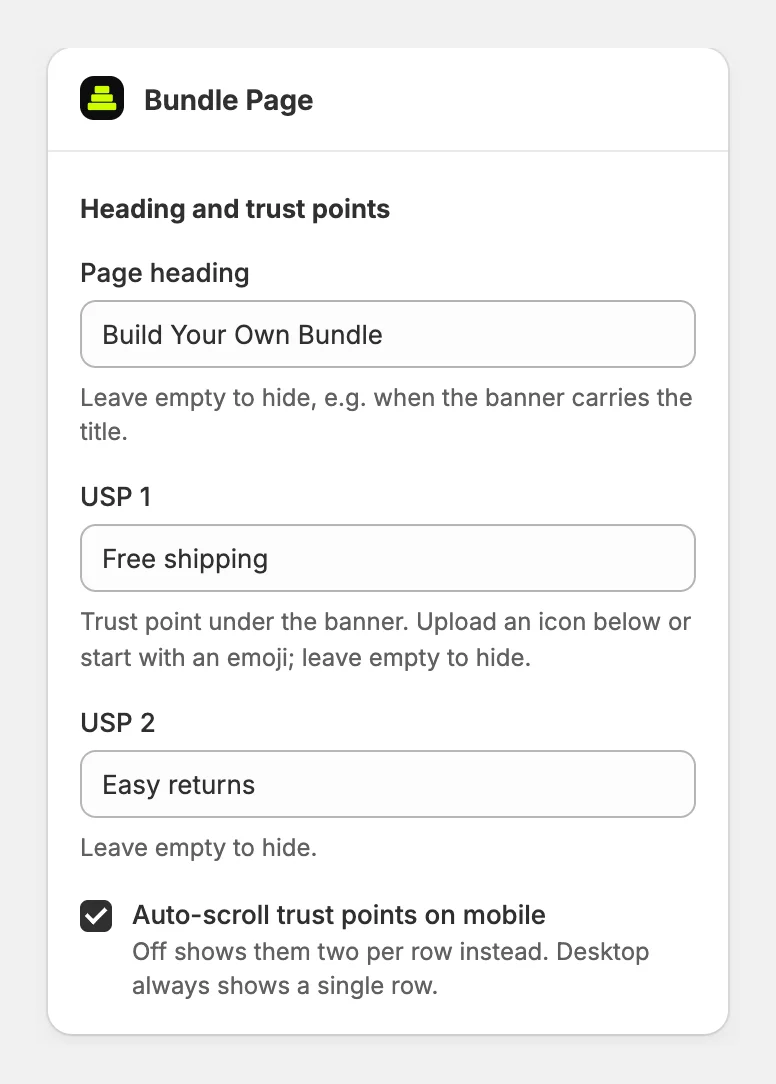
- Under Heading and trust points, enter the Page heading. Leave it empty if your banner carries the title.
- Fill in USP 1 to USP 4, such as Free shipping or Easy returns. Upload an icon for each, or start the text with an emoji. Empty ones are hidden.
- On phones the trust points scroll on their own. Turn off Auto-scroll trust points on mobile to show them two per row instead.
Set the layout
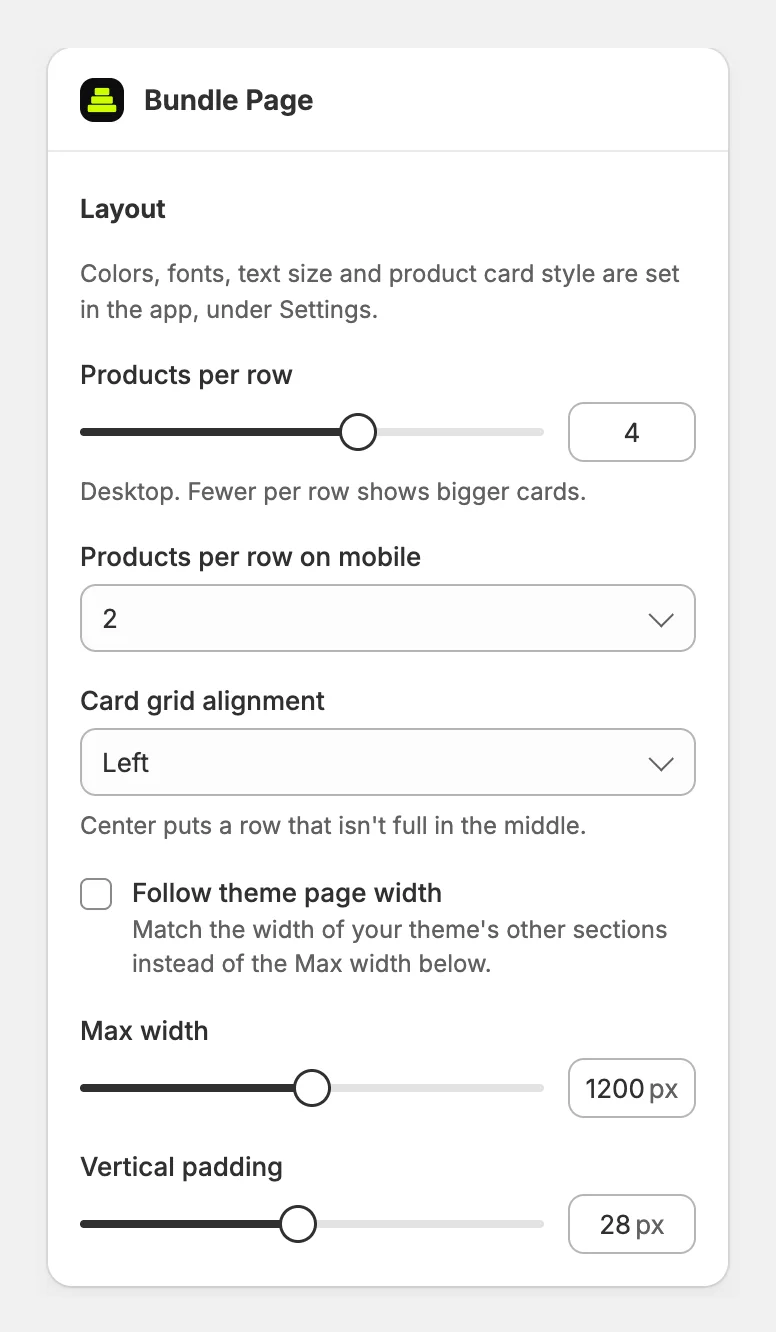
Under Layout:
- Products per row: on a computer, from 1 to 6. Fewer per row shows bigger cards.
- Products per row on mobile: 1 or 2.
- Card grid alignment: Center puts a row that isn't full in the middle.
- Follow theme page width: matches your theme's other sections. With it off, set a Max width.
- Vertical padding: the space above and below the block.
Click Save in the theme editor when you're done.
Show one bundle only
The block shows all your active bundles. To show just one, paste its ID into Bundle ID (optional). You'll find the ID on the bundle's page in the app, with a Copy button.
Was this helpful?
More in Design
- Match the widget to your brandSet your brand colors, font and corner radius, and fine-tune the bundle builder's look.
- Change the add to cart button and wordingEdit the bundle builder's button, choose where it takes shoppers, and rewrite the words they see.
- Show badges and star ratings on product cardsTurn product tags into badges and show ratings from your review app on the bundle builder's product cards.
- Turn on the progress bar and discount popupShow shoppers how close they are to the next discount, and celebrate each one they unlock.