Show badges and star ratings on product cards
Turn product tags into badges and show ratings from your review app on the bundle builder's product cards.
 Attravo TeamUpdated 1 min read
On this page
Badges like Bestseller and star ratings help shoppers choose faster in the bundle builder. The app reads both from your products, so there's nothing to keep in sync.
Show tags as badges
- Go to Settings > Appearance.
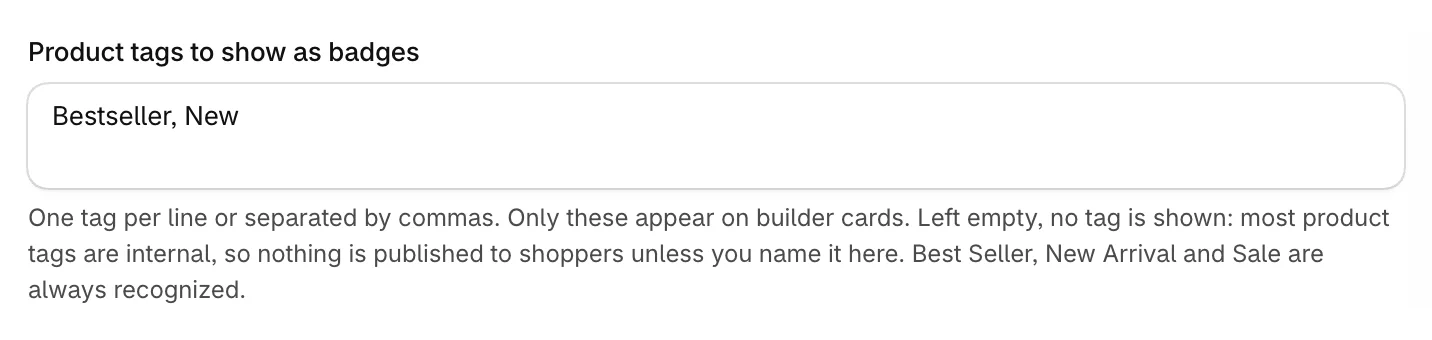
- Under Product cards, enter the tags to show in Product tags to show as badges, one per line or separated by commas.
- Click Save.
Only the tags you name appear, because most product tags are for internal use. Best Seller, New Arrival and Sale are always recognized, and sold-out products get a Sold out badge on their own.
Show star ratings
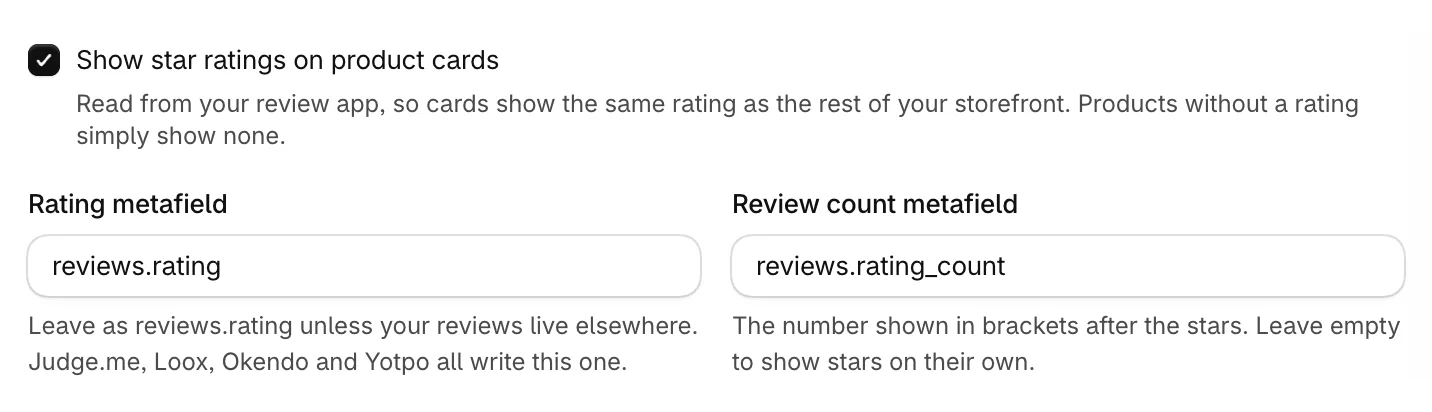
- Under Product cards, turn on Show star ratings on product cards.
- Leave Rating metafield as reviews.rating unless your reviews are stored elsewhere. Judge.me, Loox, Okendo and Yotpo all use this one.
- Leave Review count metafield as reviews.rating_count to show the number of reviews after the stars.
- Click Save.
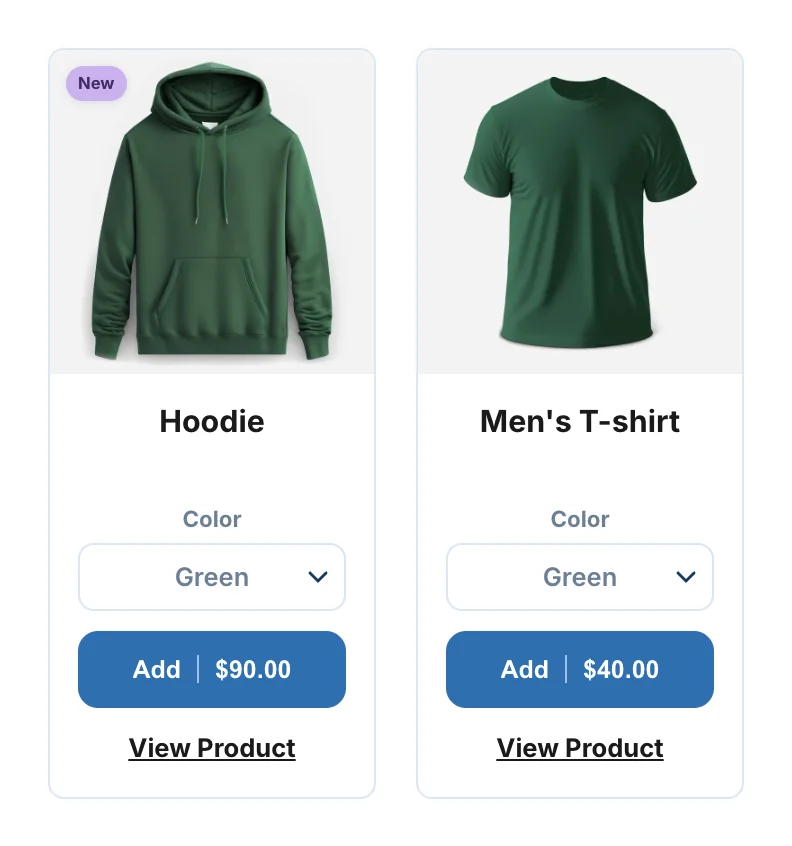
Products without a rating simply show no stars. On the storefront, badges and stars sit on each card:
Was this helpful?
More in Design
- Match the widget to your brandSet your brand colors, font and corner radius, and fine-tune the bundle builder's look.
- Change the add to cart button and wordingEdit the bundle builder's button, choose where it takes shoppers, and rewrite the words they see.
- Turn on the progress bar and discount popupShow shoppers how close they are to the next discount, and celebrate each one they unlock.
- Customize the bundle pageAdd a banner, heading and trust points to your bundle page, and set its layout.