Add and arrange offer blocks
Build an offer from blocks such as a heading, the product, a checklist and a countdown, in the order you choose.
 Attravo TeamUpdated 2 min read
An offer is a stack of blocks: a heading, the product, its price, the buttons and anything else that helps a customer say yes. Adding a checklist of benefits or a rating often answers the question that stops a customer accepting.
Arrange the blocks
Under Blocks, the list shows the offer from top to bottom.
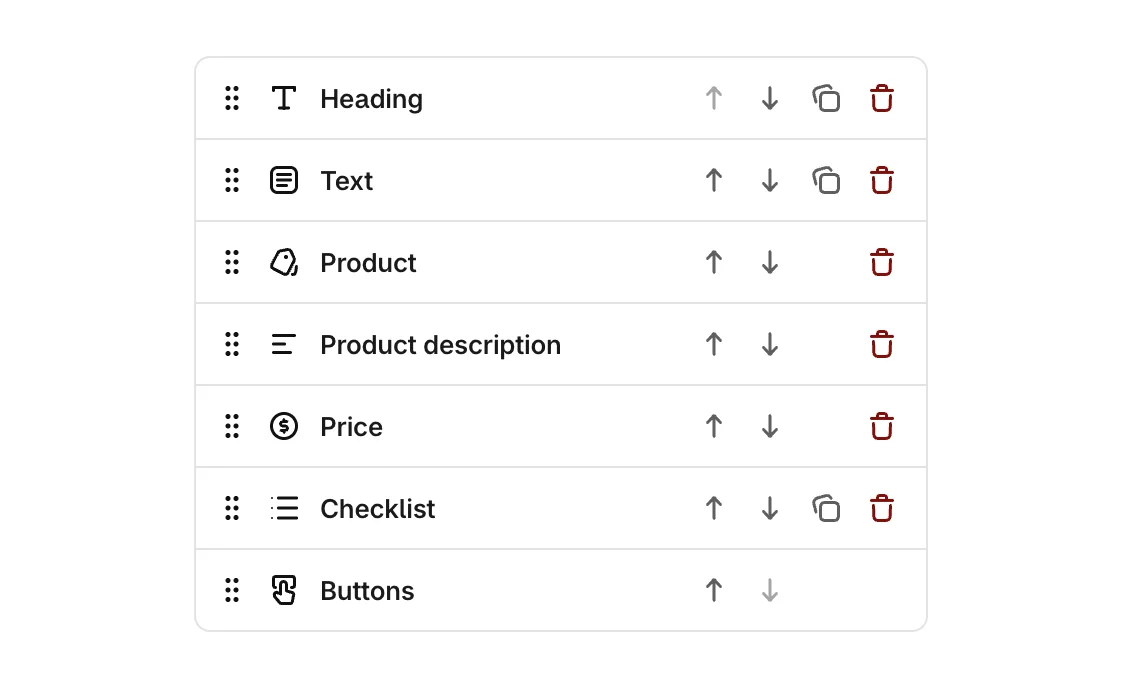
- Drag a block by its handle, or use Move up and Move down. The preview follows.
- Duplicate copies a block with its settings. Remove takes it off the offer.
- Buttons cannot be removed: every offer needs its accept and decline buttons.
Add a block
Under Add a block, select a block to add it to the end of the offer, then move it into place. Blocks that can appear only once leave the list when they are in use.
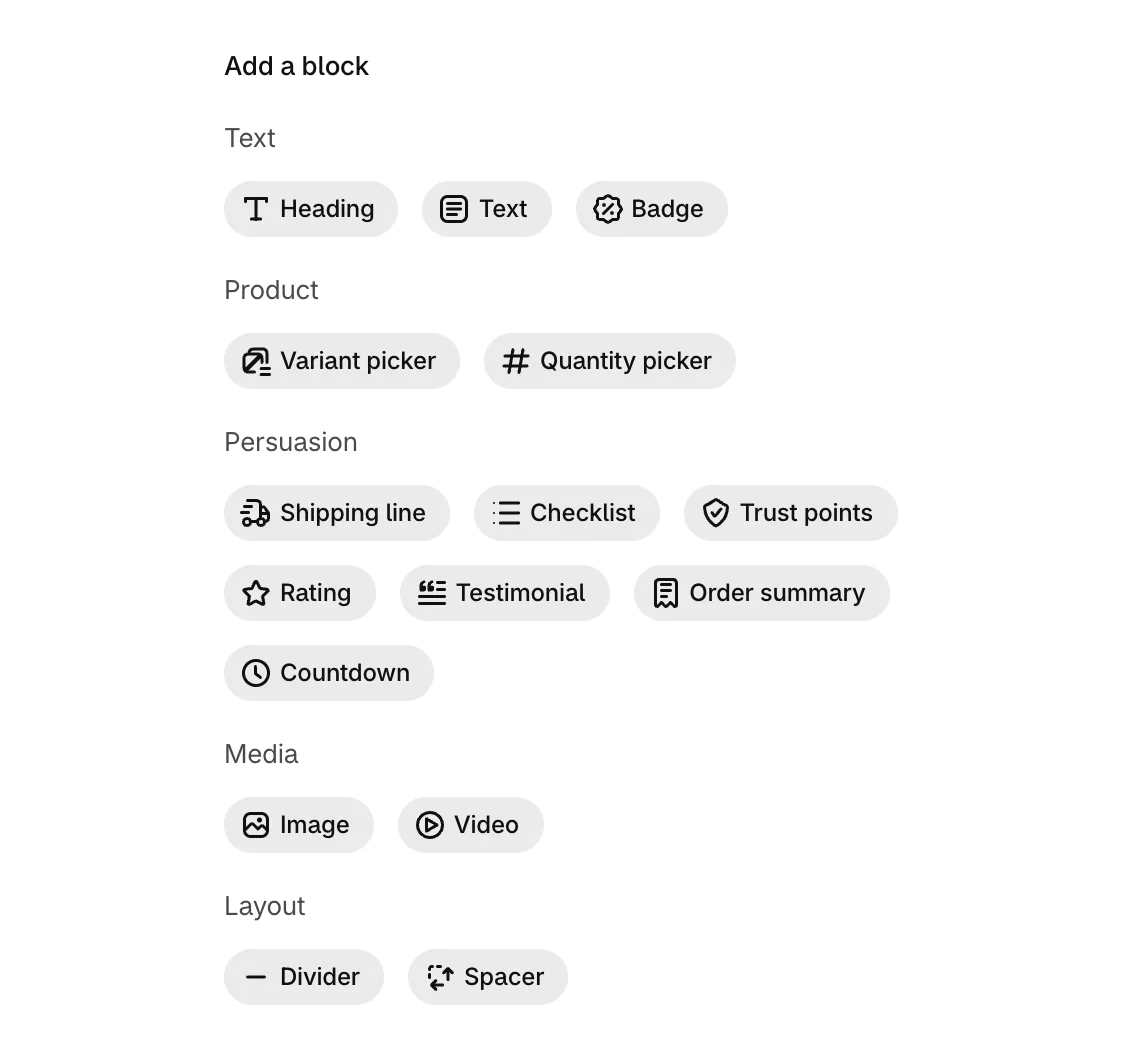
| Block | What it adds |
|---|---|
| Heading | A short headline for the offer. |
| Text | A sentence or two explaining the offer. |
| Badge | A small label such as Limited time or Ships free. |
| Product | Image, title and variant of the product you are offering. |
| Product description | The product's own description, from your catalogue. |
| Price | Offer price, with the original price and the saving. |
| Variant picker | Lets the customer choose a size or colour before adding. |
| Quantity picker | Lets the customer choose how many to add. |
| Shipping line | Reassures the customer that this ships with their order. |
| Checklist | Benefits, one per line, each with a tick. |
| Trust points | Reassurances such as secure payment or free delivery. |
| Rating | A star rating and review count for the product. |
| Testimonial | A quote from a customer, with their name. |
| Order summary | What the order costs once this is added. |
| Countdown | Counts down, then hides the offer when it runs out. Not shown in checkout. |
| Image | Your own image instead of the product photo. |
| Video | A cover image that opens your video in a new tab. |
| Divider | A line between sections. |
| Spacer | Extra space between blocks. |
| Buttons | Accept and decline actions. Every offer needs these. |
Change a block's settings
Select a block's name to open its settings. Text fields can use these placeholders, filled in for each order: {{customer.first_name}}, {{order.number}}, {{product.title}}, {{discount.value}} and {{shop.name}}.
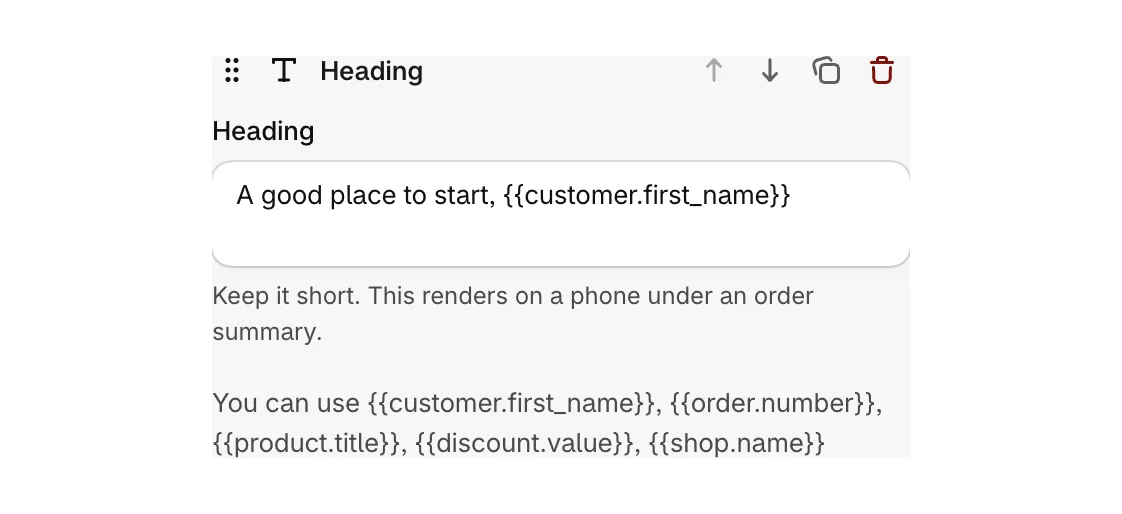
Where a value is not known yet, such as a first name on some thank you pages, the placeholder is left blank.
Buttons sets the wording and style of both buttons:
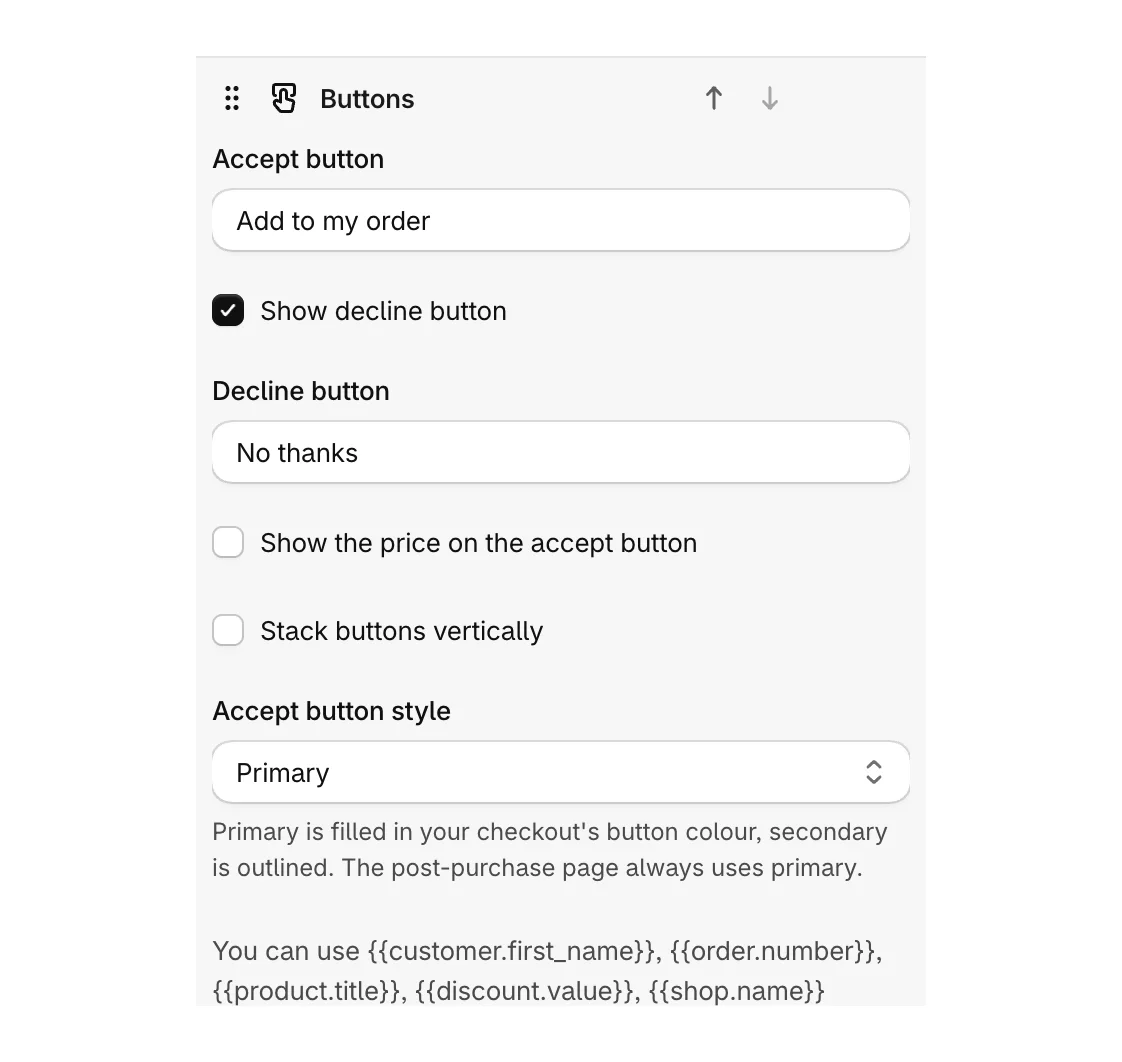
- Accept button and Decline button: the labels.
- Show decline button: untick to show only the accept button.
- Show the price on the accept button: adds the price to the label.
- Stack buttons vertically and Accept button style: the layout, and whether accept is filled or outlined.
Good to know
- The post-purchase page shows the product with your heading, text and button labels. Its other blocks show on the order pages.
- A Video link is hidden in in-app browsers such as TikTok's, where opening a tab would take the customer out of checkout. Set a fallback image in the block for them.
- A step with no Product block is skipped on the thank you and order status pages.
Was this helpful?
More in Offers
- Edit an offerChoose the product and discount for an offer, check it in the live preview, and save it.
- Show several products on the post-purchase pageTurn an offer into a feed of 2 to 6 products on the post-purchase page, picked for each order.
- Run an A/B testTest a different product, price or wording against your current offer and keep the one that earns more.