Choose where a funnel runs and who sees it
Pick the pages a funnel appears on and the order totals it is shown for.
 Attravo TeamUpdated 1 min read
Targeting decides where a funnel appears and which orders see it, so a bigger offer can go to bigger orders and each page gets the funnel that suits it.
Choose the pages
- Open the funnel and select Targeting.
- Under Where it can appear, tick the pages: Order status page, Thank you page, Checkout and Post-purchase page.
- Select Save in the bar at the top of the admin.
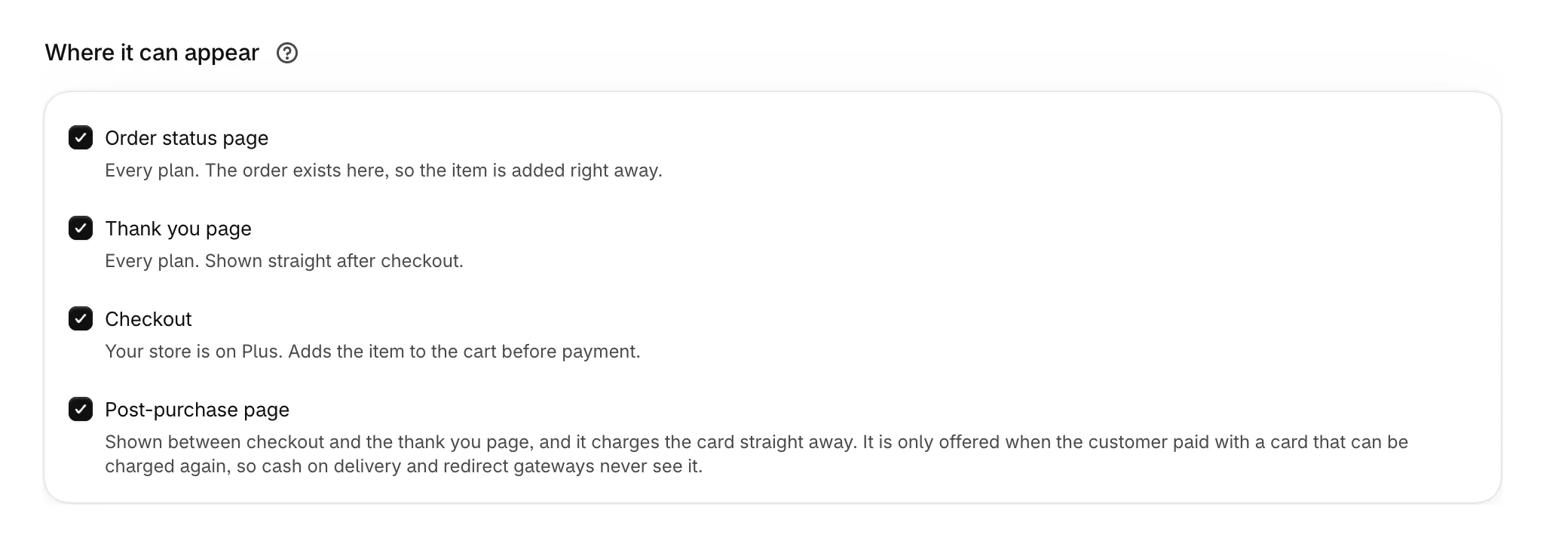
Each page adds the item in its own way. See Where offers can appear before you choose.
Checkout can only be ticked on Shopify Plus stores.
Show a funnel only for some order totals
Under When to show it:
- Minimum order total: leave empty to show on any order.
- Maximum order total: leave empty for no upper limit.
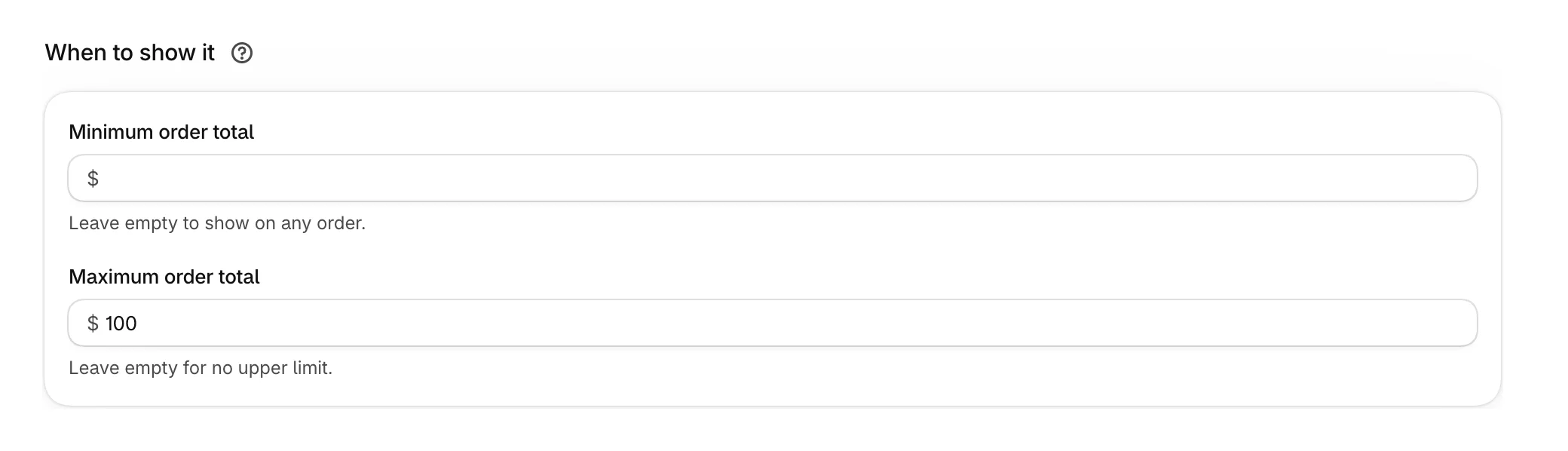
Both limits include the amount itself, so a minimum of 100 matches an order of exactly 100. Totals are in your store's currency.
How order totals are checked
- They apply on the thank you and order status pages. Checkout and the post-purchase page show the funnel whatever the order total.
- The funnel is chosen from the order as it was placed. On the thank you page, if the order is not ready yet when the page loads, the funnel is chosen first and the totals are checked when the customer accepts.
- Each accept checks the order's total again, including items the customer has already added. A later step can be refused when earlier accepts took the order over your maximum.
Was this helpful?
More in Funnels
- Choose a funnel templatePick the funnel shape that fits your products, from a single offer to an upgrade after a yes.
- Manage your funnelsFind, switch on, duplicate and delete funnels from the Funnels list, and read what each row tells you.
- Choose which funnel runs firstSet the priority order that decides which funnel a customer sees when more than one could match.
- Build a multi-step funnelFollow a yes with an upgrade and a no with a cheaper offer, and see the whole path as a flow.