Build a multi-step funnel
Follow a yes with an upgrade and a no with a cheaper offer, and see the whole path as a flow.
 Attravo TeamUpdated 2 min read
On this page
A multi-step funnel answers each choice: an upgrade for a customer who said yes, something cheaper for one who said no. Each step is a full offer of its own, so a decline does not have to end the conversation.
Read the flow
Open a funnel. Flow, at the top of Offers, draws every path a customer can take, with each step's results since it started.
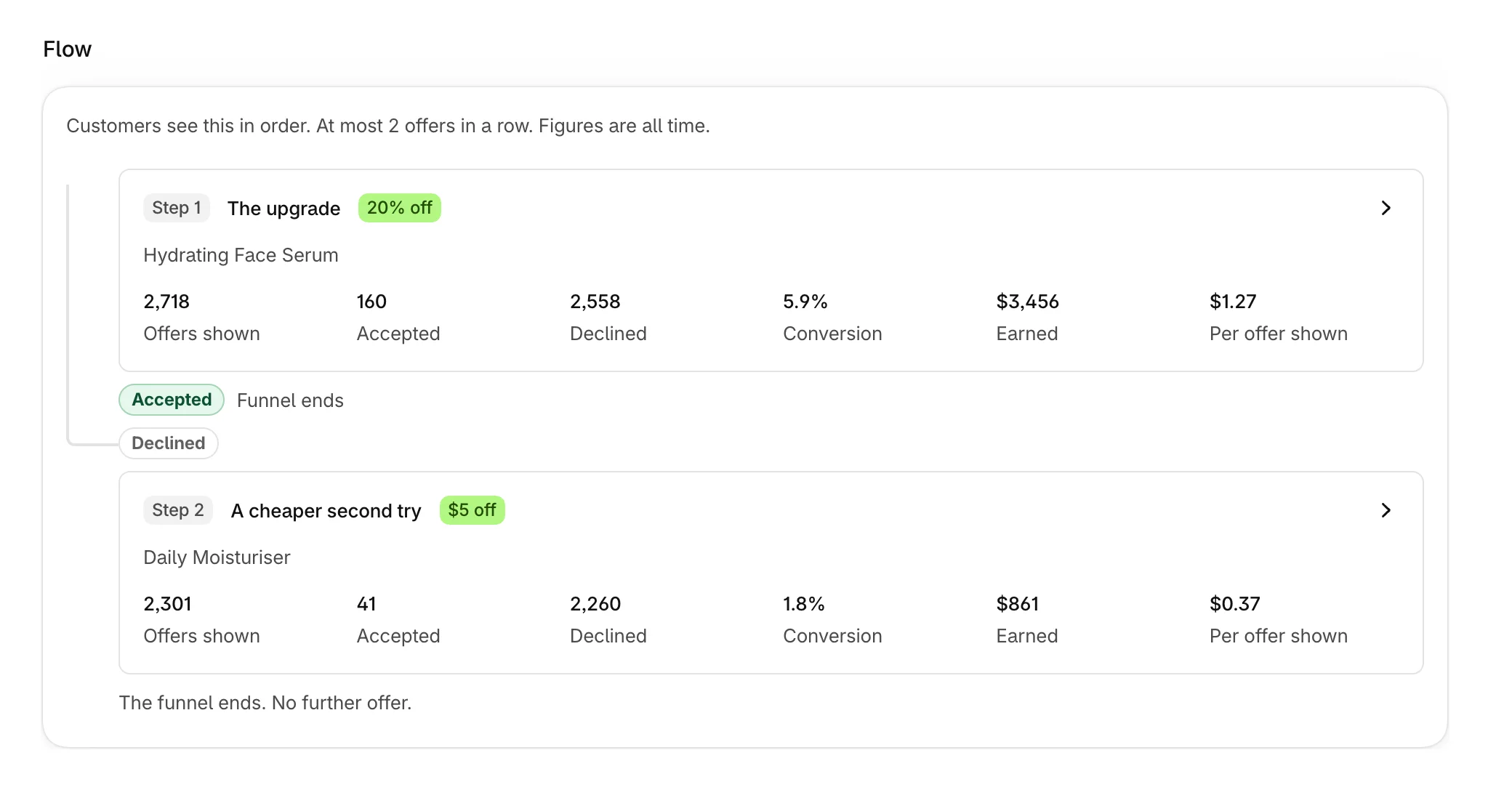
Select a step in the flow to edit its offer. Warnings appear above the flow when a step can never be reached, or when your accept limit stops a path.
Choose what happens after each answer
Under Steps, each step has two choices:
- If they accept: Finish the funnel, or go to another step.
- If they decline: Finish the funnel, or go to another step.
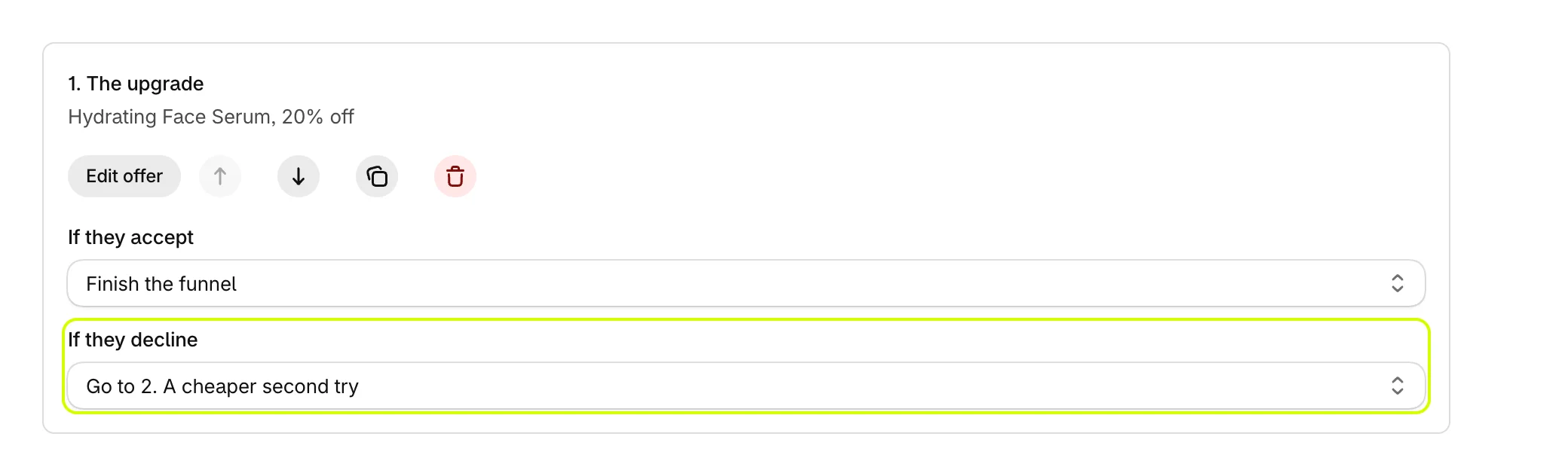
The flow redraws as you change them. Every customer starts at the first step in the list, and no step is shown twice to the same customer.
Change the steps
- Select Add step. The new step joins the end of the funnel, and the previous last step now leads to it.
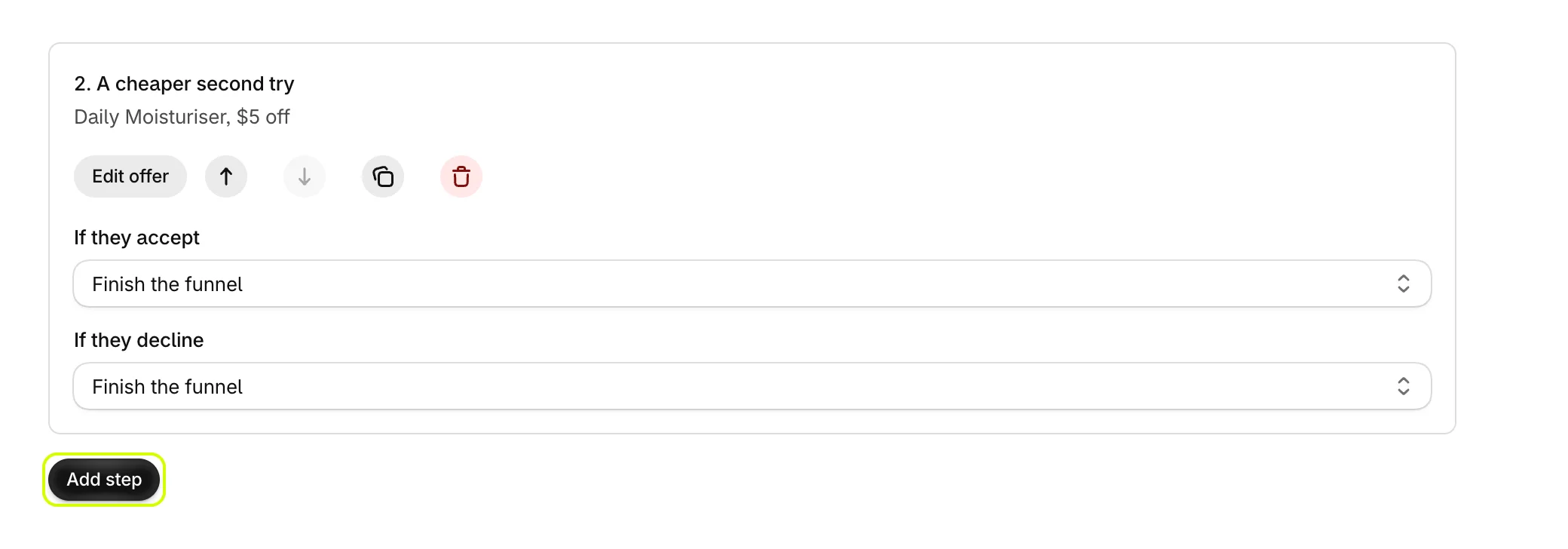
- Use the arrows on a step to move it. Moving a step does not change where answers lead, so check the choices afterwards.
- Select Edit offer on the new step to choose its product and wording.
- Select Save in the bar at the top of the admin.
Your plan sets the most steps a funnel can have: one on Free, two on Growth, three on Scale and no limit on Enterprise. At the limit, Add step is disabled and the plan that adds more is named below it.
Limit how many offers a customer accepts
Open Settings on the funnel page. Under How the funnel behaves:
- Most offers a customer can accept: once a customer has accepted this many, the funnel stops asking.
- Show progress, for example Step 2 of 3: shows the step number and a bar above the offer on the order pages and checkout.
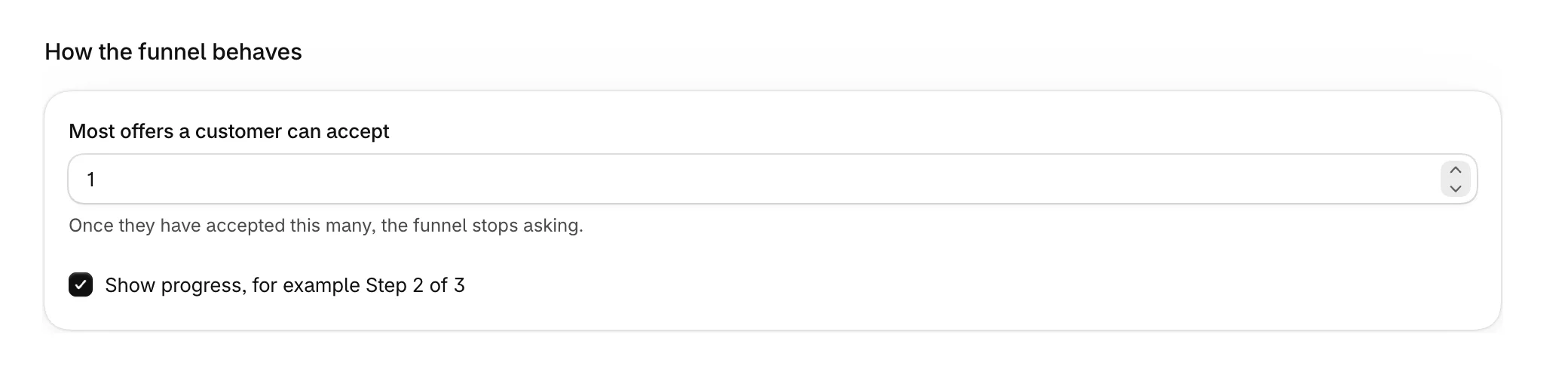
Only accepts that went through count toward the limit.
Funnel name, in the same tab, appears in Attravo, in the tags of orders that took an offer, and as the discount's title when an offer is accepted on the post-purchase page.
Was this helpful?
More in Funnels
- Choose a funnel templatePick the funnel shape that fits your products, from a single offer to an upgrade after a yes.
- Manage your funnelsFind, switch on, duplicate and delete funnels from the Funnels list, and read what each row tells you.
- Choose which funnel runs firstSet the priority order that decides which funnel a customer sees when more than one could match.
- Choose where a funnel runs and who sees itPick the pages a funnel appears on and the order totals it is shown for.