Add the Upsell Offer block to your pages
Place the Upsell Offer block on the thank you and order status pages so your funnels can show there.
 Attravo TeamUpdated 1 min read
On this page
Your funnels show on the thank you page, the order status page and, for Plus stores, checkout through one block: Upsell Offer. Place it once on each page you use and every funnel can appear there.
Place the block
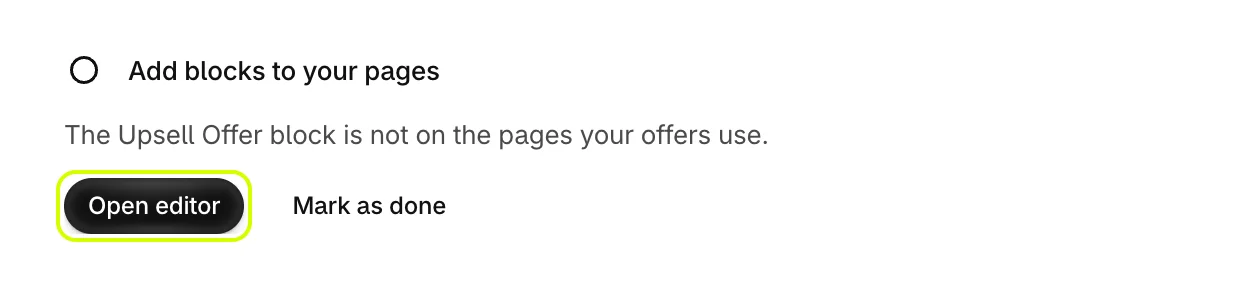
- On Home, under Add blocks to your pages, select Open editor. The checkout editor opens on the Thank you page.
- Select Add app block, then Upsell Offer.
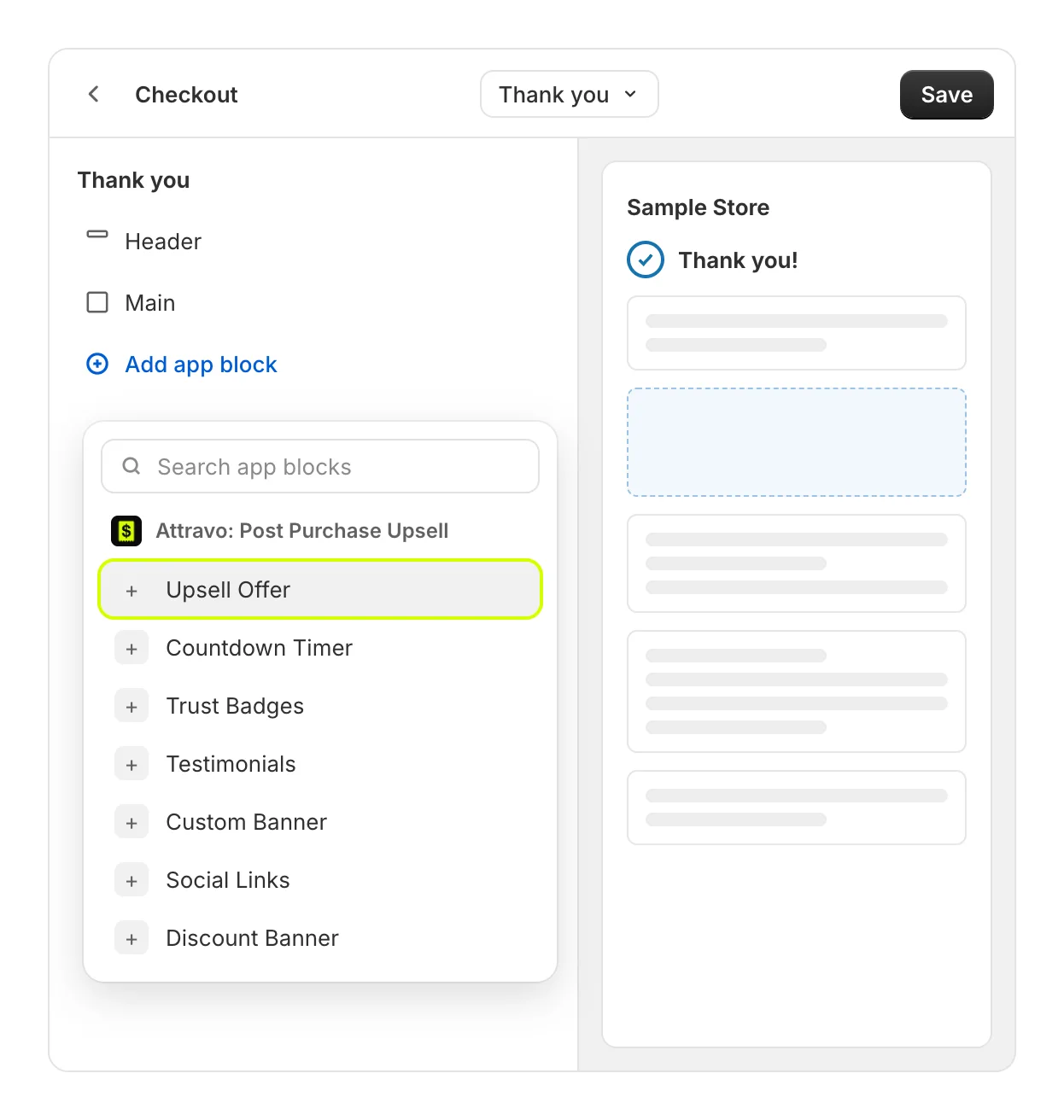
- Drag the block to where it should sit on the page, then select Save. In the editor, the block previews your funnel's offer. Its buttons do nothing there.
- Switch the page selector at the top of the editor to Order status, and add the block there too.
Funnels that run on Checkout need the block on the checkout page as well. That page is only available on Shopify Plus.
Check where blocks are placed
On Home, Checkout blocks lists every page and the blocks placed on it. Open a page to see each block marked Active or Inactive, and Open editor to change it.
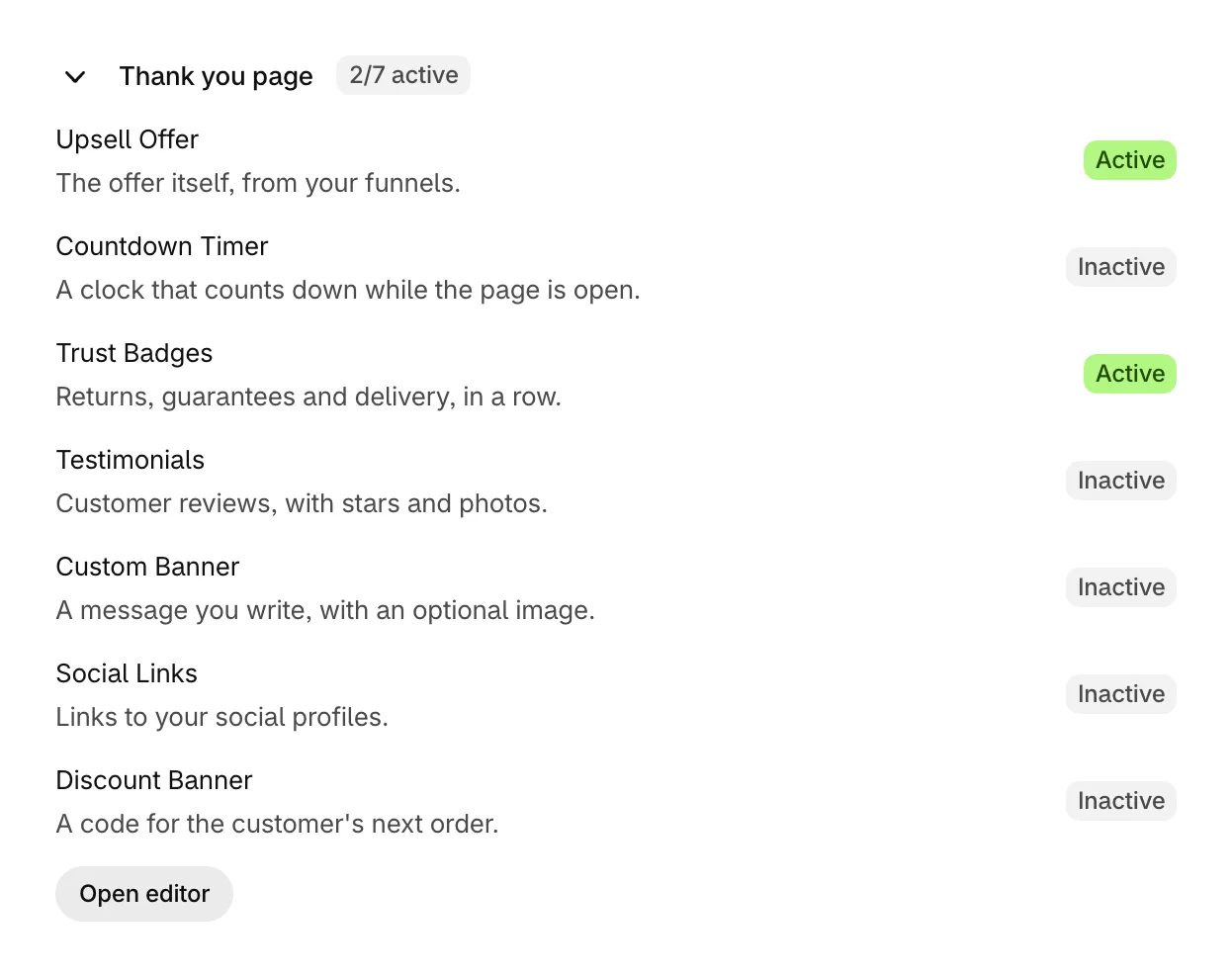
The other blocks in the list, such as Countdown Timer and Trust Badges, are optional. See Add page blocks to your checkout pages.
The post-purchase page works differently: there is no block to place. See Set up the post-purchase page.
Was this helpful?
More in Getting started
- Install AttravoInstall Post Purchase Upsell from the Shopify App Store and finish its one-page welcome.
- Finish the setup guideWork through the setup guide on Home until your first offer is live for customers.
- Create your first funnelPick a template, choose the product it offers, and activate your first funnel.
- Turn on Core Script in your themeTurn on the Core Script app embed so Attravo can confirm it is installed and read your theme's fonts and colours.