Show several products on the post-purchase page
Turn an offer into a feed of 2 to 6 products on the post-purchase page, picked for each order.
 Attravo TeamUpdated 2 min read
On this page
A feed shows several products at once on the post-purchase page, each with its own add button, so a customer who does not want one product can still pick another. The Offer feed template starts with one set up.
Turn on the feed
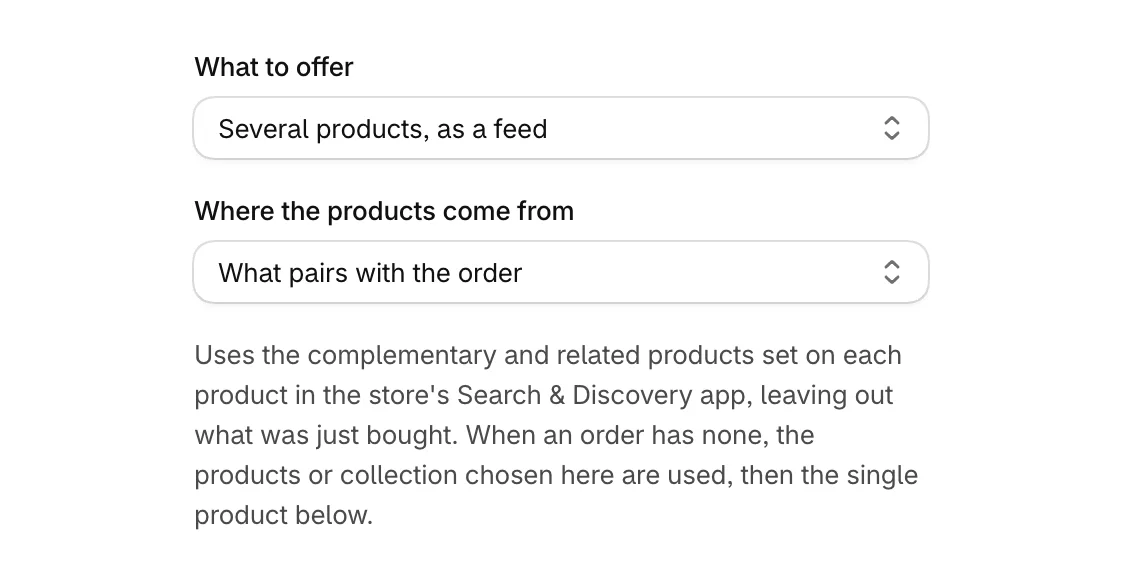
- Open the offer and, under Product and price, set What to offer to Several products, as a feed.
- Choose Where the products come from:
- What pairs with the order: the complementary and related products set on each product in the Search & Discovery app, leaving out what was just bought.
- Products I choose: select Add products and pick them.
- A collection: its best sellers first.
Choose how the feed looks
- Pick a Layout:
- Cards: three to a line on a wide screen, stacked on a phone. Past three, Previous and Next turn the pages.
- Rows: every product in its own row, all in view.
- Carousel: one product at a time, with Previous and Next.
- Tick Let customers choose a variant to show a picker on products with more than one variant. The price follows the choice.
- Set Products shown, from 2 to 6.
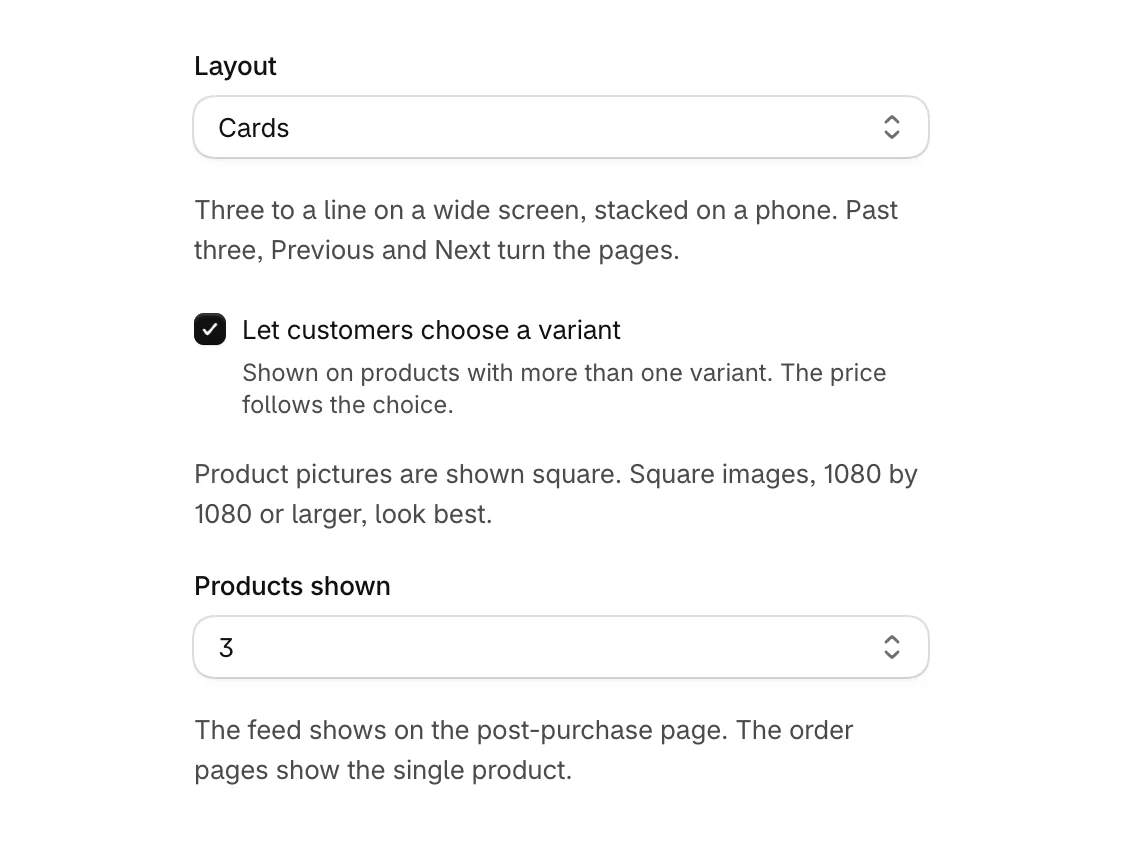
Pictures are shown square, so square images of 1080 by 1080 or larger look best.
The single product behind the feed
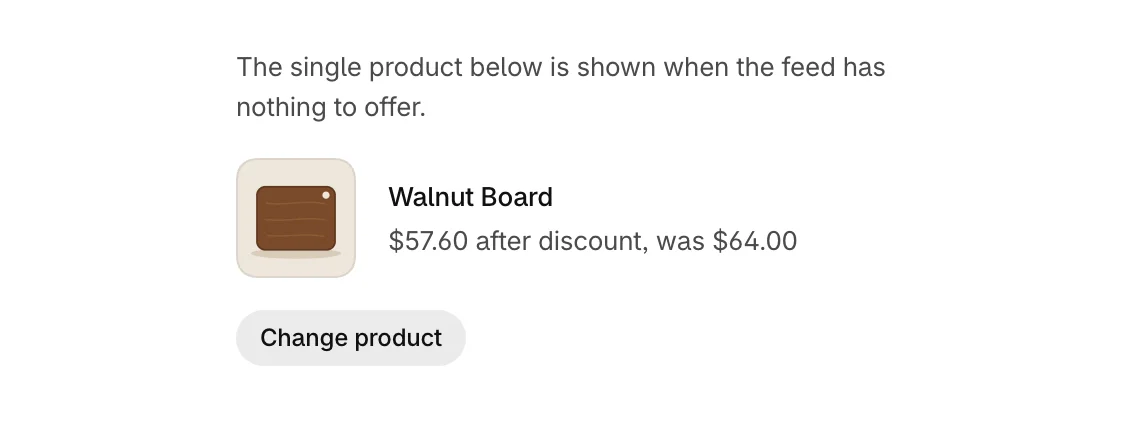
The feed shows only on the post-purchase page. The single product under the feed settings is used:
- on the thank you and order status pages, which show one product, and
- when the feed finds nothing to offer for an order.
What customers see
- Each product has its own add button. One decline covers the whole feed.
- Products already in the order, unavailable products and products without a price are left out.
- If a source finds nothing, Attravo tries your chosen products, then the collection, then the single product.
- A feed that ends up with one product shows it as a single offer.
The feed runs on the post-purchase page, so the funnel needs that page turned on. See Set up the post-purchase page.
Was this helpful?
More in Offers
- Edit an offerChoose the product and discount for an offer, check it in the live preview, and save it.
- Add and arrange offer blocksBuild an offer from blocks such as a heading, the product, a checklist and a countdown, in the order you choose.
- Run an A/B testTest a different product, price or wording against your current offer and keep the one that earns more.