Edit an offer
Choose the product and discount for an offer, check it in the live preview, and save it.
 Attravo TeamUpdated 2 min read
On this page
Each step of a funnel is an offer: one product, a discount and the words around it. The offer window shows a live preview as you edit, drawn the way your checkout pages draw it, so you see what customers will see.
Open the offer window
Open a funnel, then select Edit offer on a step under Steps, or select the step in Flow. The window opens with settings on the left and the preview on the right.
Choose the product
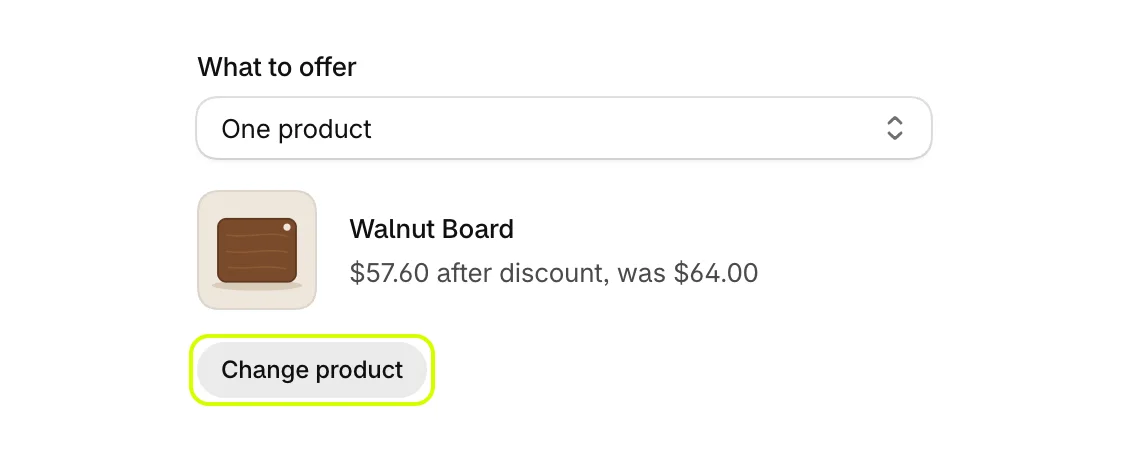
Under Product and price:
- Keep What to offer on One product.
- Select Change product and pick the product. The price after the discount shows under its name.
To show several products on the post-purchase page, see Show several products on the post-purchase page.
Set the discount
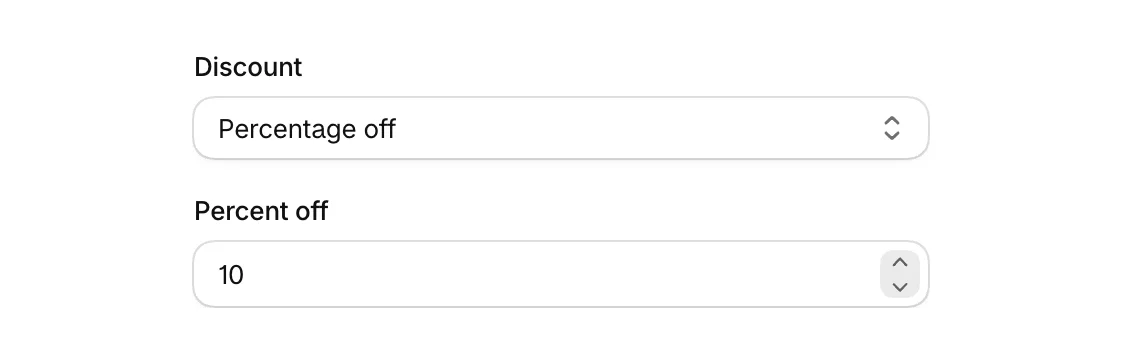
- Choose Discount: No discount, Percentage off or Amount off.
- Enter the amount. A percentage must be between 0 and 100, and an amount cannot be negative.
On Checkout, the discount applies once discounts are enabled at checkout. See Where offers can appear.
Check the preview
The preview updates as you type. Switch between the pages the funnel runs on at the top of the preview, and between desktop and phone width with the two icons at the right of the same bar.
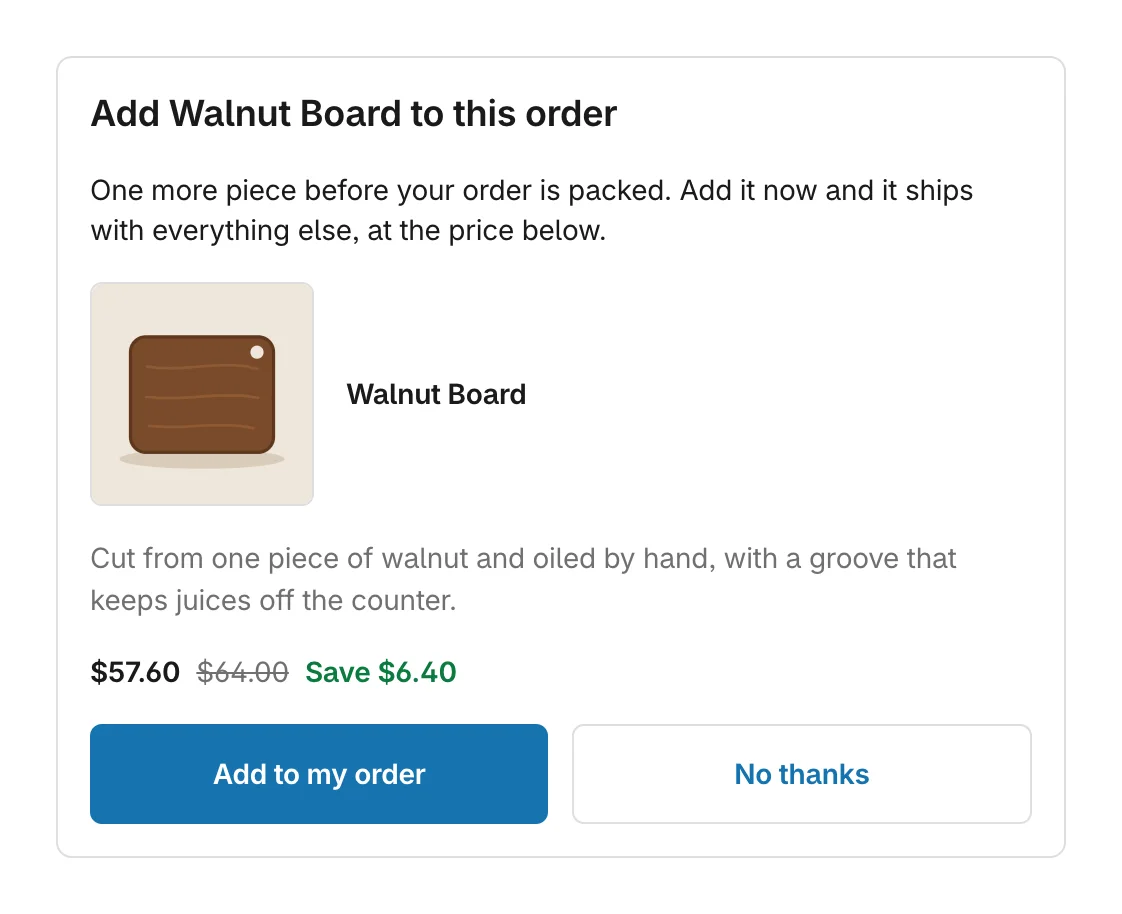
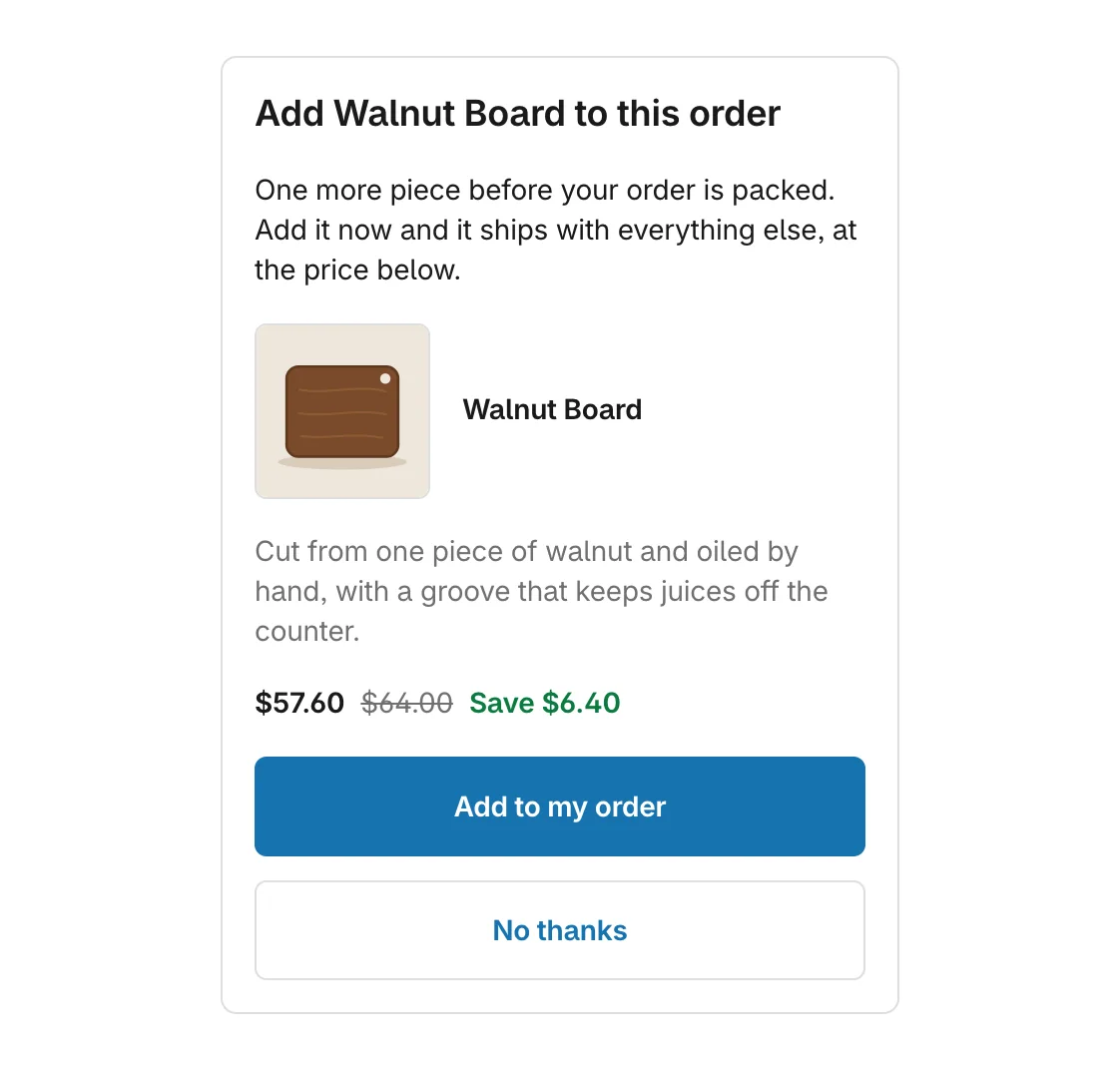
Customers see your offer styled by your checkout's branding, so the preview takes no colours or fonts from Attravo.
Name the step and save
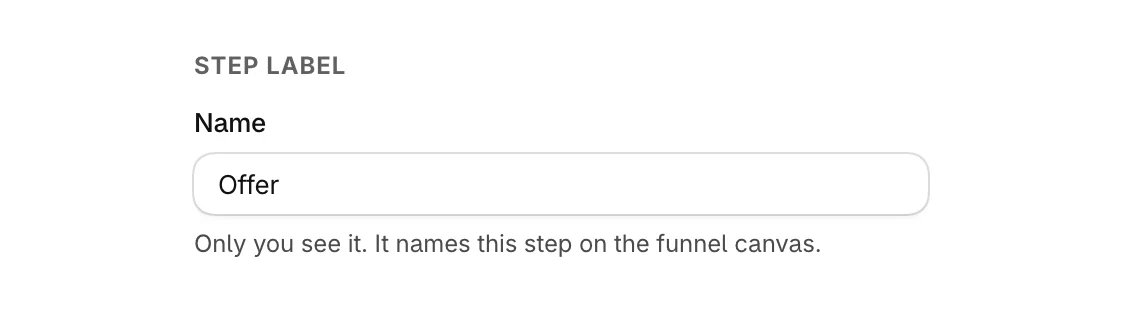
- Under Step label, give the step a Name. Only you see it, on the funnel page and in results.
- Select Save at the top of the window. Discard puts back the last saved version. While there are changes, the window shows Unsaved changes.
Was this helpful?
More in Offers
- Add and arrange offer blocksBuild an offer from blocks such as a heading, the product, a checklist and a countdown, in the order you choose.
- Show several products on the post-purchase pageTurn an offer into a feed of 2 to 6 products on the post-purchase page, picked for each order.
- Run an A/B testTest a different product, price or wording against your current offer and keep the one that earns more.