Match your store's look
How offers take your checkout's fonts and colours, and how to check them on desktop and phone.
 Attravo TeamUpdated 1 min read
Offers look like part of your checkout because Shopify draws them with your checkout's own branding. There are no colours or fonts to set in Attravo, so an offer always matches the page around it.
Change the look
Fonts, colours, corner shapes and button colours come from your checkout's branding:
- In your Shopify admin, open Settings > Checkout and select Customize.
- Change the branding in the checkout editor's settings, then select Save.
Every offer and page block follows the change. Inside Attravo, you choose the parts of an offer and their wording, not their colours. See Add and arrange offer blocks.
Check desktop and phone
In the offer window, the icons at the right of the preview bar switch between desktop and phone width.
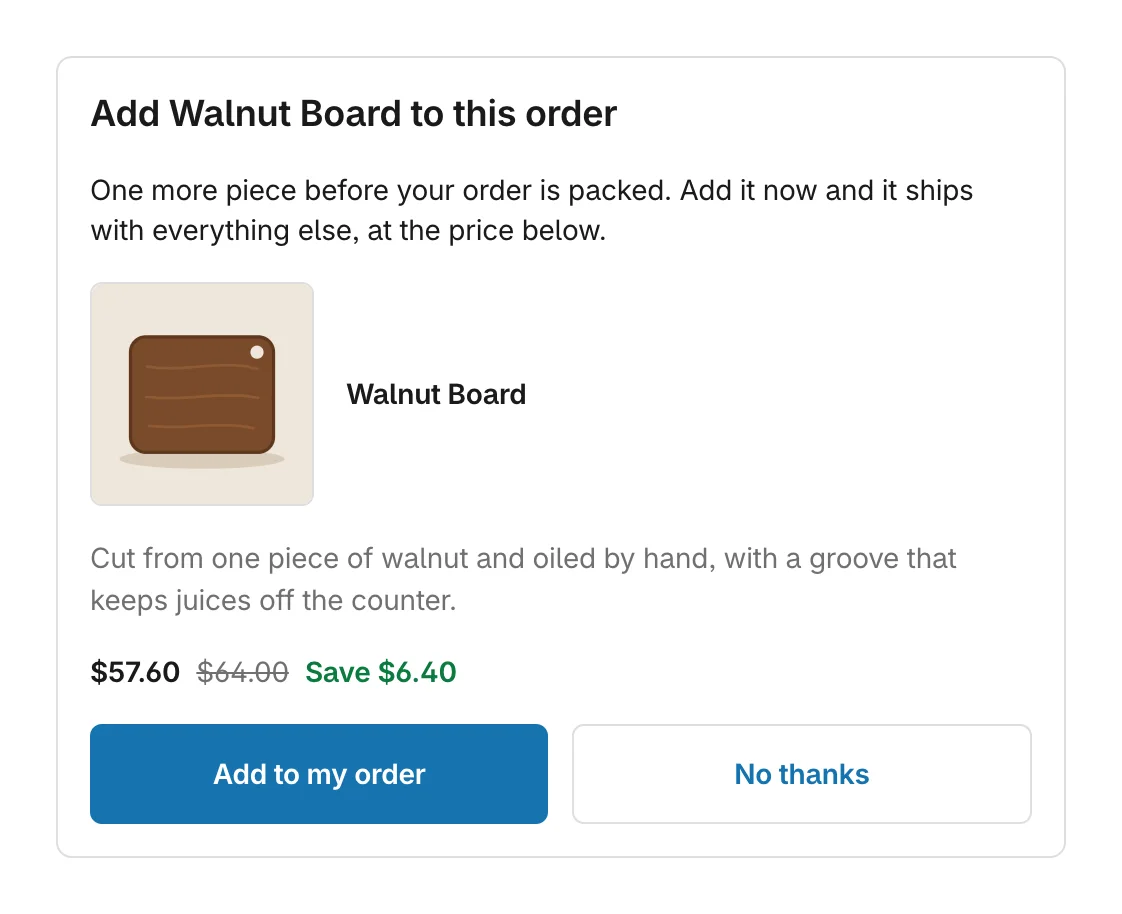
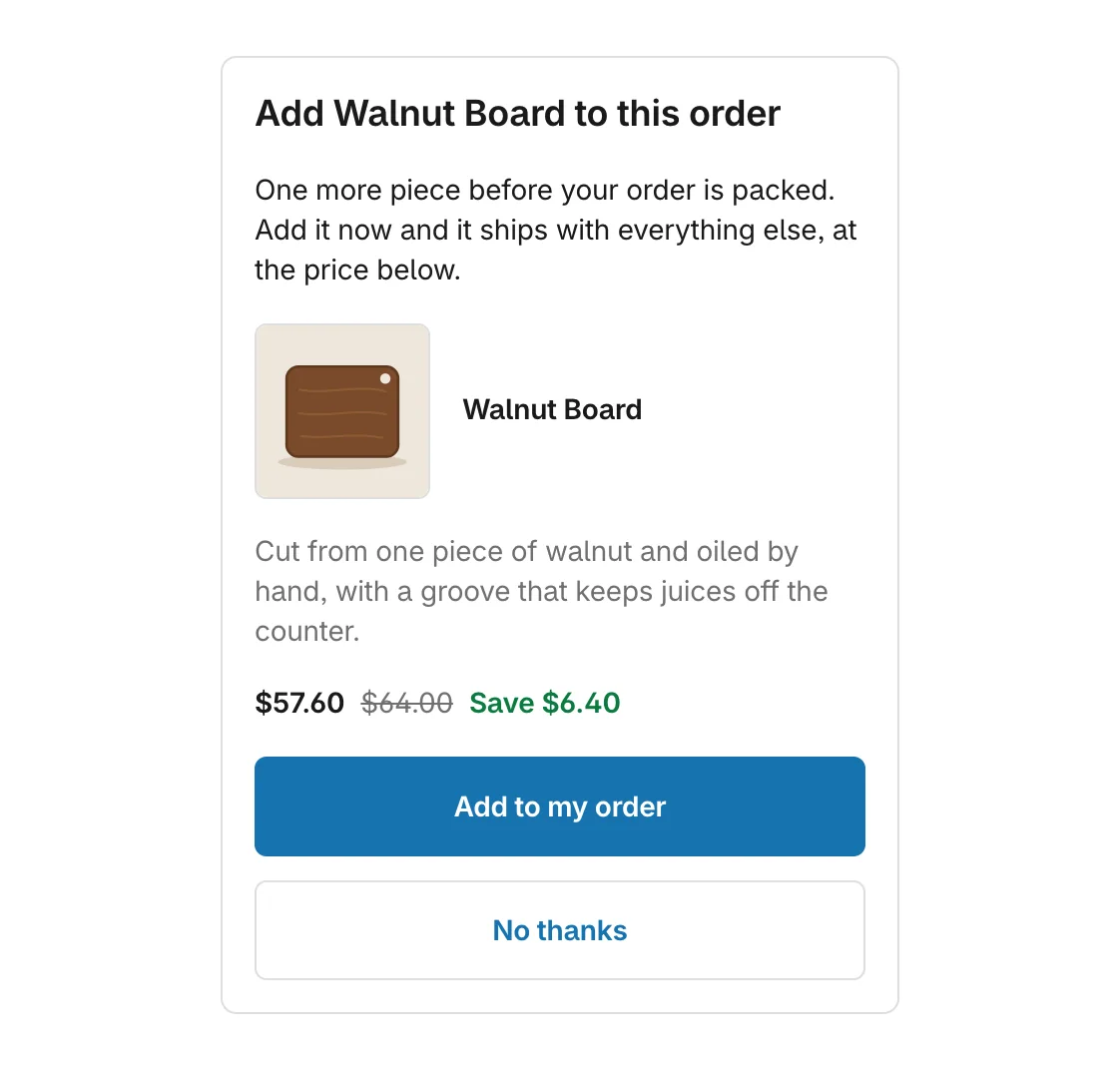
On a phone, the offer fills the screen's width and its buttons sit one under the other when they need the room. Stack buttons vertically, in the Buttons block, stacks them on every screen.
Your theme's fonts and colours
Settings > Your theme shows the fonts and colours your live theme uses, as Core Script reports them. They are there for reference, so you can match your checkout's branding to your storefront.
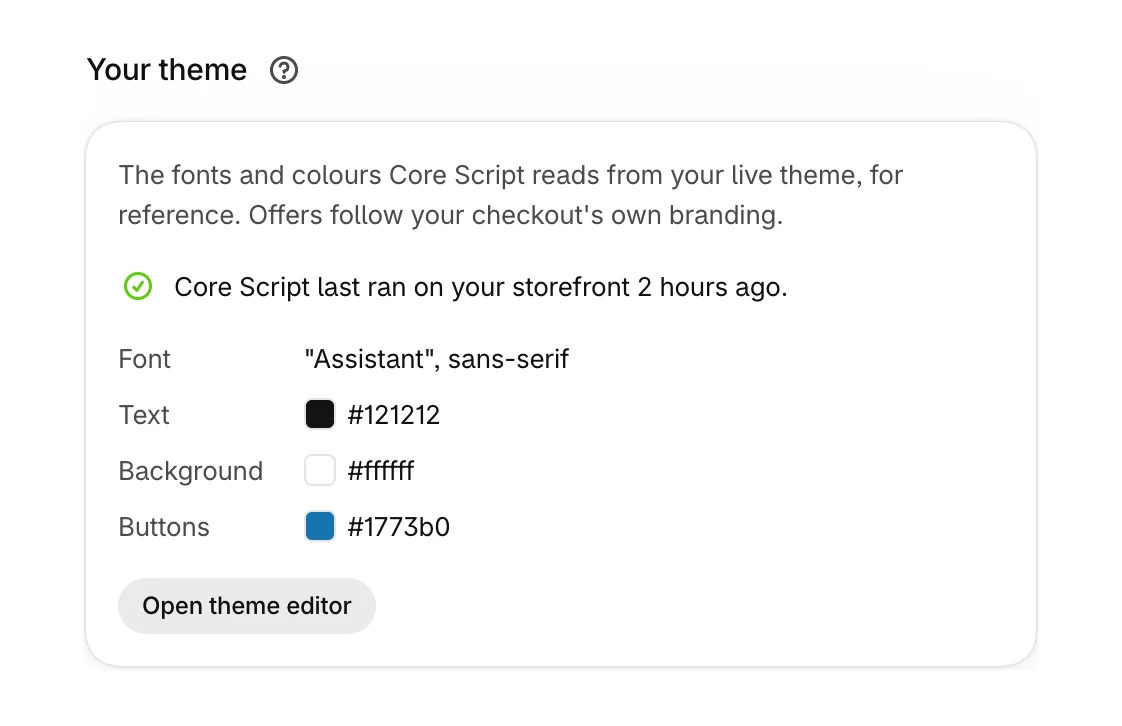
Nothing appears here until Core Script is on and a customer has loaded a page. See Turn on Core Script in your theme.
Images
Use square product images of 1080 by 1080 or larger, which look sharp in every layout. An Image block takes the address of an image already hosted on your store.
Was this helpful?