Where offers can appear
Compare the four pages an offer can appear on, how each adds the item, and what each needs.
 Attravo TeamUpdated 2 min read
Attravo can show an offer on four pages. Each adds the item in its own way and reaches different customers, so the right pages depend on how your customers pay.
The four pages
| Page | When customers see it | How an accepted item is paid | What it needs |
|---|---|---|---|
| Post-purchase page | After payment, before the thank you page | Charged to the customer's card in one tap | A card that can be charged again, and Attravo chosen in checkout settings |
| Thank you page | Straight after checkout | Added to the order, paid by invoice or to the courier | The Upsell Offer block |
| Order status page | Whenever the customer checks their order | Added to the order, paid by invoice or to the courier | The Upsell Offer block |
| Checkout | Before payment | Added to the cart and paid with the order | Shopify Plus, and the Upsell Offer block |
The thank you and order status pages work on every Shopify plan except Starter. Choose a funnel's pages under Targeting. See Choose where a funnel runs and who sees it.
The post-purchase page
A full page with your offer, its price and the saving. The customer adds it in one tap and their card is charged straight away.
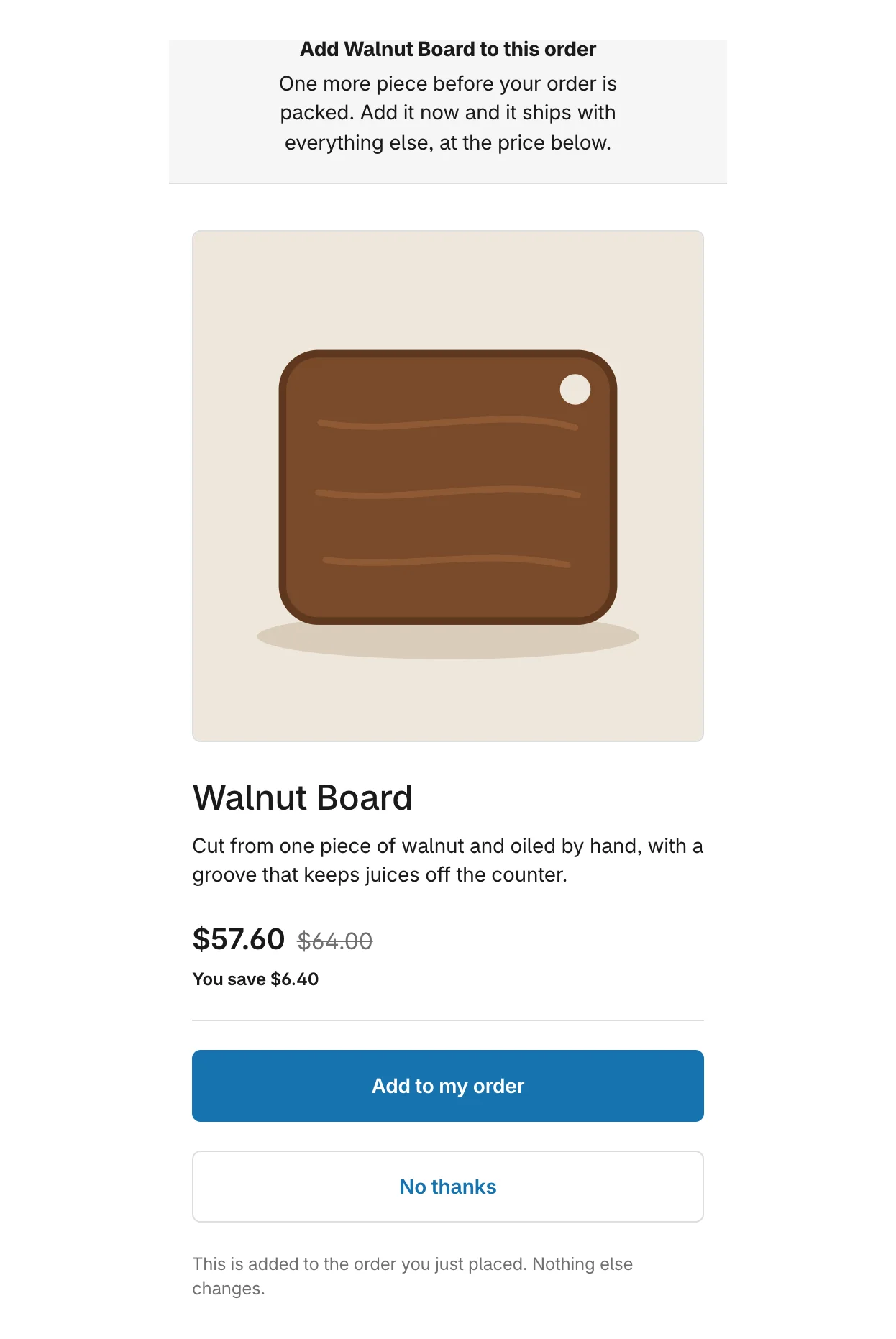
Shopify only offers this page to customers who paid by a card that can be charged again, so cash on delivery and payment methods that redirect never see it. See Set up the post-purchase page.
The thank you and order status pages
The offer sits on the page in your checkout's style. When a customer accepts, the item joins the order they just placed:
- On a paid order, the customer is emailed an invoice for the difference.
- On cash on delivery, the courier collects the new total.
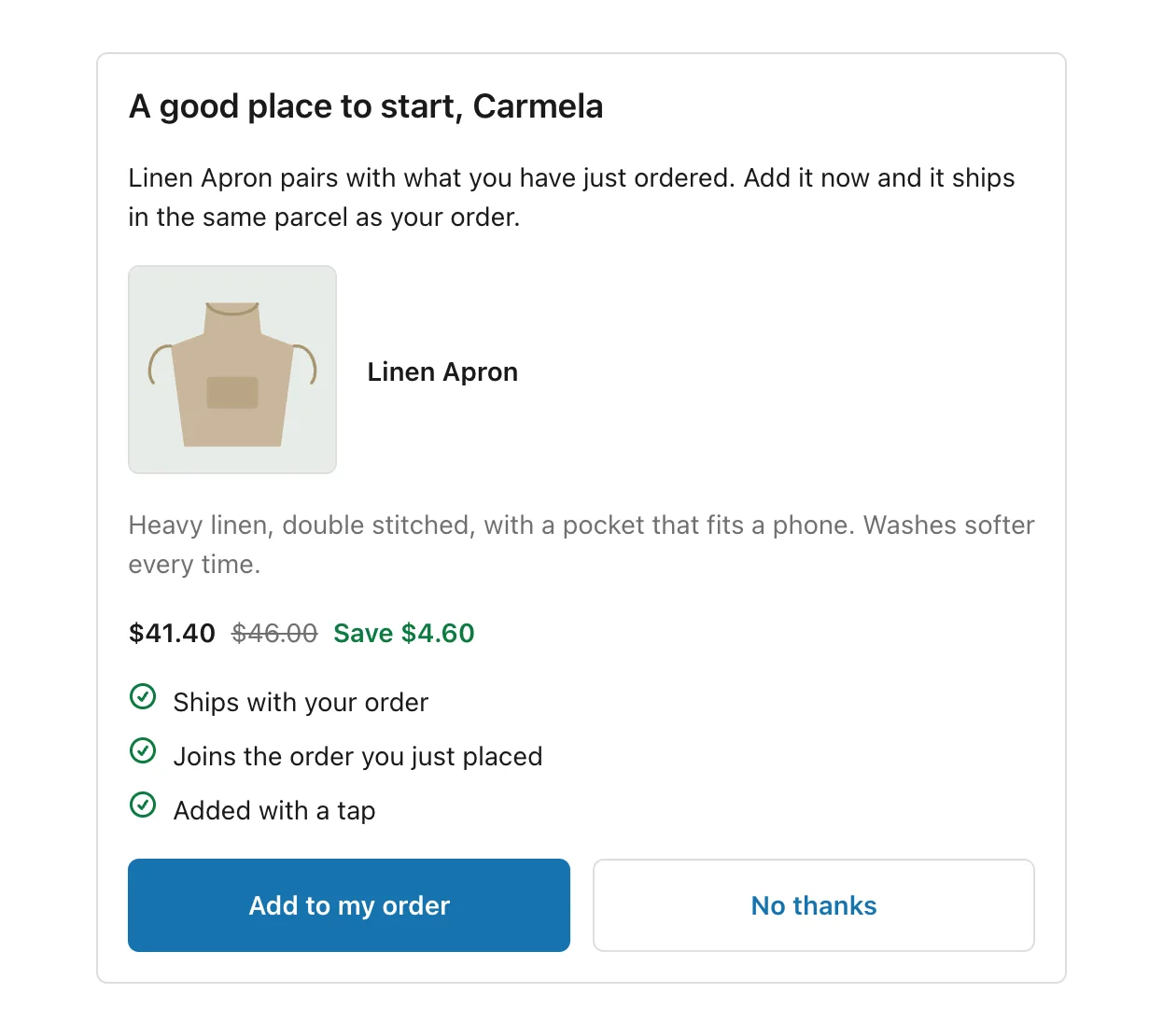
An accept is refused if the order was cancelled, is fully fulfilled, or can no longer be edited. The order status page keeps offering until then, so a customer who comes back later can still say yes.
Checkout
Shopify Plus stores can show the offer inside checkout, before payment. An accepted item is added to the cart and paid with the rest of the order.
An offer's discount reaches checkout through an automatic discount called Offer discount, which Attravo creates in your store. Enable it once and it covers every funnel:
- Open a funnel and select Targeting.
- Under Where it can appear, find Checkout and select Enable discounts at checkout.
- Approve the permission to manage discounts.
Customers see the saving on the item in checkout, labelled Offer discount. It combines with your other discounts when they are set to combine with product discounts. Accepts on Checkout count toward Earned and your plan's included revenue once the order is paid.
Countdowns do not show on Checkout, and order total limits do not apply there.
Was this helpful?
More in Pages and blocks
- Add page blocks to your checkout pagesAdd a countdown, trust badges, reviews, a banner, social links or a discount code to your thank you and order status pages.
- What customers see when they acceptFollow an offer from the customer's side, on desktop and phone, through accepting, declining and the next step.