Set defaults for new funnels
Choose the pages, accept limit and progress line every new funnel starts with.
 Attravo TeamUpdated 1 min read
On this page
Defaults save you from setting the same things on every funnel. They apply when a funnel is created from a template or from scratch. Funnels you already have keep their own settings.
Change the defaults
- Open Settings and scroll to Defaults for new funnels.
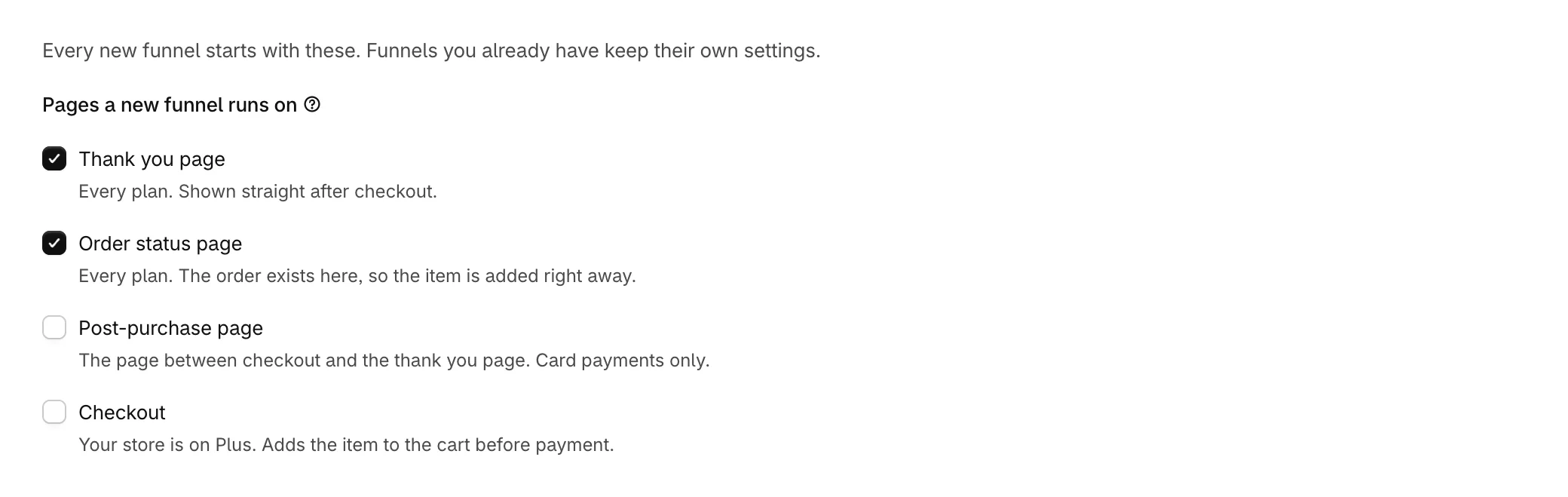
- Under Pages a new funnel runs on, tick the pages new funnels should start on.
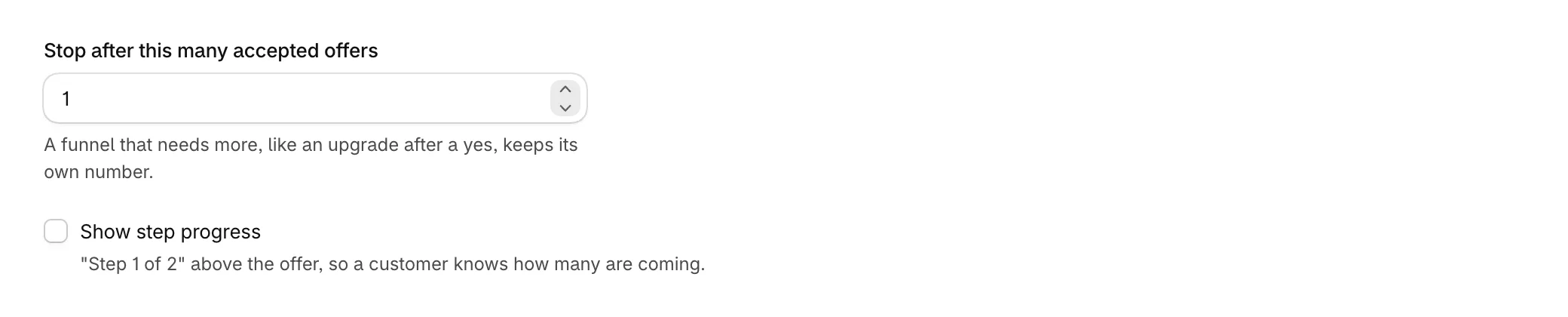
- Set Stop after this many accepted offers, from 1 to 10.
- Tick Show step progress to show "Step 1 of 2" above the offer.
- Select Save in the bar at the top of the admin.
Until you change them, new funnels run on the thank you and order status pages, stop after one accepted offer, and hide the progress line.
How the defaults apply
- Pages replace the template's own pages. Offer feed is the exception: it always starts on the post-purchase page only. If you untick every page, new funnels use the thank you and order status pages.
- Stop after this many accepted offers is a minimum. A template that needs more, such as Upgrade after a yes, keeps its own number.
- Checkout can only be ticked on Shopify Plus stores.
- Duplicated funnels copy the original, not the defaults.
Was this helpful?
More in Funnels
- Choose a funnel templatePick the funnel shape that fits your products, from a single offer to an upgrade after a yes.
- Manage your funnelsFind, switch on, duplicate and delete funnels from the Funnels list, and read what each row tells you.
- Choose which funnel runs firstSet the priority order that decides which funnel a customer sees when more than one could match.
- Build a multi-step funnelFollow a yes with an upgrade and a no with a cheaper offer, and see the whole path as a flow.