Add a countdown timer
Show a countdown bar at the top of the cart, and choose what happens when the clock runs out.
 Attravo TeamUpdated 1 min read
A countdown bar gives shoppers a reason to finish now. It counts down for each visit and reserves nothing, so word it to stay true, for example about an offer rather than about stock.
Turn on the countdown
- On Cart settings, open General.
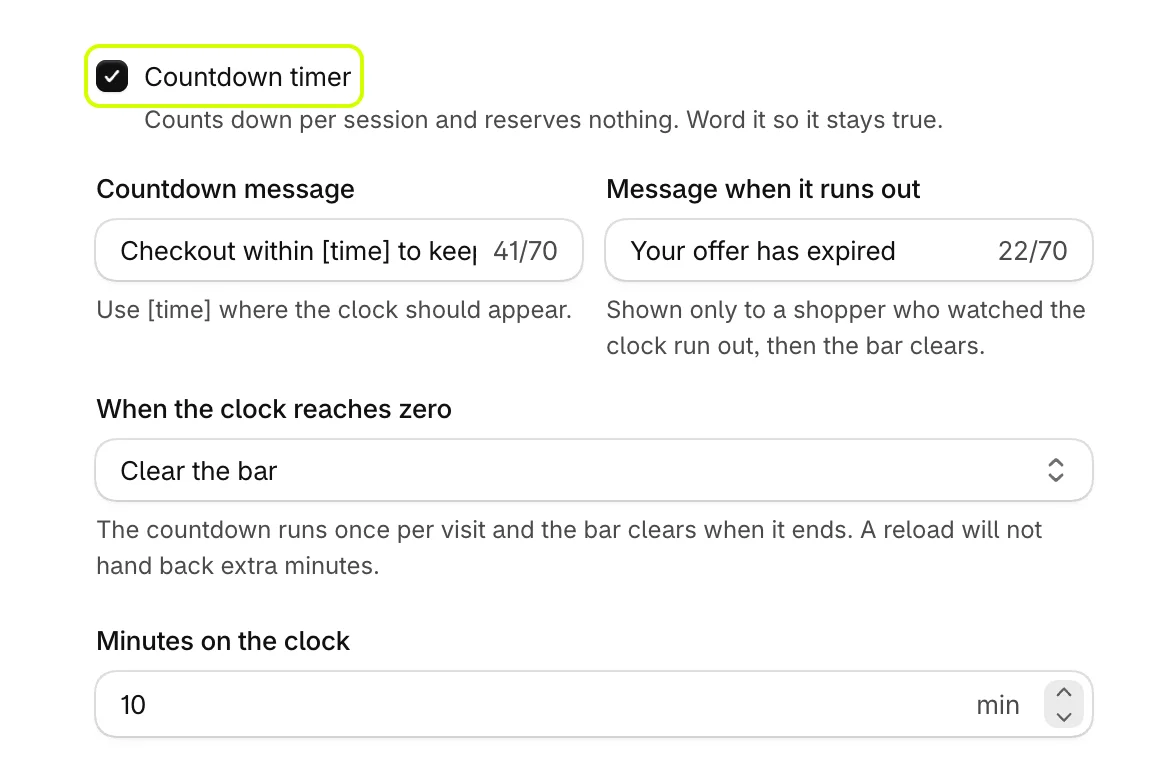
- Turn on Countdown timer.
- Change Countdown message. Put
[time]where the clock should appear, as in Checkout within [time] to keep this offer. - Change Message when it runs out. It shows only to a shopper who watched the clock reach zero.
- Under When the clock reaches zero, choose one:
- Clear the bar: the countdown runs once per visit and the bar clears when it ends. A reload does not give back extra minutes.
- Start a new countdown on the next visit: every page load and every cart open gets a fresh countdown, so the bar is always running.
- Set Minutes on the clock, from 1 to 60.
- Select Save.
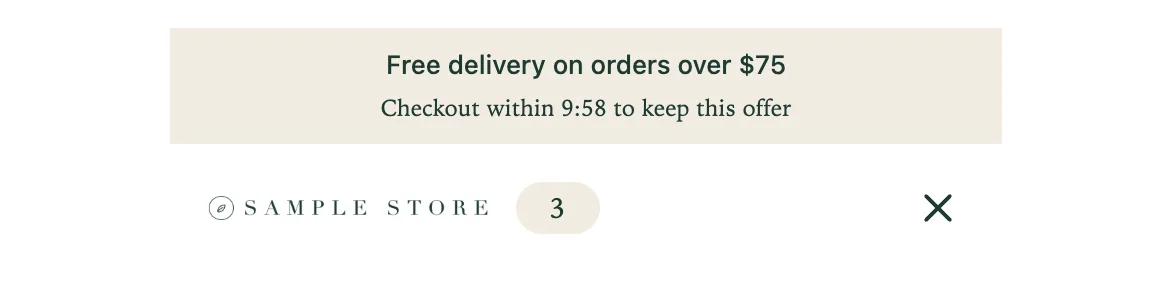
Its colors are under Colors as Countdown bar and Text on countdown.
Was this helpful?
More in The cart
- Choose how the cart opensUse the drawer alone or with a full cart page, keep it above chat widgets, and decide where Buy it now and wallet buttons show.
- Add your logo and an announcementPut your logo or your own title at the top of the cart, and a strip of text above it for a message shoppers should not miss.
- Set up the empty cartTurn an empty cart into a way back into your store, with your own message, collections to browse, offers and reward progress.
- Set up the total and checkout buttonWord the total and the checkout button your way, pick the button's icon, and choose how prices and free gifts read.