Turn on the cart in your theme
Switch on the Cart Drawer app embed so your store shows the new cart instead of your theme's own.
 Attravo TeamUpdated 1 min read
The cart runs through an app embed called Cart Drawer. While it is off, shoppers see your theme's cart, and the app keeps its rewards paused at checkout so nothing is given away that the cart did not show.
Turn on the app embed
- On Cart settings, open Turn on the cart in your theme in the Setup guide and select Open theme editor. The Not in theme badge at the top of the page opens it too.

- The theme editor opens on App embeds for your live theme. Turn on Cart Drawer, then select Save.
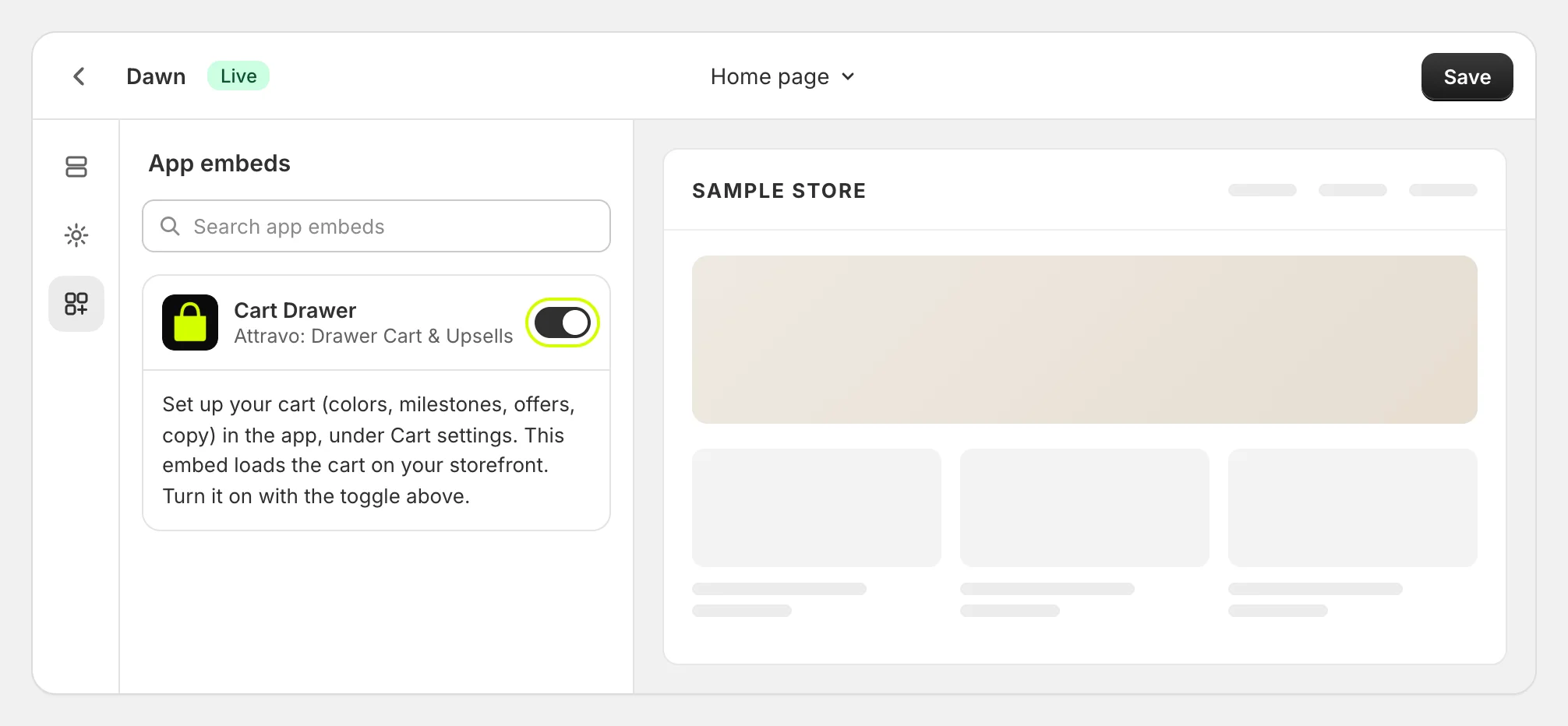
- Go back to Cart settings. The badge now reads Active in theme, and the guide ticks the step off.

The embed has no settings of its own. Everything about the cart is set in the app, on Cart settings.
If you turned it on in another theme
The app checks the theme your shoppers see. If you turn the embed on in a theme you have not published yet, Cart settings says Your cart is set up on a draft theme, and shoppers get the new cart once you publish that theme.
While the cart is only on a draft, its rewards still work at checkout for carts the new cart has drawn, so you can place test orders from the draft theme. Shoppers on your live theme are not given any of them until you publish.
Turn it off
To go back to your theme's cart, turn off Cart Drawer in App embeds and select Save. Cart settings then shows Your cart is not on your live theme, and the app pauses its automatic discount at checkout until you turn the embed on again.
Was this helpful?
More in Getting started
- Install Cart Drawer UpsellInstall the app, open it for the first time, and see what it changes on your store before you turn the cart on.
- Finish the setup guideFive steps from install to a cart shoppers can use: the embed, a reward goal, offers, your brand and a check on your store.
- Preview your cart as you editSee the cart with your own products while you change settings, as a drawer or a full page, at computer or phone width.
- What shoppers see in the cartA tour of the cart from top to bottom, and the article that covers each part of it.