Add a discount code box
Let shoppers enter a discount code in the drawer and on the cart page, and word the box your way.
 Attravo TeamUpdated 1 min read
With a code box in the cart, a shopper with a code sees the saving before checkout, which keeps them moving. The box is on for a new store.
Set up the code box
- On Cart settings, open General.
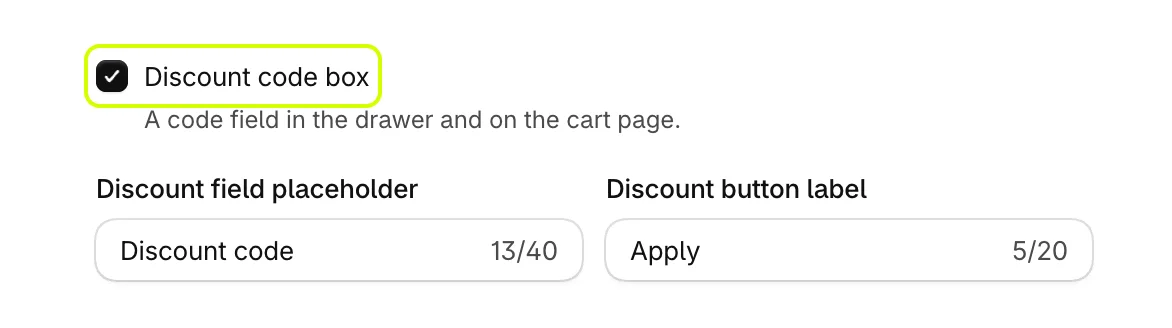
- Turn on Discount code box.
- Change Discount field placeholder and Discount button label if you like. They read Discount code and Apply until you change them.
- Select Save.

What a shopper sees
The cart checks the code with your store first. A code that does not exist, has not started yet or has expired is refused with a message saying which, so nothing is promised that checkout would not honor. A valid code is applied and the total updates.
When a code is refused alongside offers
A line in an order can carry one product discount. If every line in a cart already has one of this app's discounts, such as a cross-sell offer, a free gift or a quantity break, a shopper's code has nowhere to go and is refused.
To let a code through, see A discount code won't apply.
Was this helpful?
More in The cart
- Choose how the cart opensUse the drawer alone or with a full cart page, keep it above chat widgets, and decide where Buy it now and wallet buttons show.
- Add your logo and an announcementPut your logo or your own title at the top of the cart, and a strip of text above it for a message shoppers should not miss.
- Set up the empty cartTurn an empty cart into a way back into your store, with your own message, collections to browse, offers and reward progress.
- Set up the total and checkout buttonWord the total and the checkout button your way, pick the button's icon, and choose how prices and free gifts read.