Set up the free shipping bar
Show shoppers how far they are from free shipping, apply it at checkout when they get there, and raise your average order.
 Attravo TeamUpdated 2 min read
A progress bar at the top of the cart tells each shopper how much more to spend for free shipping. Most shoppers close a small gap rather than pay for delivery, which lifts your average order.
Add the goal
- On Cart settings, open Milestone rewards. A new store already has a free shipping goal here, ready to change.
- If you have no goal yet, select Add milestone.

- Set Unlock at cart total to the amount, in your store's currency.
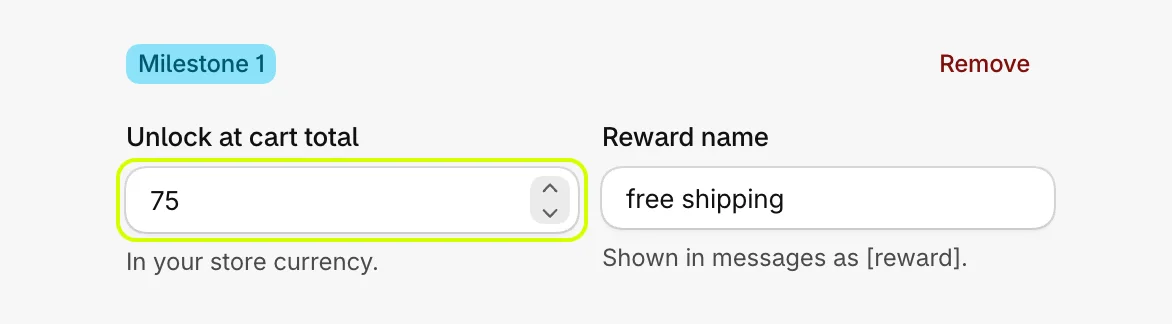
- Under Reward, choose Free shipping. Delivery is then made free at checkout once the cart reaches the amount.

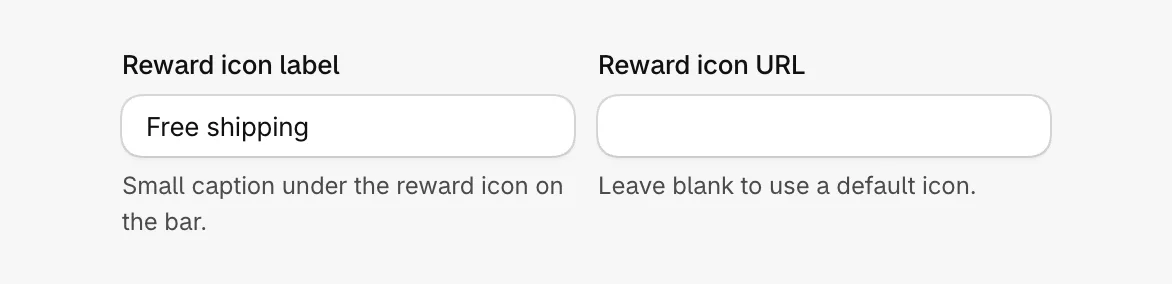
- Set Reward icon label, the caption under the bar's marker, such as Free shipping. Paste an image link into Reward icon URL to replace the default truck icon, or leave it blank.
- Select Save.
Word the messages
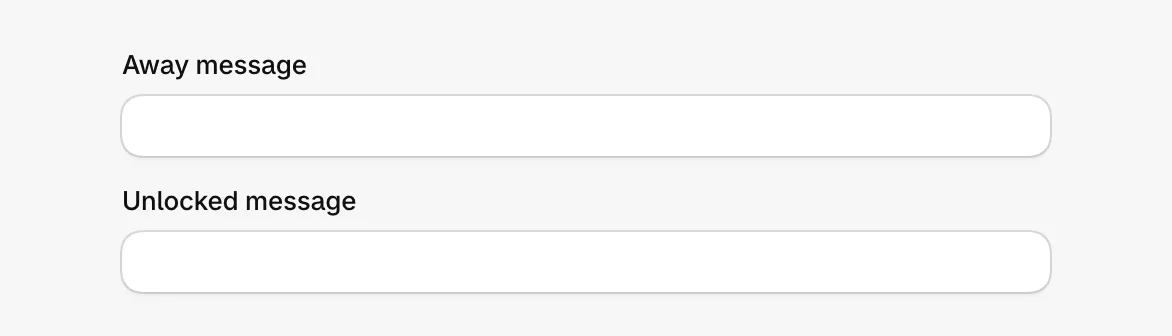
Away message shows while the cart is short of the goal, and Unlocked message once it gets there. Leave them blank to use the defaults:
- You're [amount] away from [reward]
- Congrats! You unlocked [reward]
[amount] becomes what is left to spend and [reward] becomes free shipping, both in bold.
What shoppers see
Short of the goal, the bar fills toward the marker:
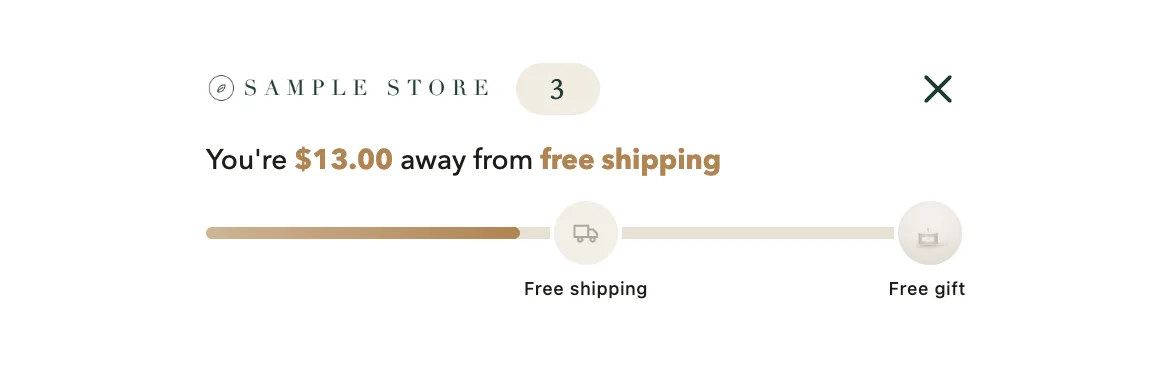
With a second goal after it, free shipping sits partway along the bar, and once it is earned the message moves on to the next goal:
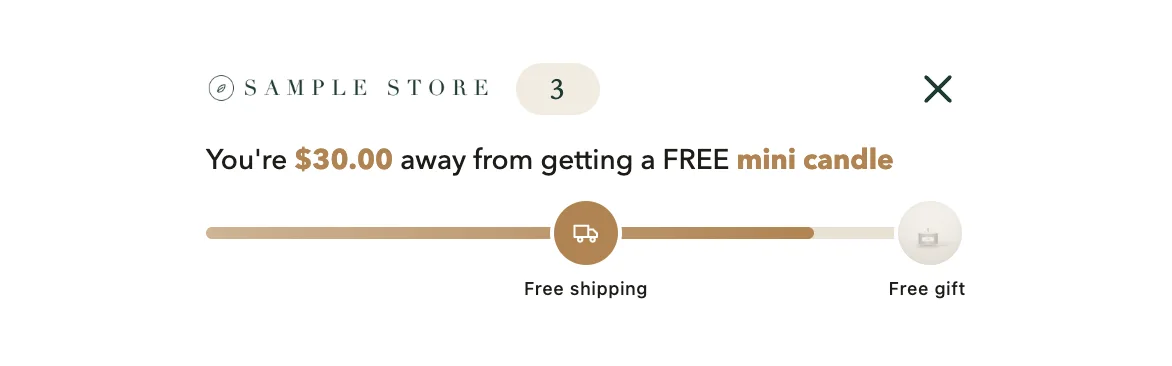
To add goals like a free gift, see Add more reward goals.
How the bar counts
- It counts what the shopper is paying for. Free gifts never count, so a gift cannot unlock a reward by itself. Add-ons such as gift wrap do count.
- It shows on an empty cart too, unless you turn off Show reward progress on an empty cart in General.
- Free shipping is applied at checkout as a delivery discount. It needs the Cart Drawer app embed on, so a shopper is only given what the cart showed them.
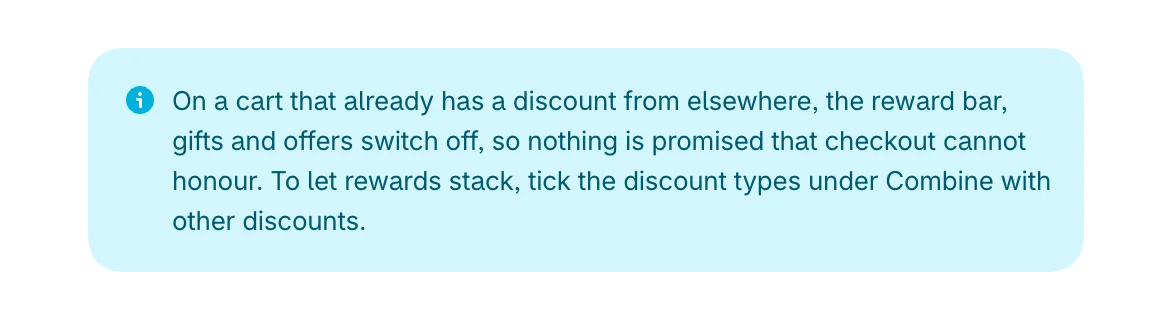
To let rewards stack with other discounts, tick the types under Combine with other discounts. See Set up quantity breaks.
Good to know
Goals are set in your store's currency. If you sell in more than one currency, read Sell in more than one currency.
Was this helpful?
More in Offers and rewards
- Recommend products in the cartShow products to add in one tap, from a collection you choose or ones that pair with the cart, with an optional discount.
- Add more reward goalsStack goals on the reward bar, such as free shipping first and a free gift after it, or a percent or amount off the order.
- Give free gifts with an orderAdd a free gift to every order, or only when the cart holds products you choose, and checkout takes its price off.
- Set up quantity breaksGive a percentage off when a shopper buys more of the same product, and choose what the app's discounts may combine with.