Finish the setup guide
Five steps from install to a cart shoppers can use: the embed, a reward goal, offers, your brand and a check on your store.
 Attravo TeamUpdated 2 min read
The setup guide sits at the top of Cart settings and ticks off each step it can see you have done. One step is open at a time; select a step's title to open it.
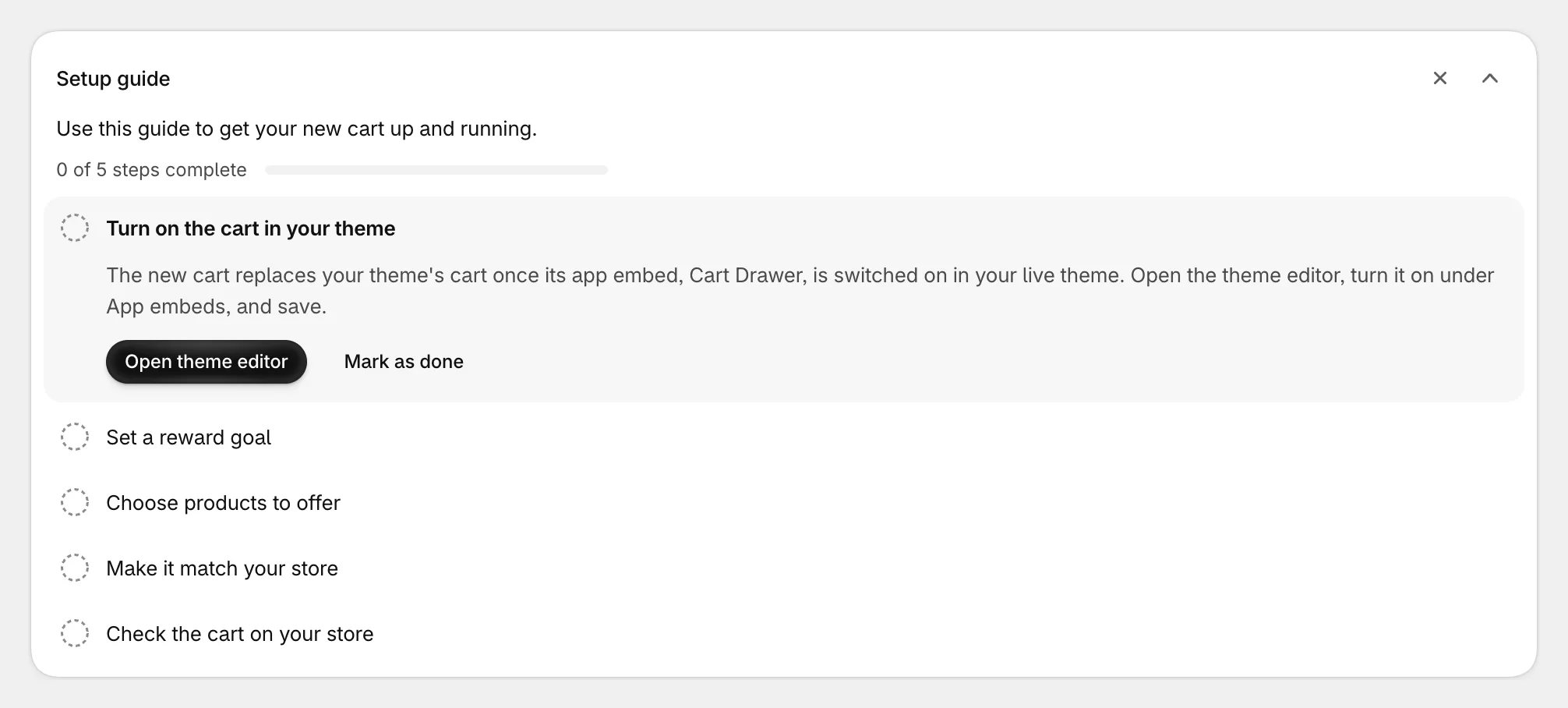
Work through the steps
- Turn on the cart in your theme: select Open theme editor, turn on Cart Drawer and save. See Turn on the cart in your theme.
- Set a reward goal: select Add a goal. The page opens Milestone rewards with the starter free shipping goal. Change it if you like, then select Save in the bar at the top of the admin.

- Choose products to offer: select Choose a collection, pick the collection the cart should suggest products from, then save.

- Make it match your store: select Edit colors. Change a color, a font or a corner, or add your logo, then save.

- Check the cart on your store: select View your store, add a product and open the cart, on your phone as well. Then come back and select Mark as done.

How a step counts as done
The guide ticks a step when it can see it done:
- the Cart Drawer embed is on in your live theme;
- a reward goal is saved;
- an offers collection is saved;
- a color, font, corner or logo setting differs from the defaults.
Check the cart on your store is yours to tick. Mark as done ticks any open step by hand, and Mark as not done takes it back.
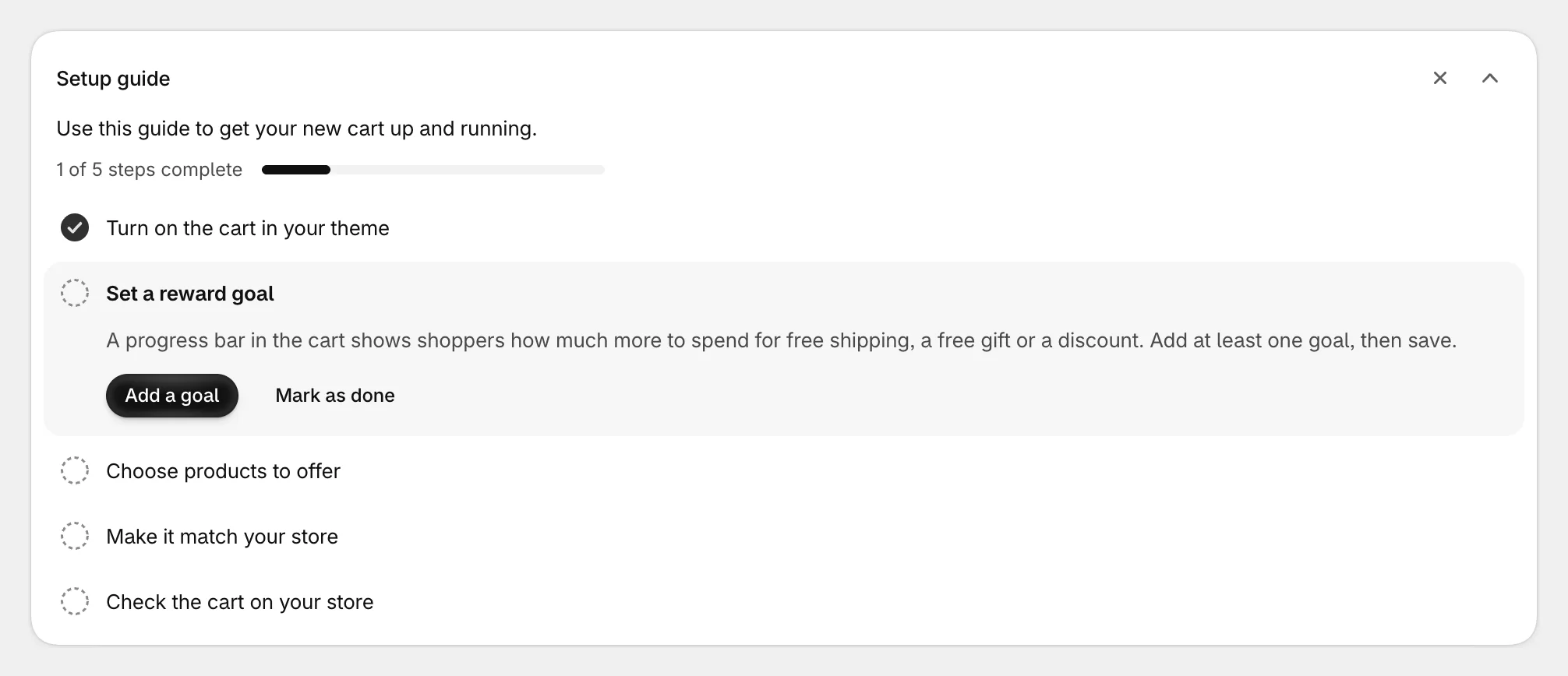
If something the guide saw comes undone, such as the embed being switched off or the last reward goal deleted, the step unticks and the guide opens again.
Close the guide
Select X to close it. To bring it back, select Setup guide at the top of Cart settings. The arrow beside X folds the steps away without closing the guide.

Once every step is done, the guide closes by itself.
Was this helpful?
More in Getting started
- Install Cart Drawer UpsellInstall the app, open it for the first time, and see what it changes on your store before you turn the cart on.
- Turn on the cart in your themeSwitch on the Cart Drawer app embed so your store shows the new cart instead of your theme's own.
- Preview your cart as you editSee the cart with your own products while you change settings, as a drawer or a full page, at computer or phone width.
- What shoppers see in the cartA tour of the cart from top to bottom, and the article that covers each part of it.