Reorder the checkout area
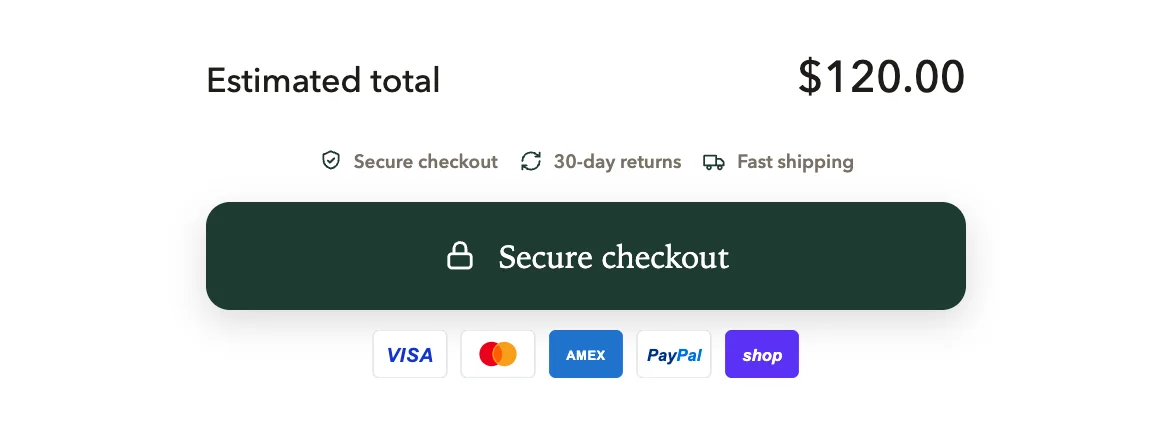
Change the order of the discount box, total, terms, trust badges, checkout button and payment icons at the bottom of the cart.
 Attravo TeamUpdated 1 min read
The bottom of the cart holds up to six parts. You choose their order, in the drawer and on the cart page alike, so the part that matters most to your shoppers sits where they look.
Change the order
- On Cart settings, open Typography and shape and find Checkout area order.
- Drag a row to a new place, or use its up and down arrows. The rows are Discount code field, Estimated total, Terms checkbox, Trust badges, Checkout button and Payment icons.

- Select Save.
Parts you have turned off, such as a terms checkbox you do not use, keep their place in the list but do not show in the cart.
Was this helpful?
More in Design
- Match the cart to your brand colorsSet every color the cart uses, from buttons and the reward bar to text and the page dimming behind the drawer.
- Set fonts, corners and sizesUse your theme's fonts or one of the cart's own, and set heading weight, button depth, corner shapes, text size and widths.
- Check the cart on phonesSee how the drawer and the full cart page look on a phone, and what changes from a computer.
- Style the cart with custom CSSOn Pro, add your own CSS for the cart on your store, for the few details the design settings do not cover.