Set fonts, corners and sizes
Use your theme's fonts or one of the cart's own, and set heading weight, button depth, corner shapes, text size and widths.
 Attravo TeamUpdated 1 min read
Typography and shape sets how the cart's text and shapes look. The cart can borrow your theme's fonts, so it reads like the rest of your store.
Choose fonts
- On Cart settings, open Typography and shape.
- Set Heading font and Body font. Match your theme (headings) and Match your theme (body) use your theme's own fonts. The others, such as Editorial serif, Warm humanist and Neutral grotesk, use fonts already on shoppers' devices, so the cart never waits for a font to load.

Set weights and buttons
- Heading weight: from Light to Black.
- Heading alignment: Left, Centre or Right, for the offers and category headings.
- Section heading weight: the offers and category headings only, or Same as heading weight.
- Button depth: None (flat), Soft shadow or Raised (solid edge), for the checkout and continue-shopping buttons.

Set text size and corners
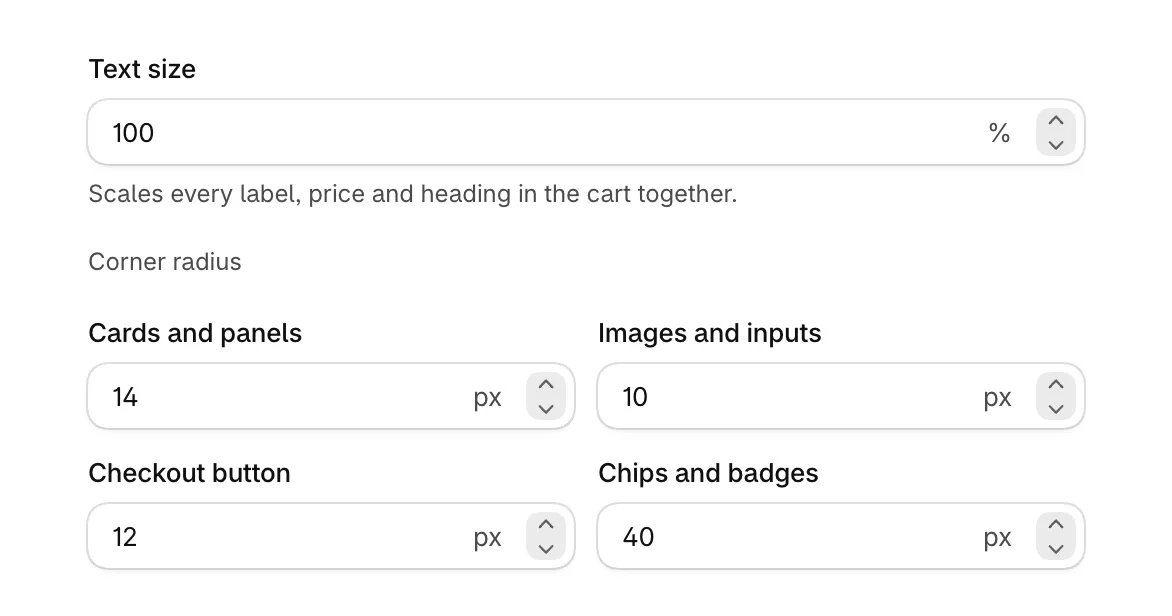
- Set Text size to scale every label, price and heading in the cart together.
- Under Corner radius, set Cards and panels, Images and inputs, Checkout button and Chips and badges. 0 is square.
Set sizes
- Drawer width (desktop): how wide the drawer opens on a computer. On phones it fills the screen.
- Product image size: the image on each cart line.
- Checkout button height.
- Reward message size: the line above the reward bar. Smaller fits a long reward name.

Select Save when you are done.
Start again
Reset design to defaults puts the colors, fonts, weights, corners, sizes and the checkout area order back as the cart ships. Button depth and the three drawer tints under Surfaces stay as they are. Nothing changes on your store until you save.

Was this helpful?
More in Design
- Match the cart to your brand colorsSet every color the cart uses, from buttons and the reward bar to text and the page dimming behind the drawer.
- Reorder the checkout areaChange the order of the discount box, total, terms, trust badges, checkout button and payment icons at the bottom of the cart.
- Check the cart on phonesSee how the drawer and the full cart page look on a phone, and what changes from a computer.
- Style the cart with custom CSSOn Pro, add your own CSS for the cart on your store, for the few details the design settings do not cover.