Preview your cart as you edit
See the cart with your own products while you change settings, as a drawer or a full page, at computer or phone width.
 Attravo TeamUpdated 1 min read
Live preview sits beside your settings on Cart settings and redraws the cart as you edit, filled with your own products. Nothing reaches your store until you save, so you can try a change and throw it away.
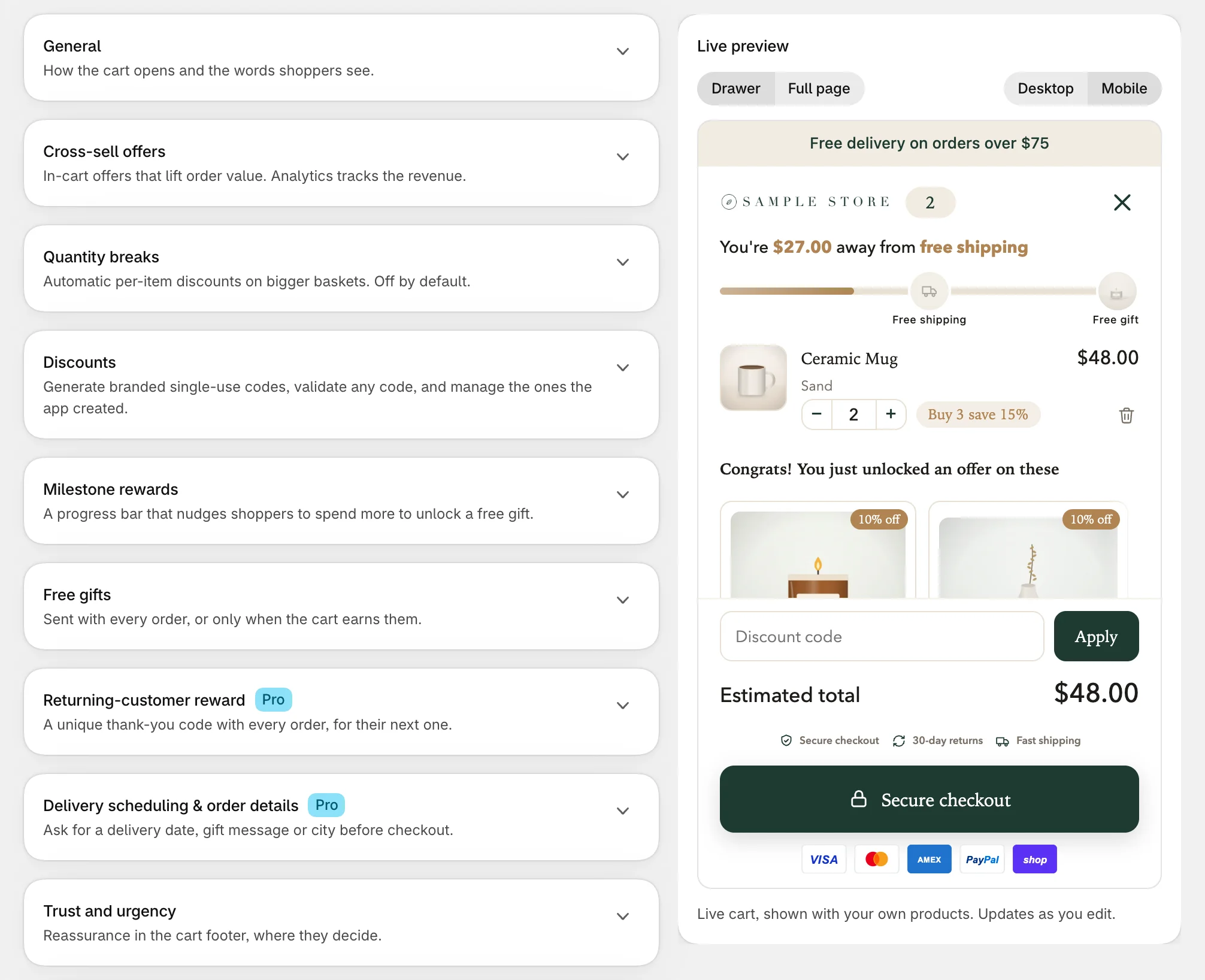
Switch views
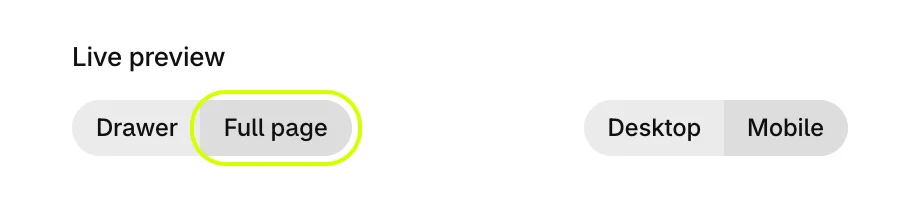
- Select Full page to see your full cart page, or Drawer to go back to the slide-out drawer.
- Select Desktop to see the page at computer width, scaled to fit, or Mobile to see it at phone width. The preview opens on Mobile.
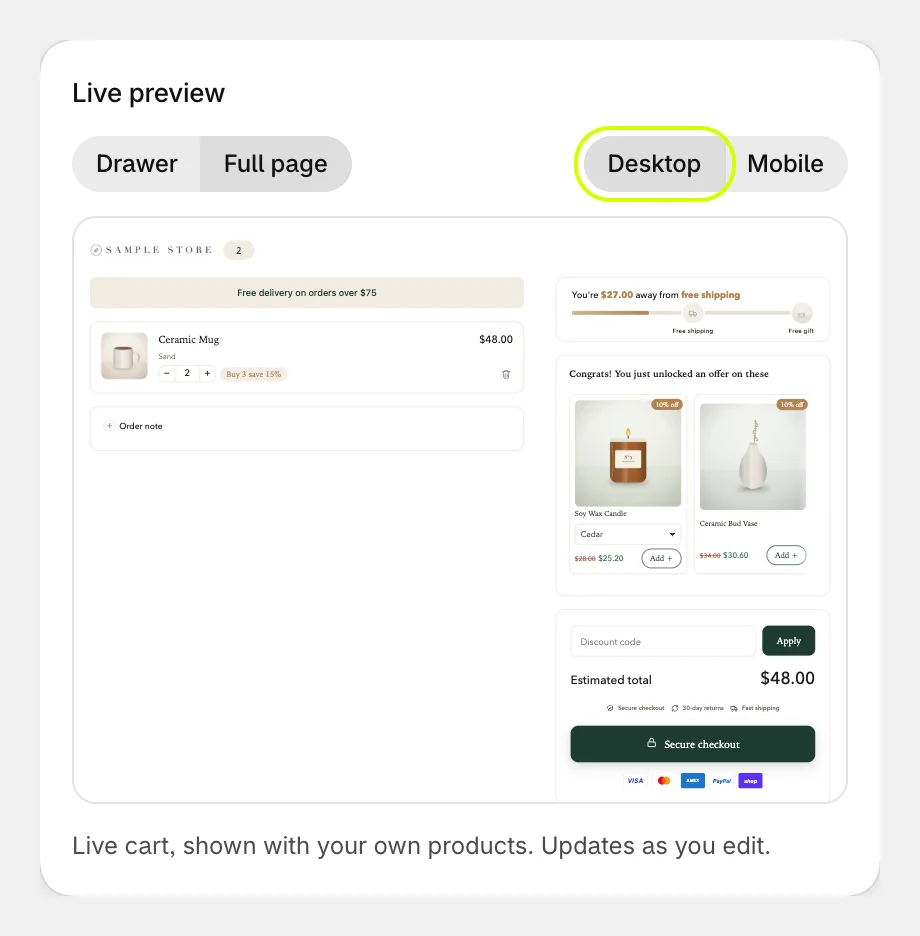
The drawer looks the same on Desktop and Mobile, since the preview is about as wide as a phone.
Watch a change
Change a setting and the preview follows. Colors, fonts and corners change in place as you type; other settings redraw the cart a moment later, without a blank frame.
As you scroll down Cart settings, the preview scrolls with you to the part of the cart the section in view changes, such as the offers or the checkout button.
Save or discard
When anything has changed, a bar appears at the top of your Shopify admin.
- Select Save to send your changes to your store.
- Or select Discard to throw away every unsaved change on the page. It asks first, because it cannot be undone.
Good to know
- The preview uses your store's own products. A store with no products yet shows sample ones.
- Wallet buttons such as Shop Pay and PayPal show on your store, not in the preview.
- Nothing you do in the preview, such as adding an offer, reaches your store or your analytics.
Was this helpful?
More in Getting started
- Install Cart Drawer UpsellInstall the app, open it for the first time, and see what it changes on your store before you turn the cart on.
- Turn on the cart in your themeSwitch on the Cart Drawer app embed so your store shows the new cart instead of your theme's own.
- Finish the setup guideFive steps from install to a cart shoppers can use: the embed, a reward goal, offers, your brand and a check on your store.
- What shoppers see in the cartA tour of the cart from top to bottom, and the article that covers each part of it.