Read your cart analytics
What each number on Analytics means, how to change the dates, and how to read the chart day by day.
 Attravo TeamUpdated 1 min read
Analytics shows what the cart brings in: revenue from the offers shoppers took, the orders it influenced, the gifts it gave and the size of those orders. Open it from the app's menu, or select View analytics at the top of Cart settings.
Choose the dates
Select the date range at the top of the page. Free has Last 7 days, Last 30 days and This month. Pro adds Last 90 days, Last month and All time.
Beside it, the page says which days it covers and the period it compares them with. A range that starts before your first counted order is not compared.
Attributed upsell revenue
The headline figure is what shoppers paid for products they added from the cart's offers, after any offer discount. The badge beside it compares it with the period before.
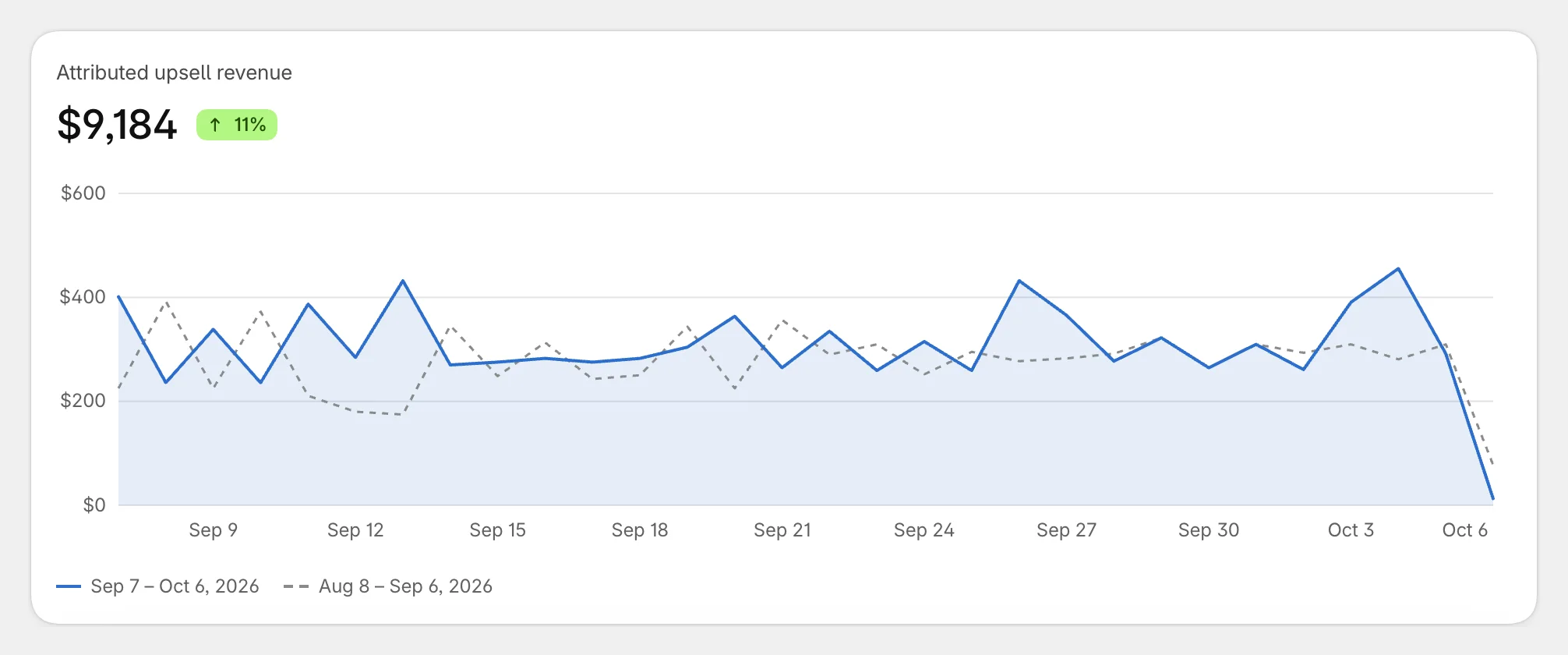
The solid line is this period, and the dashed line the one before. Hover over a day to see its figures: upsell revenue, the previous period, total order value, orders, free gifts, quantity-break orders and orders with a free gift.
The figures under the chart

- Orders influenced: orders with a product from the cart's offers or a free gift from the cart.
- Free gifts given: gift lines on those orders.
- Average order value: the average of those orders only, not of your whole store.
- Lifetime upsell revenue: everything since you installed the app, whatever range you pick.
Every figure leaves out cancelled and fully refunded orders. For the exact rules, see How the app counts an order.
More on Pro
Pro adds the cart funnel, offer performance, advanced figures with a CSV export, and thank-you codes. See See which offers sell.
Was this helpful?