Set up quantity breaks
Give a percentage off when a shopper buys more of the same product, and choose what the app's discounts may combine with.
 Attravo TeamUpdated 2 min read
On this page
Quantity breaks take a percentage off a cart line once its quantity reaches a tier, such as 10% off two and 15% off three. The cart shows each line the next tier it can reach, which nudges a shopper to add one more.
Turn on quantity breaks
- On Cart settings, open Quantity breaks.
- Turn on Enable quantity breaks.
- Under Quantity tiers, type each tier as quantity and percent, separated by commas.
2:10,3:15means 10% off two of a product and 15% off three or more.
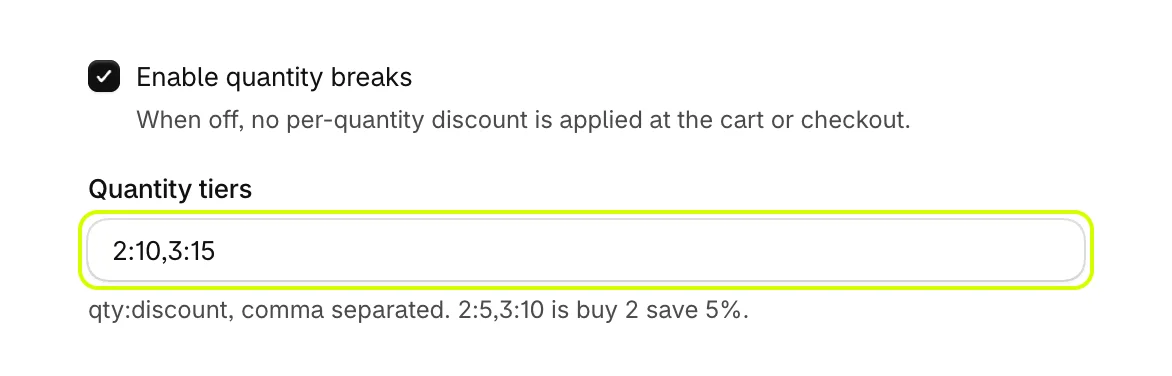
- Select Save.
Each cart line shows the next tier it can reach:

The discount is taken off at checkout.
Choose how breaks behave
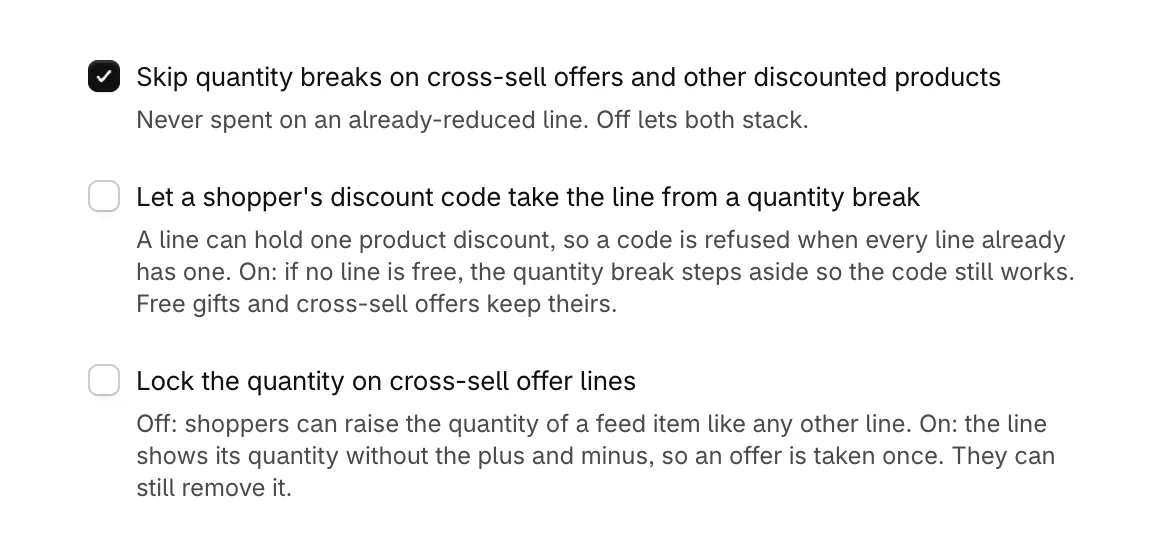
- Skip quantity breaks on cross-sell offers and other discounted products: on by default, so a break is never spent on a line that is already reduced. Off lets both apply.
- Let a shopper's discount code take the line from a quantity break: an order line can carry one product discount. On, if a shopper's code would otherwise be refused because every line already has a discount, the quantity break steps aside so the code works. Free gifts and cross-sell offers keep theirs.
- Lock the quantity on cross-sell offer lines: off by default, so a shopper can raise the quantity of a product added from the offers. On, the line shows its quantity without plus and minus, so an offer is taken once. It can still be removed.
Choose what the app's discounts combine with
Combine with other discounts decides whether the app's quantity breaks, gifts and reward goals stack with discounts from elsewhere, such as another app's sale or a shopper's code.
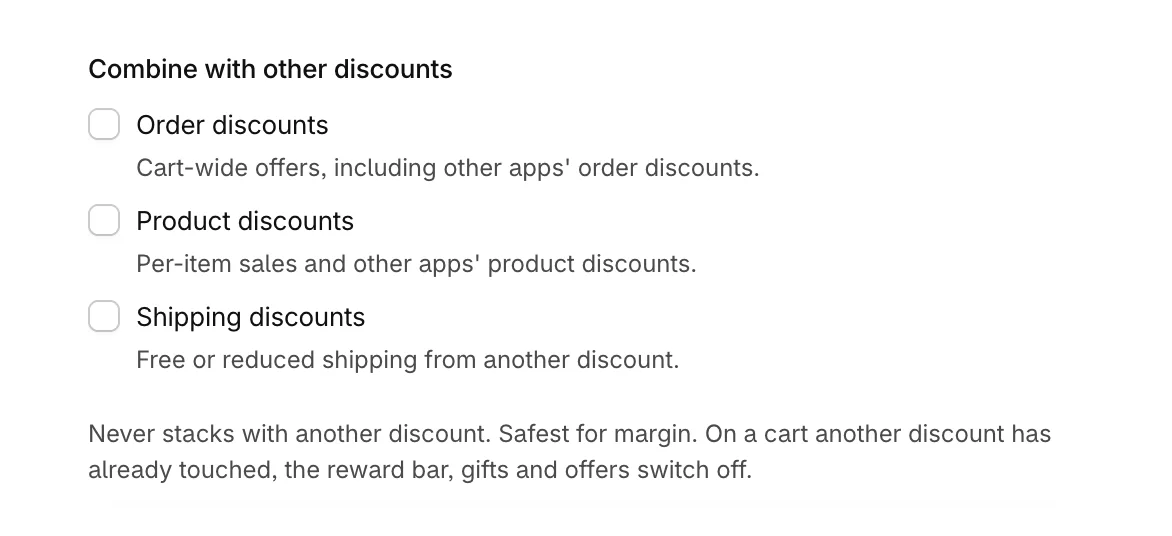
- With nothing ticked, the app's discounts never stack with another. It is the safest choice for your margin. On a cart another discount has already touched, the reward bar, gifts and offers switch off, so the cart never promises what checkout would not give.
- Tick Order discounts, Product discounts or Shipping discounts to let the app's discounts stack on top of that type.
Was this helpful?
More in Offers and rewards
- Recommend products in the cartShow products to add in one tap, from a collection you choose or ones that pair with the cart, with an optional discount.
- Set up the free shipping barShow shoppers how far they are from free shipping, apply it at checkout when they get there, and raise your average order.
- Add more reward goalsStack goals on the reward bar, such as free shipping first and a free gift after it, or a percent or amount off the order.
- Give free gifts with an orderAdd a free gift to every order, or only when the cart holds products you choose, and checkout takes its price off.