Add a floating cart button
Keep the cart one tap away on every page with a corner button that shows the item count.
 Attravo TeamUpdated 1 min read
On this page
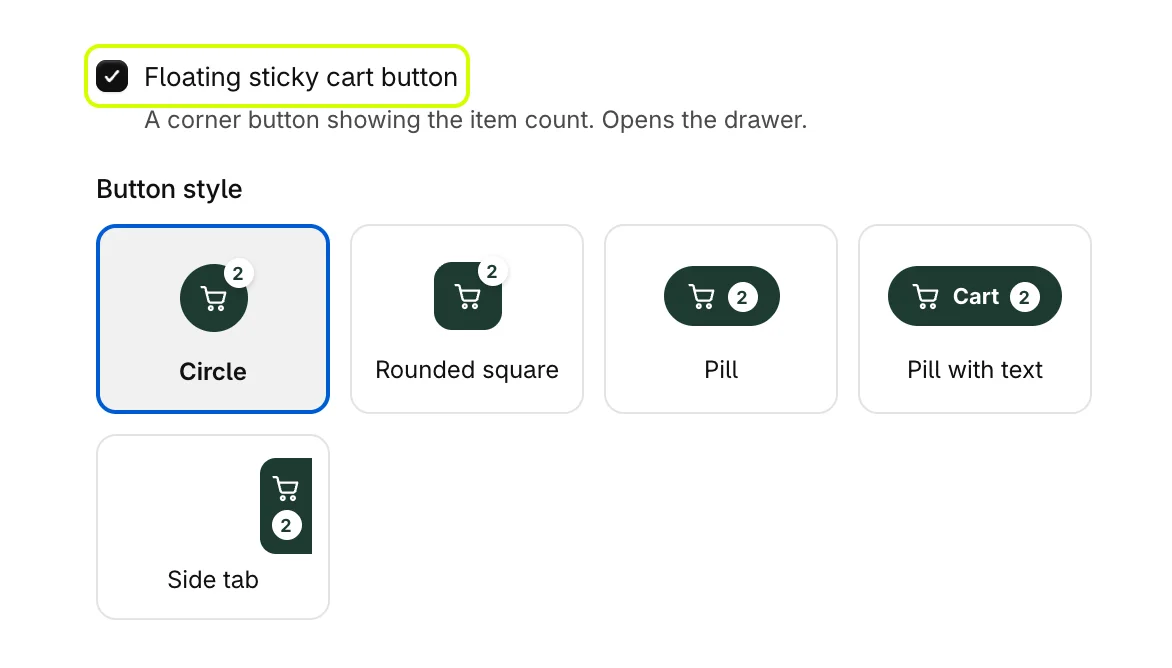
A floating cart button stays in the corner of every page and shows how many items are in the cart, so a shopper deep in your store can always get back to it. It is on for a new store.
Turn it on and pick a style
- On Cart settings, open Sticky cart.
- Turn on Floating sticky cart button.
- Under Button style, choose Circle, Rounded square, Pill, Pill with text or Side tab. Side tab sits flush with the edge of the screen, clear of chat widgets.
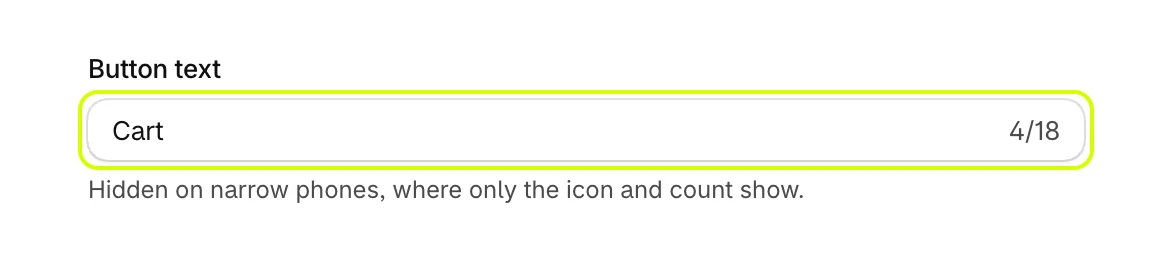
- With Pill with text, set Button text. Narrow phones show only the icon and count.
Choose the icon
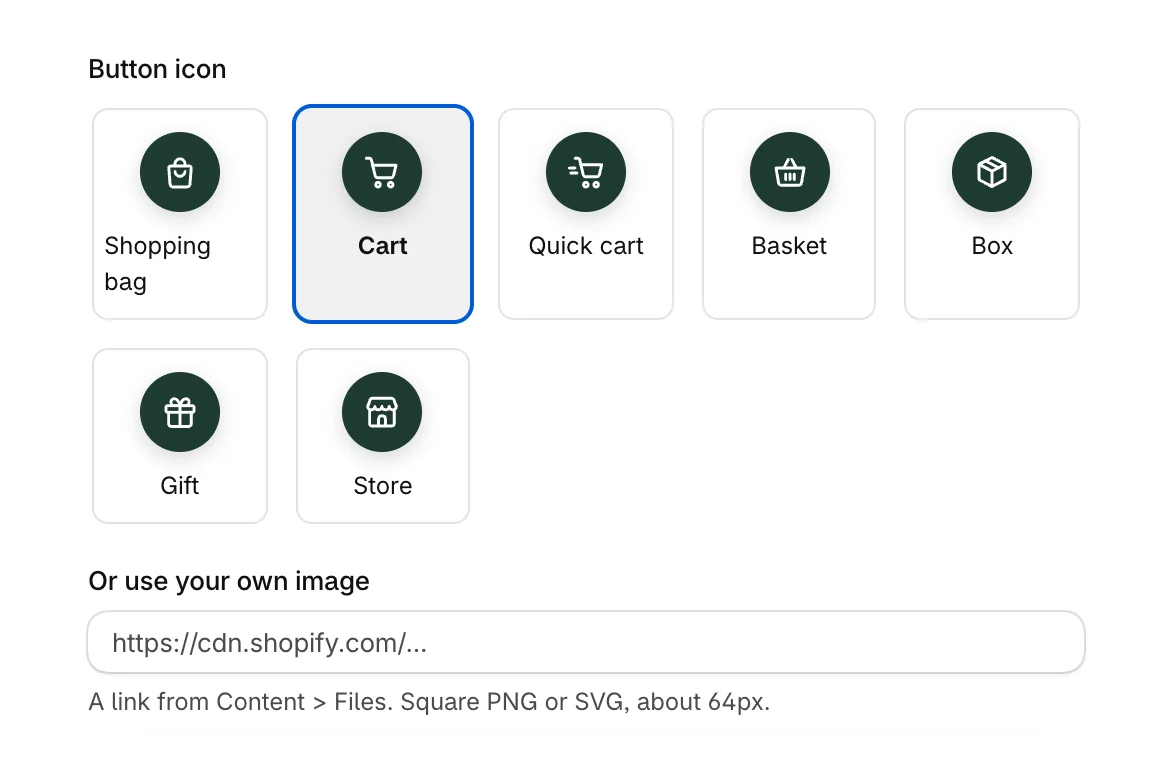
- Under Button icon, pick an icon.
- Or paste a link to your own square image into Or use your own image, ideally a PNG or SVG about 64 pixels across. Your image replaces the icon until you clear the link.
- Select Save.
On your store, the button opens the drawer:
The button takes the cart's Accent color and Text on buttons. See Match the cart to your brand colors.
Was this helpful?
More in The cart
- Choose how the cart opensUse the drawer alone or with a full cart page, keep it above chat widgets, and decide where Buy it now and wallet buttons show.
- Add your logo and an announcementPut your logo or your own title at the top of the cart, and a strip of text above it for a message shoppers should not miss.
- Set up the empty cartTurn an empty cart into a way back into your store, with your own message, collections to browse, offers and reward progress.
- Set up the total and checkout buttonWord the total and the checkout button your way, pick the button's icon, and choose how prices and free gifts read.