Set up the empty cart
Turn an empty cart into a way back into your store, with your own message, collections to browse, offers and reward progress.
 Attravo TeamUpdated 2 min read
A shopper who opens an empty cart is still looking for something. Instead of a blank panel, the cart can show your message, a few collections to browse, offers and what they could unlock.
Write the empty-cart message
- On Cart settings, open General.
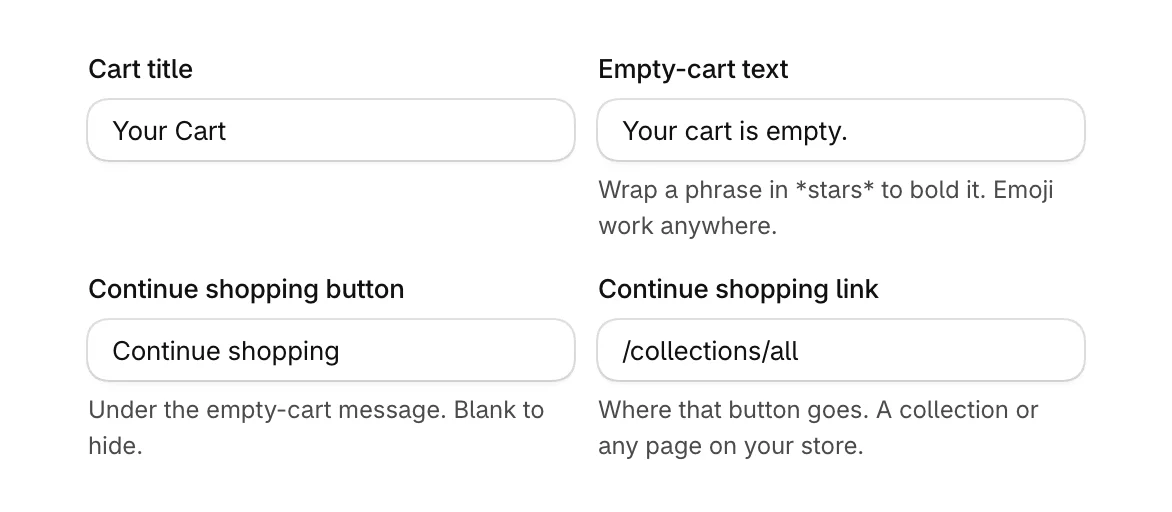
- Change Empty-cart text. Wrap a phrase in stars, like
*free shipping*, to make it bold. Emoji work too. - Set Continue shopping button to the button's wording, or leave it blank to hide the button.
- Set Continue shopping link to where it goes: a collection such as
/collections/all, or any page on your store.
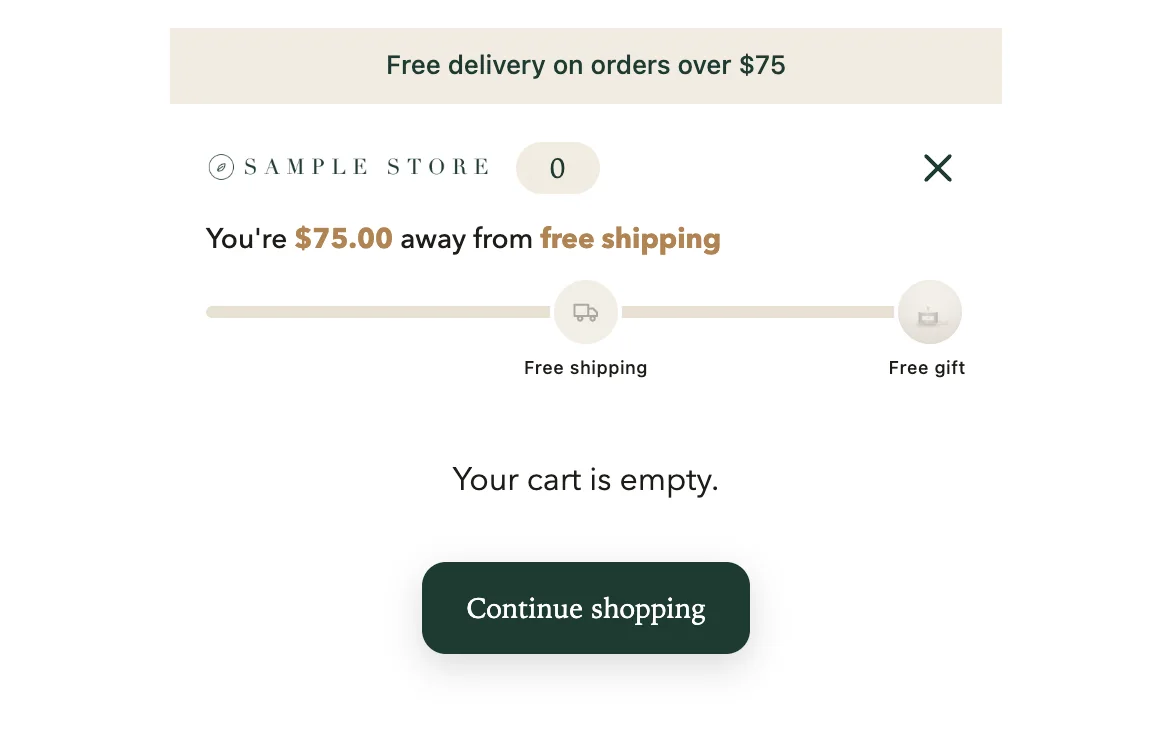
In the cart, the message and button sit under the header and the reward bar:
Show offers and collections
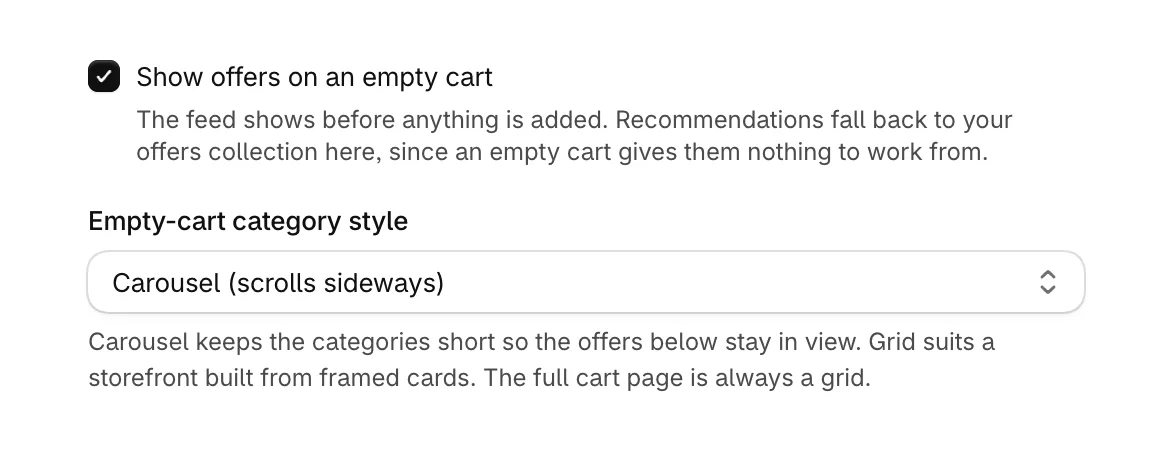
- Leave Show offers on an empty cart on to show your offers before anything is added. With Frequently bought together as the source, an empty cart shows your fallback collection, since there is nothing in it to pair with.
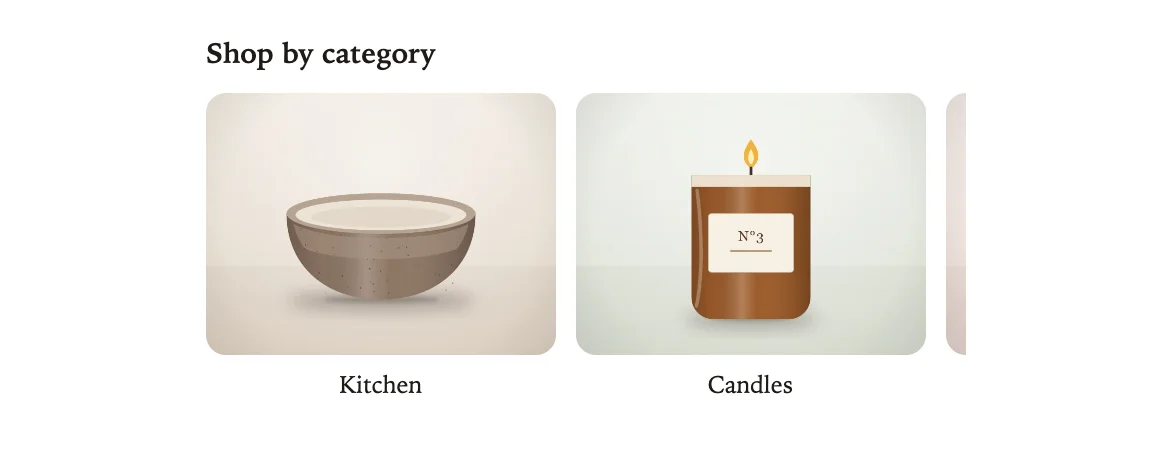
- Under Empty-cart category style, choose Carousel (scrolls sideways) to keep the collections short, or Grid (two per row, framed). The full cart page always uses a grid.
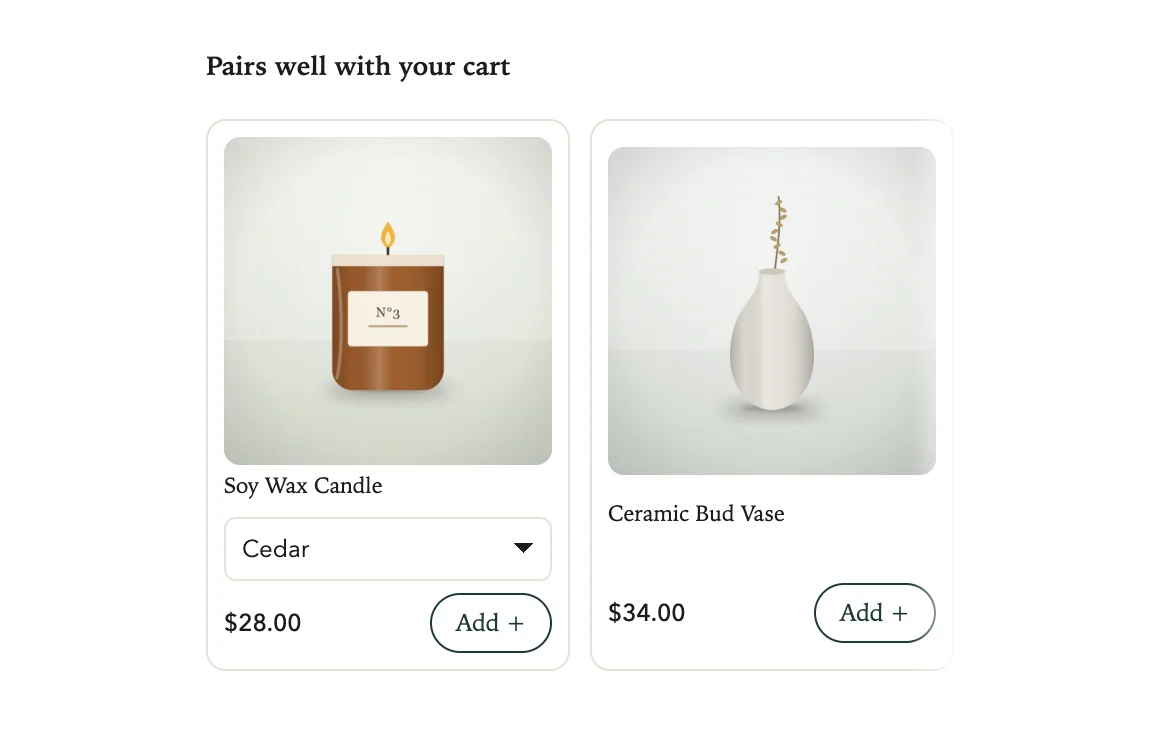
The offers then appear on the empty cart, under their heading:
- Set Empty-cart collections heading, or leave it blank to hide the heading.
- Select Browse to pick collections, or type a collection's handle, the last part of its address, into Or add a collection by handle and select Add. You can show up to six.
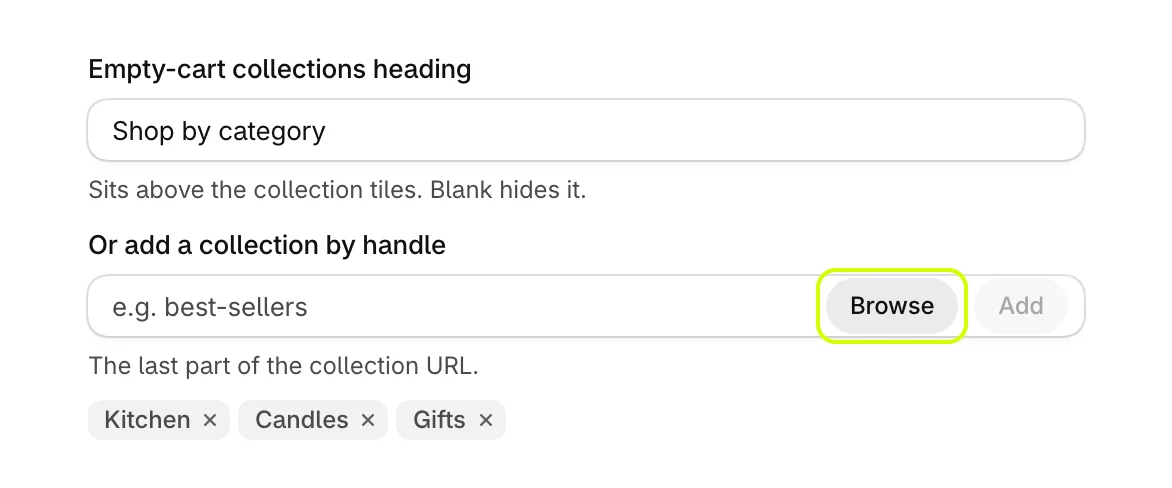
To take a collection off, select the X on its tag. In the cart, the collections sit under the message, as a carousel here:
Choose what else stays on screen
- Show the total and checkout button on an empty cart: off by default, so an empty cart hides both. On, they stay on screen, dimmed, and the button cannot be pressed.
- Show reward progress on an empty cart: on by default, so a shopper sees what they could unlock before adding anything. Off keeps the empty cart bare.
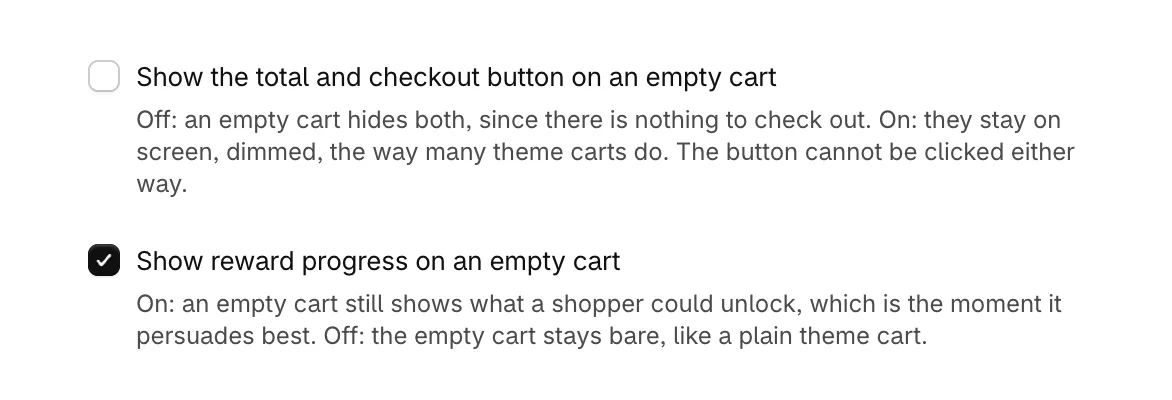
Select Save when you are done.
Was this helpful?
More in The cart
- Choose how the cart opensUse the drawer alone or with a full cart page, keep it above chat widgets, and decide where Buy it now and wallet buttons show.
- Add your logo and an announcementPut your logo or your own title at the top of the cart, and a strip of text above it for a message shoppers should not miss.
- Set up the total and checkout buttonWord the total and the checkout button your way, pick the button's icon, and choose how prices and free gifts read.
- Add an order note boxLet shoppers leave delivery instructions or a gift message in the cart, saved to the order note.