Recommend products in the cart
Show products to add in one tap, from a collection you choose or ones that pair with the cart, with an optional discount.
 Attravo TeamUpdated 3 min read
On this page
Cross-sell offers put a few products in the cart that a shopper can add without leaving it. A small discount on them is often what turns a look into an add, and Analytics shows the revenue they bring in.
Choose where offers come from
- On Cart settings, open Cross-sell offers.
- Under Recommendation source, choose one:
- Frequently bought together: products that pair with what is already in the cart. Curate exact pairs in the Search & Discovery app; otherwise your store's related products are used.
- A collection you choose: always products from one collection.
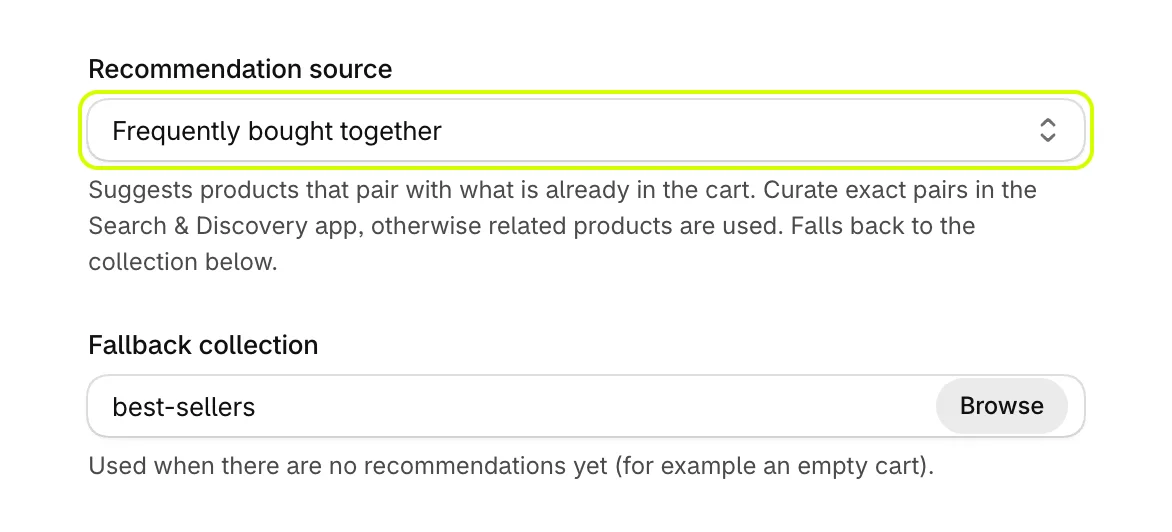
- Pick the collection. With A collection you choose it is the Offers collection; with Frequently bought together it is the Fallback collection, used when there is nothing to pair with, such as on an empty cart. Select Browse to pick it, or type its handle.
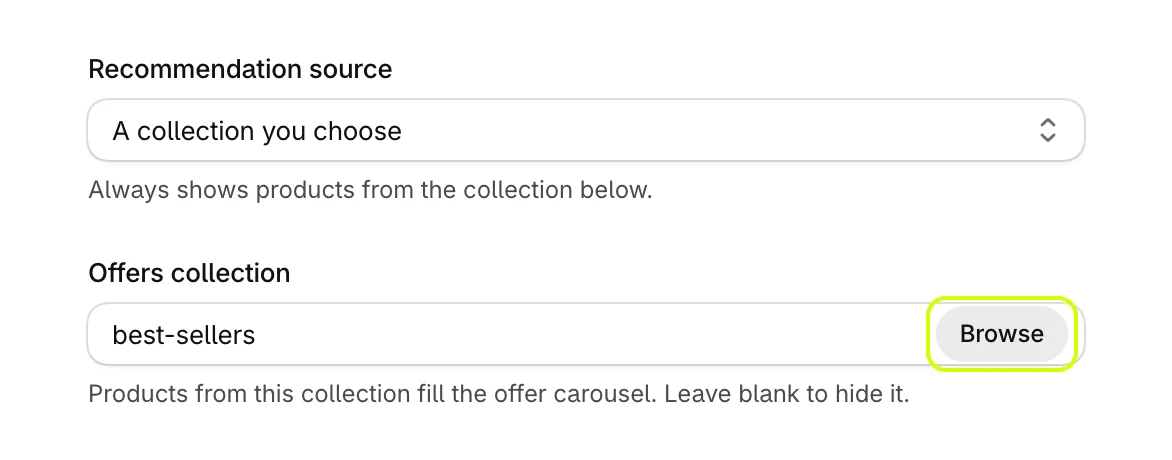
Leave the collection blank to hide offers.
Set a discount and a layout
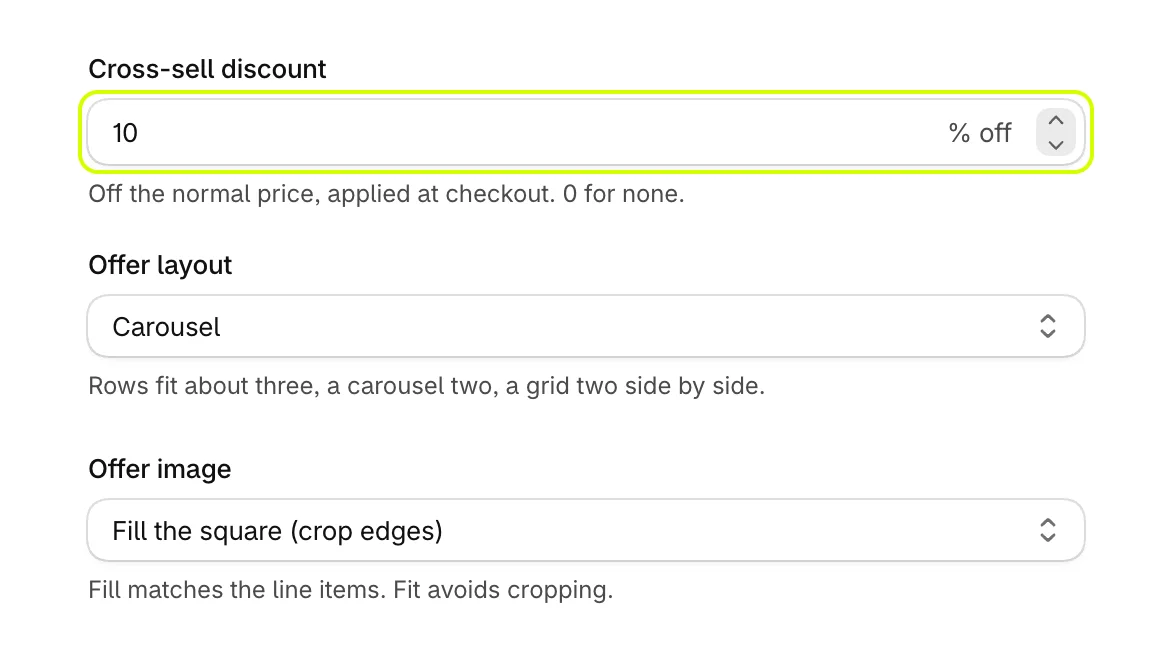
- Set Cross-sell discount to a percentage off the normal price, applied at checkout, or 0 for none.
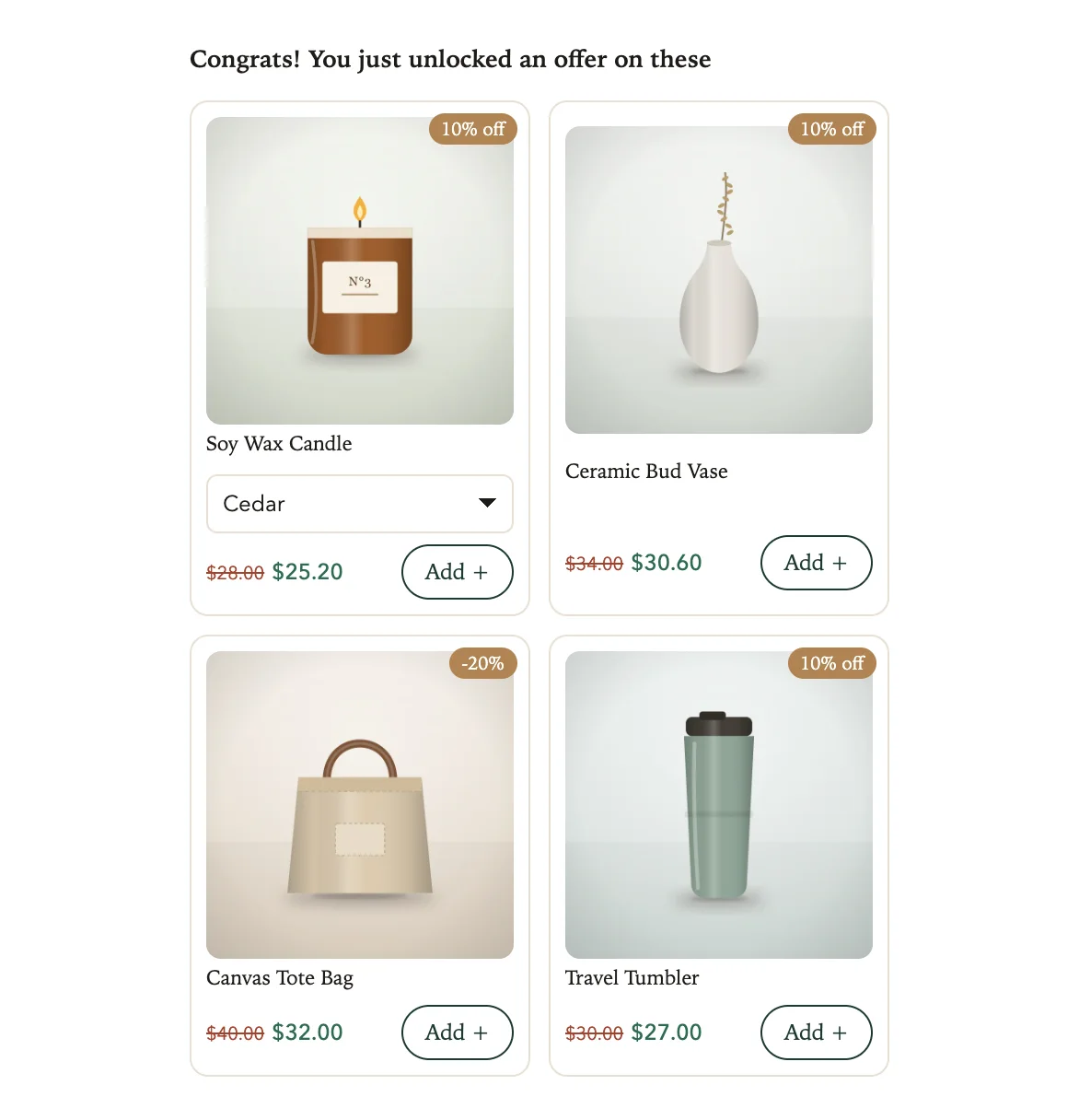
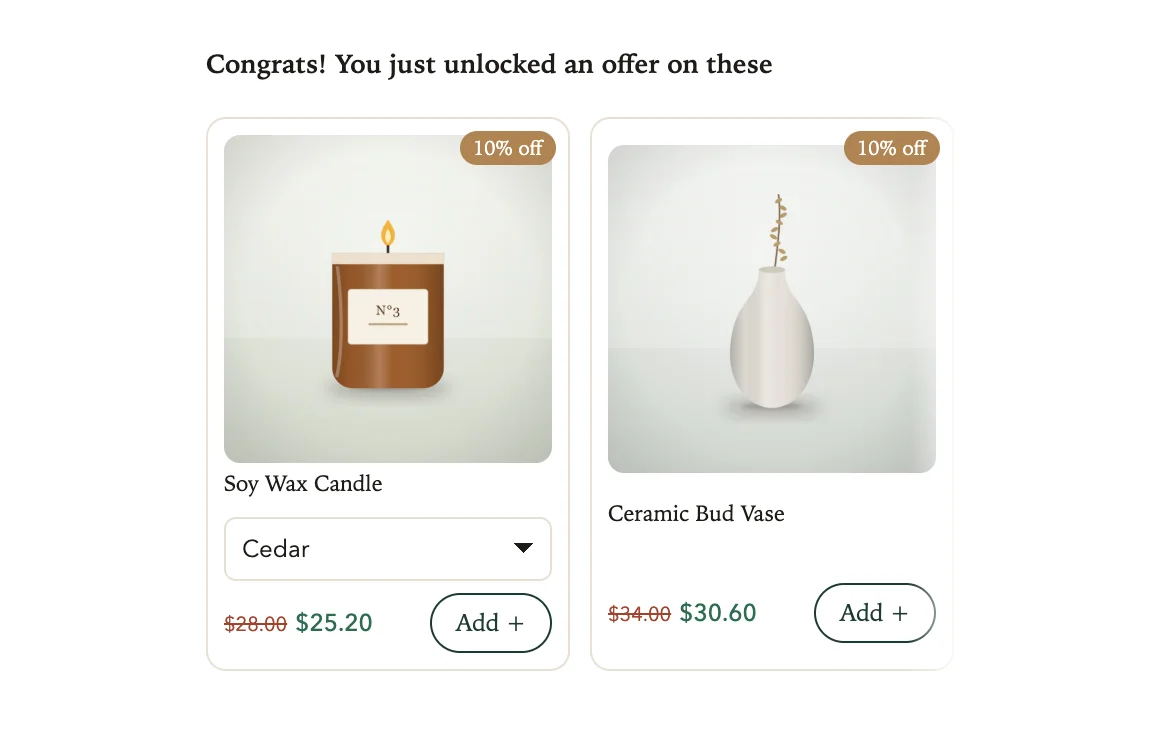
- Under Offer layout, choose Compact rows, Grid or Carousel. Rows fit about three products, a grid two side by side, and a carousel two at a time that scroll.
- Under Offer image, choose Fill the square (crop edges) to match the cart lines, or Fit the whole product to avoid cropping.
Compact rows:
Grid:
Carousel:
Choose how many and how they behave
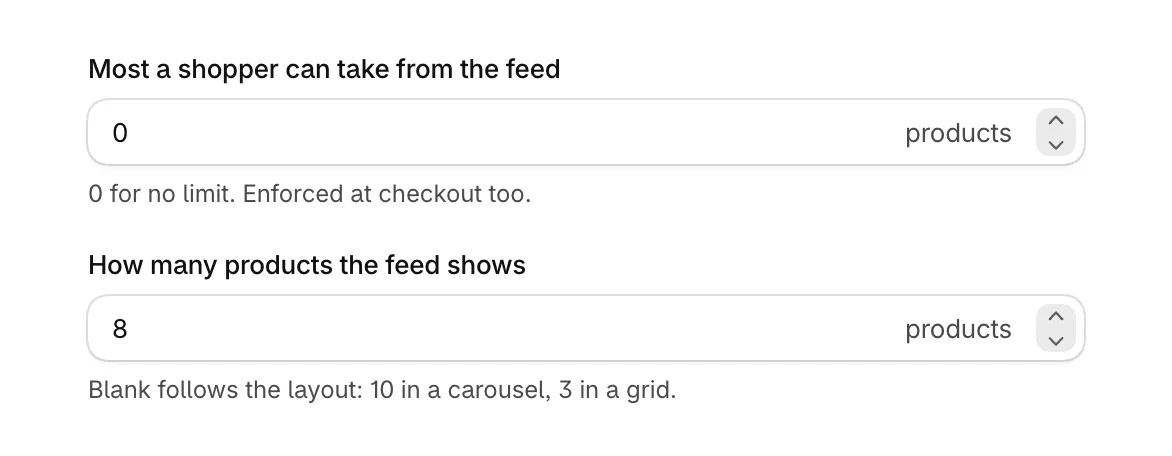
- Set Most a shopper can take from the feed, from 0 to 3. 0 means no limit, and checkout holds the limit too.
- Set How many products the feed shows, up to 20. Blank follows the layout: 10 in a carousel, 3 otherwise.
- Choose the four rules below.
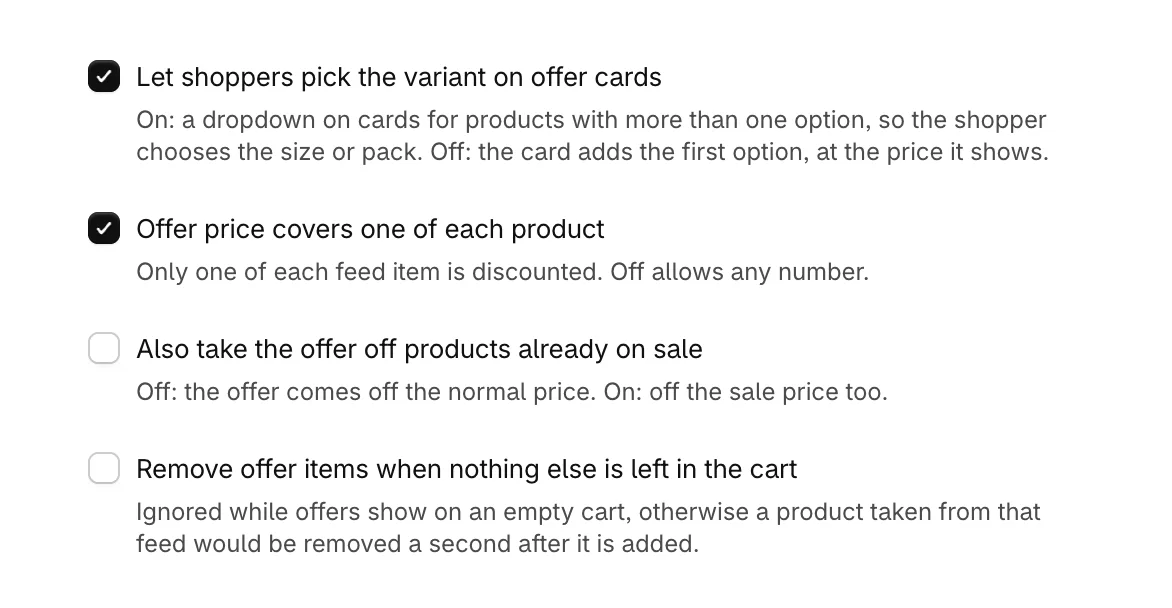
- Let shoppers pick the variant on offer cards: on, products with more than one option get a dropdown so the shopper picks the size or pack. Off, the card adds the first option at the price it shows.
- Offer price covers one of each product: on, only one of each offer product is discounted. Off, any number are.
- Also take the offer off products already on sale: off, the offer comes off the normal price, so a product already on sale below it is not reduced again. On, it comes off the sale price too.
- Remove offer items when nothing else is left in the cart: off by default, so a product added from the offers stays even if the shopper removes what they came for. It is ignored while offers show on an empty cart.
Word the headings and the button
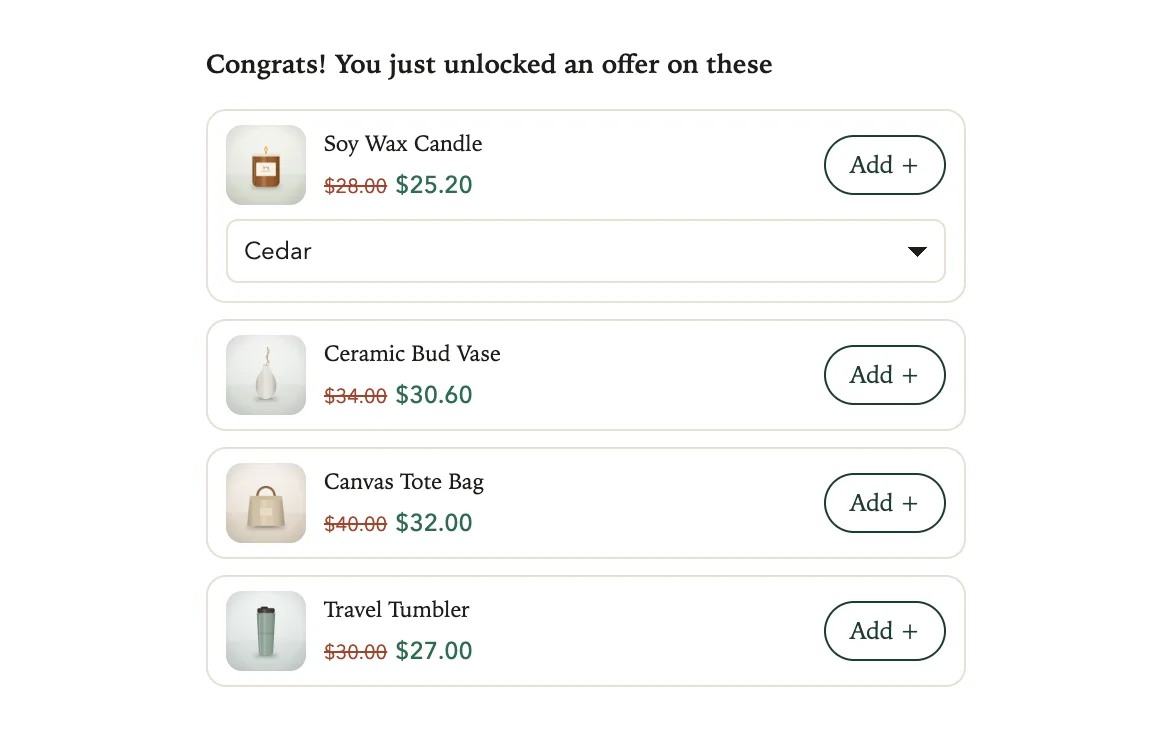
With a discount set, the offers have two headings: Heading once the offer unlocks shows once the cart holds something the shopper is paying for, and Heading before it unlocks shows until then. Without a discount there is one, Offers heading.
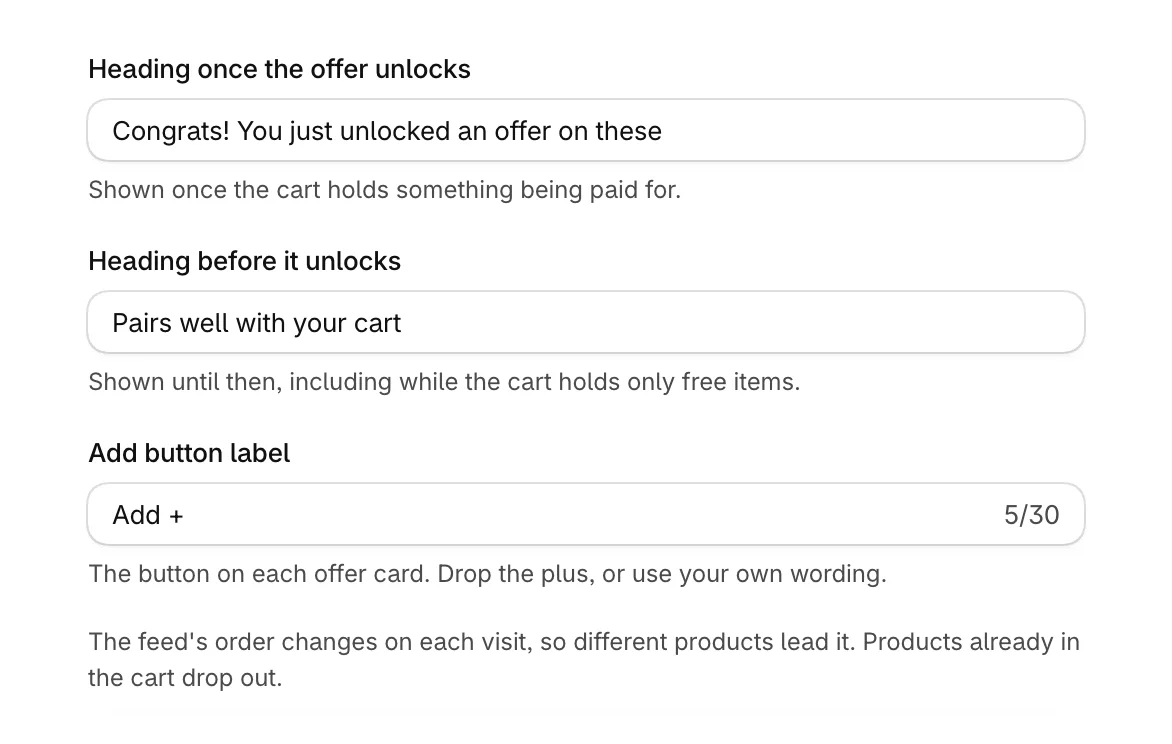
Add button label is the button on each card. It reads Add + until you change it.
Select Save when you are done. Here a shopper adds an offer from the cart:
Good to know
- The products shown are shuffled once per visit, so returning shoppers see a different few. Products already in the cart drop out.
- The discount unlocks only once the cart holds something the shopper is paying for. A cart of only free gifts or only offer products shows normal prices.
- To lock the quantity of offer lines, see Lock the quantity on cross-sell offer lines in Set up quantity breaks.
Was this helpful?
More in Offers and rewards
- Set up the free shipping barShow shoppers how far they are from free shipping, apply it at checkout when they get there, and raise your average order.
- Add more reward goalsStack goals on the reward bar, such as free shipping first and a free gift after it, or a percent or amount off the order.
- Give free gifts with an orderAdd a free gift to every order, or only when the cart holds products you choose, and checkout takes its price off.
- Set up quantity breaksGive a percentage off when a shopper buys more of the same product, and choose what the app's discounts may combine with.