Match the cart to your brand colors
Set every color the cart uses, from buttons and the reward bar to text and the page dimming behind the drawer.
 Attravo TeamUpdated 1 min read
The cart looks like part of your store when it uses your colors. Every color it paints is a setting under Colors, in three groups, and the preview updates as you type.
Set your brand colors
- On Cart settings, open Colors.
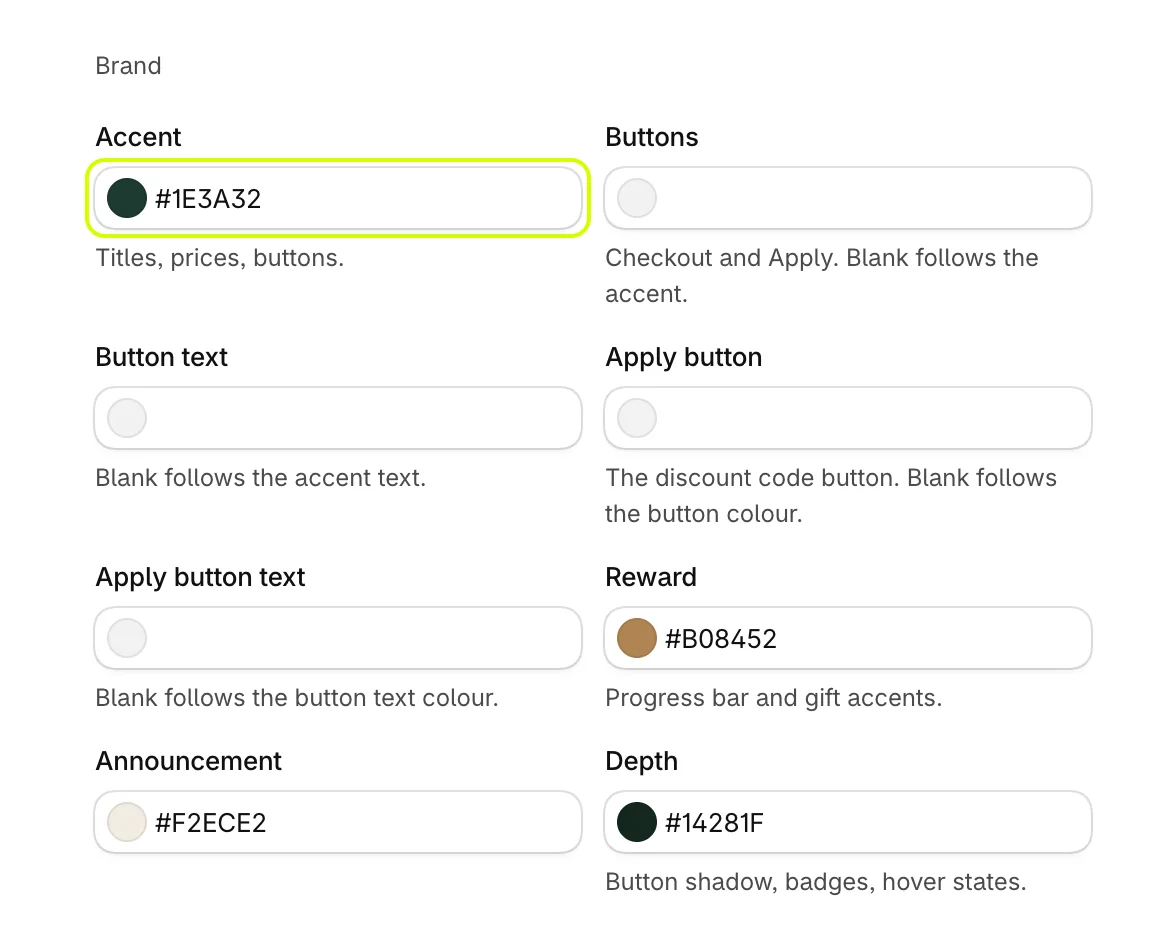
- Under Brand, set Accent, the color of titles, prices and buttons. Select the swatch to pick a color, or type a hex code.
- Set the others in the group if you want them to differ from the accent:
- Buttons and Button text: the checkout and Apply buttons. Blank follows the accent.
- Apply button and Apply button text: the discount code button only.
- Reward: the progress bar and gift accents.
- Announcement: the announcement bar.
- Depth: button shadow, badges and hover states.
Set the surfaces
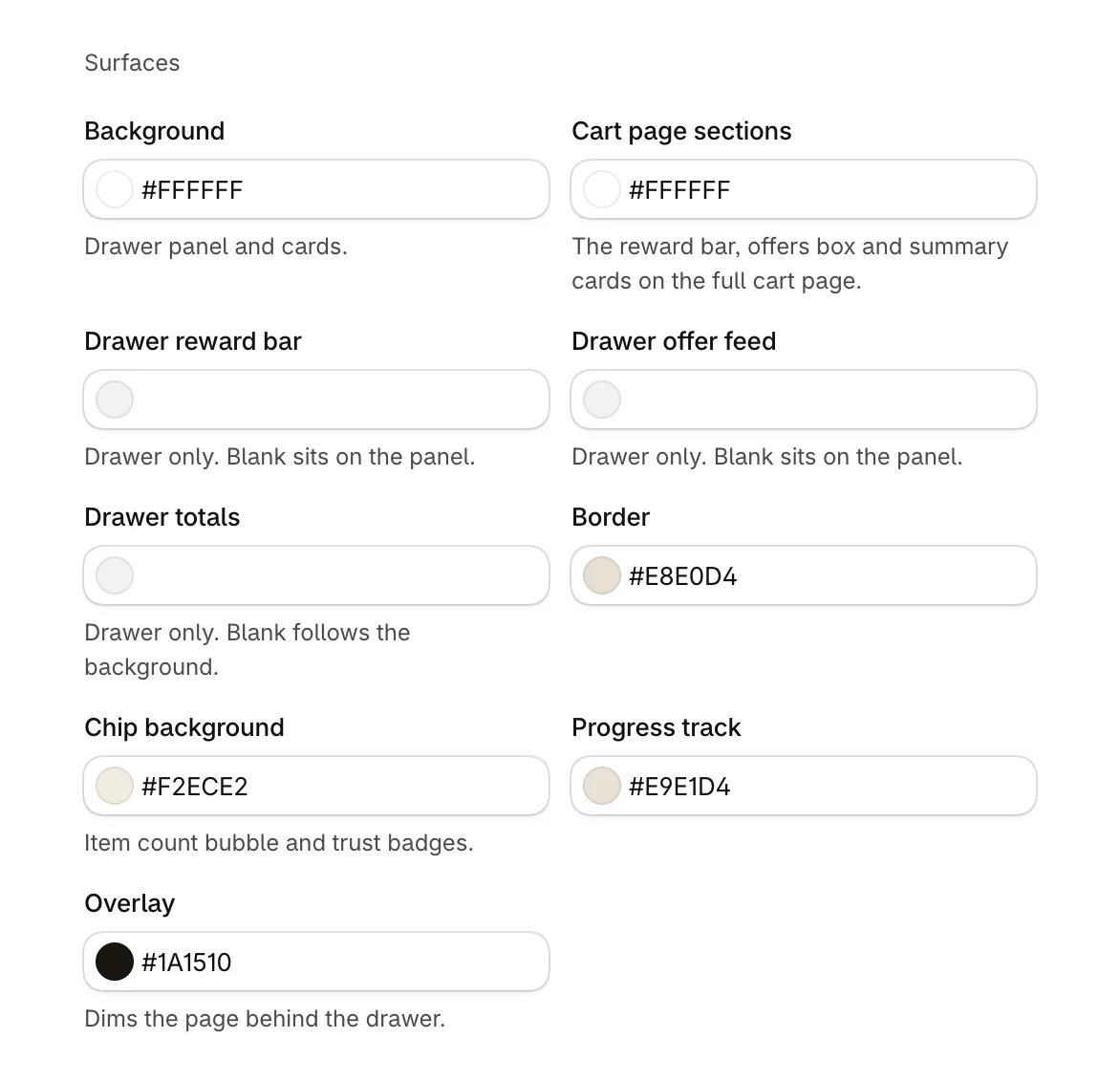
Under Surfaces:
- Background: the drawer panel and cards.
- Cart page sections: the reward bar, offers box and summary cards on the full cart page.
- Drawer reward bar, Drawer offer feed and Drawer totals: tints for those parts of the drawer only. Blank sits on the panel.
- Border, Chip background and Progress track.
- Overlay: dims the page behind the drawer.
Set the text colors
Under Text, set Heading text, Muted text for tax and shipping notes, Text on buttons, Text on announcement, the countdown bar's colors, Text on reward markers, Sale price for the struck-through price, and Free gift.
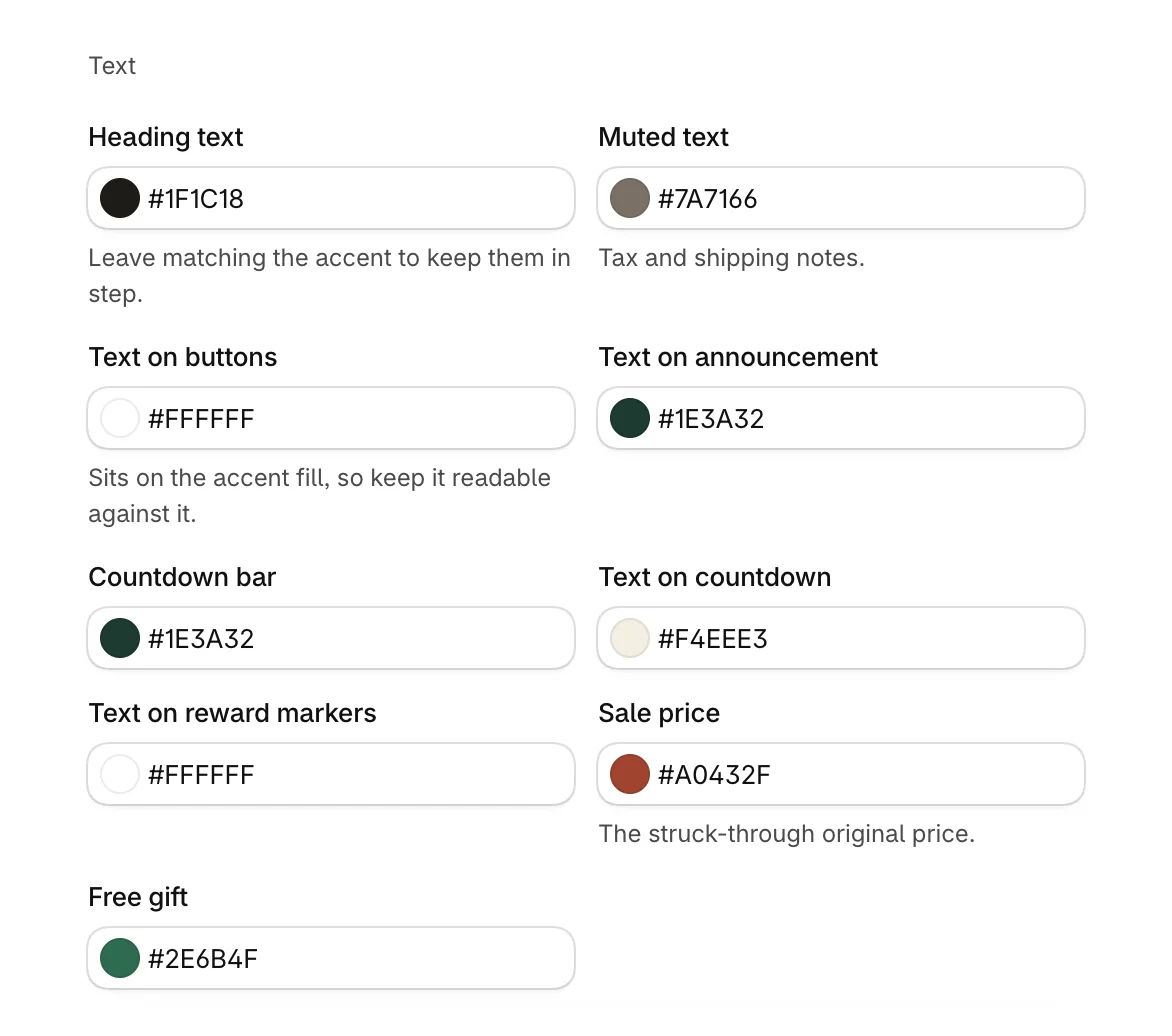
Keep text readable against the color it sits on, such as Text on buttons against Accent.
See it change
Select Save when you are happy. For fonts, corners and sizes, see Set fonts, corners and sizes.
Was this helpful?
More in Design
- Set fonts, corners and sizesUse your theme's fonts or one of the cart's own, and set heading weight, button depth, corner shapes, text size and widths.
- Reorder the checkout areaChange the order of the discount box, total, terms, trust badges, checkout button and payment icons at the bottom of the cart.
- Check the cart on phonesSee how the drawer and the full cart page look on a phone, and what changes from a computer.
- Style the cart with custom CSSOn Pro, add your own CSS for the cart on your store, for the few details the design settings do not cover.