Add trust badges and payment icons
Reassure shoppers at the checkout button with short badges, a shipping or tax note, and the payment methods you take.
 Attravo TeamUpdated 1 min read
Shoppers hesitate at the checkout button. A line about taxes, a few short badges and the logos of the cards you take answer the questions that stop them.
Add a shipping or tax note
- On Cart settings, open Trust and urgency.
- Type a short line into Shipping / tax note, such as a note that taxes are worked out at checkout. It shows in small text under the total.
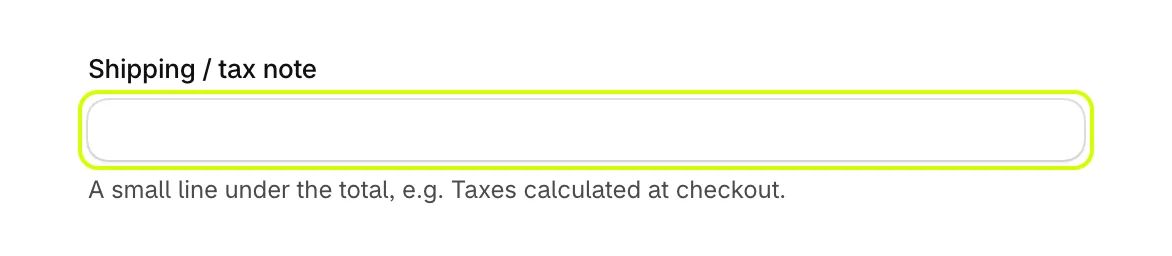
Leave it blank to show nothing.
Set your trust badges
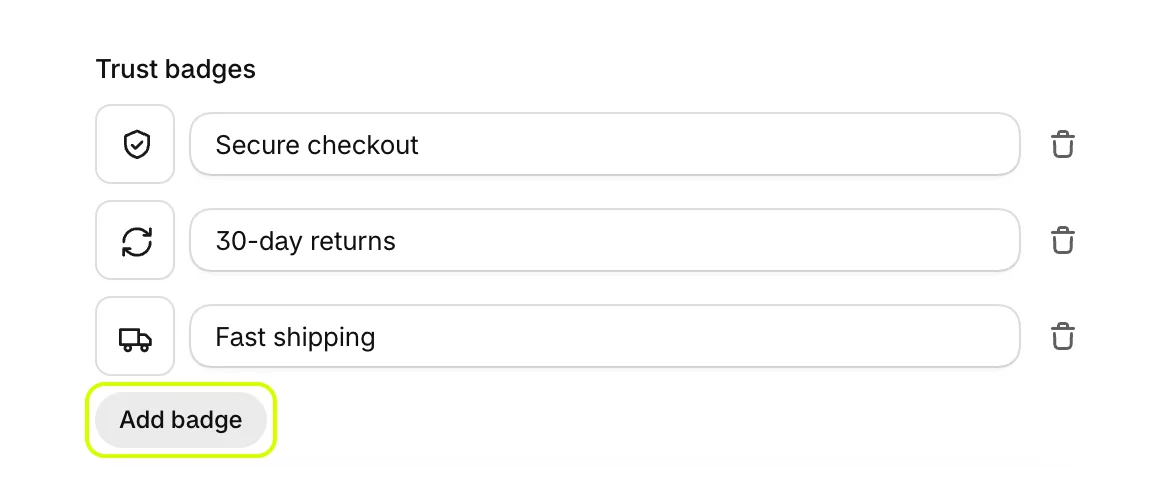
A new store starts with three badges: Secure checkout, 30-day returns and Fast shipping. Change them to what is true for your store.
- Under Trust badges, select a badge's icon to choose another, or paste your own icon's link into Or paste your own icon URL. Then edit the badge's text.
- Select the bin beside a badge to remove it.
- Select Add badge to add one. The cart shows up to four.
Choose payment icons
- Open Payment icons.
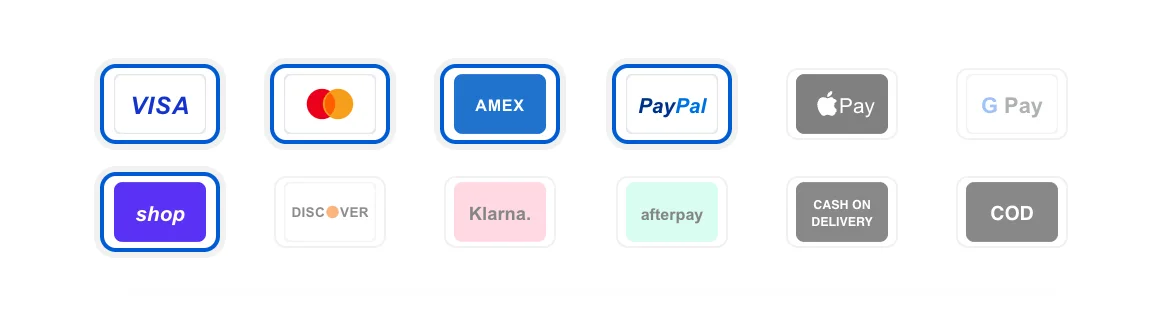
- Select each method you take. Selected icons have a blue outline; select one again to take it off.
- Select Save.
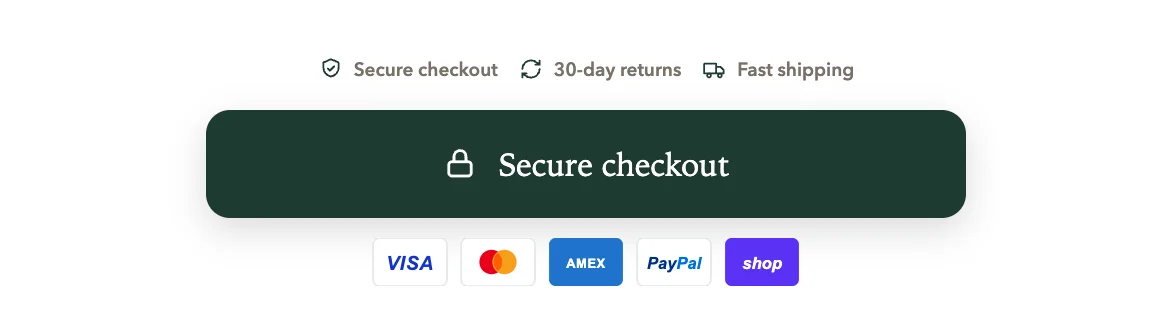
The badges and icons sit around the checkout button:
To move them, see Reorder the checkout area.
Was this helpful?
More in The cart
- Choose how the cart opensUse the drawer alone or with a full cart page, keep it above chat widgets, and decide where Buy it now and wallet buttons show.
- Add your logo and an announcementPut your logo or your own title at the top of the cart, and a strip of text above it for a message shoppers should not miss.
- Set up the empty cartTurn an empty cart into a way back into your store, with your own message, collections to browse, offers and reward progress.
- Set up the total and checkout buttonWord the total and the checkout button your way, pick the button's icon, and choose how prices and free gifts read.