Add a quiz inside a page
Place a quiz inside your home page, a collection or any page, sized and spaced to fit your theme.
 Attravo TeamUpdated 1 min read
On this page
The Quizz Inline block puts the quiz right inside a page, where shoppers already are, such as the home page or a collection. It's part of Pro.
Add the block
- Open Online Store > Themes and select Customize, then open the page where the quiz should show.
- Select Add section, open Apps and choose Quizz Inline.
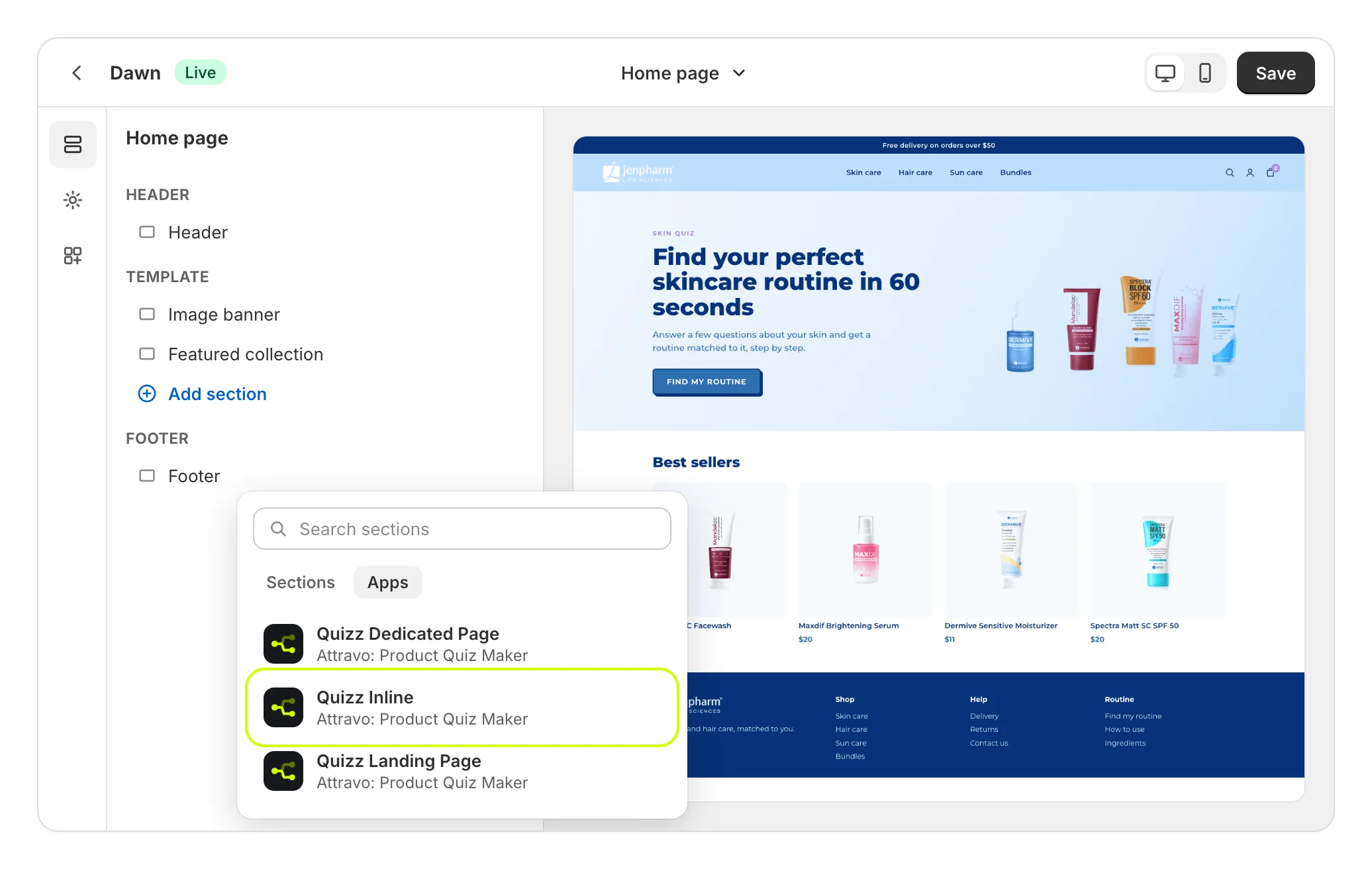
- Drag the section to where it should sit on the page.
- Fill in its settings, then select Save.
On Home, Add to theme on Inline embed opens the theme editor with the block added to your home page.
The settings
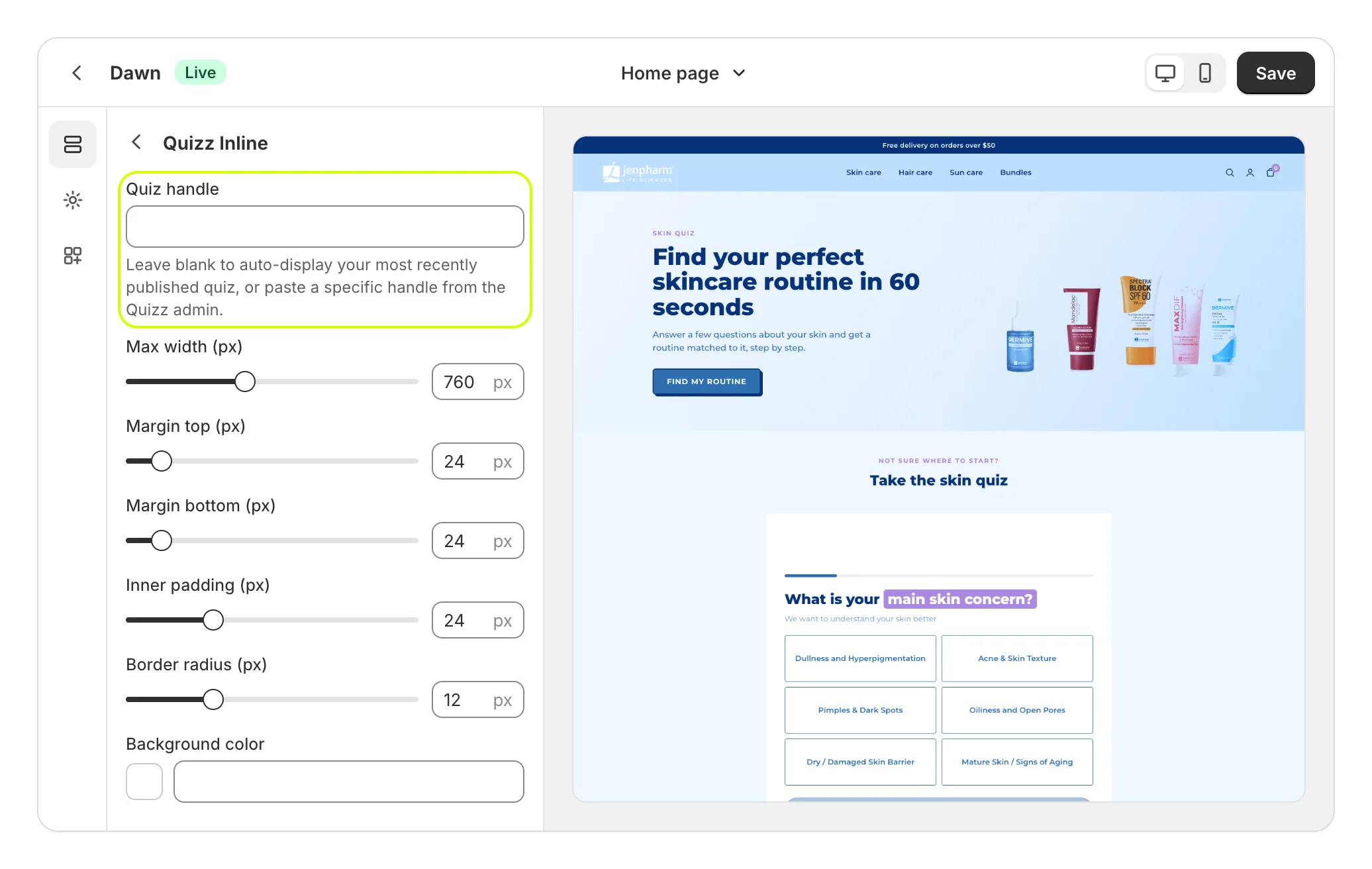
| Setting | What it does |
|---|---|
| Quiz handle | The quiz to show. Blank shows your most recently published quiz for this kind of block. |
| Max width (px) | How wide the quiz can grow, from 320 to 1400. |
| Margin top (px) and Margin bottom (px) | Space above and below the quiz, up to 200. |
| Inner padding (px) | Space between the block's edge and the quiz, up to 80. |
| Border radius (px) | How rounded the block's corners are, up to 40. |
| Background color | The block's background, around the quiz. |
What shoppers see
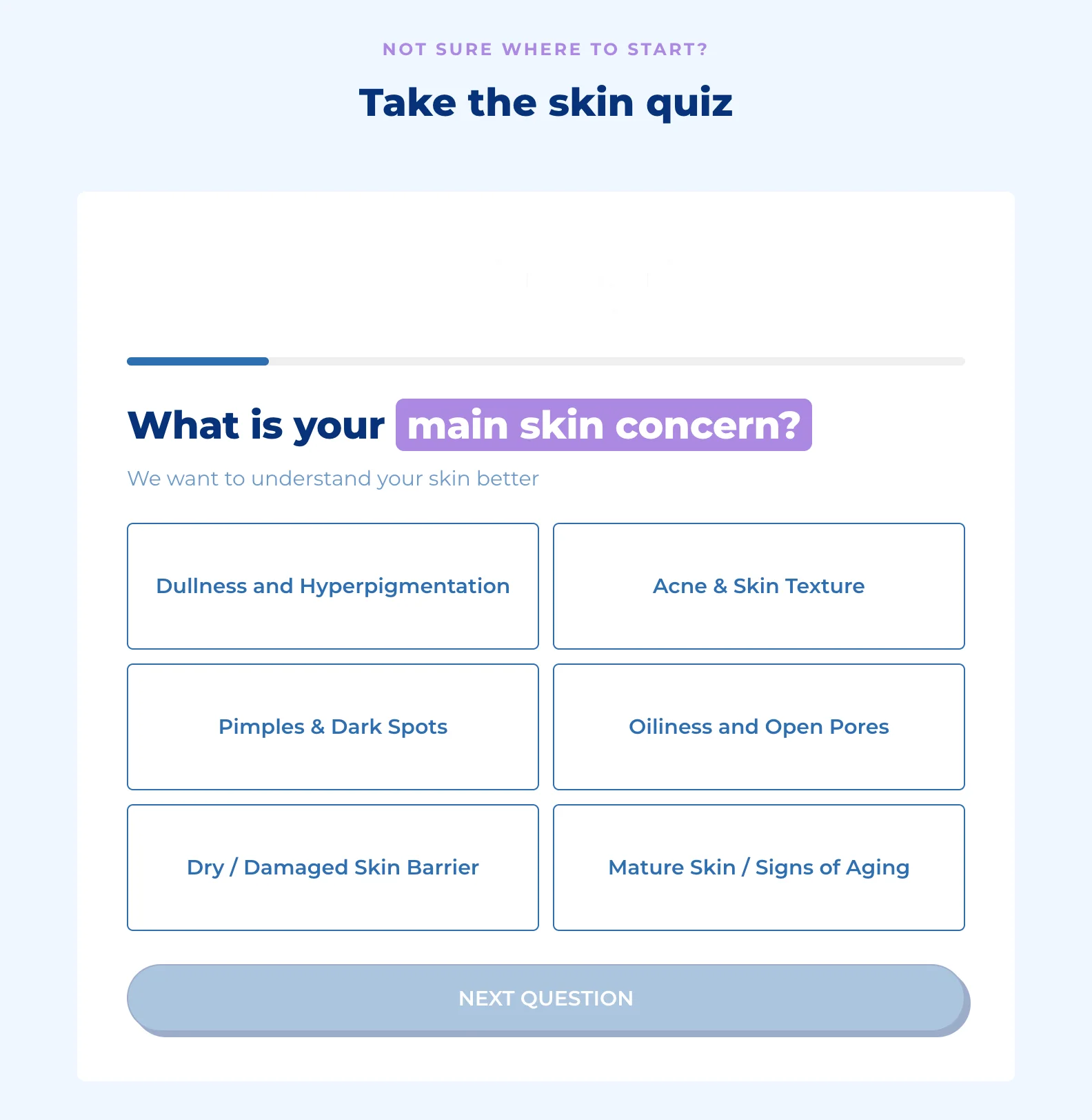
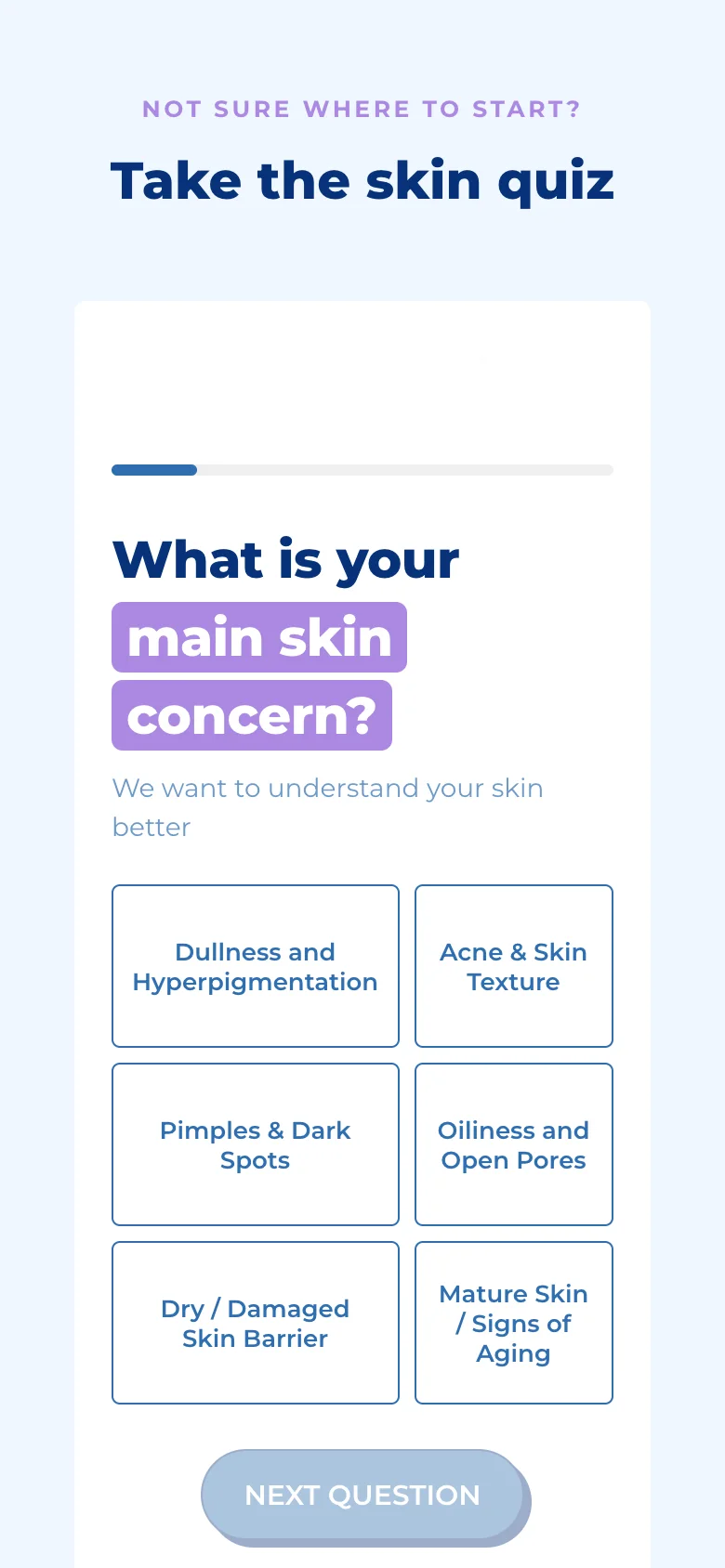
The quiz sits in the page as a card. Shoppers answer without leaving the page, and add their results to the cart from there.
Was this helpful?
More in On your store
- Choose where each quiz showsCompare the five ways to put a quiz on your store, and decide which quiz each block shows.
- Add a dedicated quiz pageGive a quiz a full page with its own address, to link from your menu, ads, emails and social posts.
- Add a floating chat buttonPut a quiz launcher in a corner of every page, and choose when it appears and what it says.
- Open the quiz from a menu linkOpen a quiz in a popup from a menu item, a text link or any button, without touching code.