Connect Klaviyo or Mailchimp
Send every new quiz lead to a Klaviyo list or a Mailchimp audience, with the answers they picked.
 Attravo TeamUpdated 2 min read
Connect your email tool and each new lead joins your list moments after the quiz, with their answers attached, so your welcome flow can follow up with the products they need. It's part of Pro.
Connect Klaviyo
- In Klaviyo, open Settings > API keys and create a private API key with access to profiles, lists and subscriptions. It starts with
pk_. - In Klaviyo, open Lists & segments, open your list, then its Settings, and copy the List ID.
- In the app, open Settings. Under Klaviyo, paste the Private API key and the List ID.
- Select Save.
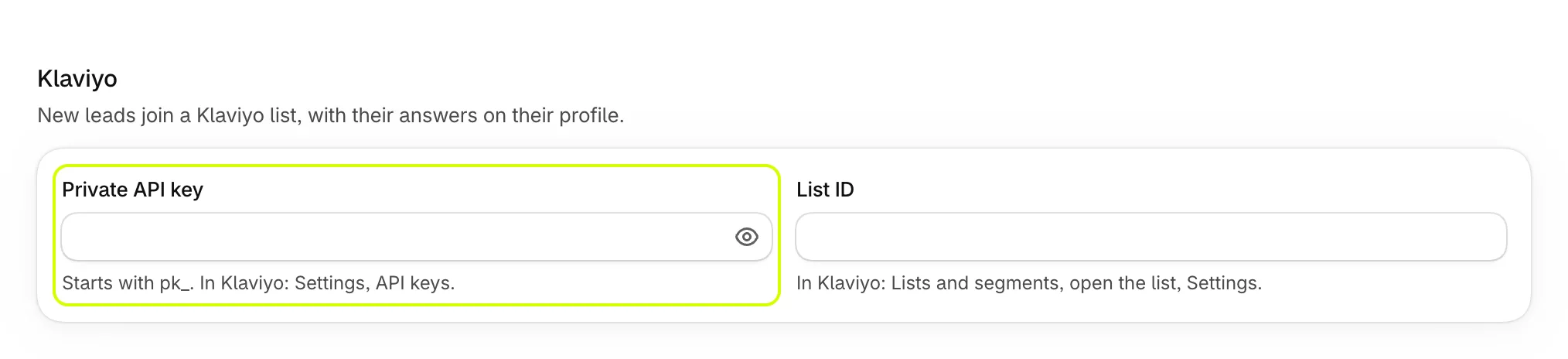
Each new lead is created or updated in Klaviyo by email, with their name and phone when the quiz asked for them, then added to your list. Their answers' tags are saved on the profile as quizz_tags, ready for segments and flows.
Connect Mailchimp
- In Mailchimp, open Profile > Extras > API keys and create a key.
- Open Audience > Settings > Audience name and defaults, and copy the Audience ID.
- In the app, open Settings. Under Mailchimp, paste the API key and the Audience ID.
- Select Save.
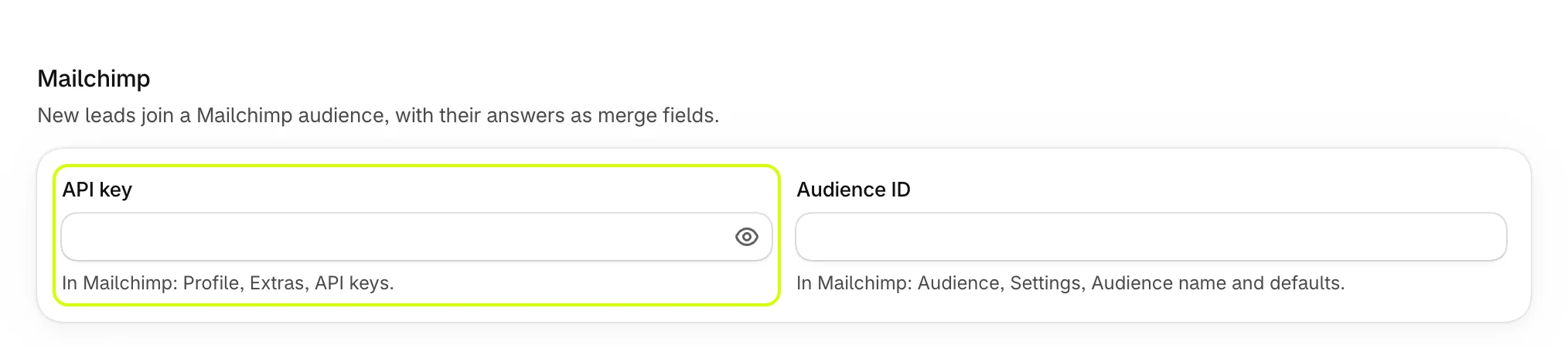
Each new lead joins the audience with their first name, last name and phone, and their answers' tags become Mailchimp tags.
Good to know
- Only leads captured after you connect are sent. To add earlier ones, export them from Leads and import the file into your tool. See View and export your leads.
- The quiz doesn't ask for marketing consent. In Klaviyo, leads join your list without a marketing subscription. In Mailchimp, new contacts join as pending, and Mailchimp emails them to confirm first.
- Klaviyo only takes phone numbers in international format, such as +15551234567. Other numbers are left off, and the rest of the profile still goes through.
- The keys aren't tested when you save. Take your quiz with a test email, then look for it in your list. In Leads, the lead shows klaviyo or mailchimp under Synced to once it's there.
On the Free plan
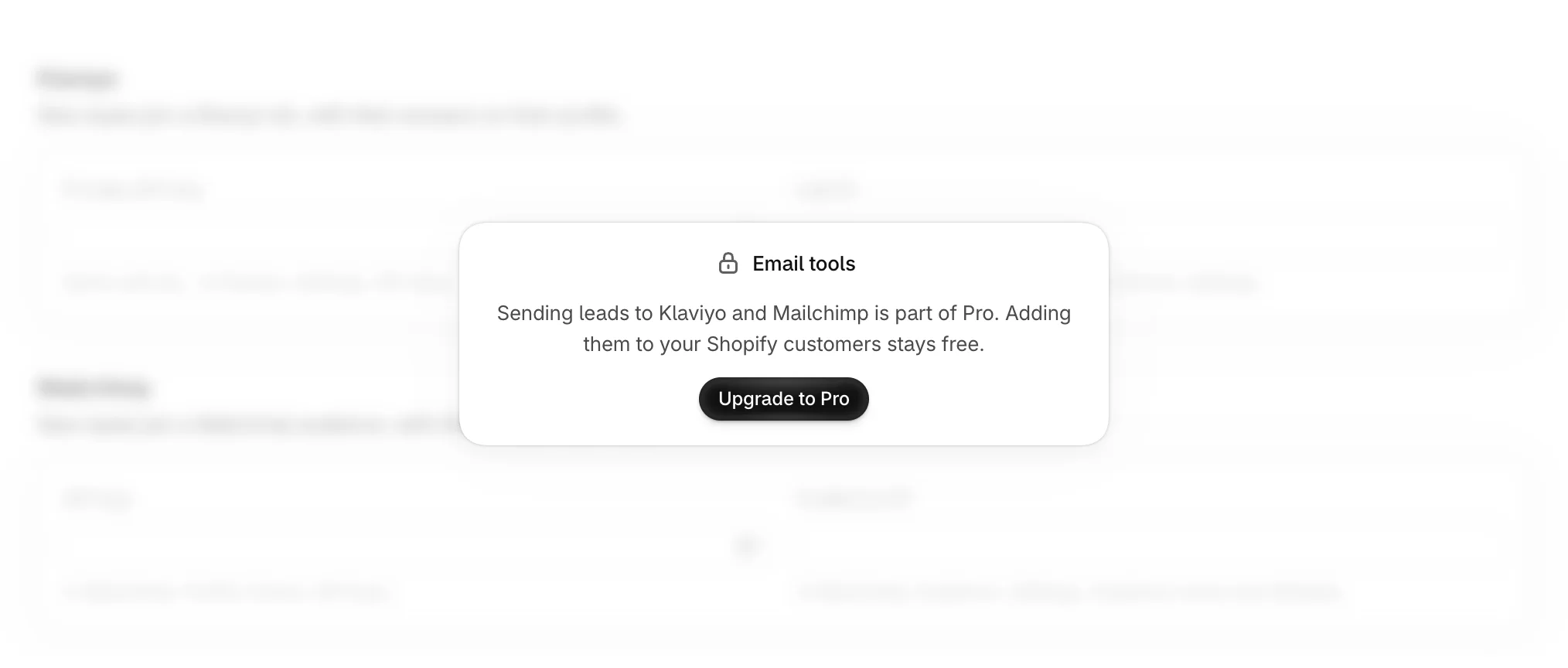
The email tools are locked, with Upgrade to Pro. Adding leads to your Shopify customers stays free. See Add leads to your Shopify customers.
Was this helpful?
More in Leads and email tools
- Ask for an email before resultsCollect shoppers' emails, and their names and phone numbers if you like, on a step just before their results.
- View and export your leadsSee every email your quizzes collected with the answers behind it, search them, and download them as a CSV file.
- Add leads to your Shopify customersTurn every quiz lead into a Shopify customer tagged with their answers, ready for segments and campaigns.