Open a quiz from your own button
Make any button in your theme open a quiz, in a popup or full screen, with the quiz's ID.
 Attravo TeamUpdated 1 min read
Any button or link in your theme can open a quiz, such as a hero banner's button or a product page's "Help me choose". You give it the quiz's ID, and the app embed does the rest.
Before you start
Turn on the Quizz Core Script app embed in your theme. See Turn on the Quizz Core Script app embed.
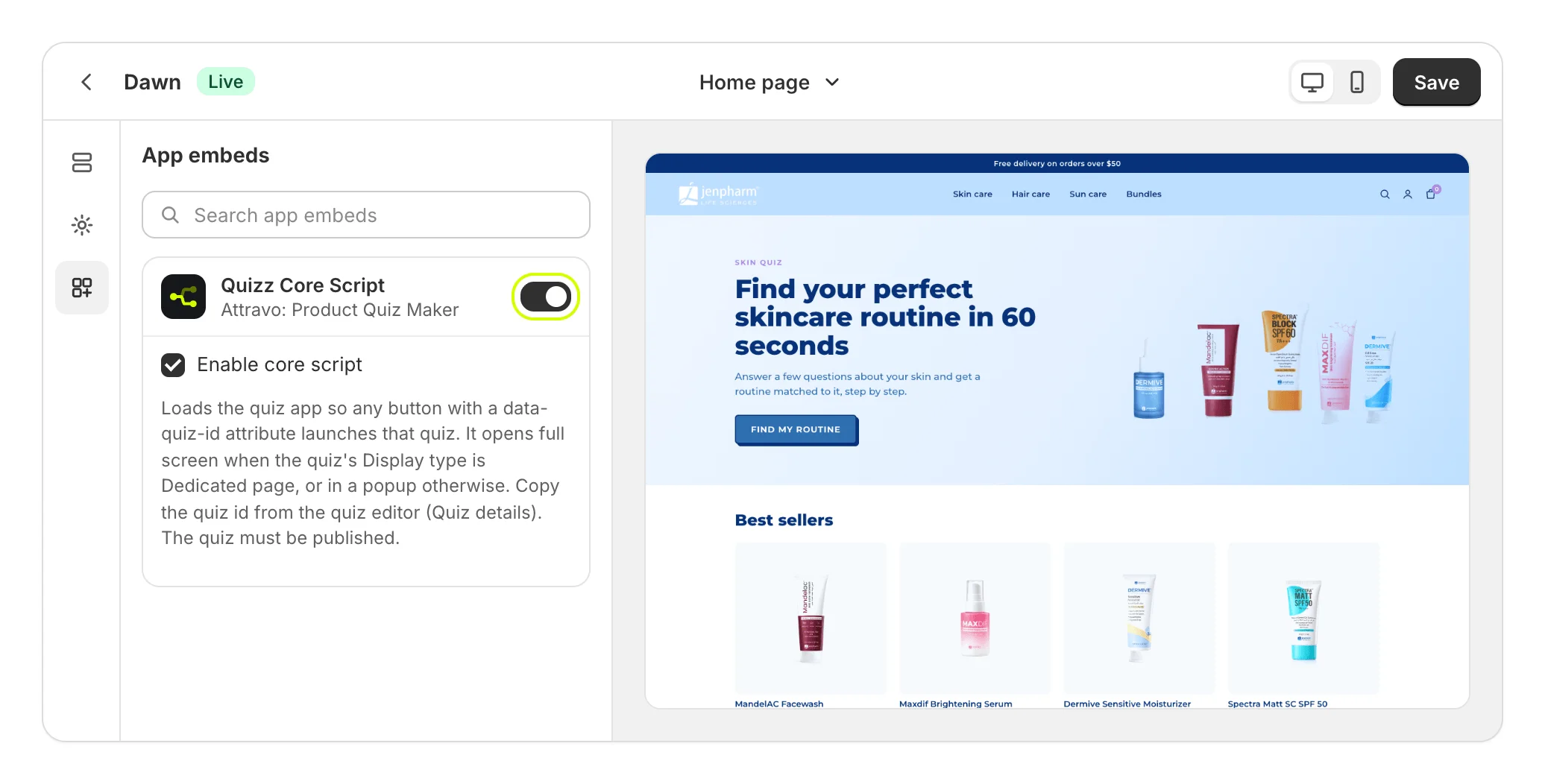
The quiz must be published.
Copy the quiz's ID
- Open the quiz and select Settings.
- Under Placing it in your theme, select Copy next to Quiz ID.
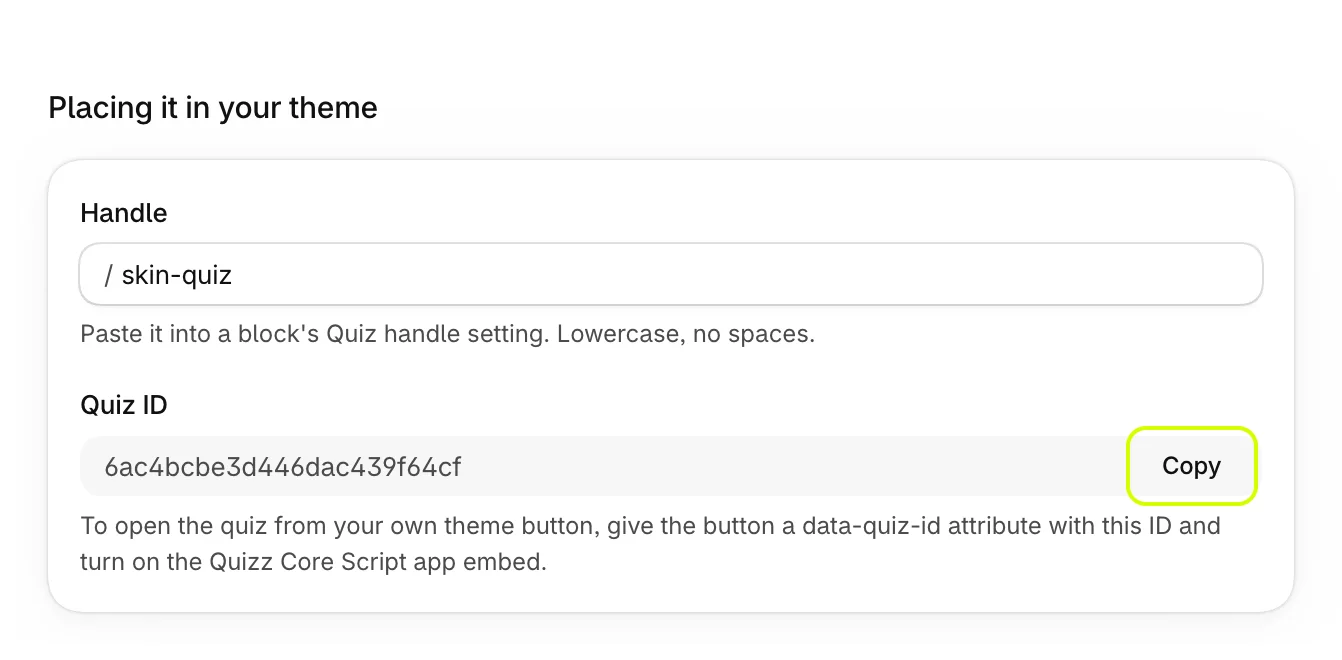
Add it to a button
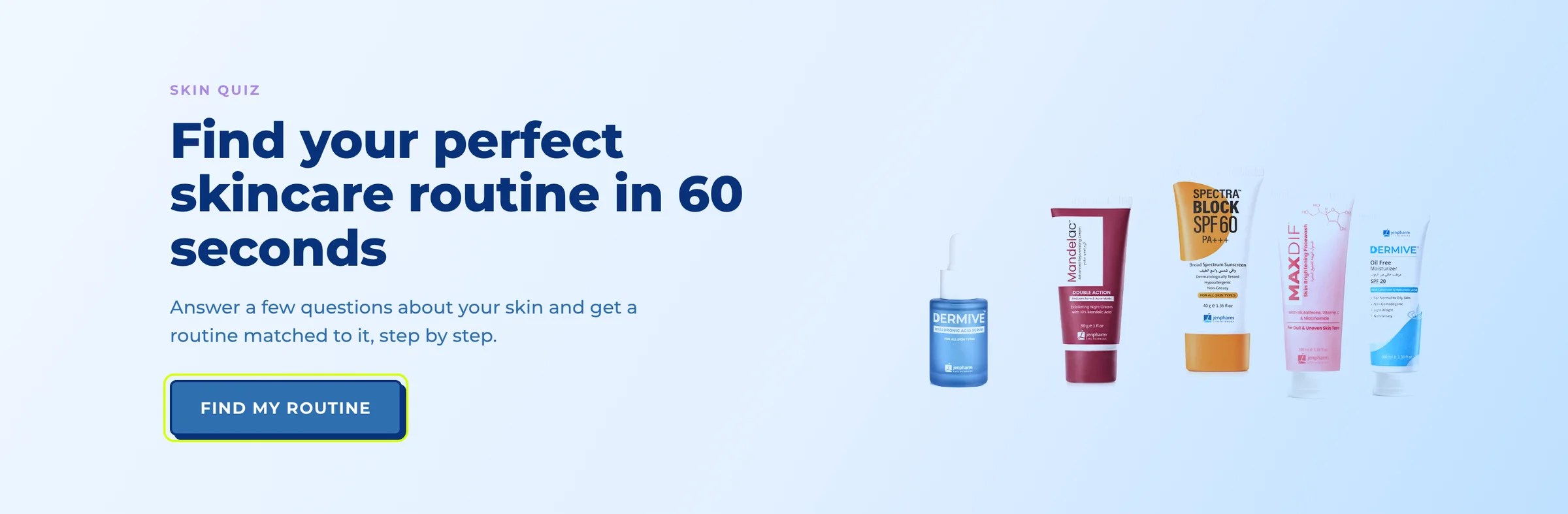
Give the button a data-quiz-id attribute with the ID you copied. For example, in a Custom Liquid section or your theme's code:
<button type="button" data-quiz-id="6ac4bcbe3d446dac439f64cf">Find my routine</button>Your theme's own button styles still apply.
How it opens
- In a popup, for most quizzes.
- Full screen, when the quiz's Show this quiz in is Dedicated page.
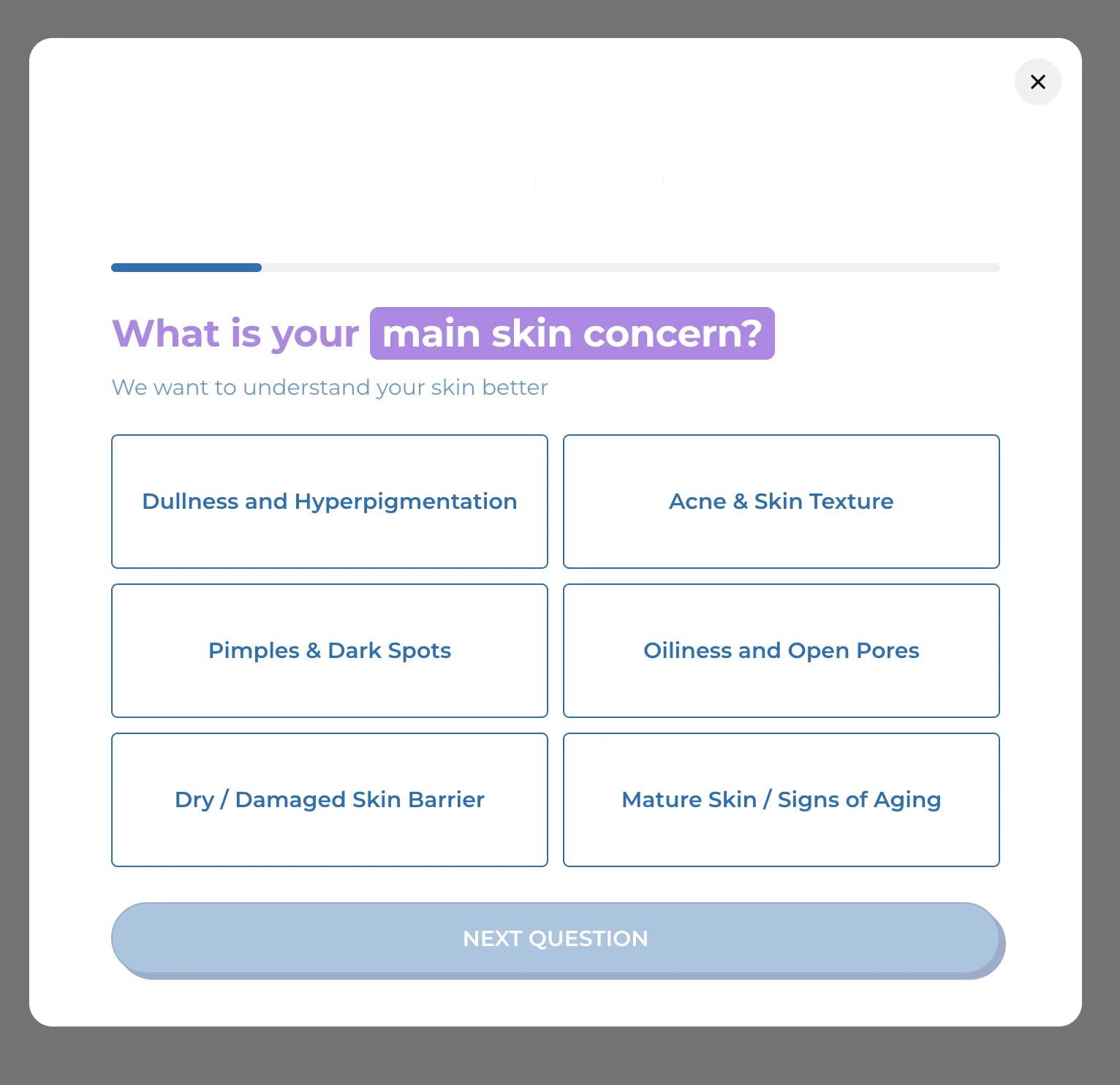
To choose for one button, add data-quiz-mode="popup" or data-quiz-mode="page". To give the popup a heading, add data-quizz-modal-heading and data-quizz-modal-subheading with your text.
Was this helpful?
More in On your store
- Choose where each quiz showsCompare the five ways to put a quiz on your store, and decide which quiz each block shows.
- Add a dedicated quiz pageGive a quiz a full page with its own address, to link from your menu, ads, emails and social posts.
- Add a quiz inside a pagePlace a quiz inside your home page, a collection or any page, sized and spaced to fit your theme.
- Add a floating chat buttonPut a quiz launcher in a corner of every page, and choose when it appears and what it says.