Build a step-by-step set
Group results into ordered steps, such as a routine or a gift box, with tiers shoppers choose from and one button for the whole set.
 Attravo TeamUpdated 3 min read
A step-by-step set turns results into a routine or a bundle: one product per step, in order, added to the cart in one click. Shoppers buy the whole set instead of a single product, which lifts the order value.
Turn it on
- Open the quiz and select Results.
- Under Results page, set Layout to Step-by-step set.
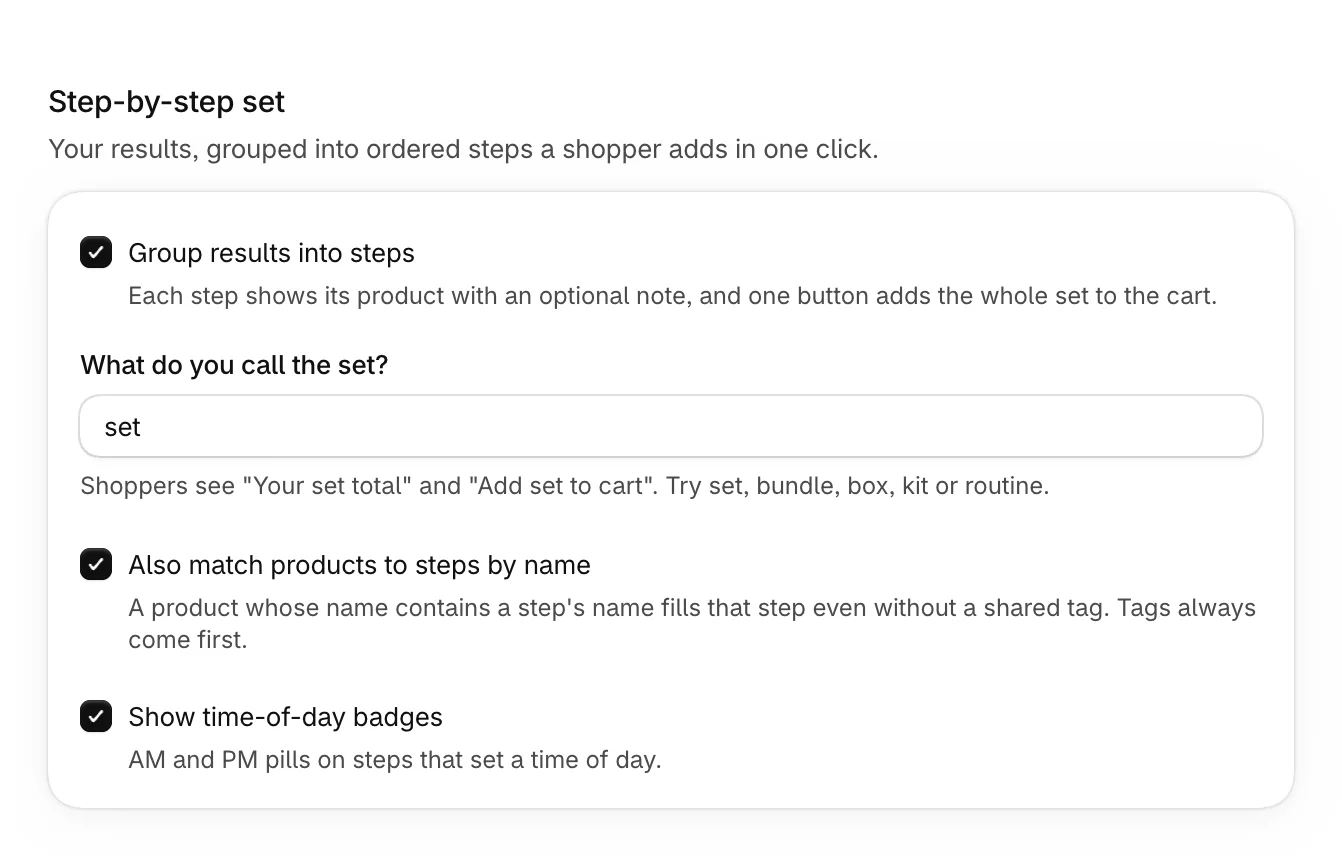
- Under Step-by-step set, tick Group results into steps.
| Setting | What it does |
|---|---|
| What do you call the set? | The word shoppers see, such as routine, set, bundle, box or kit, in "Your set total". |
| Also match products to steps by name | A product whose name contains a step's name fills that step, even without a shared tag. Tags always come first. |
| Show time-of-day badges | Shows AM and PM pills on steps that set a time of day. |
Add the steps
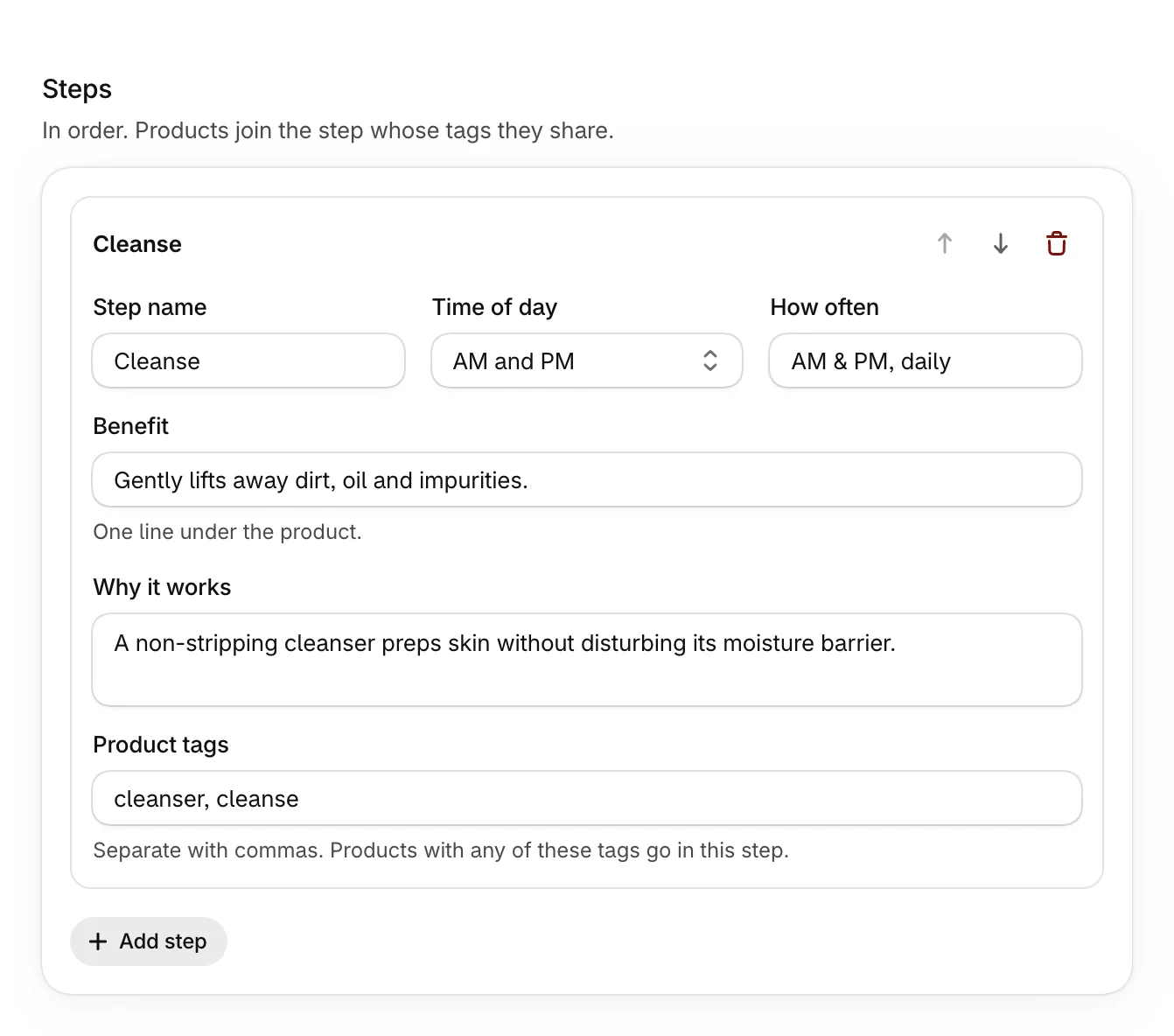
Under Steps, each step takes the best match among products that carry one of its tags. Steps show in the order listed.
| Setting | What it does |
|---|---|
| Step name | Such as Cleanse or Moisturize. |
| Time of day | None, AM, PM or AM and PM, for the time-of-day badges. |
| How often | Such as AM & PM, daily. |
| Benefit | One line under the product. |
| Why it works | A short reason, shown in the step's Why it works box. |
| Product tags | Products with any of these tags go in this step. Separate them with commas. |
Select Add step for another, and use the arrows to reorder steps or the delete button to remove one.
Offer tiers
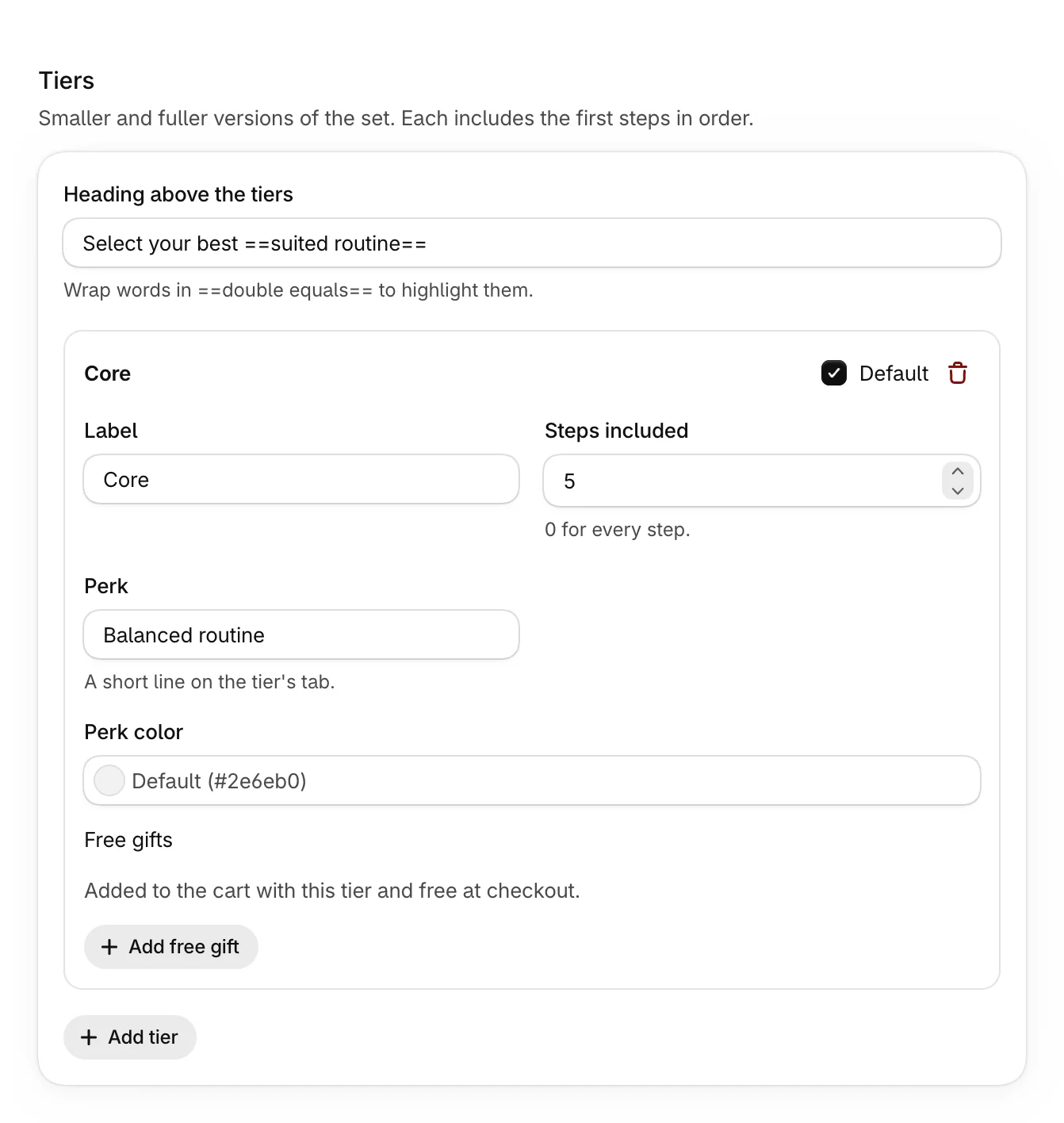
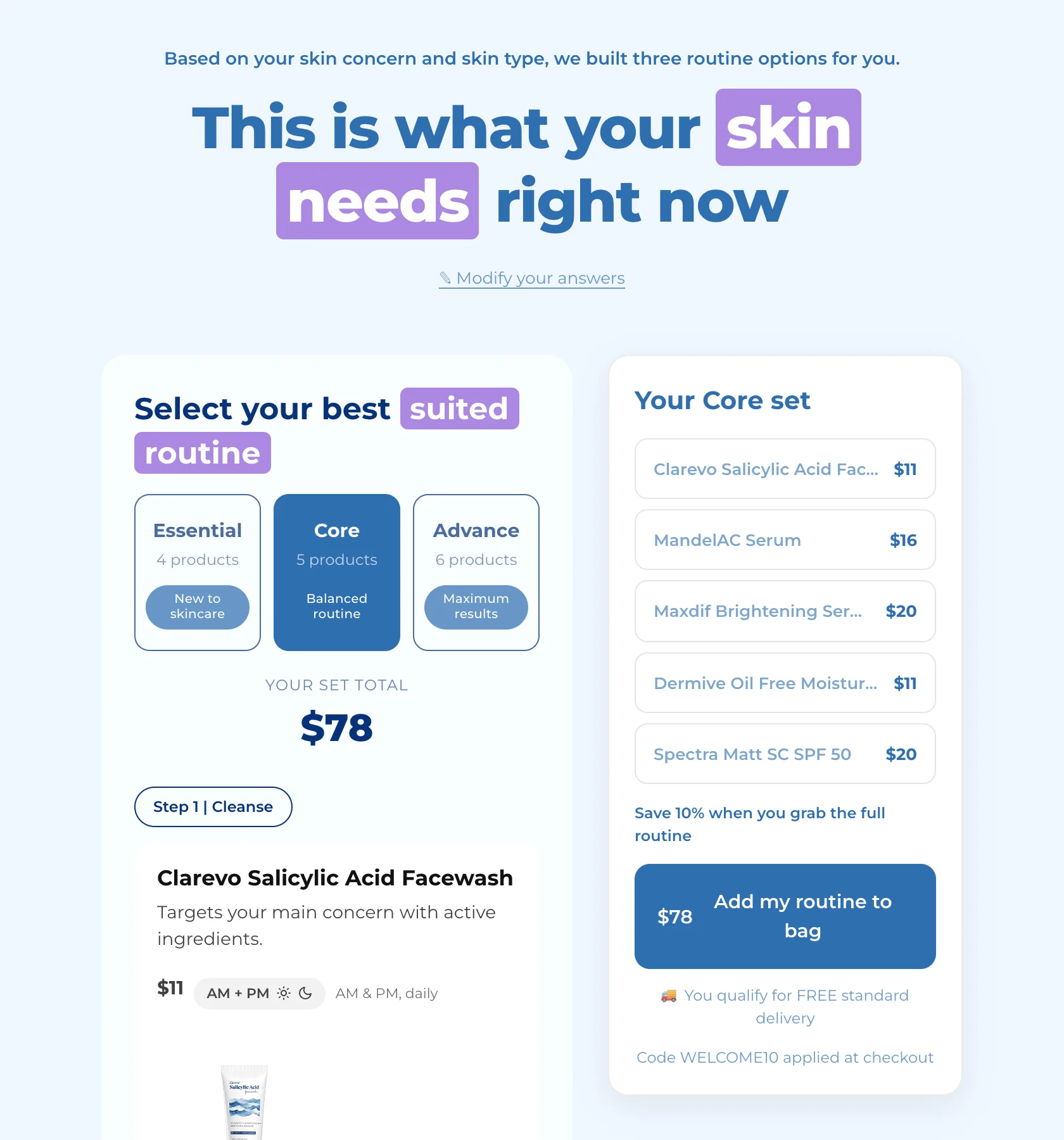
Tiers are smaller and fuller versions of the set, such as Essential, Core and Advance. Each includes the first steps in order, and shoppers switch between them on the results page.
| Setting | What it does |
|---|---|
| Heading above the tiers | Such as Select your best ==suited routine==. Words in double equals signs are highlighted. |
| Default | The tier shoppers see first. |
| Label | The tier's name on its tab. |
| Steps included | How many steps, from the first. 0 includes every step. |
| Perk | A short line on the tier's tab, such as Balanced routine. |
| Perk color | The color of that line. |
With no tiers yet, Add three tiers adds three at once; after that, Add tier adds one. Adding tiers is part of Pro; on the Free plan you can edit the tiers a template came with.
Add notes beside the total
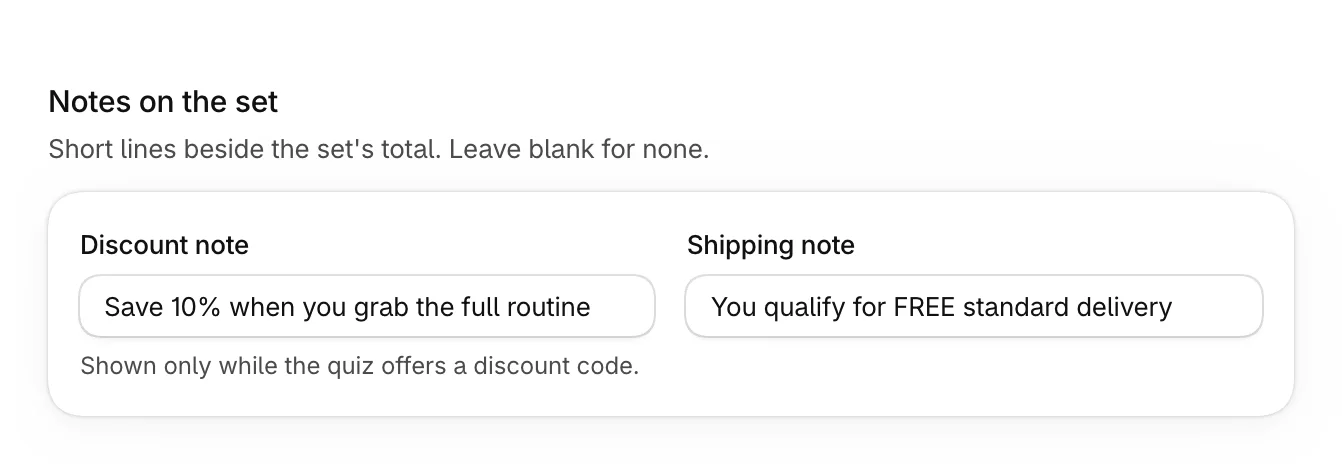
Under Notes on the set:
- Discount note, such as "Save 10% when you grab the full routine", shows only while the quiz offers a discount code.
- Shipping note, such as "You qualify for FREE standard delivery".
What shoppers see
The set's steps, each with its product and Why it works, sit beside a summary of the chosen tier and one button that adds them all. Modify your answers takes shoppers back to the questions.
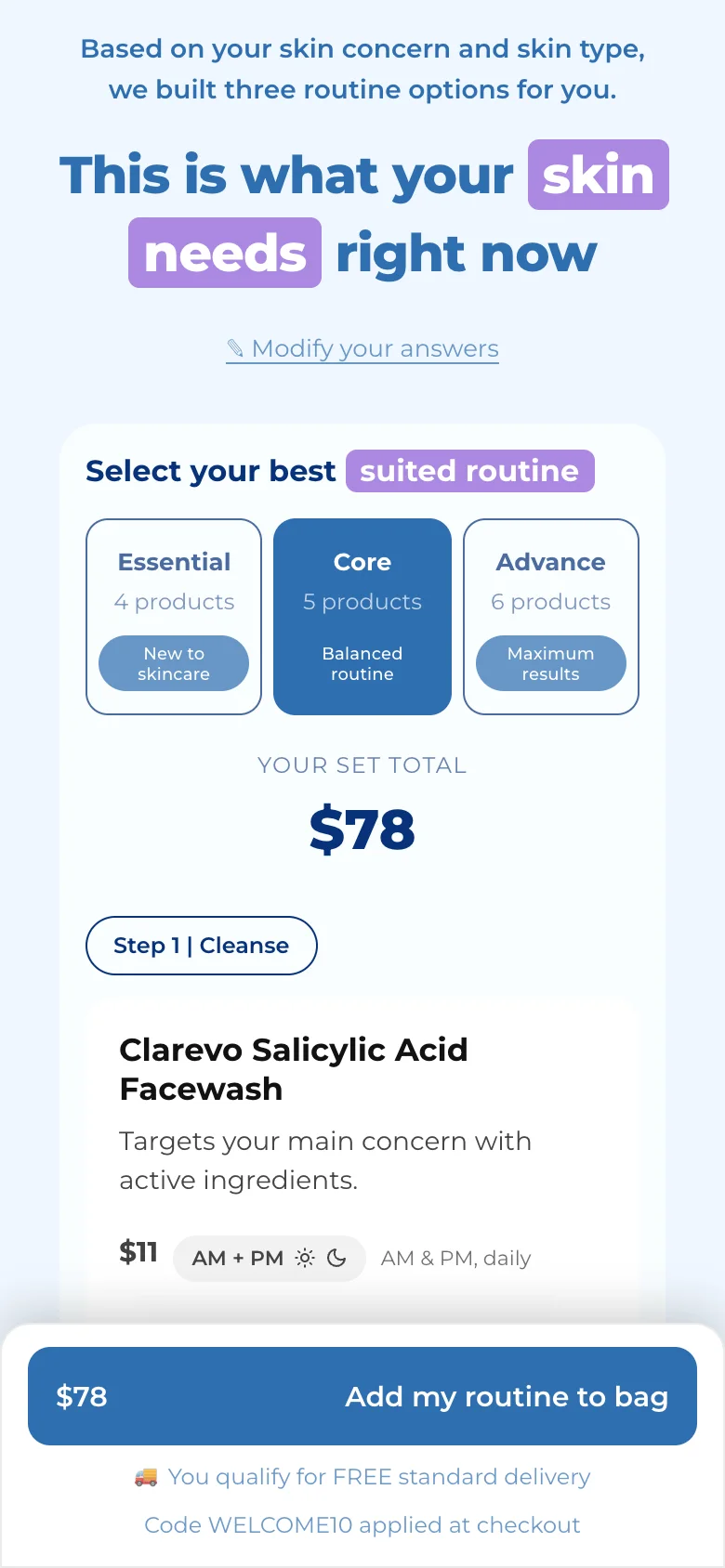
On phones, the total and the button stay pinned to the bottom of the screen.
Was this helpful?
More in Results and recommendations
- Choose which products it recommendsPick the products a quiz chooses from, leave out sold-out or unwanted products, and understand how it ranks them.
- Set fallback productsChoose the products shoppers see when their answers match nothing, so no one leaves empty-handed.
- Set up the results pageChoose how results look, write their heading and button, and decide whether the button goes to the cart or checkout.
- Offer a discount with resultsShow one of your store's discount codes with a quiz's results and apply it when shoppers add their products.