Offer a discount with results
Show one of your store's discount codes with a quiz's results and apply it when shoppers add their products.
 Attravo TeamUpdated 1 min read
A discount on the results page gives shoppers a reason to buy now, right when they've found what fits. The quiz shows one of your store's codes and applies it for them.
Create the code in Shopify
Create the discount in your Shopify admin under Discounts, as an amount off products or an order, and note its code. The quiz uses the code as it is: its value, dates and limits stay in Shopify.
Add it to the quiz
- Open the quiz and select Results.
- Under Discount, set Offer a discount on the results page to A discount code.
- Type the code in Code and select Check code.
- Select Save.
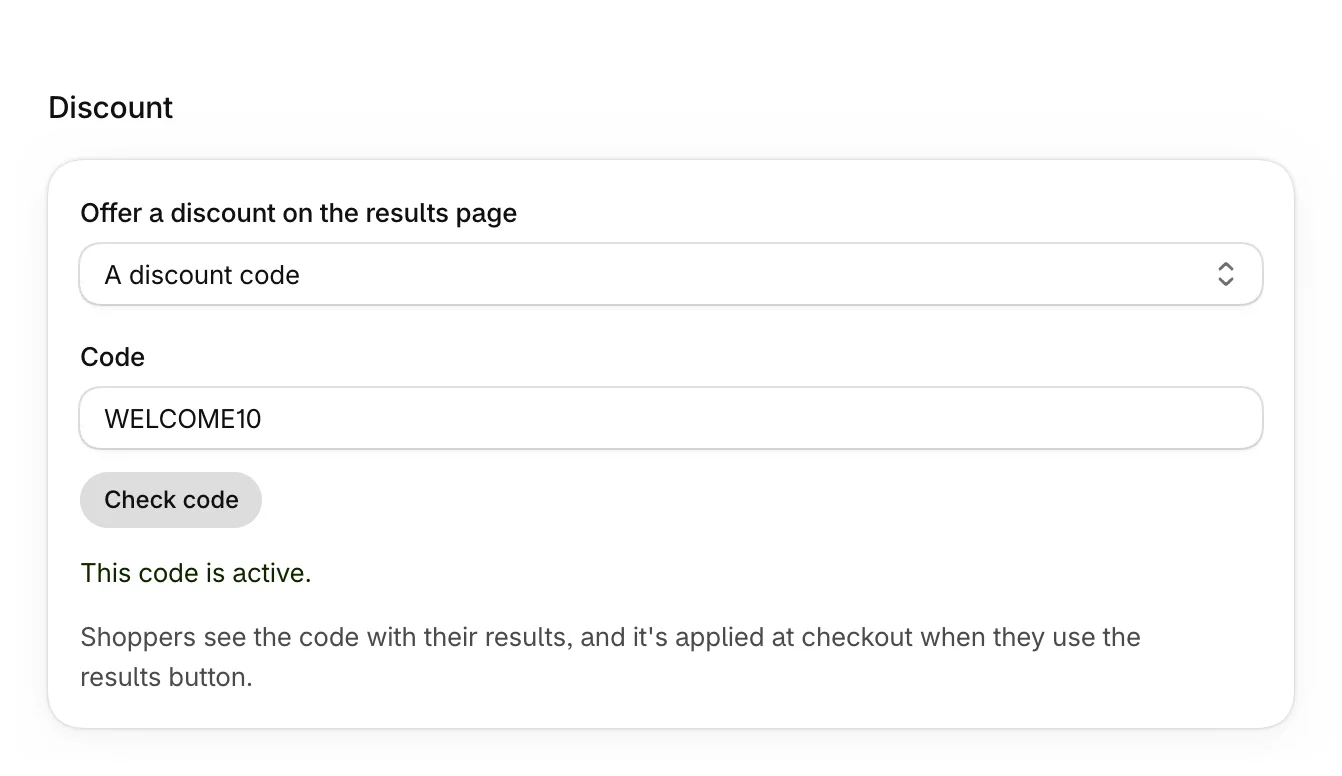
Check code confirms the code exists in your store and is active. If it isn't, you see why, such as "Code not found in your store". Fix the code in Shopify, then check it again.
What shoppers see
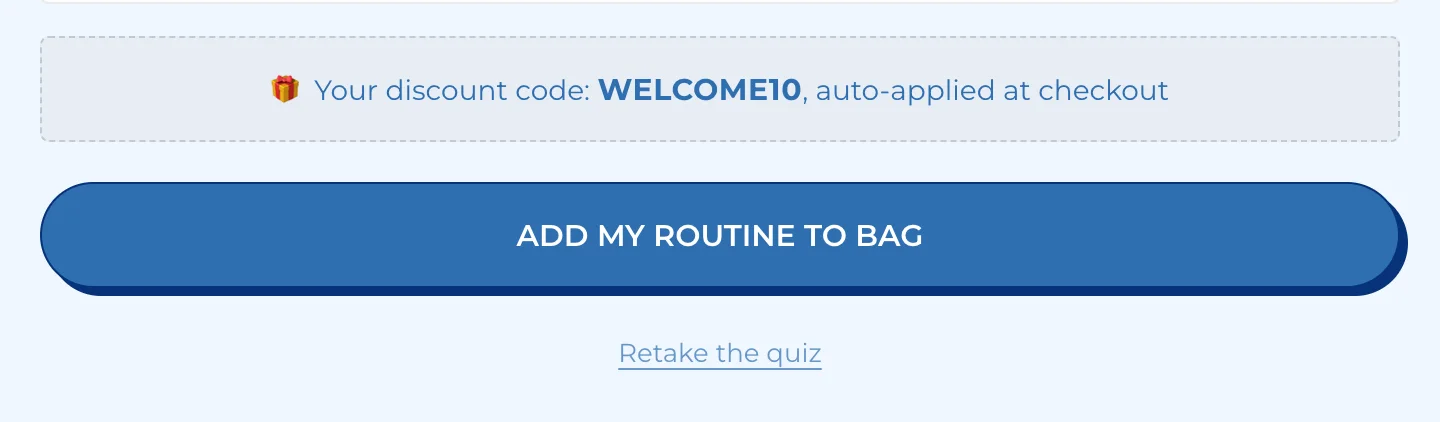
The code shows on the results page, above the button. When the shopper uses the button, the code is applied at checkout for them.
Stop offering it
Set Offer a discount on the results page to No discount, then select Save.
Was this helpful?
More in Results and recommendations
- Choose which products it recommendsPick the products a quiz chooses from, leave out sold-out or unwanted products, and understand how it ranks them.
- Set fallback productsChoose the products shoppers see when their answers match nothing, so no one leaves empty-handed.
- Set up the results pageChoose how results look, write their heading and button, and decide whether the button goes to the cart or checkout.
- Build a step-by-step setGroup results into ordered steps, such as a routine or a gift box, with tiers shoppers choose from and one button for the whole set.