Build a quiz landing page
Build a full landing page around a quiz, with a hero, how it works and your own images, for campaigns and ads.
 Attravo TeamUpdated 2 min read
The Quizz Landing Page block builds a whole page around the quiz: a hero with a big call to action, a short explanation, and optional proof such as reviews. It suits paid campaigns, where the page has to sell the quiz before shoppers take it. It's part of Pro.
Add the block
- Create a page in Online Store > Pages, such as Routine guide.
- In the theme editor, switch to the page, create a template for it, select Add section, open Apps and choose Quizz Landing Page.
- Fill in its settings, then select Save, and set the page's theme template to the one you created.
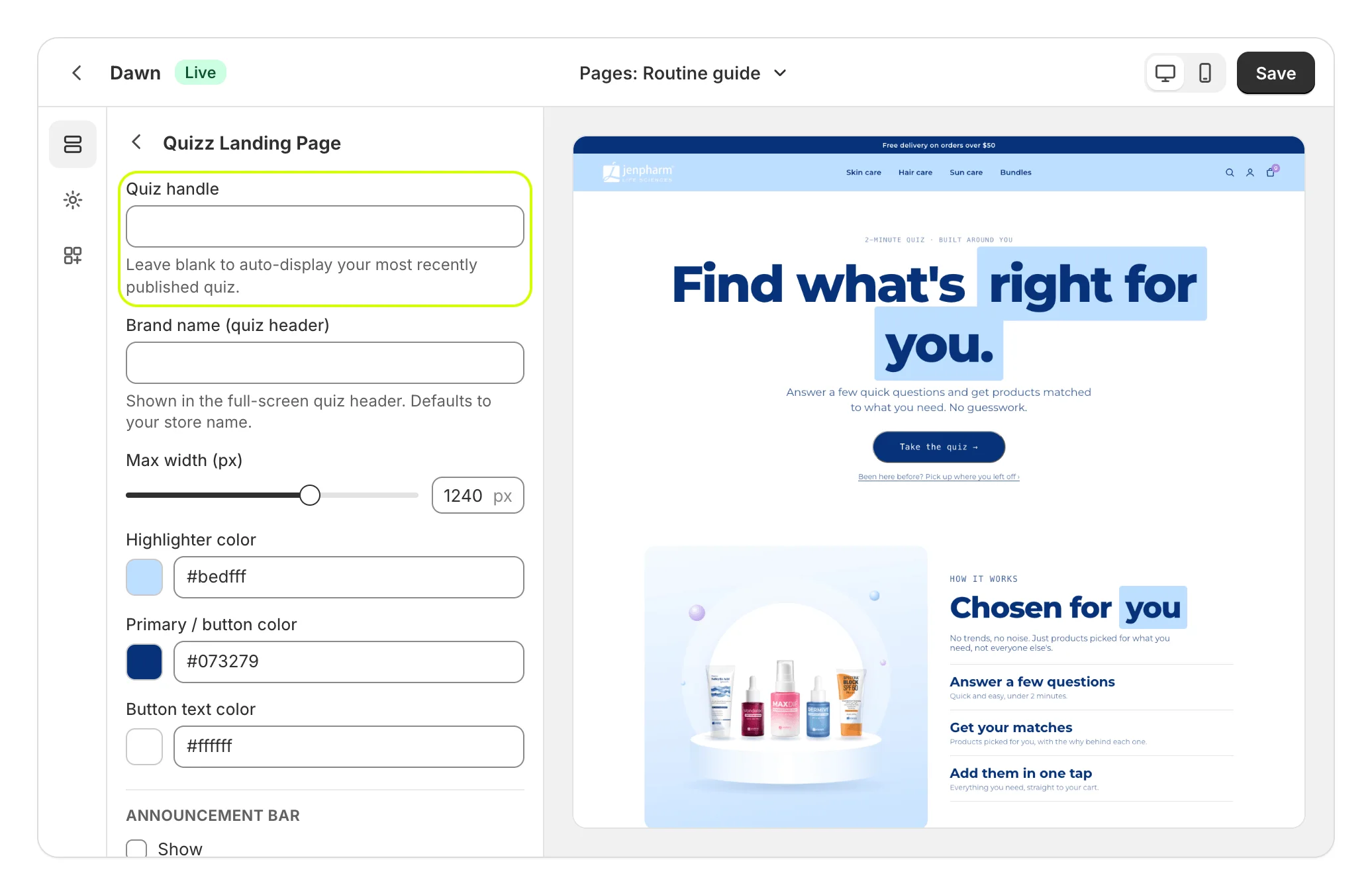
The page's settings
| Setting | What it does |
|---|---|
| Quiz handle | The quiz the page opens. Blank uses your most recently published quiz for this kind of block. |
| Brand name (quiz header) | Shown at the top of the quiz once it opens. Blank uses your store's name. |
| Max width (px) | How wide the page's content can grow, from 900 to 1440. |
| Highlighter color | The marker behind highlighted words. |
| Primary / button color and Button text color | The buttons' colors. |
The sections
Each section has its own settings, and Show turns the optional ones on.
| Section | What's in it | On by default |
|---|---|---|
| Announcement bar | A line of text across the top. | No |
| Hero | An eyebrow, a heading with a highlighted word, a subheading, the button and a secondary link. It can also show an incentive pill and a cluster of avatars. | Yes |
| Real people grid | Up to five people, each with an image, a name and a video link. | No |
| How it works (split) | An image beside a heading, two paragraphs and three steps. | Yes |
| Before / after review | A quote with before and after images. | No |
| Quiz section + trust bar | A closing heading, the button, and a row of trust items you separate with commas. | Yes |
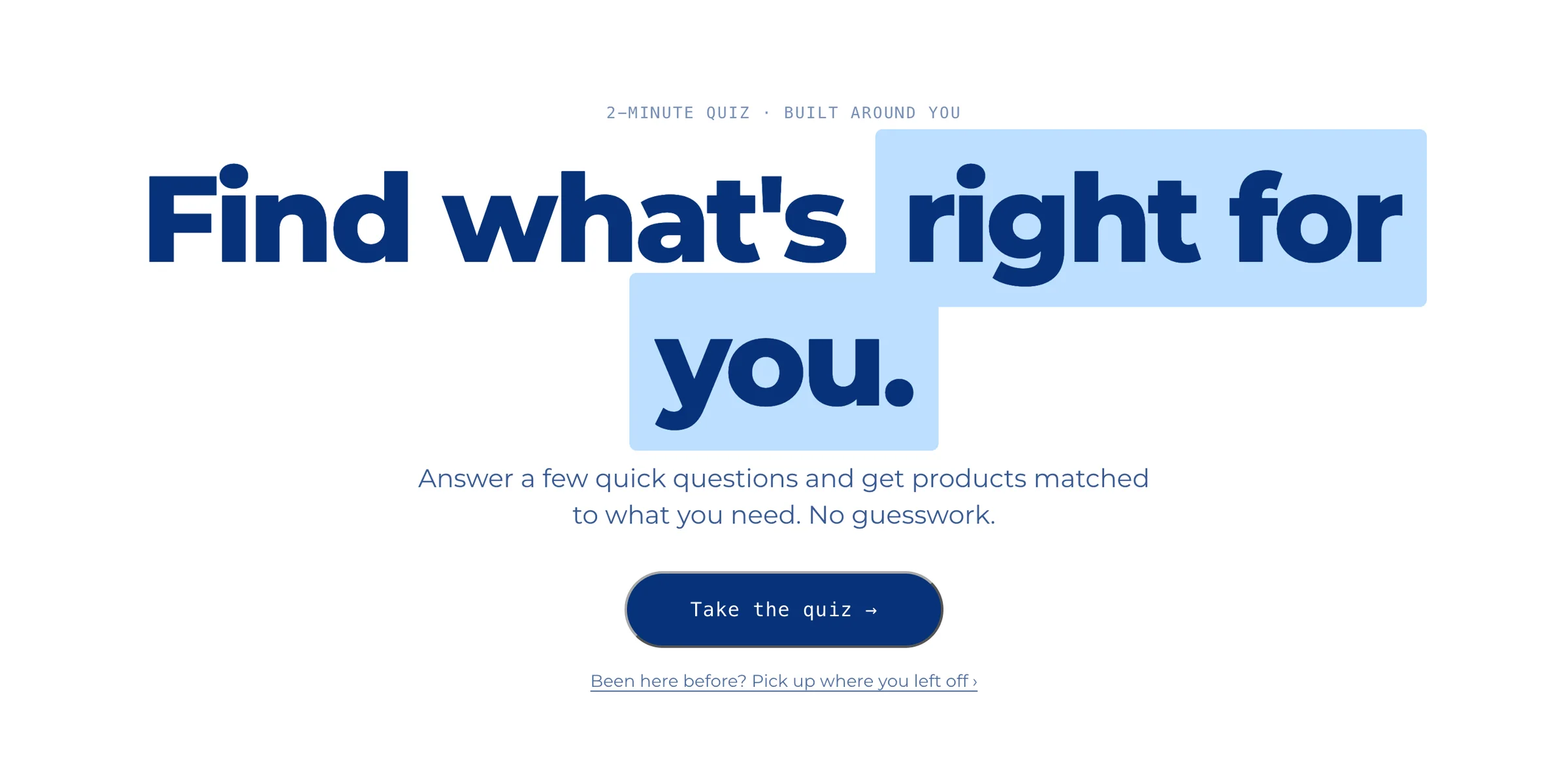
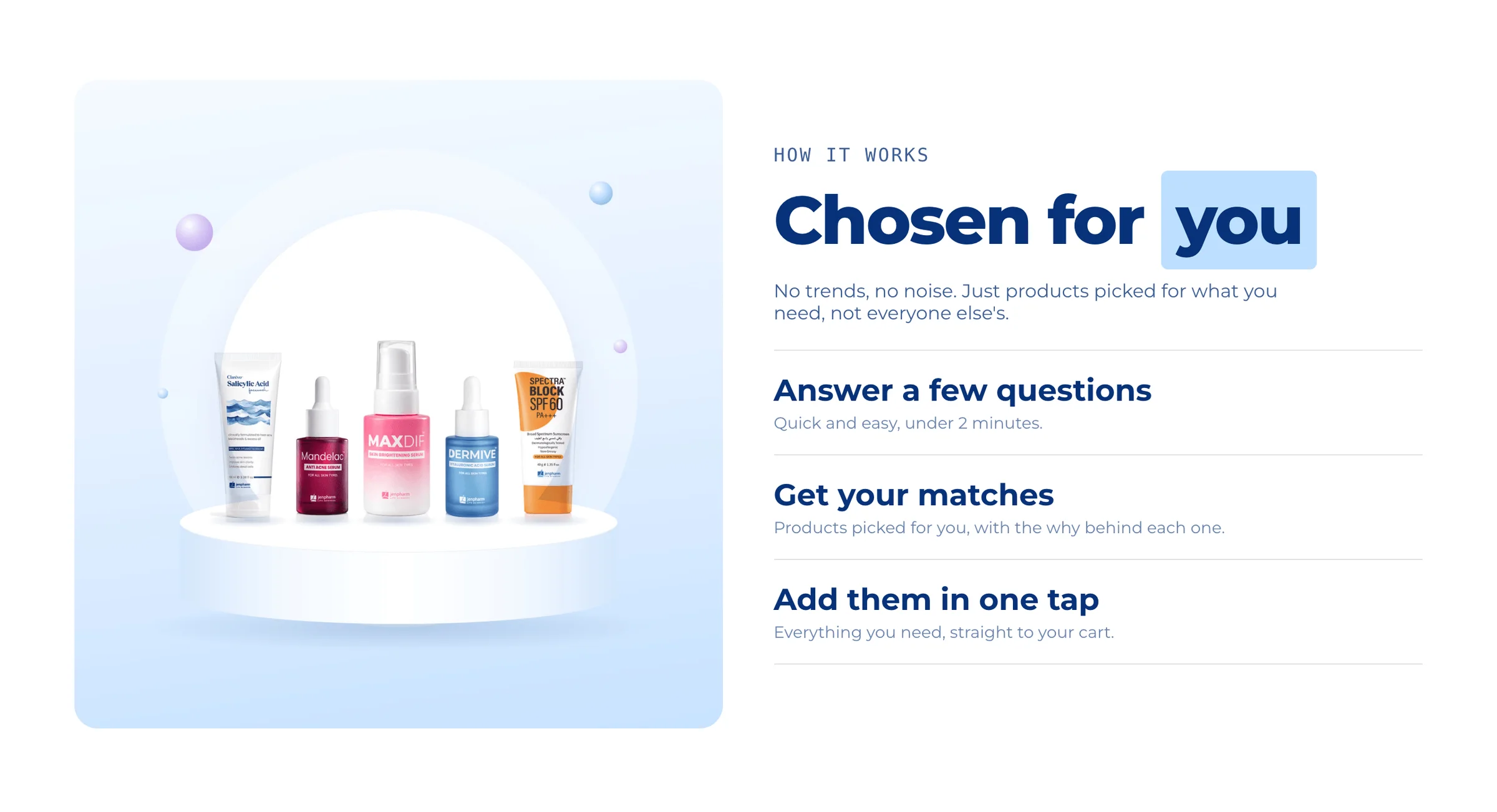

What shoppers see
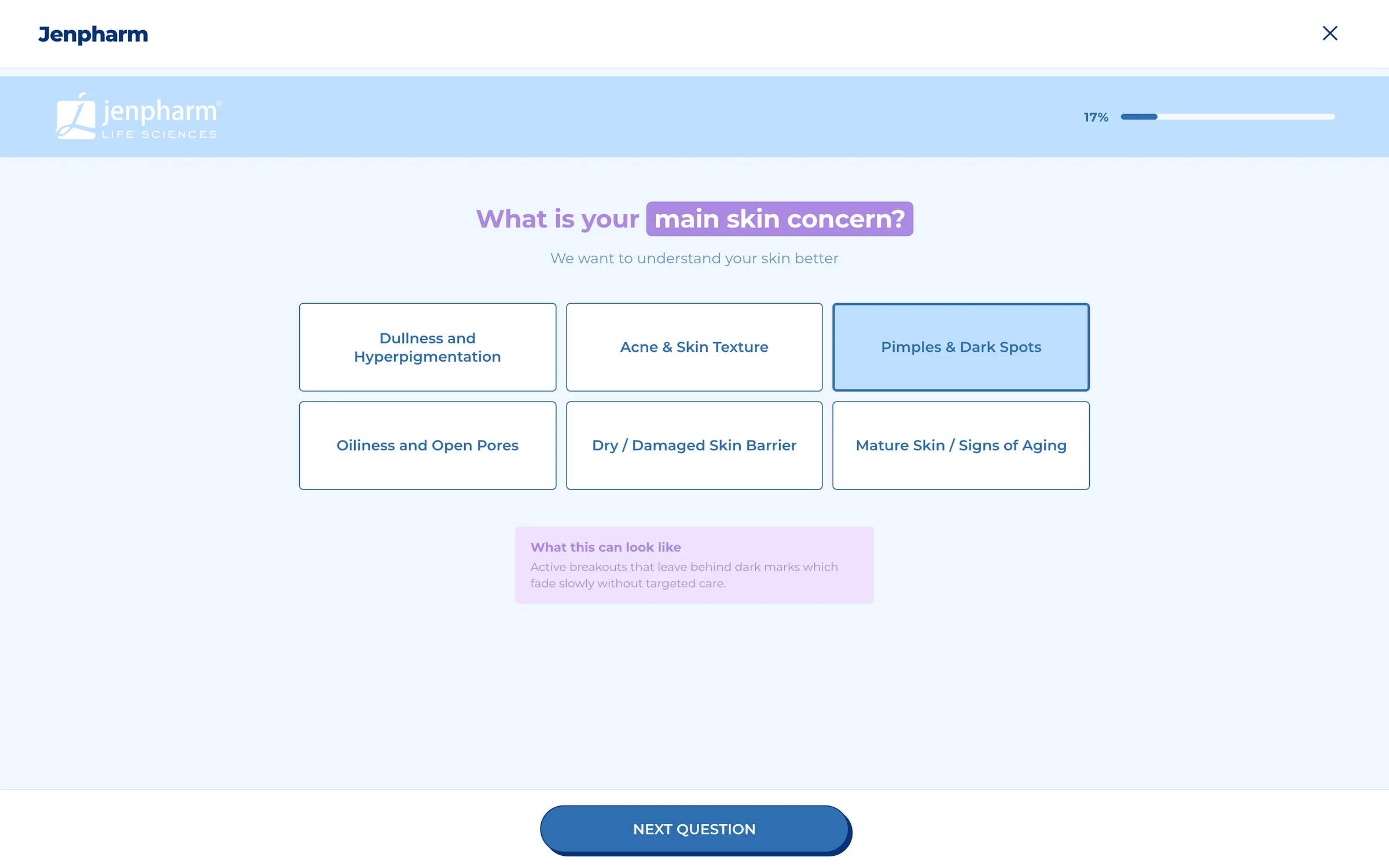
Every button on the page opens the quiz full screen, with your brand name at the top. Shoppers close it with the close button or the Esc key.
Was this helpful?
More in On your store
- Choose where each quiz showsCompare the five ways to put a quiz on your store, and decide which quiz each block shows.
- Add a dedicated quiz pageGive a quiz a full page with its own address, to link from your menu, ads, emails and social posts.
- Add a quiz inside a pagePlace a quiz inside your home page, a collection or any page, sized and spaced to fit your theme.
- Add a floating chat buttonPut a quiz launcher in a corner of every page, and choose when it appears and what it says.