Preview your quiz
Click through your quiz with unsaved changes, on a phone or desktop, and see the results each set of answers gets.
 Attravo TeamUpdated 1 min read
On this page
The Live preview beside the editor runs your storefront quiz with your unsaved changes, so you can try every edit before shoppers see it. It works the same as the quiz on your store, but records nothing.
Open the preview
Open any quiz. The preview sits to the right of the editor and follows every change you type.
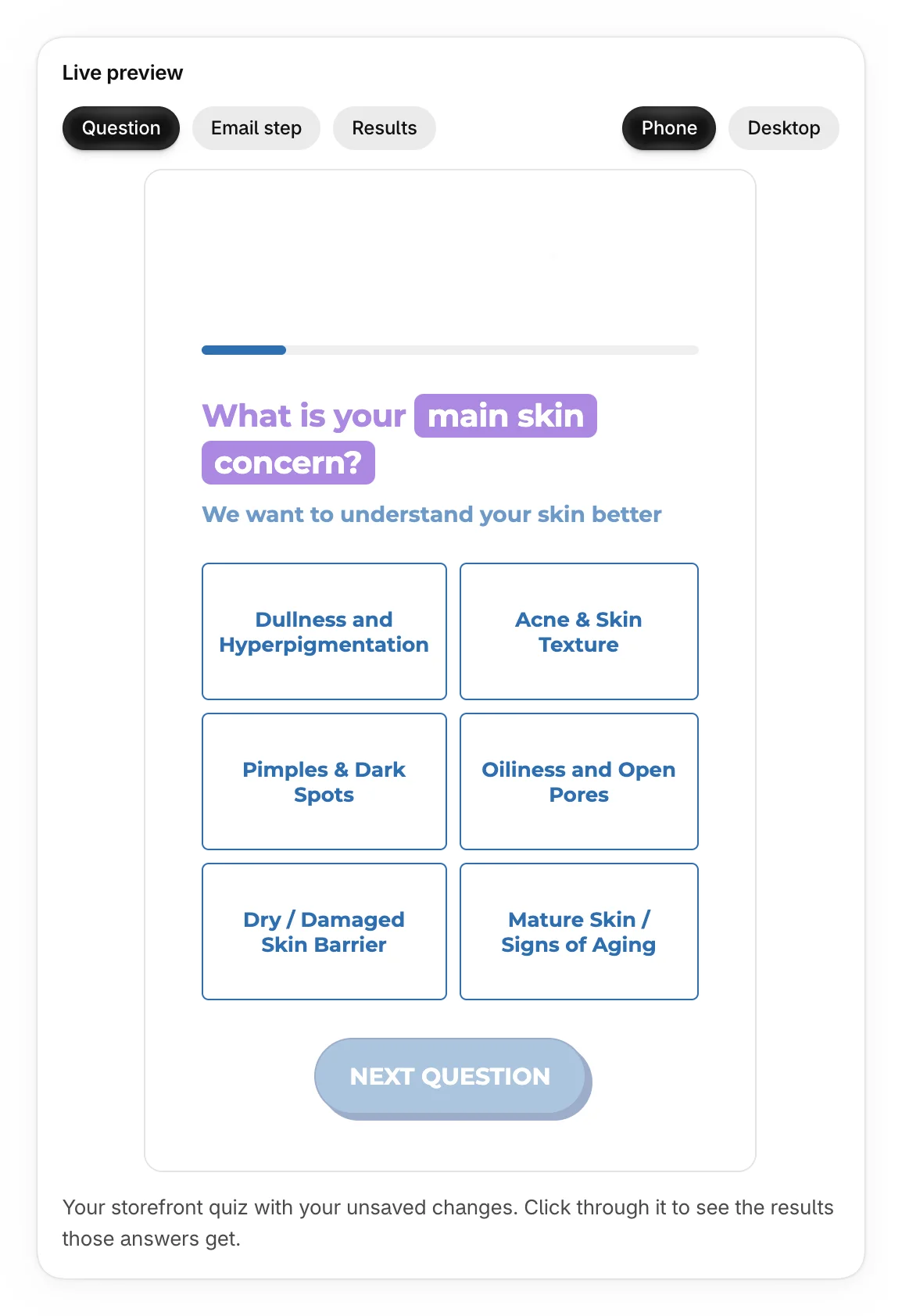
Switch screens and devices
- Question, Email step and Results jump straight to that screen. Email step is greyed out when the quiz doesn't ask for an email.
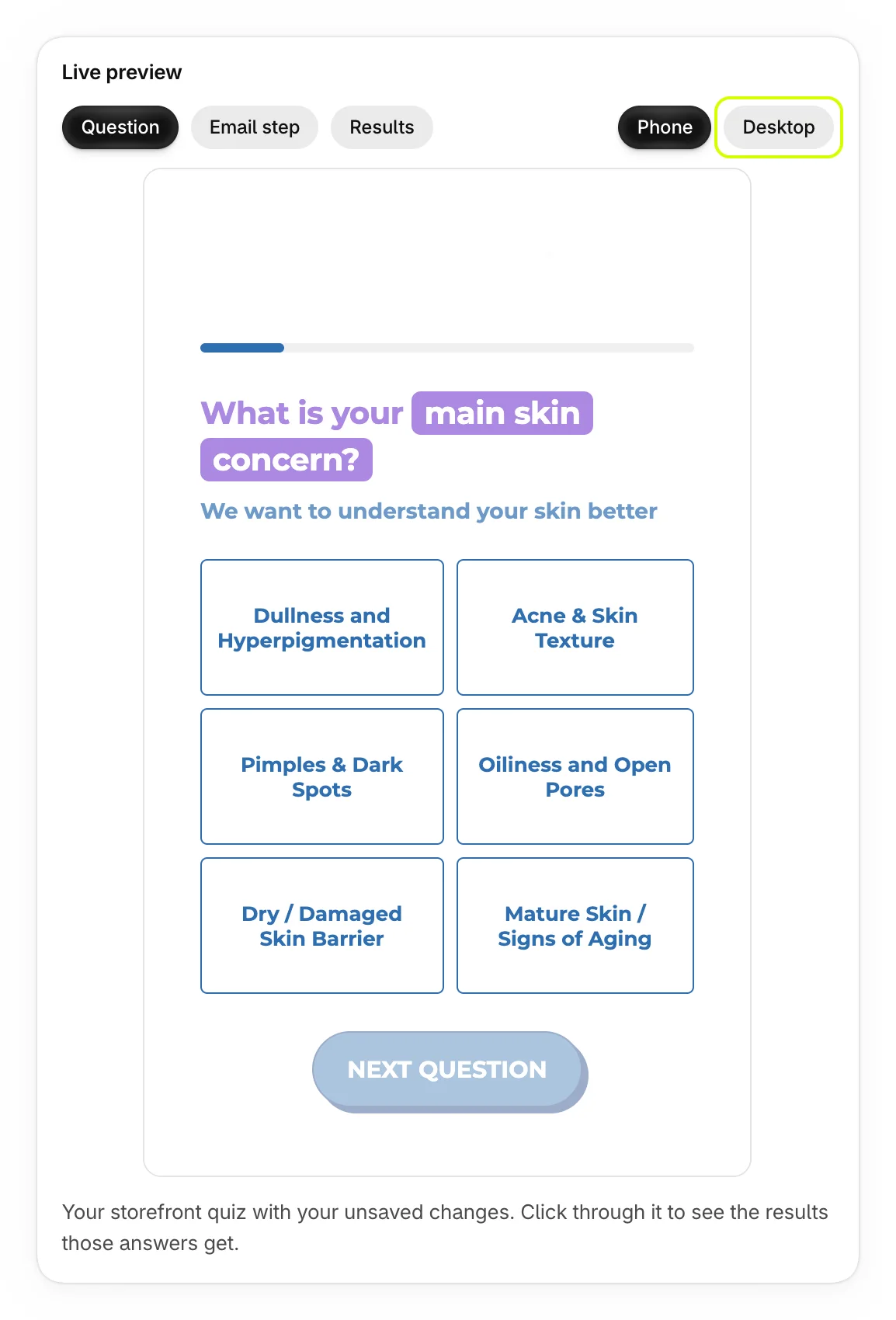
- Phone and Desktop show the quiz at a phone's width or a computer's.
See the results answers get
The results use the same matching as your store. Until you click through, the preview answers the first answer of every question.
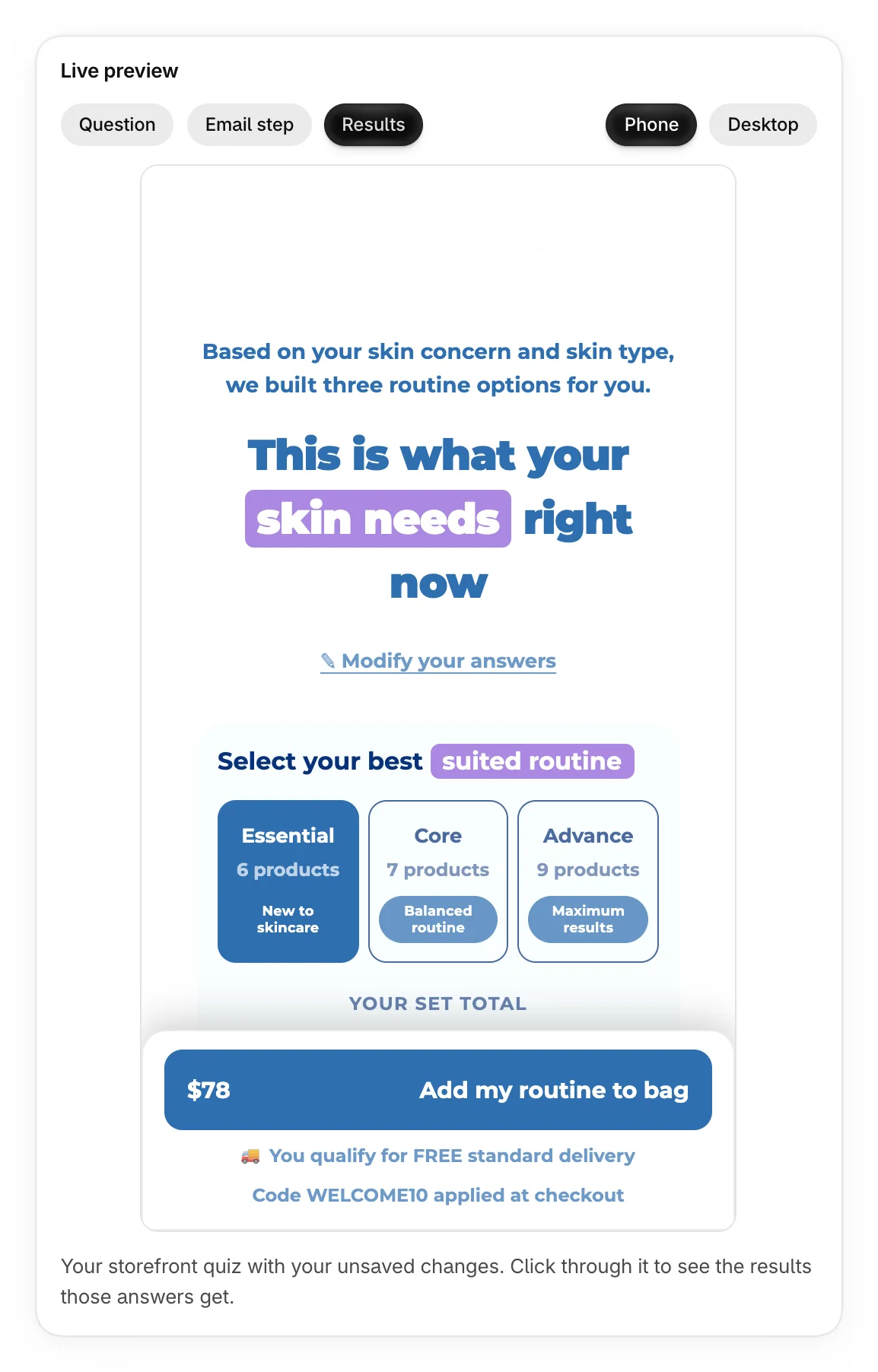
To try other answers, select Question and click through the quiz as a shopper would. After the last question, the preview opens the results those answers get. When the quiz asks for an email, fill it in or skip it first.
What the preview doesn't do
- It records no views, starts or completions, so your Analytics stay true.
- It saves no progress and creates no leads.
- It adds nothing to a cart. The results button says "Preview: in your store, this adds the products to the cart."
To see the published quiz exactly as shoppers do, open it on your store. See What shoppers see.
Was this helpful?
More in Build your quiz
- Start from a templatePick one of four ready-made quizzes, or start blank, and see what each template sets up for you.
- Add and edit questionsAdd questions, choose their type, write them, and move, copy or delete them.
- Set up answers and tagsWrite answers, tag them to match your products, add education boxes and choose how answers look.
- Show a question only after certain answersAdd rules so a question appears only when earlier answers match, and skip the questions that don't apply.