Finish the setup guide
Work through the six steps on Home until your quiz is live, tracking sales and collecting leads.
 Attravo TeamUpdated 2 min read
On this page
The setup guide on Home lists what stands between you and a live quiz that tracks its sales, and checks each step for you. It hides itself once all six are done, and comes back if something on your store changes.
Work through the steps
Open Home. The guide shows how many steps are done and opens the next one. Each step has a button that takes you where the work happens.
- Create your first quiz. Select Create quiz and start from a template or a blank quiz. See Create your first quiz.
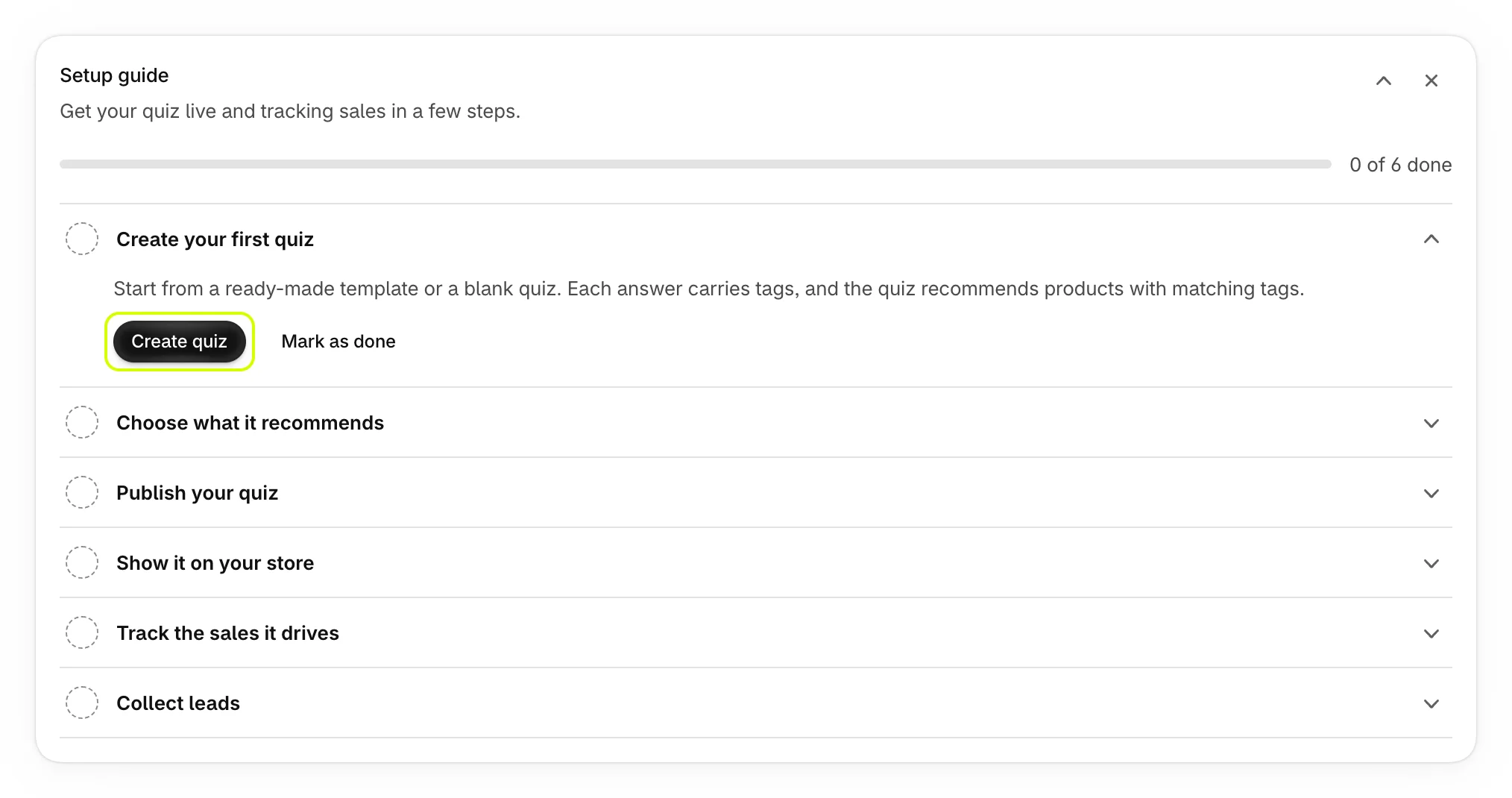
- Choose what it recommends. Select Open results. The step is done once a quiz has fallback products, picked products or chosen collections. See Choose which products it recommends.
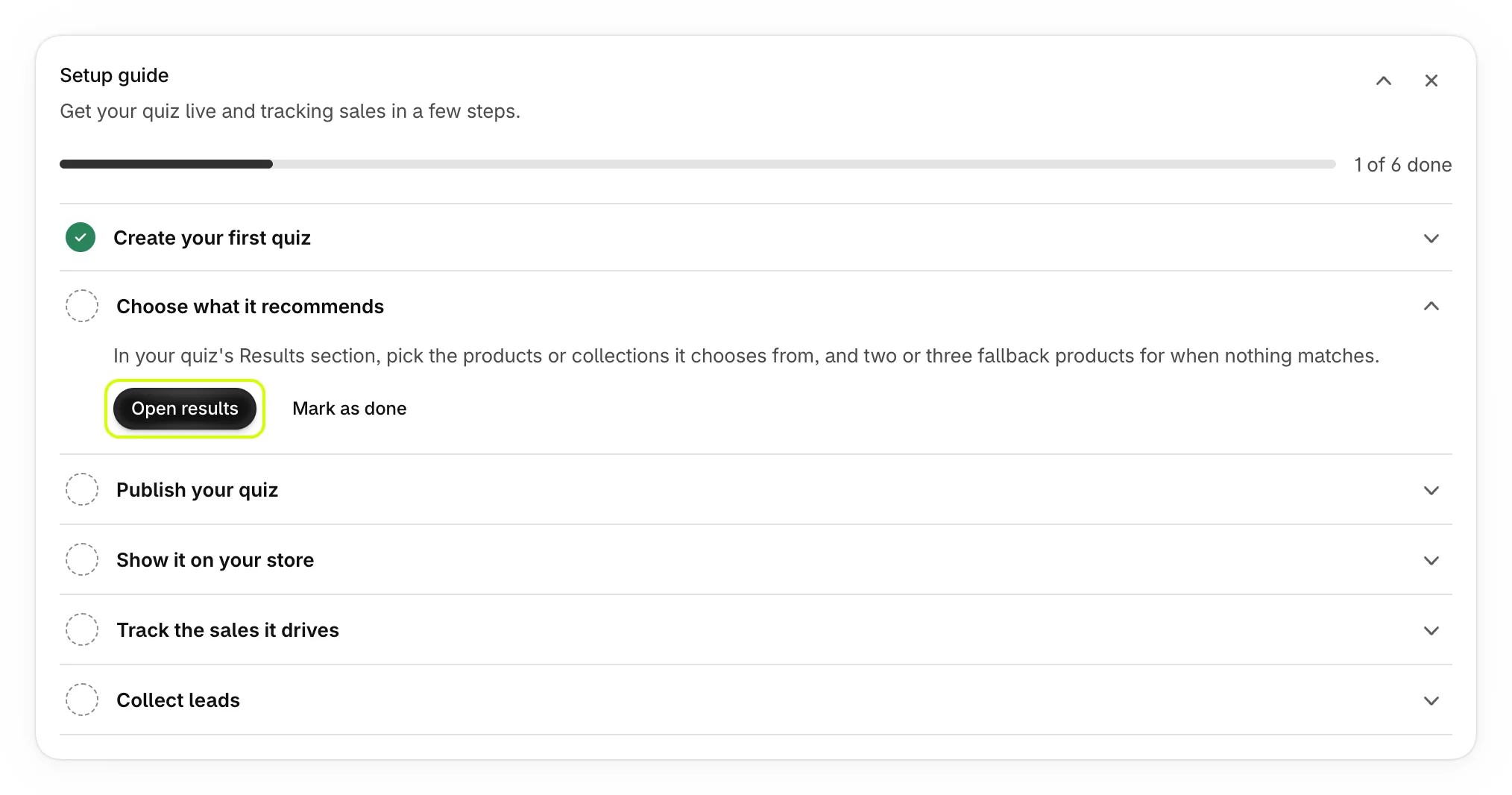
- Publish your quiz. Select Open quiz, then Publish in the quiz editor. A quiz shows on your store only once it's published.
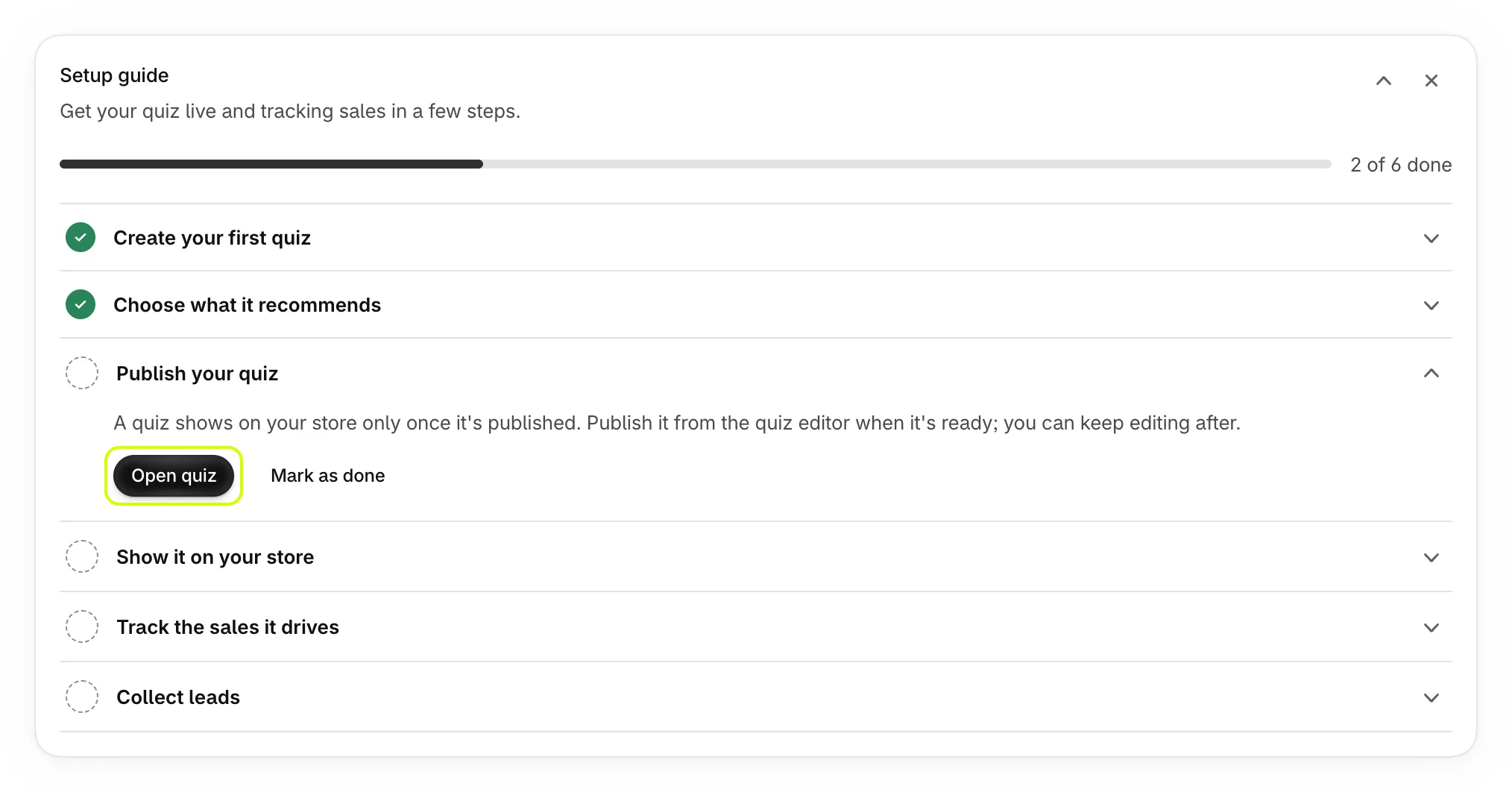
- Show it on your store. Select Open theme editor, turn on the Quizz Core Script app embed or add a quiz block, then save the theme. See Turn on the Quizz Core Script app embed.
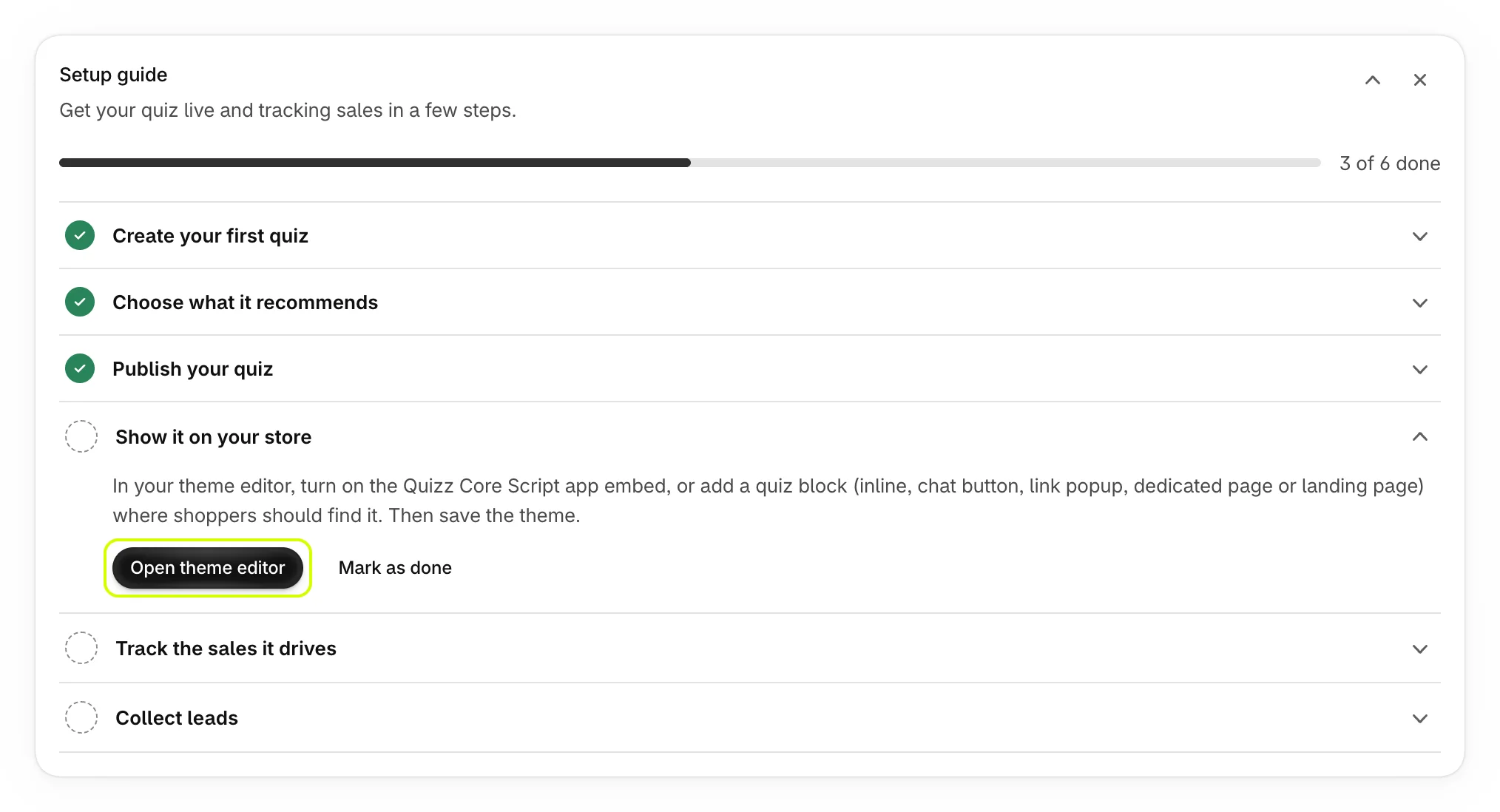
- Track the sales it drives. Select Turn on pixel. The attribution pixel backs up order tracking. See How quiz sales are counted.
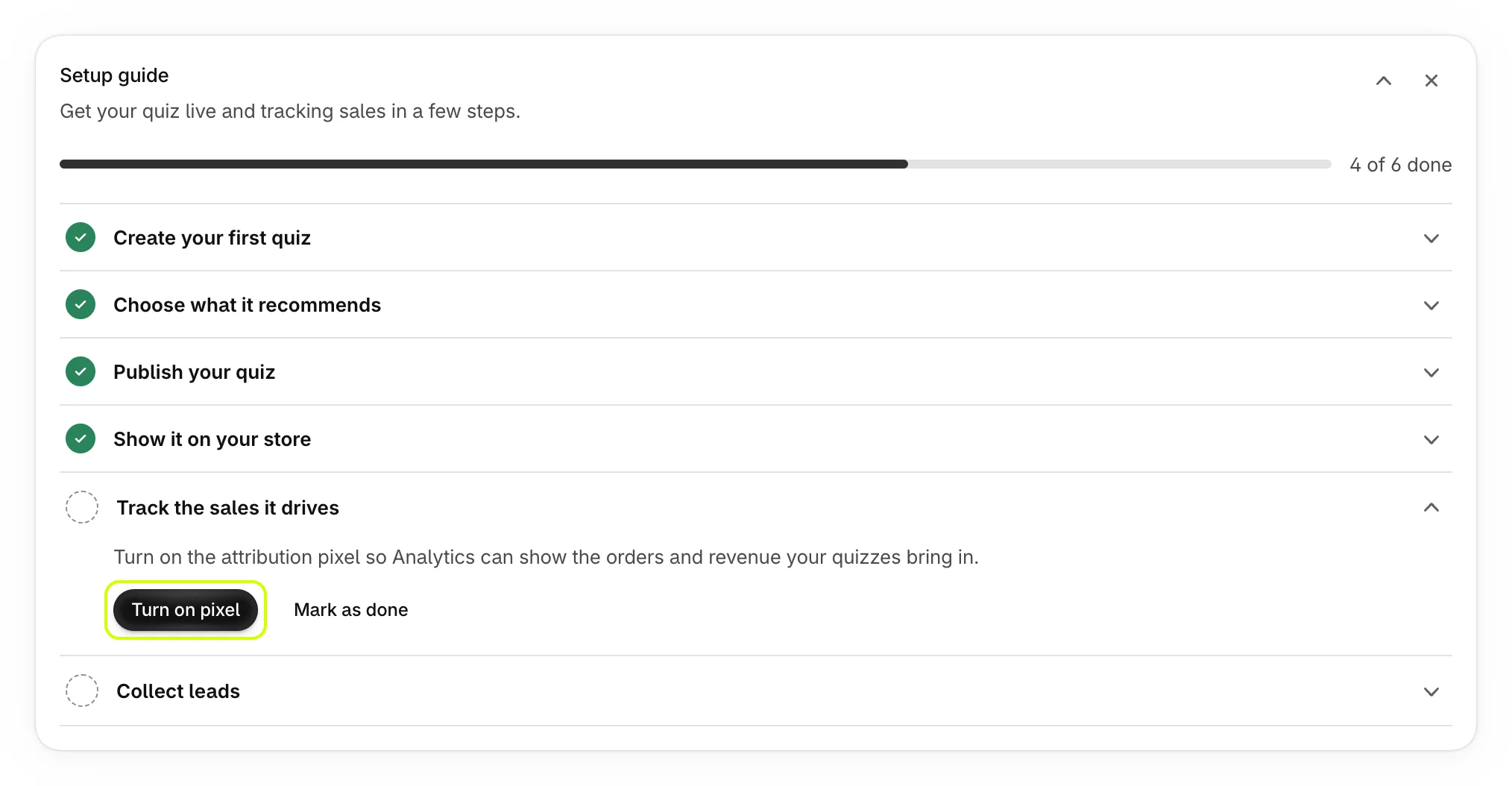
- Collect leads. Select Open settings to connect Klaviyo or Mailchimp. The step is also done as soon as your first lead arrives. See Ask for an email before results.
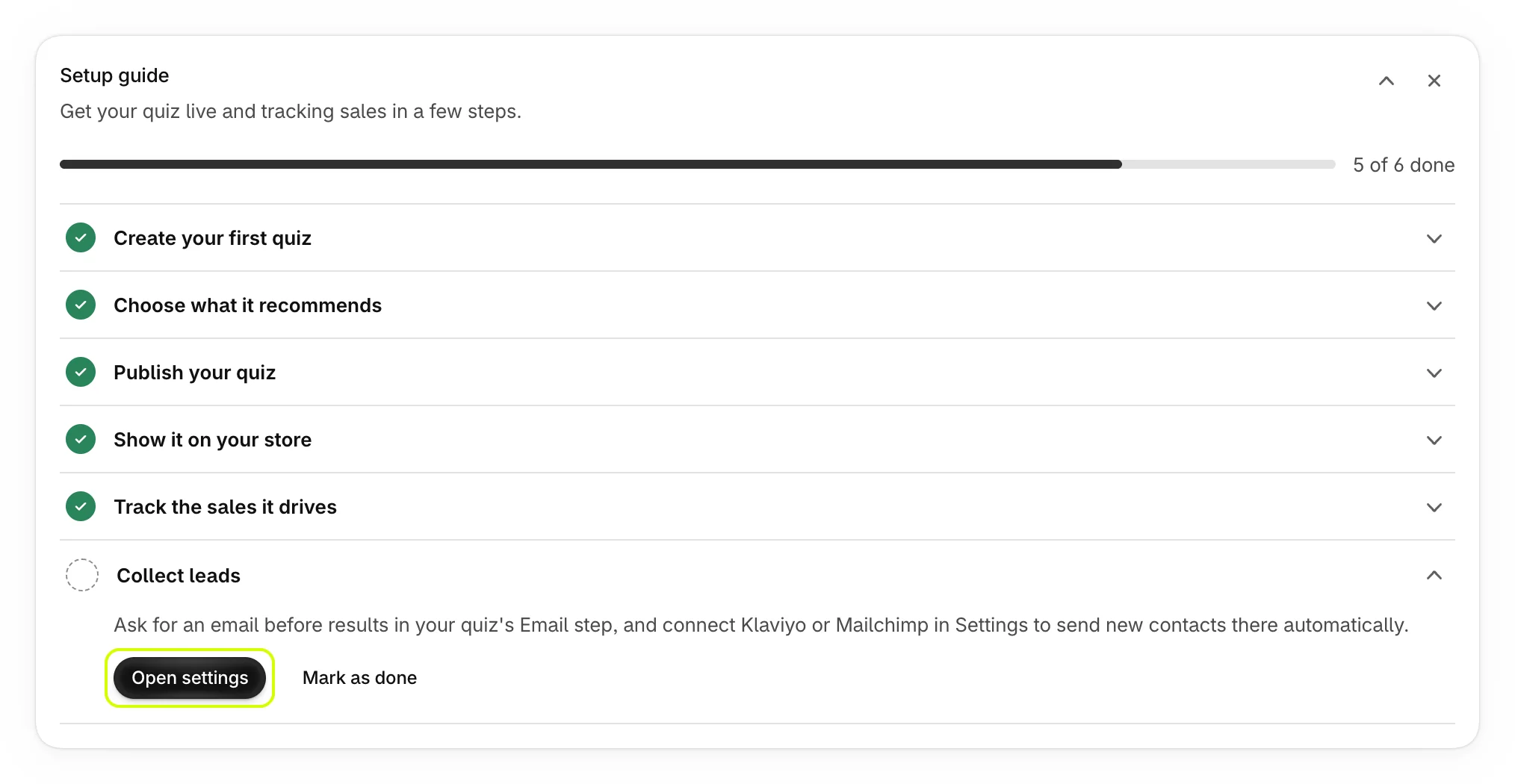
Mark a step as done
Every open step has a Mark as done button next to its main button. Use it when a step doesn't apply to you, or when the guide can't check it, for example while your theme can't be read. The guide notes when that happens: "We couldn't check your theme just now, so that step shows its last known state."
When the guide is finished
Once all six steps are done, the guide is replaced by Setup complete for your next two visits to Home.

To put the guide away earlier, select the close button at its top right. Home then shows "Setup guide hidden" with how many steps are done, and Show setup guide brings it back. The arrow next to the close button folds the guide to its header.
When something changes
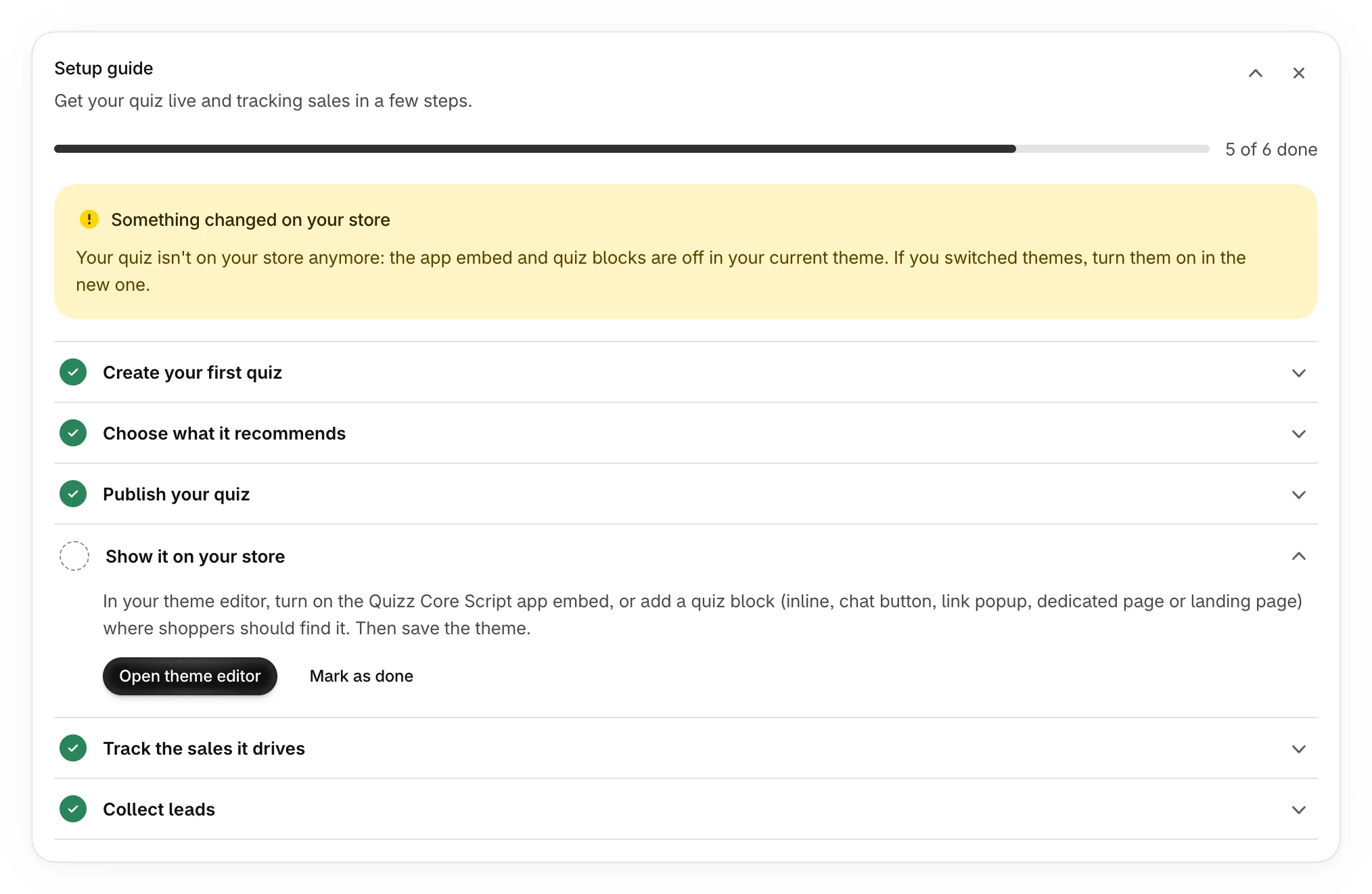
The guide keeps checking. If a finished step stops being true, such as the app embed switched off in your theme or no quiz published anymore, the guide comes back with Something changed on your store, and the step that needs you opens again.
Was this helpful?
More in Getting started
- Install Product Quiz MakerInstall Product Quiz Maker from the Shopify App Store and find your way around the app.
- Create your first quizGo from a template to a published quiz on your store, with products chosen and a page of its own.
- Turn on the Quizz Core Script app embedSwitch on the app embed that loads your quizzes everywhere, and check it from Home.