Set up the results page
Choose how results look, write their heading and button, and decide whether the button goes to the cart or checkout.
 Attravo TeamUpdated 1 min read
The results page is where a quiz turns into a sale: it shows the products that fit and adds them to the cart in one click. Its layout, heading and button are yours to set.
Change the results page
- Open the quiz and select Results.
- Under Results page, change the settings below.
- Select Save.
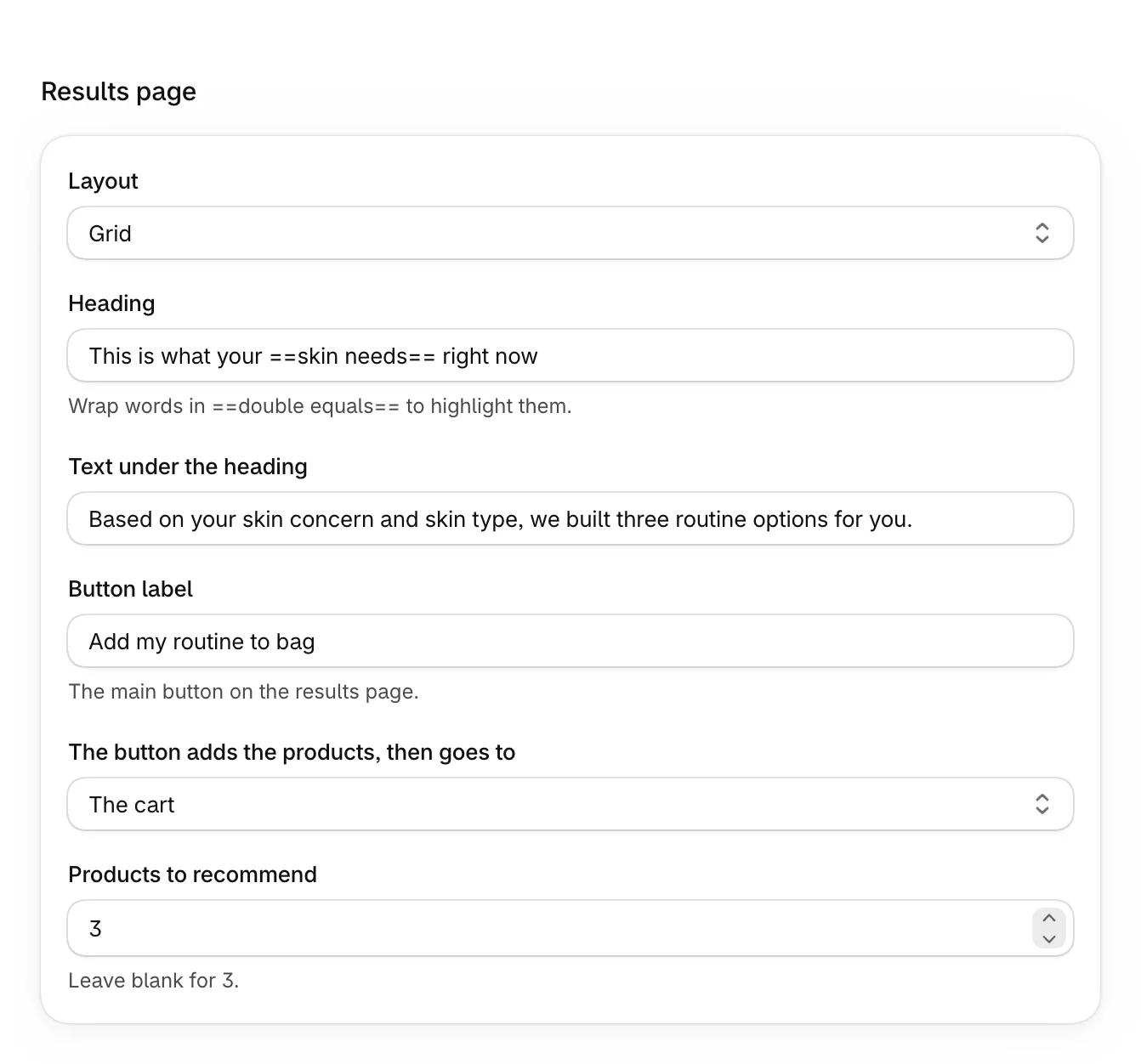
| Setting | What it does |
|---|---|
| Layout | How the products are laid out. See the layouts below. |
| Heading | The heading above the products. Wrap words in double equals signs to highlight them. Blank shows Your perfect match. |
| Text under the heading | An optional line under the heading. |
| Button label | The main button. It can't be blank: it's Add to cart unless you change it. |
| The button adds the products, then goes to | The cart or Checkout. |
| Products to recommend | How many products to show. Blank shows 3. Not shown for a step-by-step set, which shows one product per step. |
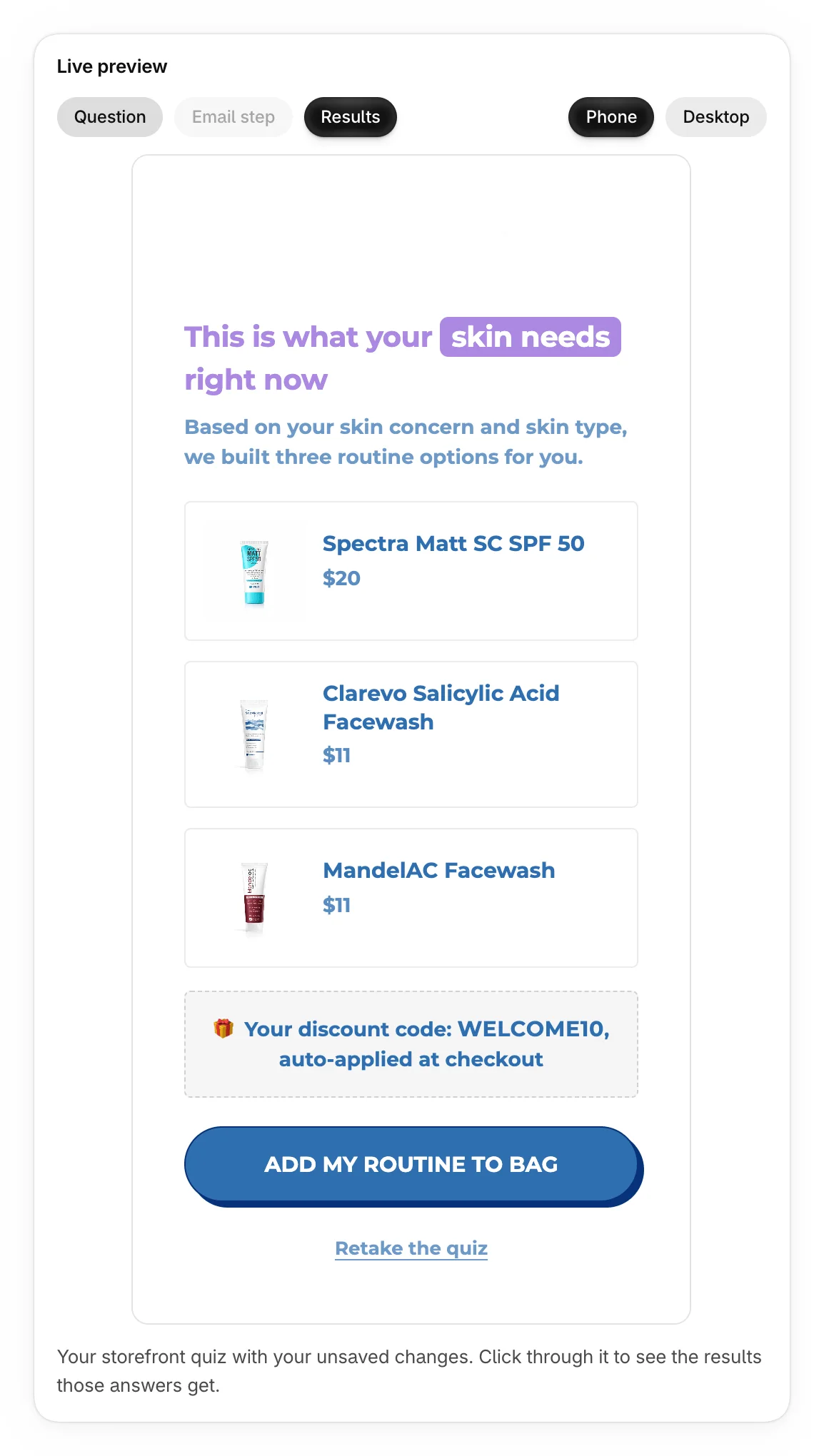
The Live preview, on Results, shows the page with your changes.
The layouts
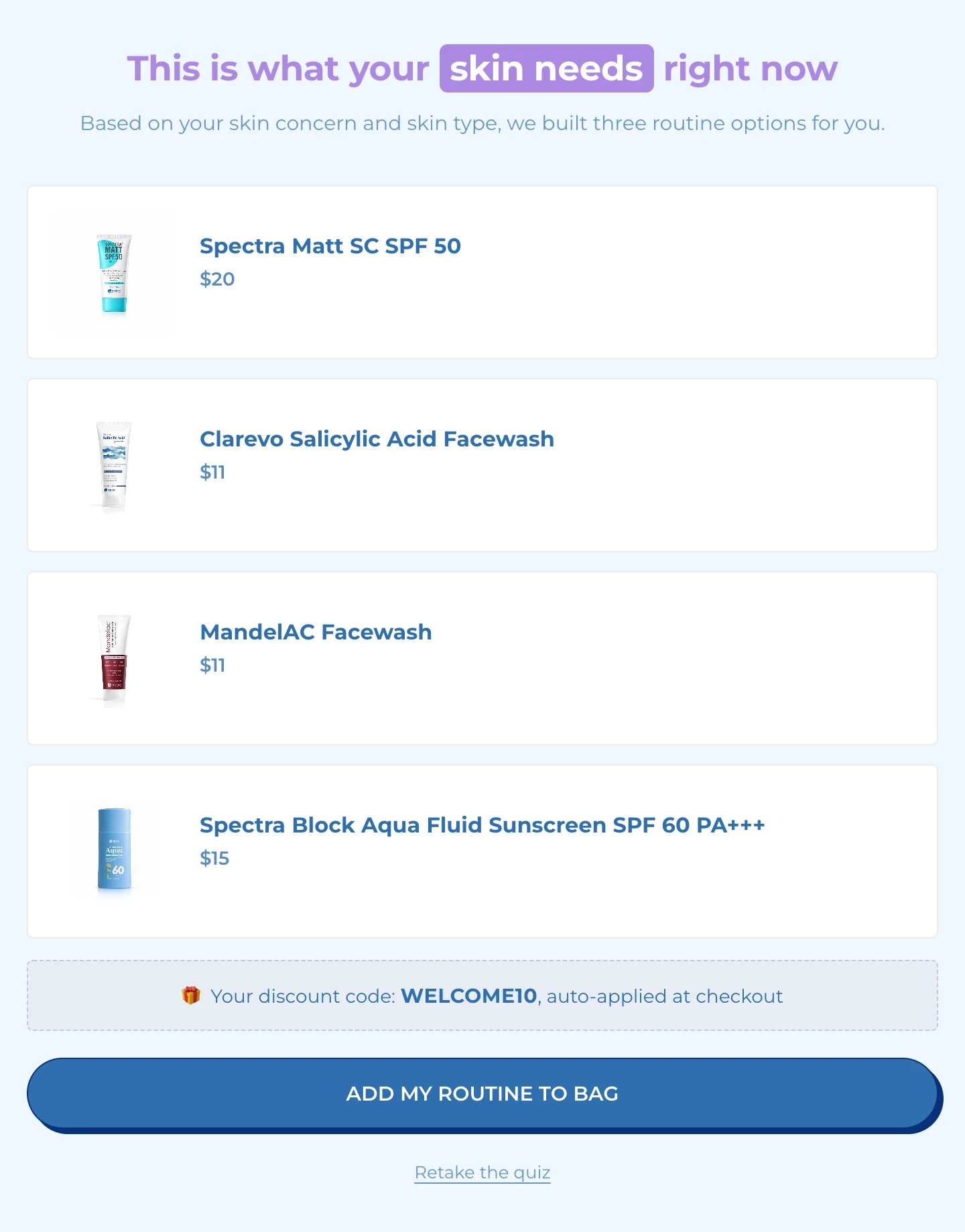
Grid lists each product with its image and price.
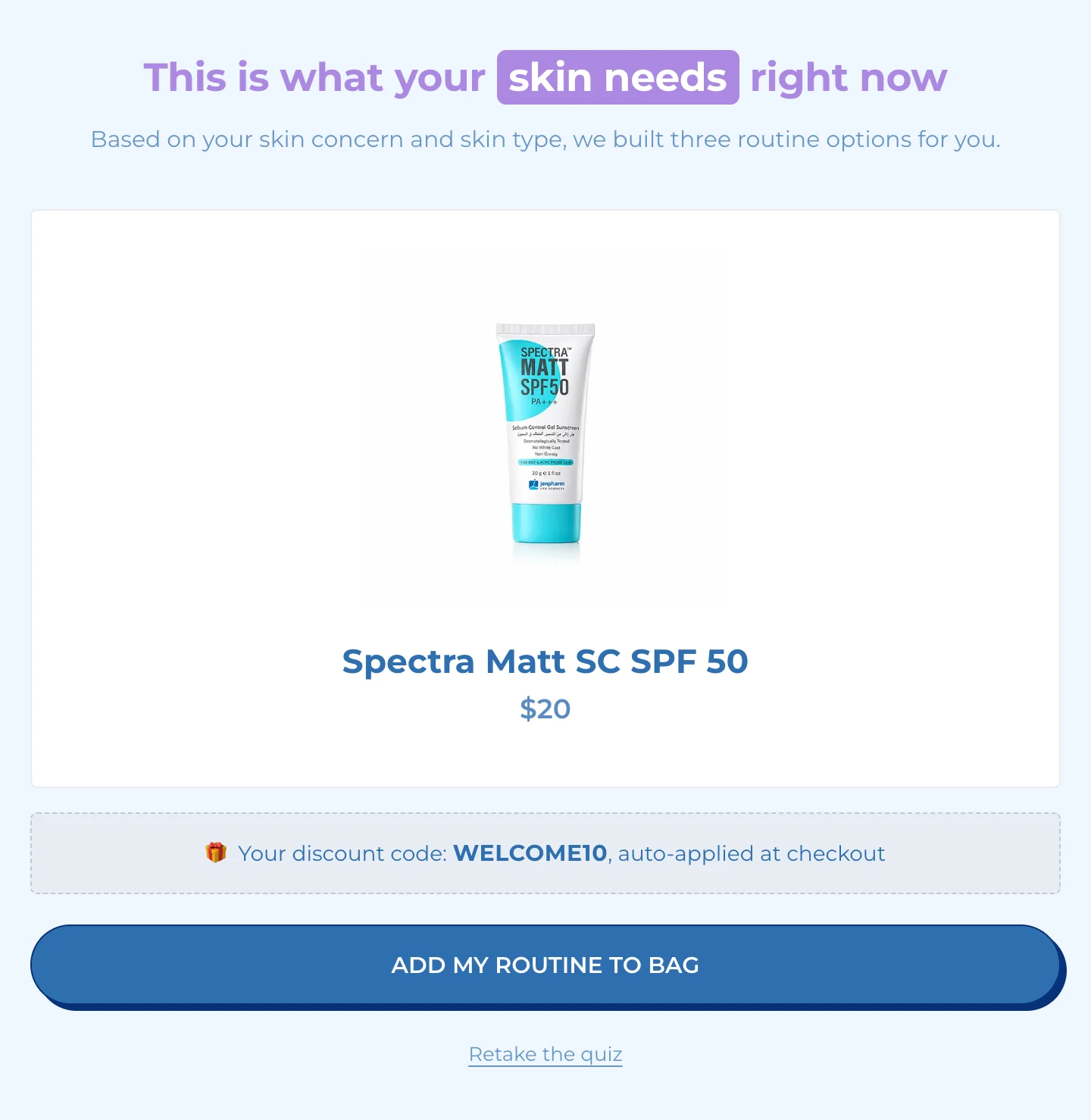
Single product shows one product, large. Its button adds only that product.
Carousel shows the products in a row that shoppers scroll sideways.
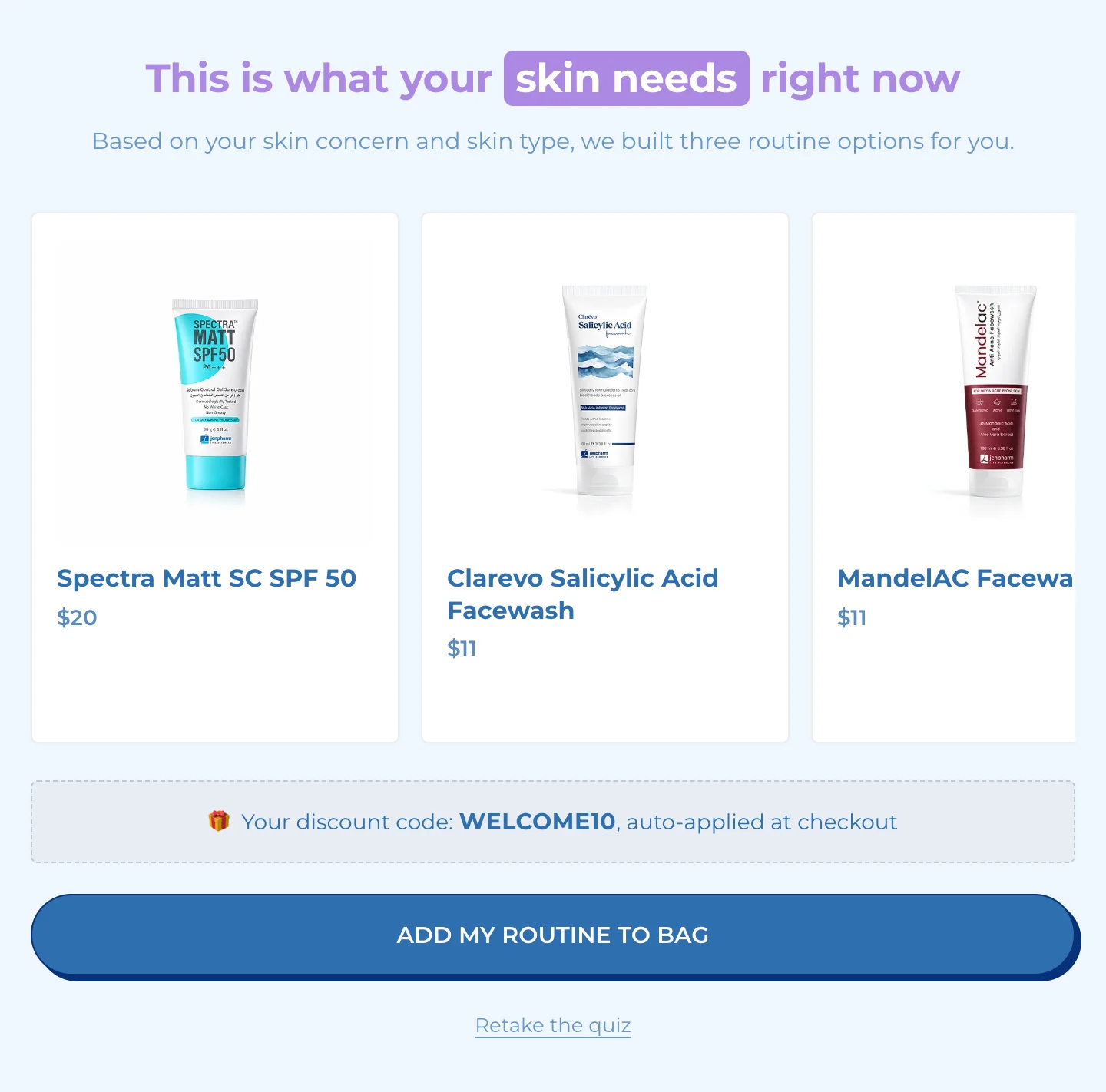
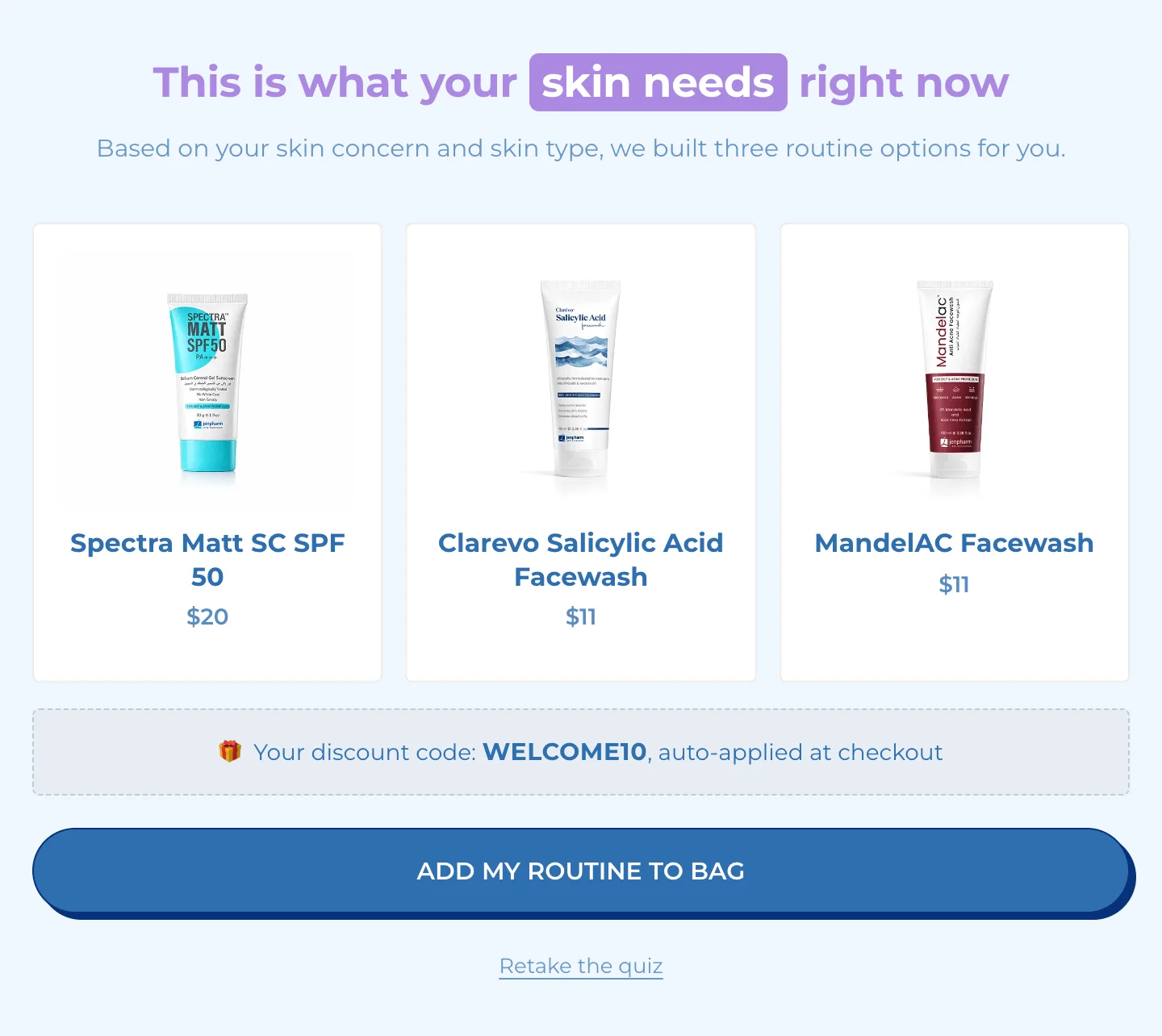
Comparison shows the products side by side in columns.
Step-by-step set groups the products into ordered steps, such as a skincare routine or a gift box, added in one click. See Build a step-by-step set.
What the button does
The button adds every product shown to the cart in one go, then goes to the cart or to checkout. When the quiz offers a discount code, the code is applied too. See Offer a discount with results.
Under the button, Retake the quiz lets shoppers start again with new answers.
Was this helpful?
More in Results and recommendations
- Choose which products it recommendsPick the products a quiz chooses from, leave out sold-out or unwanted products, and understand how it ranks them.
- Set fallback productsChoose the products shoppers see when their answers match nothing, so no one leaves empty-handed.
- Build a step-by-step setGroup results into ordered steps, such as a routine or a gift box, with tiers shoppers choose from and one button for the whole set.
- Offer a discount with resultsShow one of your store's discount codes with a quiz's results and apply it when shoppers add their products.