Choose which products it recommends
Pick the products a quiz chooses from, leave out sold-out or unwanted products, and understand how it ranks them.
 Attravo TeamUpdated 2 min read
On this page
Each quiz recommends from a pool of your products: all of them, chosen collections, or a list you pick. Narrowing the pool keeps results on the products you want to sell from this quiz.
How the quiz chooses
- It takes the products in the quiz's pool that are active and published to your online store.
- It counts, for each product, the tags it shares with the answers the shopper picked. See Set up answers and tags.
- It shows the products with the most matches first, as many as Products to recommend allows, or fills each step of a step-by-step set.
If no product matches, the quiz shows your fallback products. See Set fallback products.
Choose the pool
- Open the quiz and select Results.
- Under Products, choose Recommend from.
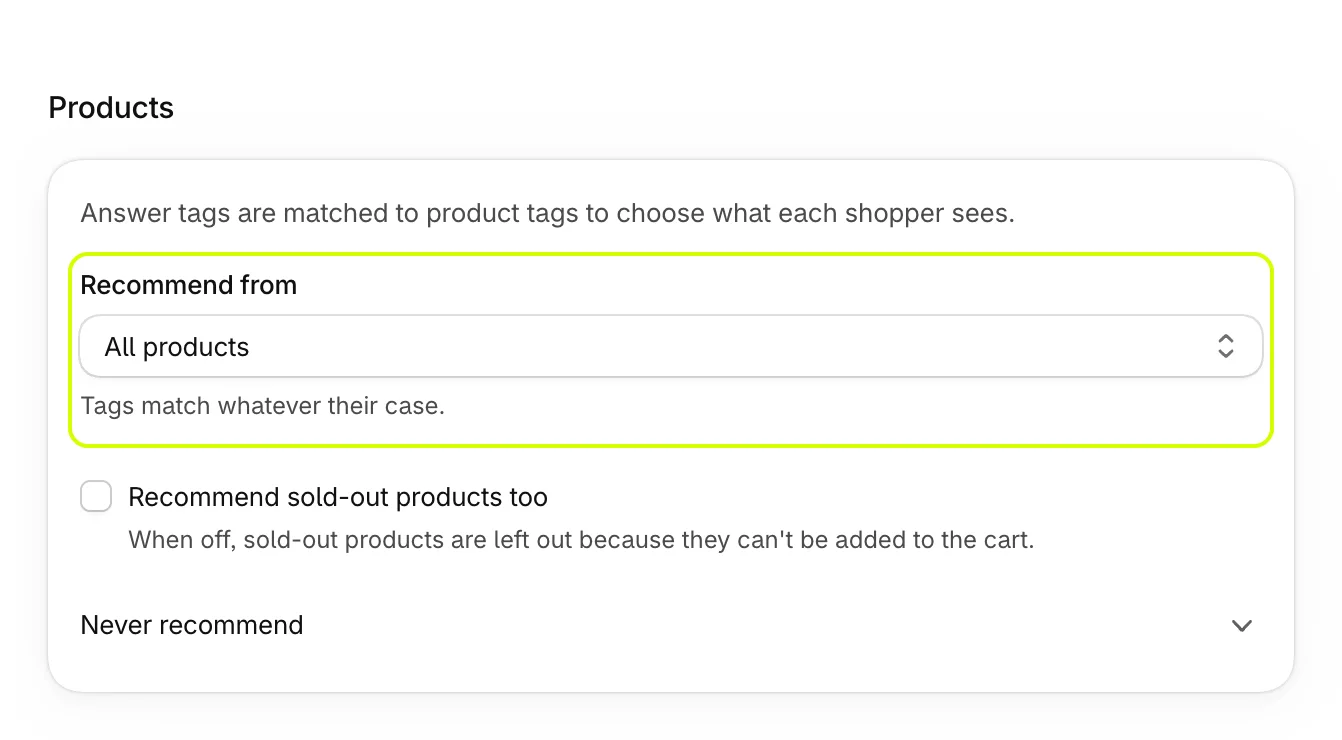
| Recommend from | The quiz chooses from |
|---|---|
| All products | Your store's products, up to the first 1,000. |
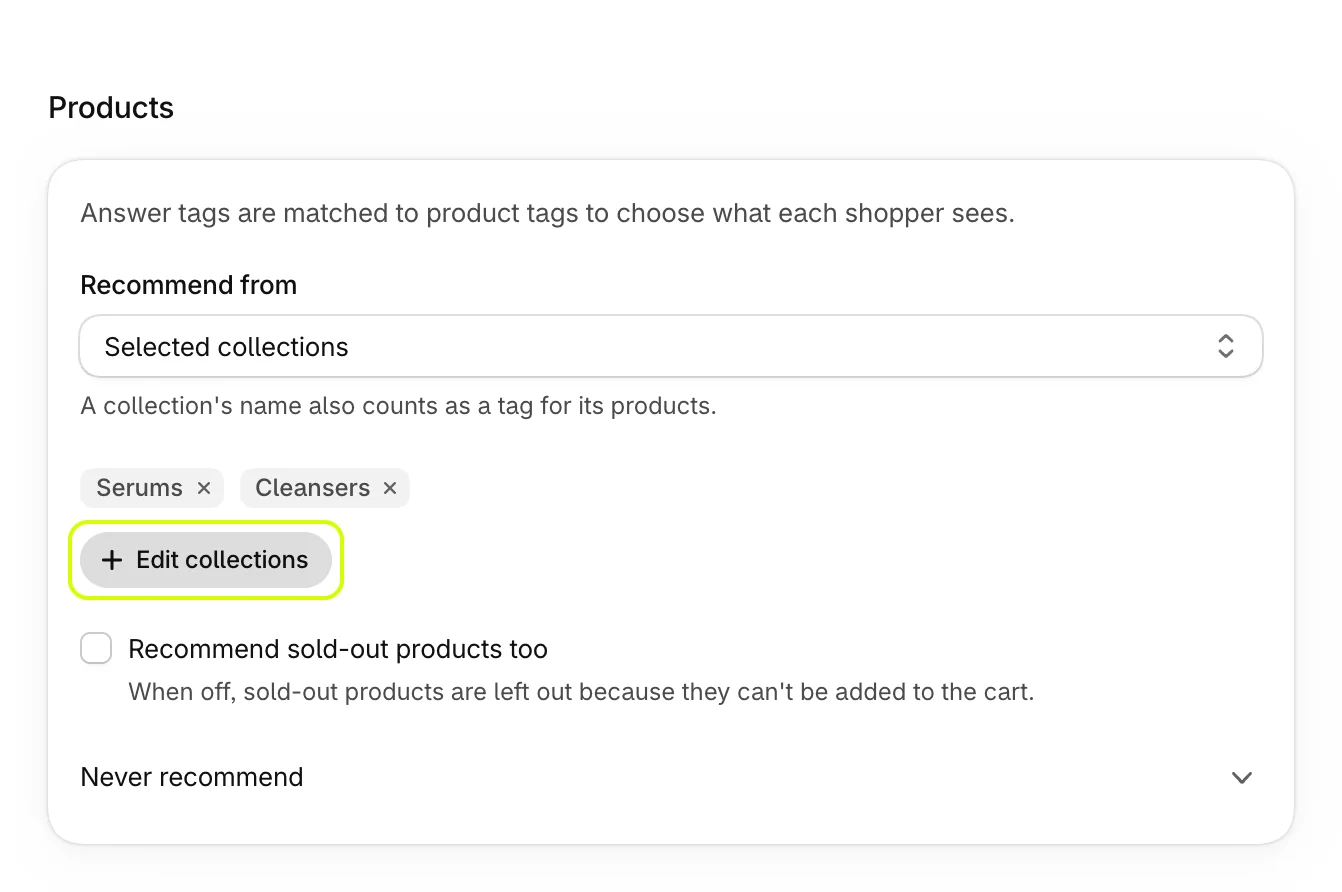
| Selected collections | The products in the collections you add, up to 40 collections of 250 products each. A collection's name also counts as a tag for its products. |
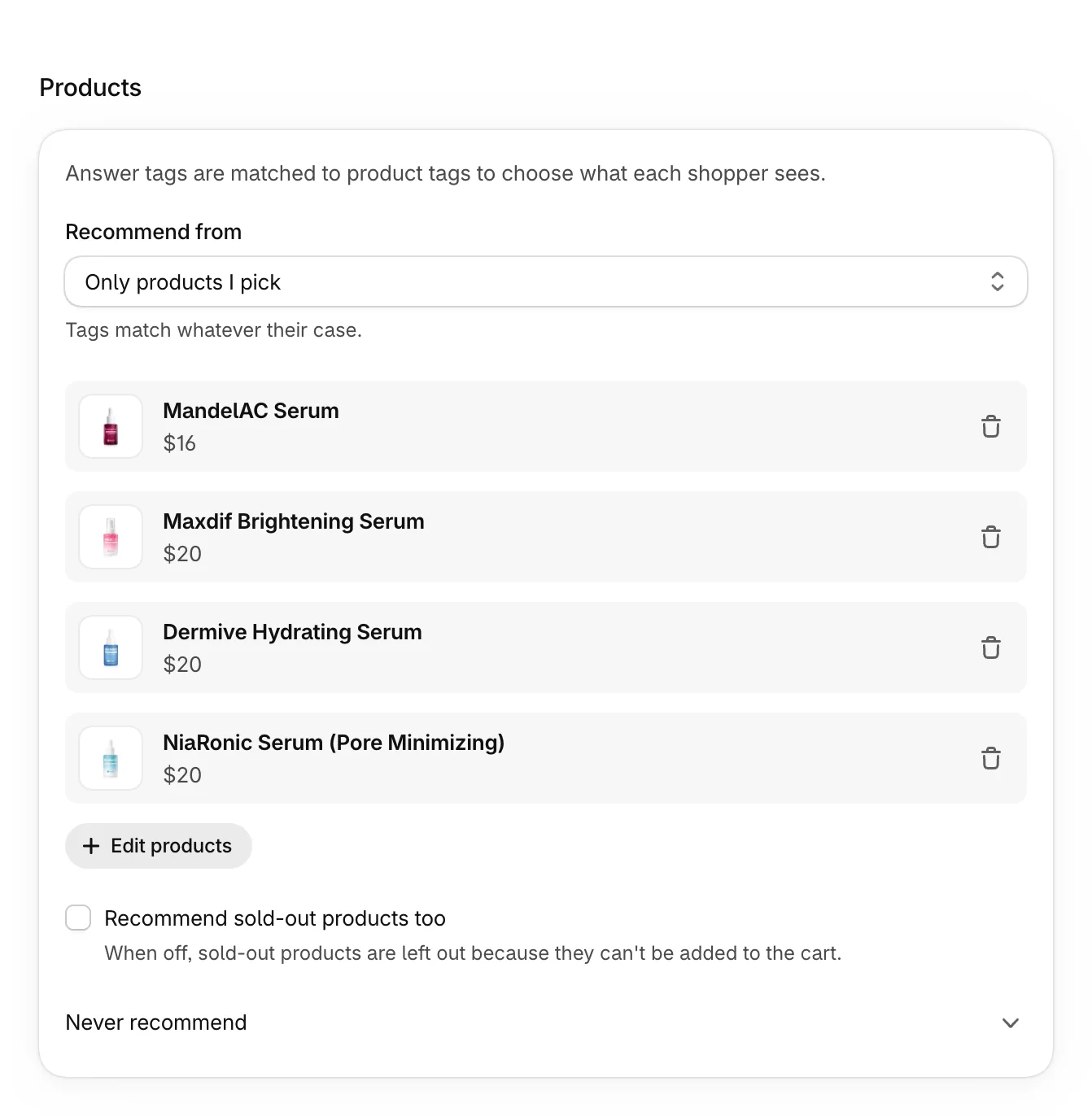
| Only products I pick | Up to 50 products you pick. |
- For Selected collections, select Add collections and choose them in Shopify's picker. Edit collections changes them later.
- For Only products I pick, select Pick products and choose them. Each one shows with its image and price.
- Select Save.
If the collections or picks give no products at all, for example because a collection is empty or unpublished, the quiz uses all your active products instead, so results are never blank.
Leave out sold-out products
Recommend sold-out products too is off by default: sold-out products are left out because they can't be added to the cart. Turn it on only if you sell items that can be ordered when out of stock.
When you pick products while it's off, any that are sold out are skipped, and a message names them.
Never recommend some products
Open Never recommend, then select Exclude collections or Exclude products.
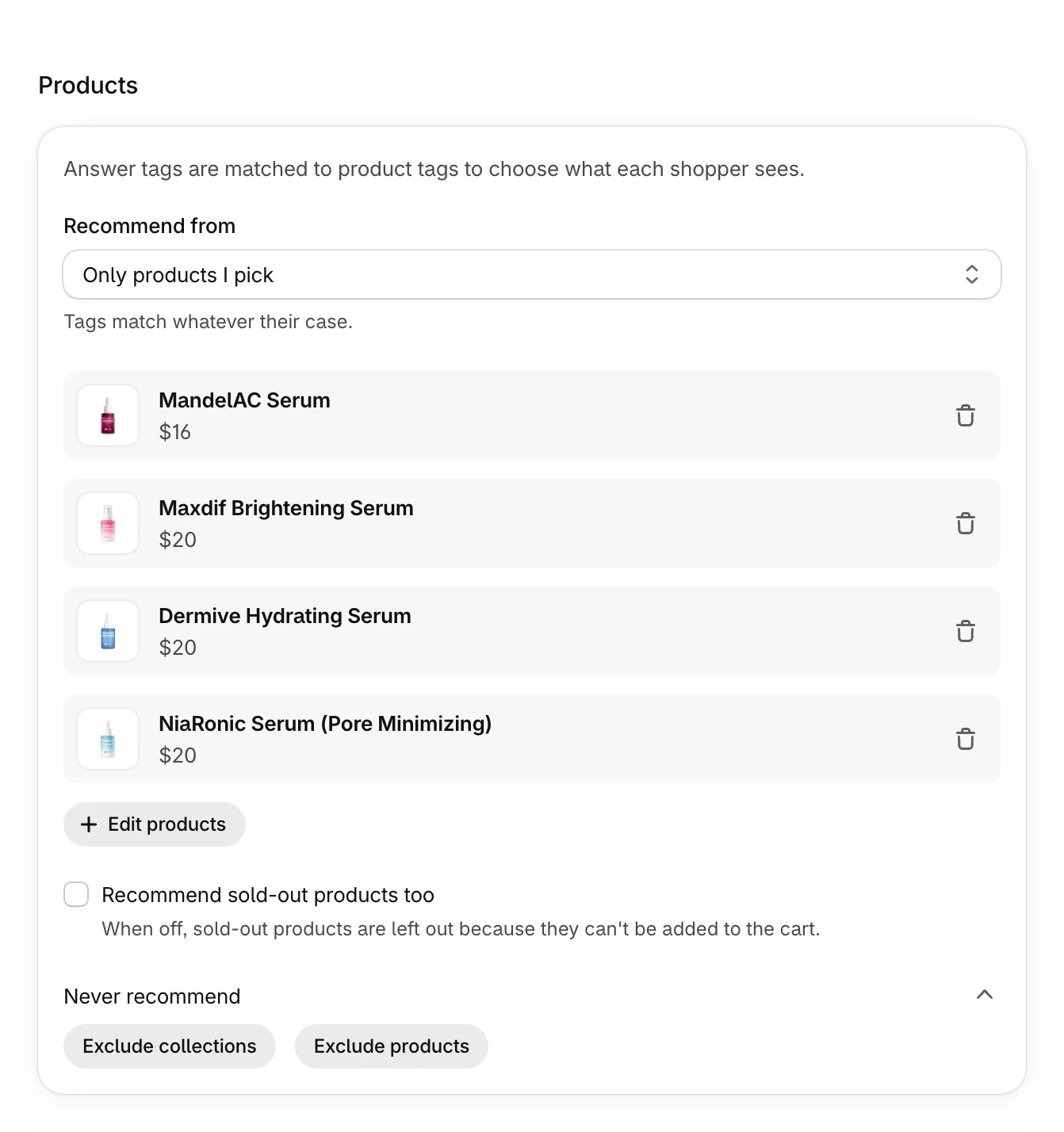
The quiz never shows excluded products, even when their tags match. The first three excluded collections are used.
Was this helpful?
More in Results and recommendations
- Set fallback productsChoose the products shoppers see when their answers match nothing, so no one leaves empty-handed.
- Set up the results pageChoose how results look, write their heading and button, and decide whether the button goes to the cart or checkout.
- Build a step-by-step setGroup results into ordered steps, such as a routine or a gift box, with tiers shoppers choose from and one button for the whole set.
- Offer a discount with resultsShow one of your store's discount codes with a quiz's results and apply it when shoppers add their products.