Start from a template
Pick one of four ready-made quizzes, or start blank, and see what each template sets up for you.
 Attravo TeamUpdated 2 min read
A template gives you a working quiz in one click: questions, answers with tags, an email step and a results page. You then change the wording, tags and products to fit your store, which is much faster than starting from nothing.
Use a template
- Open Quizzes and select Create quiz, or scroll to Start from a template at the bottom of the Quizzes page.
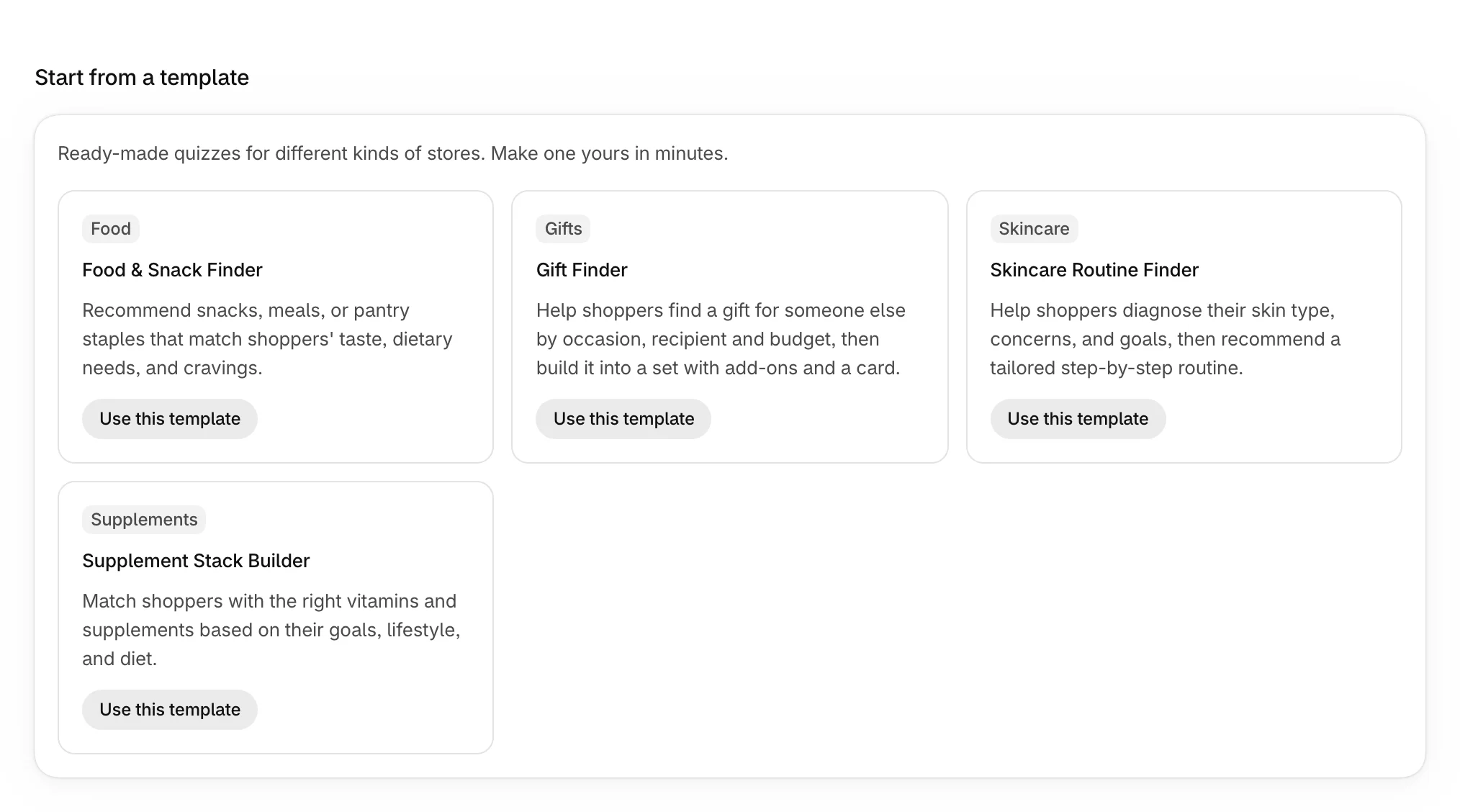
- Select Use template on a template, or Use this template on the Quizzes page.
The quiz opens in the editor as a draft named after the template. Its handle is the template's name with a short code, such as skincare-finder-muwgtz3q.
The four templates
| Template | Questions | Results |
|---|---|---|
| Food & Snack Finder | Five choice questions about cravings, timing, diet, allergens and flavors, then an email question. | A grid of four products, Your tasting box, curated, with Add picks to cart. |
| Gift Finder | Five questions about the occasion, the person, the budget, the style and extras, then an email question. | A step-by-step set: Main gift, Add-on, Card and Presentation, in three tiers: Simple, Classic and Premium. |
| Skincare Routine Finder | Five questions, with education boxes, a multiple choice, an icon carousel and an age range. Then an email step, Save your routine. | A routine in five steps, Cleanse to Protect, in three tiers: Starter, Complete and Pro. |
| Supplement Stack Builder | Five choice questions about goals, lifestyle and diet, then an email question. | A grid of four products, Your personalized supplement stack, with Add stack to cart. |
Every template starts in Modern light with the Inter font. If you set a brand color in Settings, a new quiz takes it for its accent and buttons. See Match your quiz to your brand.
Start blank
Under Or build from scratch, select Start blank. You get an Untitled quiz with no questions, set to show in every block you add.

Then add your questions. See Add and edit questions.
Make a template yours
Templates ship with tags such as acne or hydrating. A quiz can only recommend products that carry the same tags, so before you publish:
- Read each question's answers and their Tags. See Set up answers and tags.
- Add the same tags to the products in your Shopify admin, or change the answers' tags to ones your products already have.
- Choose your fallback products. See Set fallback products.
On the Free plan
The Free plan includes one quiz. Once you have it, creating or duplicating another opens Plans instead, and the Quizzes page says so.

Was this helpful?
More in Build your quiz
- Add and edit questionsAdd questions, choose their type, write them, and move, copy or delete them.
- Set up answers and tagsWrite answers, tag them to match your products, add education boxes and choose how answers look.
- Show a question only after certain answersAdd rules so a question appears only when earlier answers match, and skip the questions that don't apply.
- Preview your quizClick through your quiz with unsaved changes, on a phone or desktop, and see the results each set of answers gets.